How To Install RPM Packages On Ubuntu - Linux Start (original) (raw)
As a Debian-based distro, Ubuntu primarily uses .deb packages. Package formats from outside the Debian family such as .rpm are not supported by default. But there are ways to make them work on Ubuntu. In this article, we’ll cover the steps to convert and install rpm packages using a tool called Alien.
Step 1: Enable Universe Repo
The Alien package is stored in the Universe Ubuntu repo which is disabled by default. If you haven’t manually enabled it before, you can use the add-apt-repository script to enable it right now.
sudo add-apt-repository universeStep 2: Install Alien Package
Run apt update to make the packages from the just-enabled universe repo available through apt. It’ll also help ensure you get the latest available version of the Alien package.
sudo apt updateNow, install the Alien conversion tool with
sudo apt install alien Step 3: Convert RPM Package to DEB
An RPM package is a pre-configured file that is designed to work on a system with RPM libraries (e.g., Fedora). Alien will configure the file again so that it’ll work on a Debian-based system like Ubuntu.
Keep in mind that this step is optional and you can directly install the package without converting it too. But we’ll cover the conversion first as it’s useful for certain scenarios like creating a portable offline file.
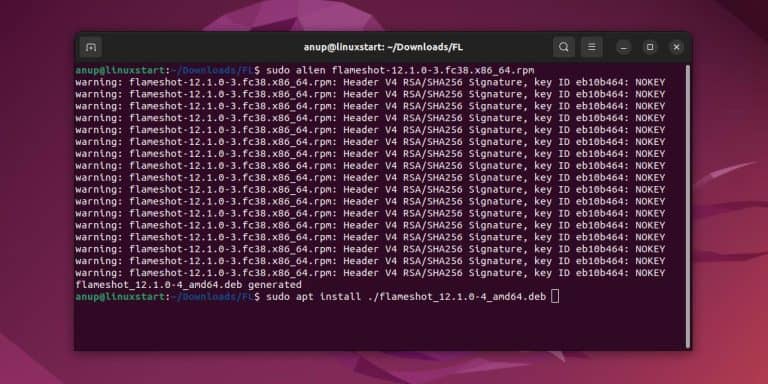
Simply enter the package name like so to convert it to .deb.
sudo alien flameshot-12.1.0-2.fc37.x86_64.rpmStep 4: Install the Package
Now, install the converted .deb package by specifying the file name with apt.
sudo apt install ./flameshot-12.1.0-2.fc37.x86_64.debIf you’re trying to directly install an RPM package, use alien with the install flag like so
sudo alien -i flameshot-12.1.0-2.fc37.x86_64.rpm