How To Use Ubuntu Workspaces - Linux Start (original) (raw)
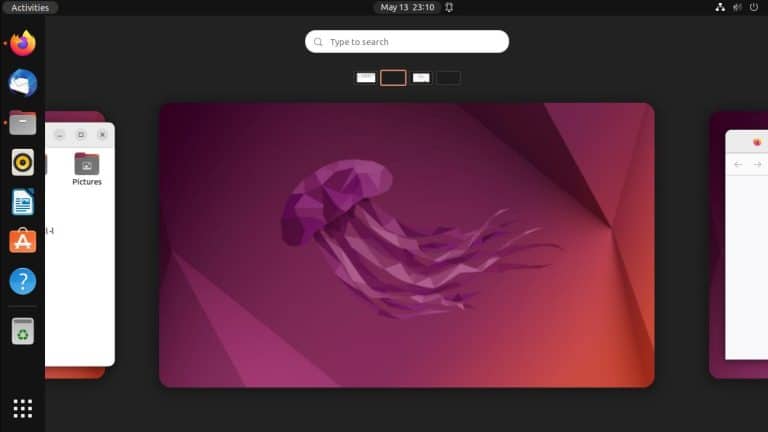
Ubuntu has supported workspaces for over a decade now. If you tend to have a lot of windows open when working, workspaces can immensely improve your productivity and overall experience.
However, Ubuntu doesn’t do a very good job of introducing workspaces to new users. The situation isn’t any better for experienced users either as Ubuntu doesn’t have any decent documentation on optimizing workspace usage.
So, we’ll explain what workspaces are in Ubuntu, their various use cases, and how you can use them to level up your workflow in this article.
What are Ubuntu Workspaces?
Workspaces are virtual desktops that you can use to organize your work into different spaces (thus work-spaces).
For instance, you could run an editing program on one workspace, open a bunch of file explorer windows and play music on the other, and have your browser and mail app open in the third.
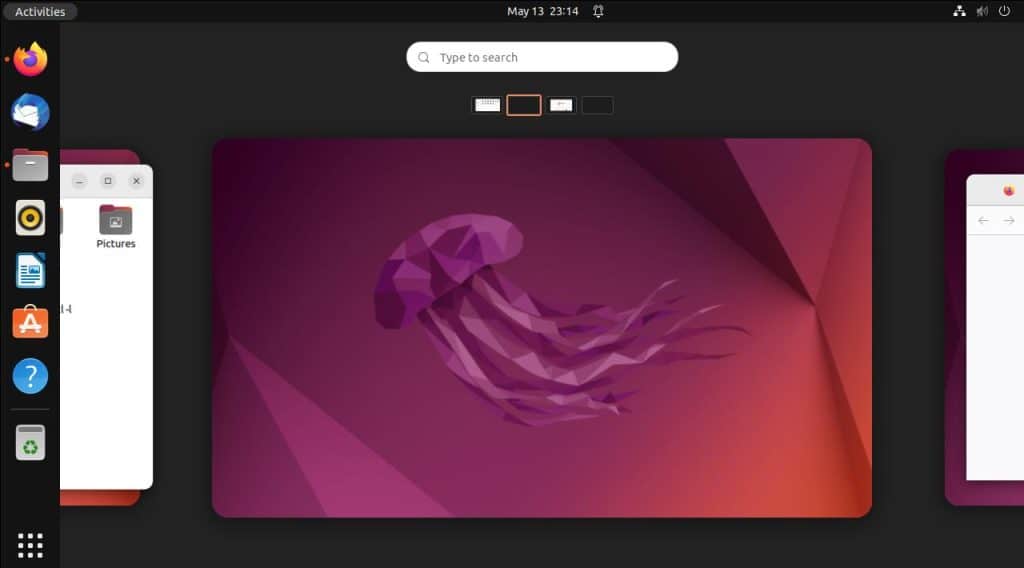
Alt-tab lets you get to a certain window as well, but with workspaces, your desktop is clutter free and the windows are much easier to manage and navigate through. Essentially, workspaces are like Alt-tab but better.
Using Workspaces on Ubuntu
As stated above, the main use of workspaces is grouping windows related to specific activities together. This lets you switch between tasks seamlessly.
But how do you actually ‘use’ workspaces? Well, let’s start with creating and removing workspaces.
- The first workspace is created at login and is always present.
- Pressing the Super key (once or twice) or pressing the Show Applications button takes you to the workspace selector.
- You can switch between workspaces using the arrow keys or your mouse.
- Dragging and dropping a window to the empty workspace adds a new one.
- You can also drag and drop to reorder the workspaces.
- If all windows are closed or moved from a workspace, it’s automatically removed.
Workspace Settings & Shortcuts
By default, Ubuntu uses dynamic workspaces which means you can add or remove workspaces as discussed earlier. But if you want, you can also set a fixed number of workspaces.
To do this, go to Settings > Multitasking.
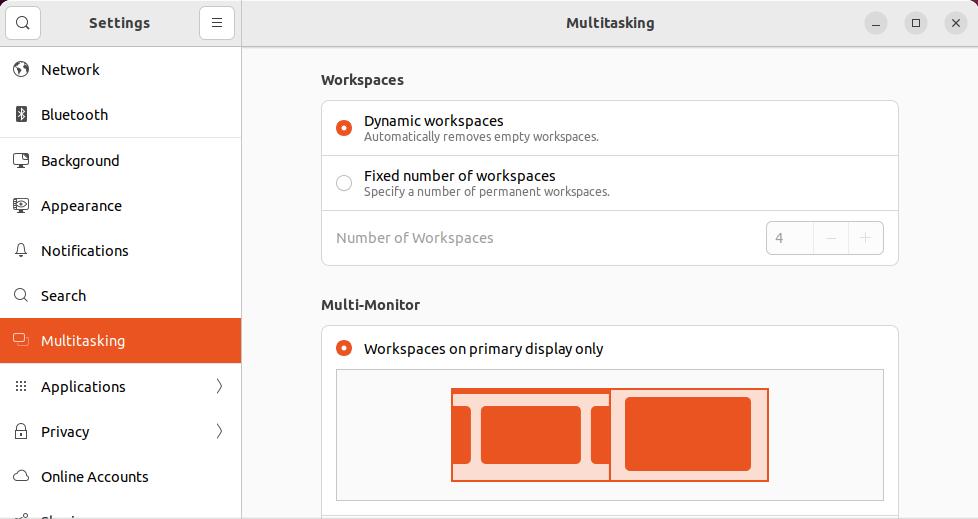
You can also configure other settings like workspaces on multi-monitor setups and application switching from here.
Next, you should go to Keyboard Shortcuts > View and Customize Shortcuts > Navigation.
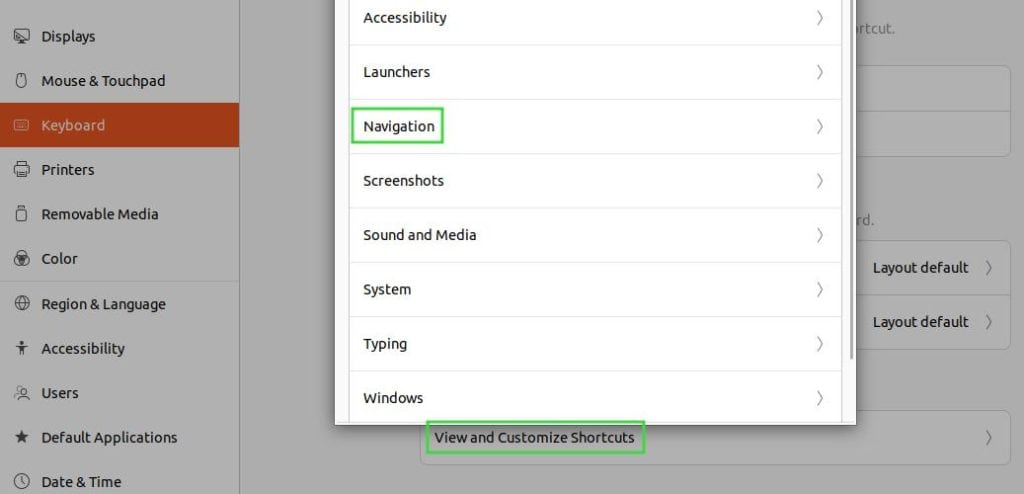
You can set a bunch of shortcuts for manipulating workspaces here from moving around windows to switching between workspaces. The default shortcuts are shown below.
| Keys | Function |
|---|---|
| Super + Page Up | Switch to workspace on the left |
| Super + Page Down | Switch to workspace on the right |
| Shift + Super + Page Up | Move window one workspace to the left |
| Shift + Super + Page Down | Move window one workspace to the right |
| Shift + Super + End | Move window to last workspace |
| Shift + Super + Home | Move window to workspace 1 |
| Super + End | Switch to last workspace |
| Super + Home | Switch to workspace 1 |