How To Remove Snap From Ubuntu - Linux Start (original) (raw)
Canonical has been heavily pushing snaps in Ubuntu these last few years, and this has left users divided. Proponents love the convenience, larger selection of programs, and features that snaps bring while critics argue that snaps are closed-source, slower, heavier, and unreliable.
Snap is a work in progress and is constantly being improved. But some of the concerns are definitely valid. If you want to uninstall certain snaps, or remove snap entirely from your system, this article will be helpful.
Uninstall Snap Packages
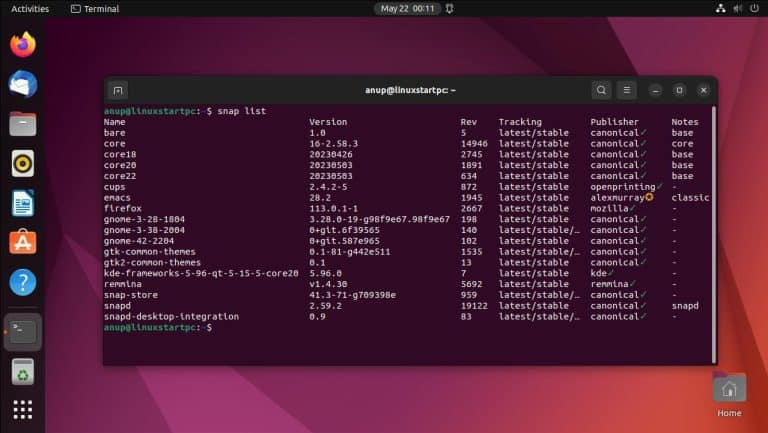
First, list the currently installed snaps with
snap listSpecify the package name to remove the package. For e.g.,
sudo snap remove discordYou can remove whichever manually installed snaps you dislike with this method. For most users, I recommend stopping there.
Snap is useful for installing certain programs not available through any other means (e.g., acrordrdc – Adobe Reader).
Removing snap means you’ll need to find alternatives to commonly used packages such as Firefox or the Snap Store. As it’s being increasingly integrated into Ubuntu, you may have to find alternatives to a lot more things in future Ubuntu versions.
Essentially, removing snap is easy and safe for now, but you should understand how it may affect your system in the long term before proceeding.
Remove Snap Completely
First, list the snaps and remove all the manually installed ones as explained in the previous section. Once only the default snaps remain, proceed further.
Remove Default Snaps
Now, you can remove the default snaps in the order shown below. This order will prevent any dependency errors.
sudo snap remove --purge firefox
sudo snap remove --purge snap-store
sudo snap remove --purge gnome-3-38-2004
sudo snap remove --purge gnome-42-2204
sudo snap remove --purge gtk-common-themes
sudo snap remove --purge gtk2-common-themes
sudo snap remove --purge snapd-desktop-integration
sudo snap remove --purge bare
sudo snap remove --purge core20
sudo snap remove --purge core22
sudo snap remove --purge snapd
Cleanup Snap Files
If you want, you can confirm that you removed all the snaps by using snap list again.
Afterward, manually delete any remaining files using
sudo rm -rf /var/cache/snapd/Finally, remove the snapd package and any leftover files with
sudo apt autoremove --purge snapdIf any files still remain, manually delete them.
sudo rm -rf ~/snapEnsuring Snap Doesn’t Reinstall
You can mark the snapd package as held back to prevent it from being automatically installed.
sudo apt-mark hold snapdYou should also create an apt preference file and set the priority to a negative integer (P < 0). This’ll prevent the specified versions (any snapd versions in our case) from being installed.
sudo nano /etc/apt/preferences.d/snap-prefUse the following config and save the file.
Package: snapd
Pin: release a=*
Pin-Priority: -1
Update your package index afterward to implement the changes.
sudo apt updateAlternatives to Snap Software
As mentioned earlier, the Snap Store and Firefox are two popularly used snaps that ship by default with Ubuntu. You can easily reinstall the Software Center with apt like so
sudo apt install --install-suggests gnome-softwareFirefox is a bit more complicated. You can always try out alternatives like Google Chrome. But if you’d prefer to stick to Firefox, you can use the MozillaTeam PPA.
First, ensure Firefox isn’t currently installed with
sudo apt purge firefoxNow, create another apt preference file to ensure a snap version of Firefox doesn’t get installed.
sudo nano /etc/apt/preferences.d/firefox-snap-prefThis time, we’ll set all Ubuntu* releases of Firefox (i.e., the snap versions) to negative priority.
Package: firefox*
Pin: release o=Ubuntu*
Pin-Priority: -1
Once that’s done, add the official MozillaTeam PPA.
sudo add-apt-repository ppa:mozillateam/ppaCreate one more preference file for Firefox.
sudo nano /etc/apt/preferences.d/firefox-ppa-prefThis time, we’ll set the Firefox packages from the PPA to the highest priority.
Package: firefox*
Pin: release o=LP-PPA-mozillateam
Pin-Priority: 501
Finally, update your package index and install Firefox.
sudo apt update && sudo apt install firefox