How To Upgrade Linux Kernel - Linux Start (original) (raw)
Kernel upgrades usually come with a bounty of benefits for your Linux system. These can include efficiency improvements, security patches, bug fixes, and new drivers.
Upgrading to a new Linux kernel is easy. Here’s how to do it.
Upgrade the Linux Kernel Automatically
If your PC is running a popular distro such as Debian, Ubuntu, or Manjaro, and you haven’t manually swapped out the standard kernel for a different one, kernel upgrades will be taken care of automatically.
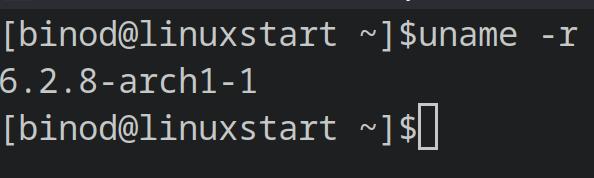
uname -r
If kernel updates or upgrades are available, you will most likely be notified of available updates by a a GUI notification on your desktop, telling you that updates to your system are available.
The notification won’t specifically tell you that the updates are to your kernel, but you can check the kernel version before and after the update process by entering:
uname -rinto any terminal.
You can trigger an upgrade through the terminal on Ubuntu and Debian with:
sudo apt update && sudo apt upgradeOn Fedora:
sudo dnf upgradeOr on Arch-derived distros:
sudo pacman -SyuManually Update the Mainline Linux Kernel
If you’re running a custom kernel on your Linux system, visit the kernel.org to check the latest kernel version.
There should be several longterm kernel releases listed, along with the latest stable version and a few release candidates.
Unless you’re a developer, or don’t mind some system instability you should avoid release candidates.
Choose between the latest stable version and the longterm support options, and take a note of the relevant version number.
Update the Mainline Kernel on Ubuntu
Head over to the Ubuntu Mainline kernel PPA website, and look for the version number of the kernel you want to use.
The latest kernels will be at the bottom of the page, but you can sort by “last modified” to make your preferred kernel easier to find.
Click on the name of your kernel to open a the folder.
In here there are several files and folders. Open the folder that corresponds to your system architecture. For most people, this will be “AMD64”.
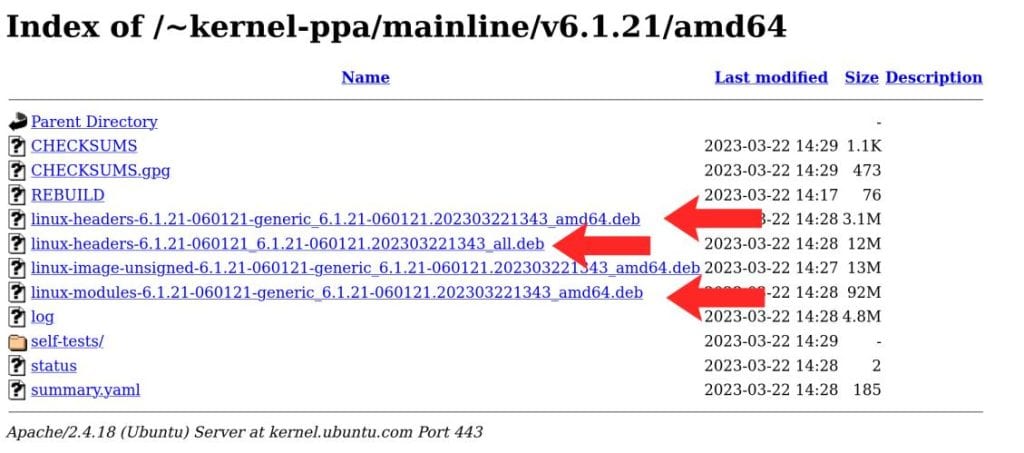
You’ll need to download three files to a new directory on your drive. These are:
- The generic header file. eg: linux-headers-6.1.21-060121-generic_6.1.21-060121.202303221343_amd64.deb
- The generic modules file. eg: linux-modules-6.1.21-060121-generic_6.1.21-060121.202303221343_amd64.deb
- A third file which contains “all” in the filename. eg: linux-headers-6.1.21-060121_6.1.21-060121.202303221343_all.deb
In your terminal, use the cd command to navigate to the location where you saved the deb files:
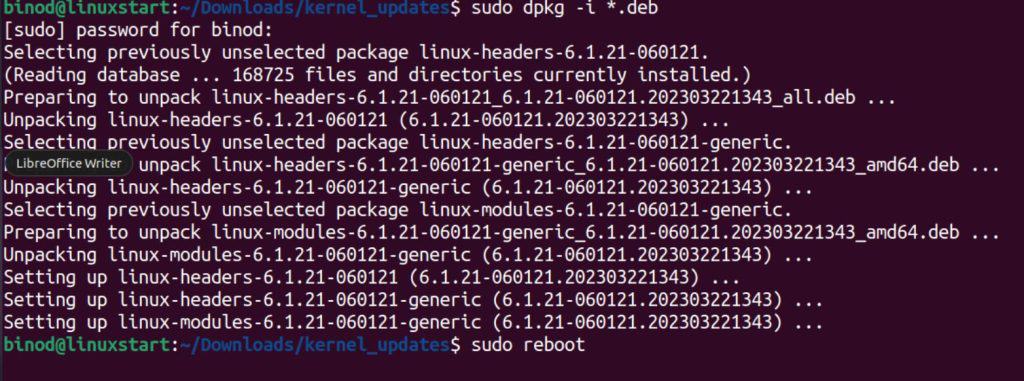
cd ~/Downloads/kernel_updatesNow use the dpkg tool to install them:
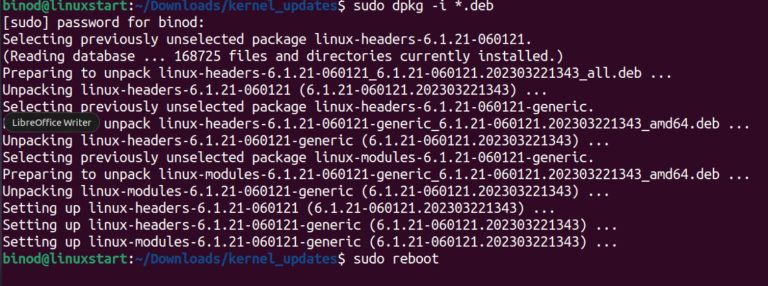
sudo dpkg -i *.debThe installation process may take a few minutes, so don’t worry. When it’s complete, rebbot your system:
sudo rebootOpen a new terminal and again enter
uname -rYou should see your new kernel version
Update the Mainline Kernel on Fedora
Fedora keeps its mainline kernel builds in a different location. Visit the kernel web page, and click on a link for the kernel you want to use.
The page will be divided into sections by architecture. Most users will need files from the x86_64 section.
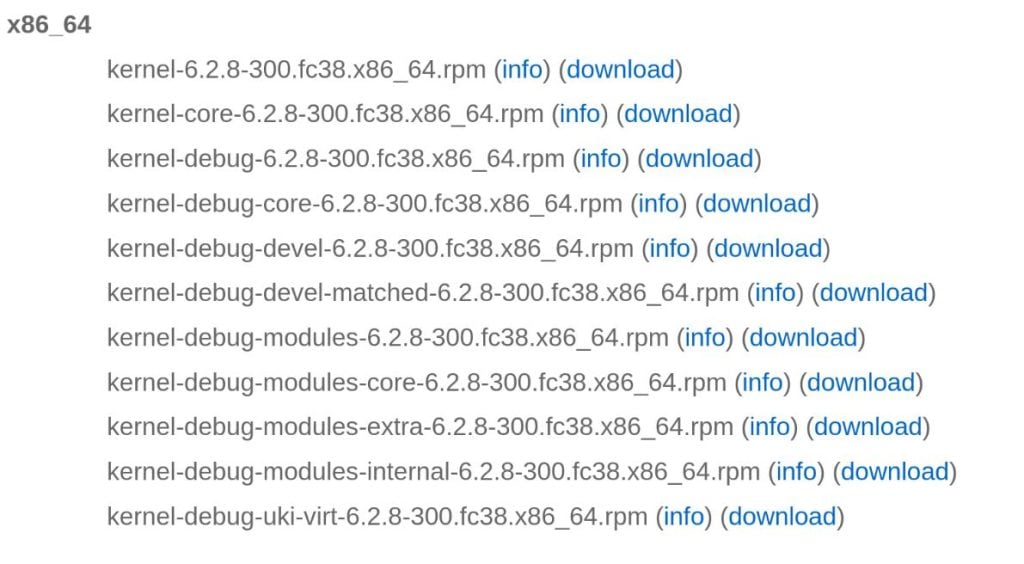
You’ll need to download the following rpm files to a new directory.
- kernel
- kernel-core
- kernel-headers
- kernel-modules
- kernel-modules-extra
- kernel-tools
These are the basenames, and the actual actual filenames will vary based on which kernel you’ve selected. For instance, “kernel-6.2.8-300.fc38.x86_64.rpm”.
In your terminal, use the cd command to navigate to the location where you saved the rpm files:
cd ~/Downloads/kernel_updatesNow use the yum to install them:
yum --nogpgcheck localinstall *.rpmWhen you reboot your system, your new kernel will be in use!
Updating the Linux Kernel Is Easy!
Updating from the standard kernel to a new one only takes a few minutes and can be done by anyone with a basic knowledge of the command line. If you decide you don’t like your new kernel, it’s simple to revert to an older one.