7 Brave Browser Features for a Better Browsing Experience (original) (raw)

Published Sep 30, 2023, 8:31 AM EDT
As a tech enthusiast, Vinayak has covered the latest innovations, tech trends, and product updates across various platforms since 2017.
He is currently an Author at MakeUseOf, where he delves into topics like emerging technologies, browsers, and security. He formerly also contributed to notable platforms, like How-To Geek.
With a degree in film direction and project management, Vinayak brings a unique blend of creativity and organizational skills to his work. Outside of his professional endeavors, Vinayak enjoys a diverse range of interests. When he's not working, you can find him watching movies, biking through scenic routes, or simply unwinding with his favorite music.
If you’re tired of seeing ads for something you looked up online, it may be time to switch to Brave browser. While Brave is a privacy-focused browser, it, in fact, incorporates several thoughtful features that can significantly improve your browsing experience.
If you’re considering trying out the browser, these tips and tricks will help you get the most out of Brave’s features right from the start.
1. Speedreader Mode

No Attribution - Screenshot by Vinayak Guhanarayan
For a more focused reading experience while you are browsing the web, start using Brave’s Speedreader. This innovative feature presents content on webpages in a simplified, reader-friendly format, stripping away unnecessary, distracting elements.
While other browsers have reader modes that do something similar, the difference, in the case of Brave, is that the content is modified before the webpage loads rather than after. This allows for quicker loading times and saves your data.
Enabling Speedreader on Brave is fairly straightforward. All you need to do is launch the browser, click the hamburger icon on the top-right side of the page, and select Settings from the drop-down menu. Then, click Appearance and toggle the switch beside Speedreader.
Once you’ve enabled the Speedreader mode, content that can be displayed in a cleaner format will load accordingly. You can turn off the Speedreader any time you want as well. This is a great way to prevent distractions and make the time you spend online more efficient and enjoyable.
2. Brave News
Brave News sets up a customizable news feed that’s curated for you from the sources you select. All you need to do to access this feed is launch your Brave browser or open a new tab and scroll down; relevant news updates will be populated in a single feed.
The feed automatically updates throughout the day, so you don’t have to browse different news websites for real-time updates. More importantly, Brave News does not track what you read, follow, or click. It’s essentially a private newsreader that you can customize according to your preferences.
So, whether you’re interested in getting the latest sports news or entertainment updates, all you need to do is customize your Brave News feed to stay up-to-date.

No Attribution - Screenshot by Vinayak Guhanarayan
If you need a break from social media, Brave has your back. A number of websites these days allow you to log in and browse the page using your Gmail or Facebook account. However, this allows embedded social media posts to show up while you are browsing. If you want a social media detox, this can understandably get pretty annoying.
The good news is that Brave allows you to block these posts. To do this, you’ll need to launch Brave and navigate to the Settings page through the hamburger icon located on the top-right side of the browser. Then, select Social media blocking from the left pane. On the redirected page, you can disable sign-ins/log-ins and embedded posts.
You can enable social media posts in the future using the same settings. This is one of the many ways you can customize your security and privacy using Brave.
4. Brave Rewards Program
Brave Browser blocks ads while you’re browsing by default. However, if you decide to enable ads, Brave lets you earn tokens called Basic Attention Tokens, or BAT. The best part about the Brave Rewards program is that you get to choose what kind of ads you want to see. So, for instance, you can choose to view push notifications or ad cards in your Brave News feed.
You can use the BAT you earn to support content creators and websites. Alternatively, you can choose to exchange it for cryptocurrency using Brave Wallet or purchase gift cards. Even if you enable ads, you have the choice to stop participating in Brave Rewards at any time. In this case, you’ll stop seeing ads while you browse.
5. Default Search Engine
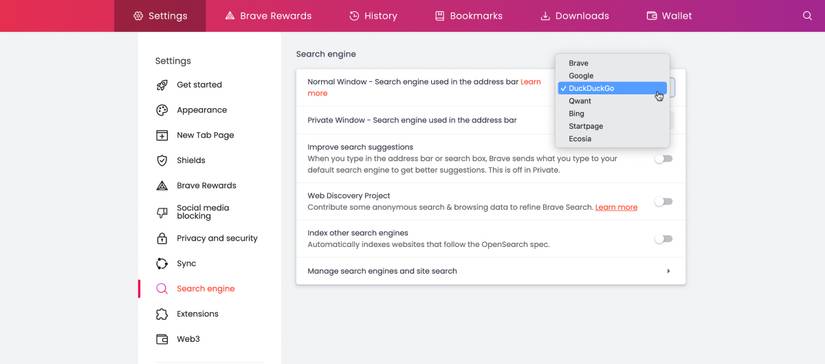
No Attribution - Screenshot by Vinayak Guhanarayan
By default, Brave uses its own privacy-focused search engine. However, users are given the option to switch to other search engines like Google and DuckDuckGo, among others. So, for instance, if you want to enjoy enhanced privacy, you could switch to DuckDuckGo.
However, if you want access to Google's unparalleled search capabilities and real-time updates, you can use Google Search instead. The good news is that you can easily switch search engines through Brave’s Settings.
6. Brave Talk
While there are plenty of video conferencing tools that you can use for virtual meetings, you shouldn’t have to compromise your privacy during these calls. Brave Talk, a built-in video conferencing tool from Brave, is a great option for people who want to have unlimited, private video calls at any time.
This feature can be used for calls with up to four people. If you want to add more than four people to your calls, you’ll need to sign up for Brave Talk Premium, which costs $7 a month. That said, most people will find that the free version, with its browser-based functionality and unlimited call duration capability, suits their needs just fine.
7. Brave Sync

No Attribution - Screenshot by Vinayak Guhanarayan
If you’d like to access your browsing data seamlessly across devices, Brave Sync is a great tool to use. This feature syncs your browsing data in such a way that you’ll have access to the same browsing history, bookmarks, and all other types of data, regardless of the device you use. It also makes it easy for you to access any changes to your data settings across devices.
To enable Brave Sync, all you need to do is navigate to the Settings page through the hamburger icon located on the top-right side of the browser. Then, click on Sync, which you’ll find on the left pane. Keep in mind that to get started with Brave Sync, you’ll need to have Brave installed on all your devices.
At a time when privacy- and security-related issues are becoming increasingly common, Brave’s features can help you craft a secure browsing experience for yourself. What’s more, using the above-mentioned tips will help you leverage Brave's built-in tools to customize and stay in control of your browsing environment.