Use Phone Link to Sync Your Android or iPhone to Your Windows Computer | Microsoft (original) (raw)
- For Android users
- For iOS users
2.
Select ‘Android’ and scan the QR code to complete setup.
3.
Customize notification preferences.
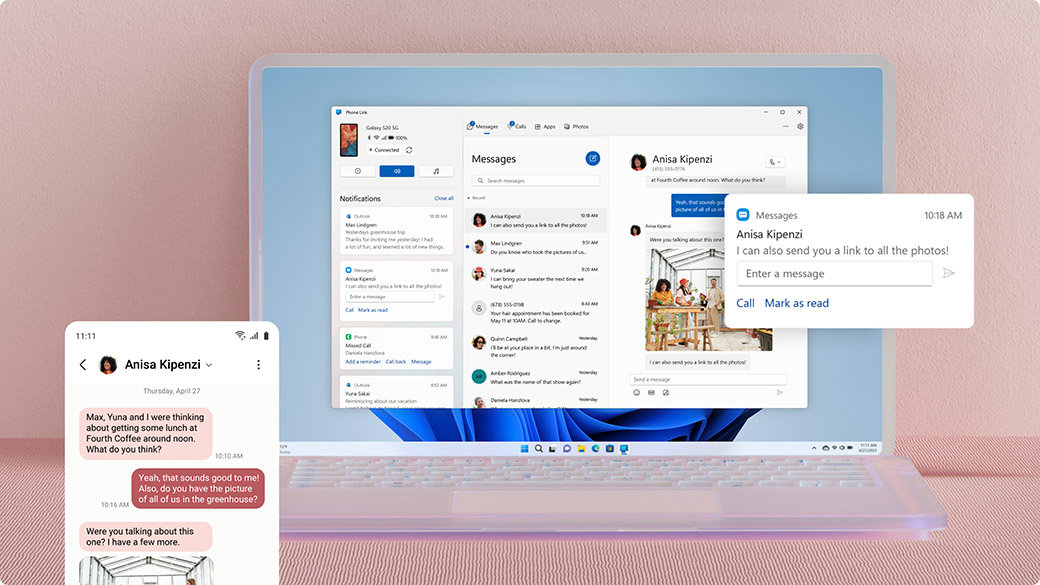
Keep up with your chats
Now there’s no need to unlock your phone. Microsoft Phone Link enables you to read texts and respond directly from your PC. Launch Phone Link
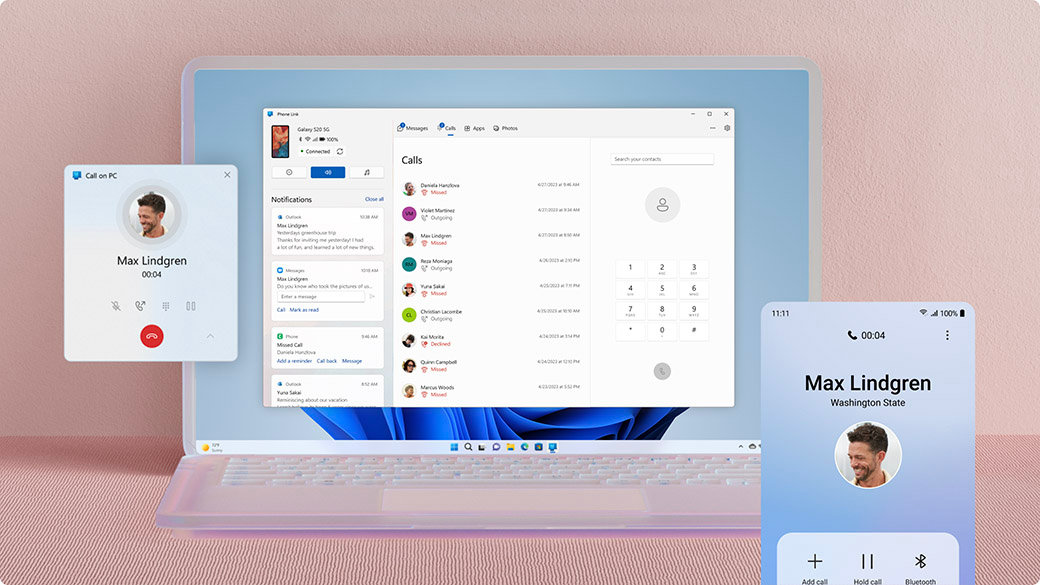
Take and make the call
Review your call history, search contacts, or dial to make calls—from your Windows computer. Launch Phone Link
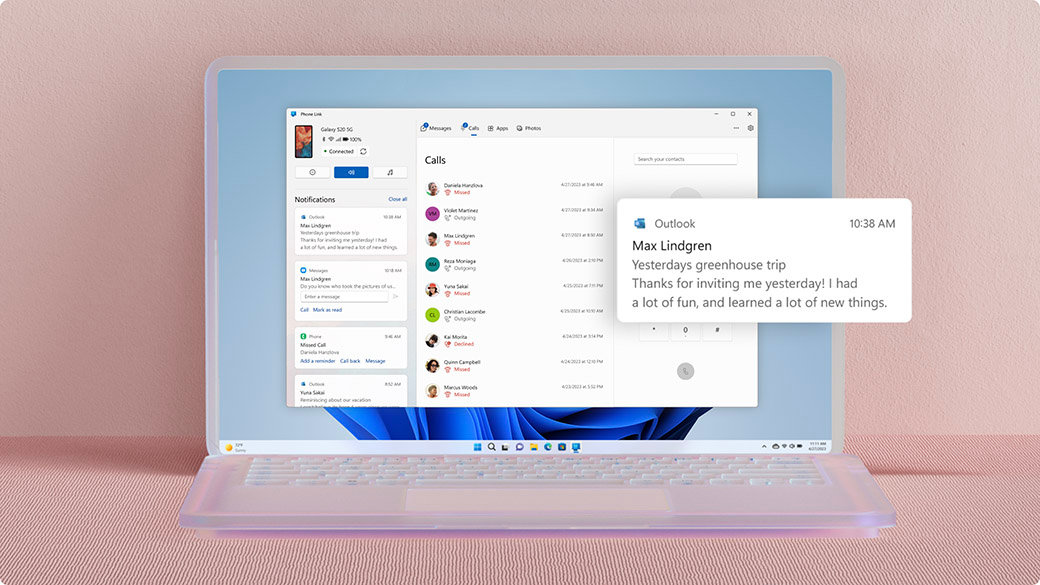
Stay on top of your notifications
Check, pin, and dismiss notifications. Microsoft Phone Link lets you customize banner alerts to your preferences. Launch Phone Link
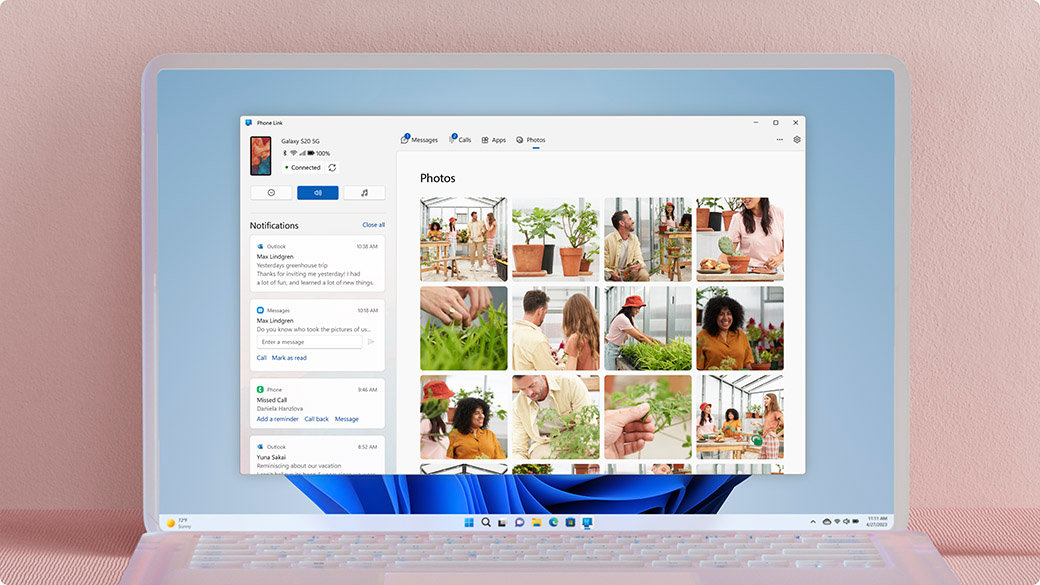
Share your Android’s photos
View the last 2,000 images from your camera roll, and drag and drop or copy and paste them into other apps. Launch Phone Link
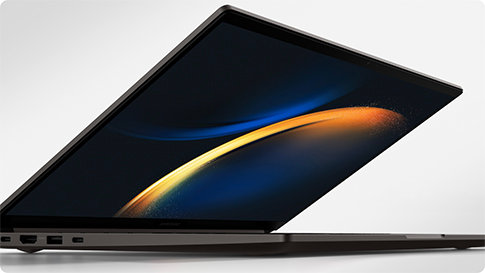
Galaxy Book3 Ultra
This Galaxy Book3 Ultra easily goes wherever you go. This portable and thin profile unfolds to reveal a wide workspace, complete with a narrow bezel to maximize the screen-to-body ratio.1
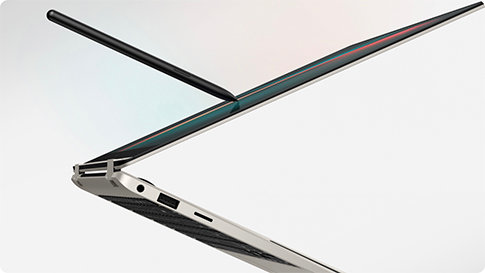
Galaxy Book3 Pro 360
Galaxy Book3 Pro 360 5G features built-in, industry-leading 5G wireless technology so you can stay connected anywhere, even off the grid without Wi-Fi.2
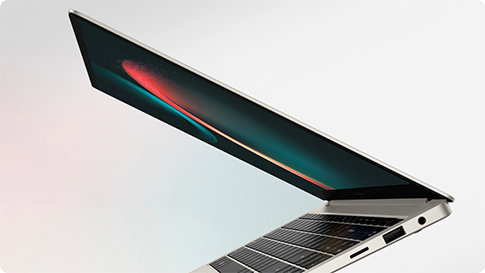
Galaxy Book3 Pro
Introducing Galaxy Book3 Pro. The thinnest and lightest laptop in the Galaxy Book range with smartphone-like mobility.3

Discover the all-new Samsung Galaxy series
Ultra slim and premium look designed to give you the freedom to move with its leading chipset performance, expandable storage, and enhanced continuity.
Microsoft Phone Link replaces the Your Phone Companion app and allows you to filter your notifications, receive calls, and use your mobile apps on your PC.4 5 6 7 With an updated design for Windows 11, Phone Link is reaching customers around the world.
The Phone Link experience will come preinstalled on your PC with Windows 10 or Windows 11, simply search “Phone Link” in Start menu. If you are on Windows 10 and cannot find Phone Link, you may need to update to a later version of Windows 10 or download Phone Link directly from the Microsoft Store.
From your PC, you can connect to Android and select Samsung and HONOR devices with these two apps:
- Link to Windows (LTW) app for most Android devices.
- Link to Windows (LTW) app preinstalled on select Samsung and HONOR phones.
- You’ll see the name Link to Windows in the Google Play Store and in the Galaxy Store. In the Microsoft Store, you’ll see Phone Link. This link between your device and PC gives you instant access to everything you love. Read and reply to messages with ease, view recent photos from your Android device, use your favorite mobile apps6, make and receive calls, and manage your Android device’s notifications right on your PC.4 5
- Phone Link requires the following to work:
- A PC running Windows 10 May 2019 Update or later.
* If you're currently running the May 2019 Update, you will need to install the Phone Link app from the Microsoft Store. Any Windows version after the May 2019 Update will have the app preinstalled. - An Android device running Android 7.0 (Nougat) or above.
- A PC running Windows 10 May 2019 Update or later.
You'll find Phone Link preinstalled if you have the Windows 10 October 2019 Update or later. When you open the app, you'll be guided through a few extra steps you'll need to take to finish setting things up.
Phone Link connects to your Android phone via Wi-Fi, mobile data network, or instant hotspot8 9. For easy connection over Wi-Fi, make sure to have both your PC and Android device nearby, turned on, and connected to the same network. You’ll be able access its functionalities from your PC as long as both devices are online. You’ll need to download the Link to Windows app for most Android devices. You can find this at the Google Play Store.
If you have select Samsung or HONOR phones, you may already have the Link to Windows app preinstalled. If not, you can find the app from the Google Play Store or Galaxy Store.
If you start from your Windows PC:
- In the search box on the taskbar, type Phone Link, and then select Phone Link app from the results.
- Select Android.
- You’ll be asked to sign into your Microsoft account (you'll need to be signed into the same Microsoft account on both your Android device and PC in order to link your devices.)
- Once you're signed in, you'll be prompted to install or open the companion app on your Android device. To do this, open a web browser on your Android device and then enter the link that's displayed on your PC (aka.ms/yourpc).
- Sign into the companion app with the same Microsoft account that you're signed in to on your PC. The app will then open to a screen that displays a QR code for you to scan—we'll come back to that.
- Once you've signed in, go back to your PC and select the I have the Link to Windows app installed on my phone check box. Then select the Pair with QR code button.
Note: If you'd like to pair your device without using a QR code, select the Pair manually button on your PC instead. On your Android device, you'll be prompted to enter the code displayed on your PC. - A QR code will appear on your PC screen. On your Android device, the companion app should be open to a screen with a camera on it. Use this screen to scan the QR code that's displayed on your PC.
- Once your devices are linked, your Android device will prompt you for several device permissions. These permissions help you access content from your phone on your PC.
If you start from your Android device:
- Open a browser on your Android device, type aka.ms/yourpc in the browser, and then download the Link to Windows app. For select Samsung devices.
- You'll be prompted to open Link to Windows instead, which is preinstalled on your Android device.
- Sign into the companion app with the same Microsoft account you're signed into on your PC (you need to be signed in with your Microsoft account on your PC in order to link your devices even though you're starting from your phone).
- After signing in, you'll be prompted to scan a QR code that's displayed on your PC. To get to it, on your PC, open a browser to aka.ms/linkphone.
- Use the companion app's camera to scan the QR code that's displayed on your PC with your Android device to link your devices.
- You'll be asked for a series of device permissions to allow you to access content from your phone and on your PC.
If you encounter issues installing the app, troubleshoot them here.
You can use Phone Link to complete convenient smartphone tasks from your Windows PC, such as:
- Make and take phone calls on cellular networks (this will require your phone to be paired to your PC).4 5 8 9
- View your photo gallery (up to your most recent 2,000 pictures and screenshots from your camera roll and screenshots folder).4 5
- Write and reply to SMS text messages, send photos, emojis, GIFs, and media content.4 5
- Message history and group chats.4 5
- Your phone’s contact list when you search for names or phone numbers.4 5
- View, dismiss, pin, or clear all notifications. (You can also manage which apps have notification privileges).4 5
- Put your phone into “Do Not Disturb” mode.4 5
- Mute your phone if sound is playing from it.4 5
- Play, pause, and skip songs that are “now playing” (like if you have Spotify or another music player open on your phone).4 5
- See battery percentage, if Bluetooth is on, current Wi-Fi network connectivity, current mobile data network and strength.4 5 8 9
Sometimes your phone needs to charge more before you go out. Phone Link enables you to still use it with your PC while it’s plugged in and by the outlet. Or perhaps you’re in a meeting and having your phone out will look unprofessional. Phone Link will give you a heads up of any important calls you need to take or texts you need to see.
Phone Link gives you the added versatility of being able to access and transfer information from an extra device. Instead of looking away from your screen and pulling out your phone to see notifications, it’s a notification on your PC, increasing the chances your attention stays focused on what you need to do.
In addition to browsing, you can also drag and drop them from Phone Link into open message windows or PowerPoint presentations. You can save them to any folder on your PC or your OneDrive for backing up. You can share the files to your contacts and you can delete them.4 5
Simply go to Settings > My Devices in Phone Link on your PC and remove your linked device from the list. You can relink at any time. When pairing is removed, your personal content does not remain anywhere on your PC.
Go to Settings > Features in Phone Link on your PC. It’s there you can customize options like which apps can send notifications to you. Removing permissions for a feature will also disable the feature.
If you have Windows 11, Phone Link will come preinstalled.
If you have Windows 10, it must run Windows 10, May 2019 Update at the least.
Your phone must be running Android 8.0 (Oreo) or later. To guarantee optimal compatibility and performance, we strongly recommend using Android 10 (Q) or newer.
Phone Link help & learning
Troubleshoot issues, receive tech support, and learn how to get the most out of device syncing.
Meet Windows 11
Faster, more powerful, and more intuitive. That’s Windows 11. Discover how you can unlock greater productivity and creativity with Windows 11. Devices with Windows 11 also have the Phone Link app preinstalled.
Tips & tricks
Android users with Windows 10 and 11 can use Phone Link. Customize individual app settings to get the most out of your devices.
- 1 Color availability may vary depending on country.
- 2 Requires optimal 5G connection. 5G services are only supported in 5G network enabled locations. Actual speed may vary depending on country, carrier, and user environment.
- 3 US Military Standard compliant (MIL-STD-810G).
- 4 To experience the full functionality, mobile phones must be running Android 7.0 or later.
- 5 Microsoft Phone Link and PC both need a Wi-Fi connection, or you can give permission for the app to use your mobile data.
- 6 Apps is available on Android devices in select markets running Android 9.0 or greater that have Link to Windows installed and for Surface Duo 2 running Android 11.0 or greater.
- 7 Recent apps is available on select Android devices running Android 9.0 or greater with OneUI 3.1.1. or higher.
- 8 Requires Samsung device with One UI 4.1.1+ and SIM card with hotspot capable plan. PC must have both Wi-Fi and Bluetooth adapters.
- 9 Requires Windows 11, version 22H2 Build 22621 and higher, Phone Link desktop app in version v1.22082.111.0 or greater, and Link To Windows phone app (preinstalled on Samsung devices) in version v1.22082.142.0 or greater.