Design Patterns and Video Games (original) (raw)
Discover Python and Patterns (13): Sprites
In this post, I propose to replace the rectangle in the previous program with a tank sprite, using a tileset.
This post is part of the Discover Python and Patterns series
Tileset
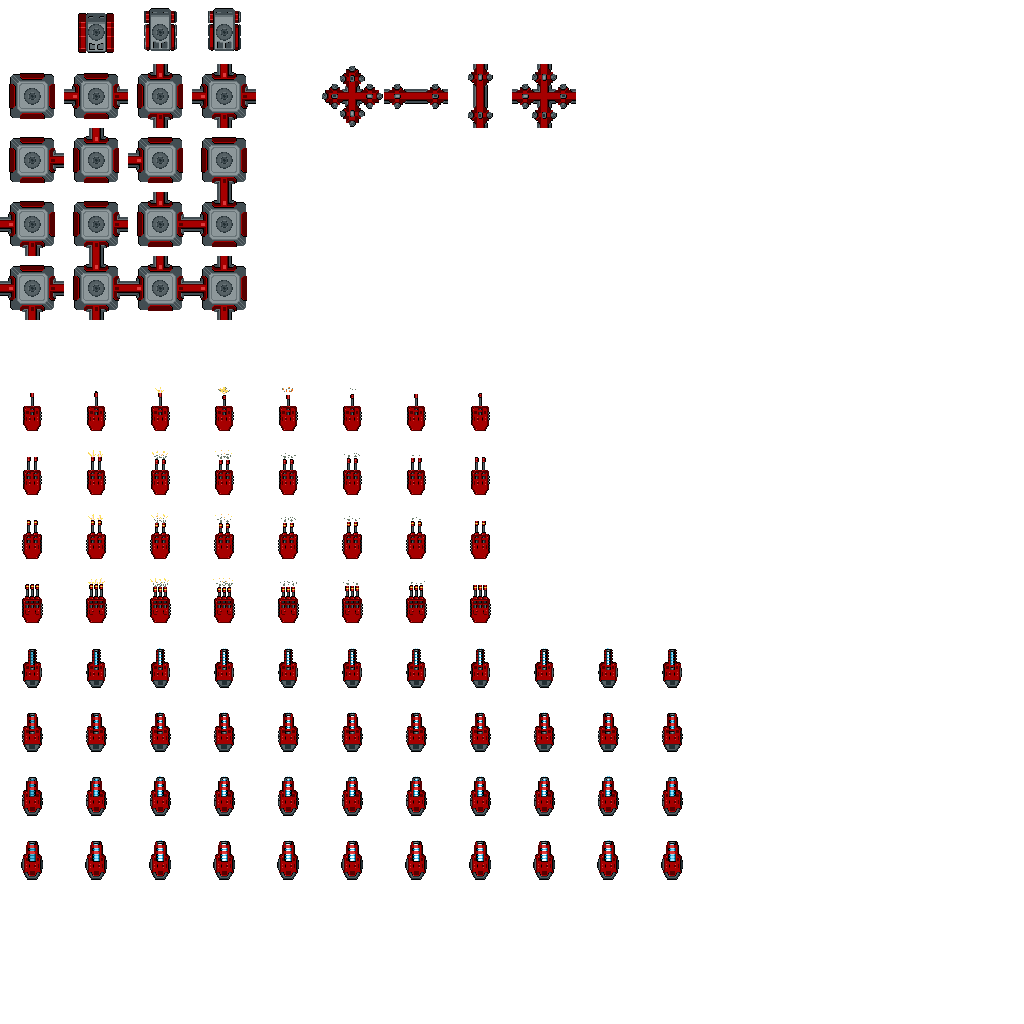
I wish to create a "tank battle" game, so I looked for free game assets containing tank tilesets. You can found many on itch.io. I selected this one: zintoki.itch.io/ground-shaker, created by zintoki. I selected all the sprites I need and gathered them into a single image:
To load an image with Pygame, we can do as before with the pygame.image.load()function:
unitsTexture = pygame.image.load("units.png")Draw a sprite from a tileset
To draw a sprite from a tileset, we need to select the area in the tileset with the sprite, and copy it at any location on the screen:
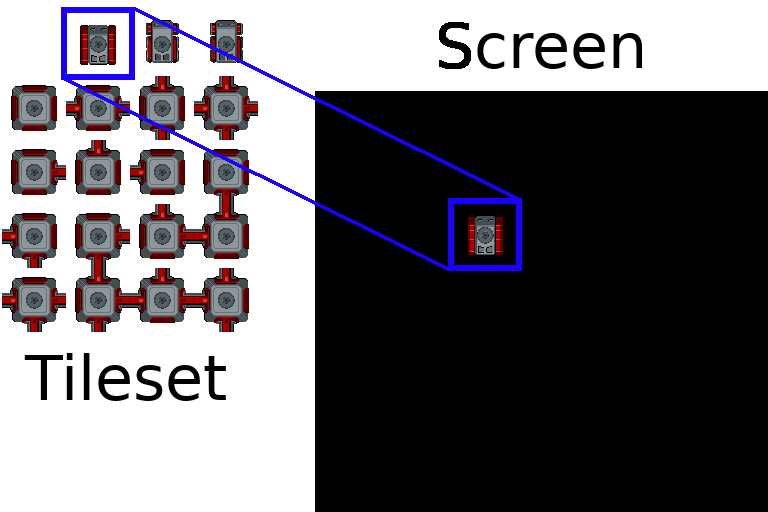
Any instance of the pygame.Surface class can do this copy using the blit()method. We can obtain such a surface when we create a window:
window = pygame.display.set_mode((256,256))This method has three arguments: the tileset image, the location in the surface (the screen in the case of the window), and the rectangle in the tileset.
We can represent locations using tuples (x,y), but I will use instances of the pygame.math.Vector2 class because it has many nice features:
location = pygame.math.Vector2(x,y)Pygame represents rectangles with instances of the pygame.Rect class:
rectangle = pygame.Rect(x,y,width,height)x and y are the coordinates of the top left corner and width and height the width and height of the rectangle.
Then, the blit() method can be used, for instance:
window.blit(unitsTexture,location,rectangle)location is the location of the sprite in the surface (screen), and rectangle is the area in the unitsTexture tileset.
Draw a tank sprite
For the case of our tank tileset, all sprites are width = 64 per height = 64 pixels. Furthermore, to select the tank in the first line and second column, the top left coordinates are: x = 0 and y = 64. The rectangle is then:
textureRect = pygame.Rect(64, 0, 64, 64)If we want to display the tank near the center of a window of 256 per 256 pixels, we need a rectangle at coordinates x = 96 and y = 96 (and with the same size):
location = pygame.math.Vector2(96, 96)The following program contains all I presented (you can copy/paste it in Spyder, and run it):
import pygame

unitsTexture = pygame.image.load("units.png")
window = pygame.display.set_mode((256,256))
location = pygame.math.Vector2(96, 96)
rectangle = pygame.Rect(64, 0, 64, 64)
window.blit(unitsTexture,location,rectangle)

while True:
    event = pygame.event.poll()
    if event.type == pygame.QUIT:
        break
    pygame.display.update()

pygame.quit()
Control the tank
I propose to replace the rectangle in the previous program to display and move a tank using the keyboard arrows.
Here is the structure of this program, updated from the previous one:
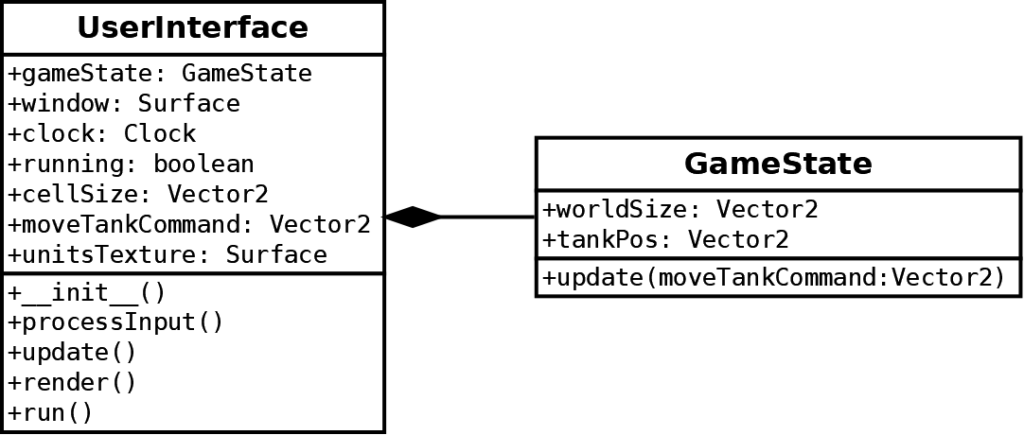
Class UserInterface:
- New attribute
cellSize: defines the size of sprites. It makes a more readable code, and ease the update to sprites of a different size. - New attribute
moveTankCommand: it replaces the previousmoveCommandXandmoveCommandYattributes, and contains the next move command for the tank. - New attribute
unitsTexture: contains the tileset image
Class GameState:
- New attribute
worldSize: defines the size of the world. - New attribute
tankPos: defines the location of the tank, and replaces the previousxandyattributes.
Class UserInterface constructor
New lines are added to create new attributes:
def __init__(self):
    pygame.init()

    self.gameState = GameState()

    self.cellSize = Vector2(64,64)
    self.unitsTexture = pygame.image.load("units.png")

    windowSize = self.gameState.worldSize.elementwise() * self.cellSize
    self.window = pygame.display.set_mode((int(windowSize.x),int(windowSize.y)))
    pygame.display.set_caption("Discover Python & Patterns - https://www.patternsgameprog.com")
    pygame.display.set_icon(pygame.image.load("icon.png"))
    self.moveTankCommand = Vector2(0,0)

    self.clock = pygame.time.Clock()
    self.running = True
As for most 2D coordinates, I use the pygame.math.Vector2 class. To ease the reading, I added from pygame.math import Vector2 at the beginning of the program, so we only have to type Vector2 rather than pygame.math.Vector2.
I compute the size of the window according to the size of the game world (line 12). This expression is equivalent to:
windowSize = Vector2()
windowSize.x = self.gameState.worldSize.x * self.cellSize.x
windowSize.y = self.gameState.worldSize.y * self.cellSize.y
In other words, the size in pixels of the window is the size of the game world multiplied by the size of a cell/sprite. If the world size is (16,10) and the cell size (64,64), then the window size is (16 * 64,10 * 64) = (1024,640).
Note that Vector2 contains float values (numbers with a decimal part). So, to use it with pygame.display.set_mode(), we must convert it to a tuple of integers: (int(windowSize.x),int(windowSize.y)). If this expression is not clear, we could write:
windowSizeX = int(windowSize.x)
windowSizeY = int(windowSize.y)
windowSizeInteger = (windowSizeX,windowSizeY)
self.window = pygame.display.set_mode(windowSizeInteger)
Class UserInterface method render()
This method draws a tank (only the base, no turret yet):
def render(self):
    self.window.fill((0,0,0))

    spritePoint = self.gameState.tankPos.elementwise()*self.cellSize
    texturePoint = Vector2(1,0).elementwise()*self.cellSize
    textureRect = Rect(int(texturePoint.x), int(texturePoint.y), int(self.cellSize.x),int(self.cellSize.y))
    self.window.blit(self.unitsTexture,spritePoint,textureRect)

    pygame.display.update()
The expression at line 4 is similar to the one I used to compute the size of the window: it multiplies the tank location by the size of a cell/sprite. This expression is equivalent to:
spritePoint = Vector2()
spritePoint.x = self.gameState.tankPos.x * self.cellSize.x
spritePoint.y = self.gameState.tankPos.y * self.cellSize.y
Line 5 computes the top-left corner of the rectangle that contains the tank sprite.
Line 6 creates a rectangle that contains the tank sprite. We have to convert float values into integers.
Line 7 draws the tank in the window surface.
Class GameState method update()
The update() method works as before, except that the player can't move the tank outside the world:
def update(self,moveTankCommand):
    self.tankPos += moveTankCommand

    if self.tankPos.x < 0:
        self.tankPos.x = 0
    elif self.tankPos.x >= self.worldSize.x:
        self.tankPos.x = self.worldSize.x - 1

    if self.tankPos.y < 0:
        self.tankPos.y = 0
    elif self.tankPos.y >= self.worldSize.y:
        self.tankPos.y = self.worldSize.y - 1
Final code
In the next post, we'll add towers and start to handle collisions.