Qt Style Sheets (original) (raw)
Summary: in this tutorial, you’ll learn how to use Qt Style Sheet to customize the widgets for PyQt applications.
Introduction to the Qt Style Sheets #
Qt Style Sheets or QSS is very much similar to Cascading Style Sheets (CSS) for the web. However, QSS supports only a limited number of rules in comparison with CSS. For example, QSS supports the box model but doesn’t support the flexbox and grid layouts.
To set the style sheets for a widget, you call its setStyleSheet() method with a style sheet string. To demonstrate QSS, we’ll turn the following login window:
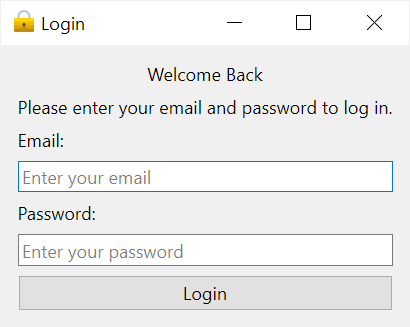
…into the following login window:
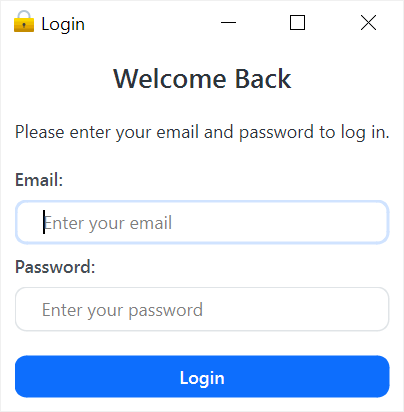
The following program creates a login window that appears in the first picture without any style sheets.
`import sys from PyQt6.QtWidgets import QApplication, QWidget, QLabel, QLineEdit, QPushButton, QVBoxLayout from PyQt6.QtCore import Qt from PyQt6.QtGui import QIcon
class MainWindow(QWidget): def init(self, *args, **kwargs): super().init(*args, **kwargs) self.setWindowTitle('Login') self.setWindowIcon(QIcon('./assets/lock.png'))
    layout = QVBoxLayout()
    self.setLayout(layout)

    heading = QLabel(
        'Welcome Back',
        alignment=Qt.AlignmentFlag.AlignHCenter
    )
    heading.setObjectName('heading')

    subheading = QLabel(
        'Please enter your email and password to log in.',
        alignment=Qt.AlignmentFlag.AlignHCenter
    )
    subheading.setObjectName('subheading')

    self.email = QLineEdit(self)
    self.email.setPlaceholderText('Enter your email')

    self.password = QLineEdit(self)
    self.password.setEchoMode(QLineEdit.EchoMode.Password)
    self.password.setPlaceholderText('Enter your password')

    self.btn_login = QPushButton('Login')

    layout.addStretch()
    layout.addWidget(heading)
    layout.addWidget(subheading)
    layout.addWidget(QLabel('Email:'))
    layout.addWidget(self.email)
    layout.addWidget(QLabel('Password:'))
    layout.addWidget(self.password)
    layout.addWidget(self.btn_login)
    layout.addStretch()

    self.show()
if name == 'main': app = QApplication(sys.argv) window = MainWindow() sys.exit(app.exec())`Code language: Python (python)
First, make the background of the QWidget white:
QWidget { background-color: #fff; }Code language: CSS (css)
Second, change the color and font weight of the QLabel:
QLabel { color: #464d55; font-weight: 600; }Code language: CSS (css)
Third, change the color, font size, and margin-bottom of the QLabel with the object name heading:
QLabel#heading { color: #0f1925; font-size: 18px; margin-bottom: 10px; }Code language: CSS (css)
Fourth, change the color, font size, font weight, and margin-bottom of the QLabel with the object name subheading:
QLabel#subheading { color: #0f1925; font-size: 12px; font-weight: normal; margin-bottom: 10px; }Code language: CSS (css)
Fifth, change the border-radius, border style, and padding of the QLineEdit widget:
QLineEdit { border-radius: 8px; border: 1px solid #e0e4e7; padding: 5px 15px; }Code language: CSS (css)
Sixth, highlight the border of the QLineEdit when it has the focus:
QLineEdit:focus { border: 1px solid #d0e3ff; }Code language: CSS (css)
Seventh, change the color of the placeholder:
QLineEdit::placeholder { color: #767e89; }Code language: CSS (css)
Eighth, make the QPushButton rounded and blue with the text color white:
QPushButton { background-color: #0d6efd; color: #fff; font-weight: 600; border-radius: 8px; border: 1px solid #0d6efd; padding: 5px 15px; margin-top: 10px; outline: 0px; }Code language: CSS (css)
Ninth, change the border of the QPushButton when it is hover or focus:
QPushButton:hover, QPushButton:focus { background-color: #0b5ed7; border: 3px solid #9ac3fe; }Code language: CSS (css)
Tenth, place all the rules of the QSS in a file like login.qss:
`QWidget { background-color: #fff; } QLabel { color: #464d55; font-weight: 600; } QLabel#heading { color: #0f1925; font-size: 18px; margin-bottom: 10px; }
QLabel#subheading { color: #0f1925; font-size: 12px; font-weight: normal; margin-bottom: 10px; } QLineEdit { border-radius: 8px; border: 1px solid #e0e4e7; padding: 5px 15px; }
QLineEdit:focus { border: 1px solid #d0e3ff; }
QLineEdit::placeholder { color: #767e89; } QPushButton { background-color: #0d6efd; color: #fff; font-weight: 600; border-radius: 8px; border: 1px solid #0d6efd; padding: 5px 15px; margin-top: 10px; outline: 0px; } QPushButton:hover, QPushButton:focus { background-color: #0b5ed7; border: 3px solid #9ac3fe; }`Code language: CSS (css)
Finally, read QSS from the login.qss file and pass the contents to the setStyleSheet() method of the QApplication method:
app.setStyleSheet(Path('login.qss').read_text())Code language: Python (python)
Here’s the complete program:
`import sys from pathlib import Path from PyQt6.QtWidgets import QApplication, QWidget, QLabel, QLineEdit, QPushButton, QVBoxLayout from PyQt6.QtCore import Qt from PyQt6.QtGui import QIcon
class MainWindow(QWidget): def init(self, *args, **kwargs): super().init(*args, **kwargs) self.setWindowTitle('Login') self.setWindowIcon(QIcon('./assets/lock.png'))
    layout = QVBoxLayout()
    self.setLayout(layout)

    heading = QLabel(
        'Welcome Back',
        alignment=Qt.AlignmentFlag.AlignHCenter
    )
    heading.setObjectName('heading')

    subheading = QLabel(
        'Please enter your email and password to log in.',
        alignment=Qt.AlignmentFlag.AlignHCenter
    )
    subheading.setObjectName('subheading')

    self.email = QLineEdit(self)
    self.email.setPlaceholderText('Enter your email')

    self.password = QLineEdit(self)
    self.password.setEchoMode(QLineEdit.EchoMode.Password)
    self.password.setPlaceholderText('Enter your password')

    self.btn_login = QPushButton('Login')

    layout.addStretch()
    layout.addWidget(heading)
    layout.addWidget(subheading)
    layout.addWidget(QLabel('Email:'))
    layout.addWidget(self.email)
    layout.addWidget(QLabel('Password:'))
    layout.addWidget(self.password)
    layout.addWidget(self.btn_login)
    layout.addStretch()

    self.show()
if name == 'main':
app = QApplication(sys.argv)
app.setStyleSheet(Path('login.qss').read_text())
window = MainWindow()
sys.exit(app.exec())`Code language: Python (python)
Setting Qt Style sheets in Qt Designer #
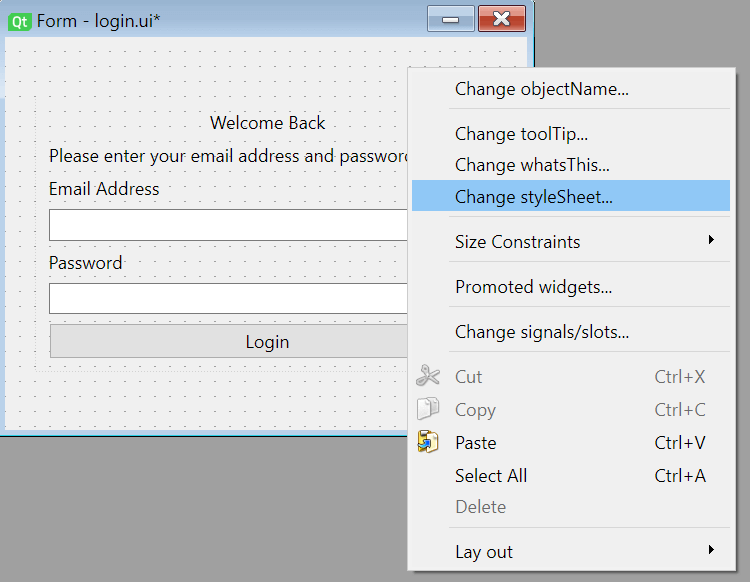
First, right-click the form and select Change StyleSheet… menu:
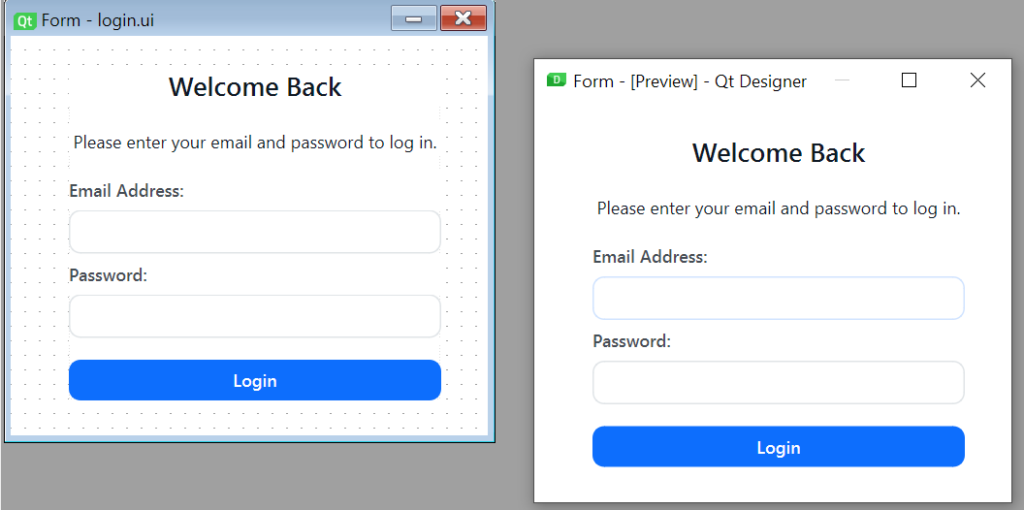
Second, enter the Qt Style Sheets into the Style Sheet Editor and click the Apply button. Once the QSS is applied, you’ll see its effect in the design:
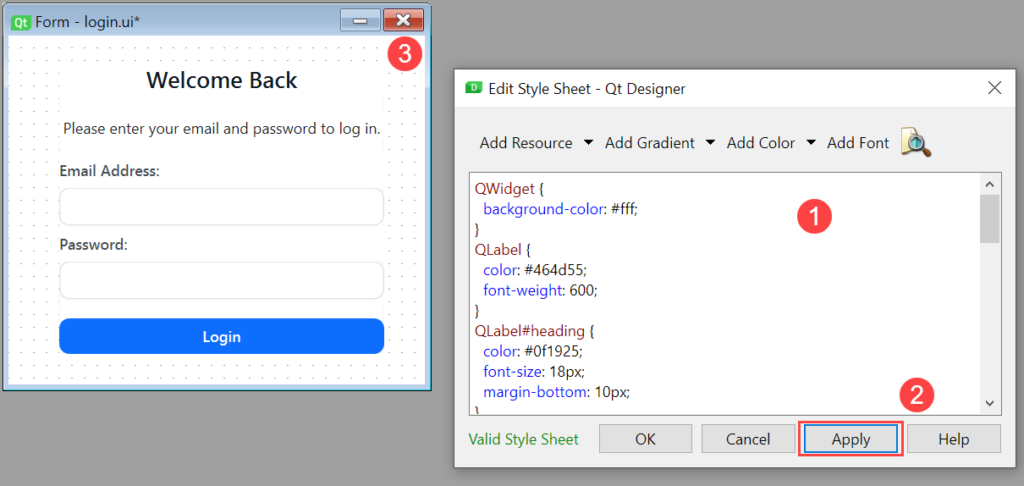
Third, close the style sheet editor and preview the form (Ctrl-R):
Summary #
- Use Qt Style Sheets (QSS) to customize the widgets.
- Use the
setStyleSheet()method of the widgets to set style sheets for a widget.
Was this tutorial helpful ?