Use features with Galaxy AI on your Galaxy phone and tablet (original) (raw)
Circle to Search with Google
Note
- Circle to Search is available on select phones and tablets running Android 14 with One UI 6.1 or higher. If the feature is not available on your device, it may not be compatible. Ensure your device is updated.
- Circle to Search may not work in apps restricted from screen capture due to copyright or sensitive information like video streaming services or banking apps.
- An internet connection is required to use Circle to Search. Results may vary by uniqueness, clarity, and framing of circled images, as well as other related factors.
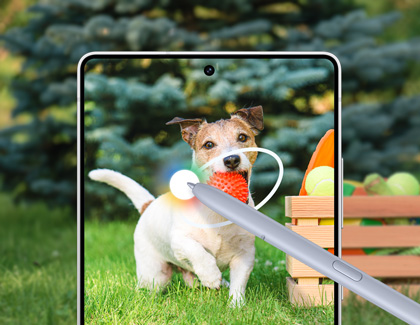
AI Circle to Search automatically provides information about objects, images, or text from any app. Instead of performing a manual search, use the Home button to enable the search, then simply circle the displayed content using your finger or S Pen, and you'll see additional details. You can also select text or images to learn more and explore.
To use Circle to search:
- Open your desired app, or the Camera app and point your phone at subject.
- Touch and hold the Home button on the navigation bar.
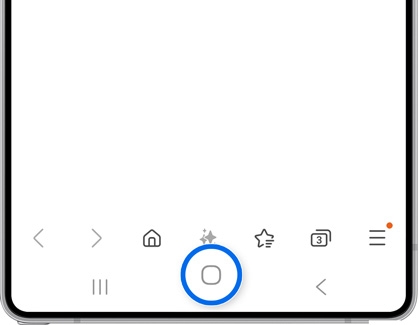
- First-time users may need to grant permission or tap Continue.
- Now, use your finger or S Pen to draw a circle around the item you're interested in or tap it directly to initiate a Google visual search.
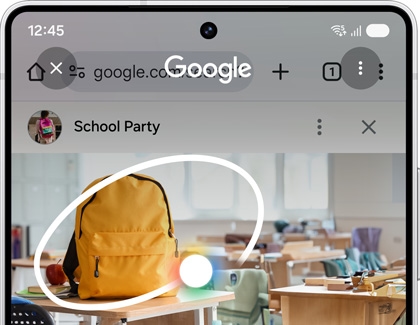
- Swipe up on the displayed results to explore more options.
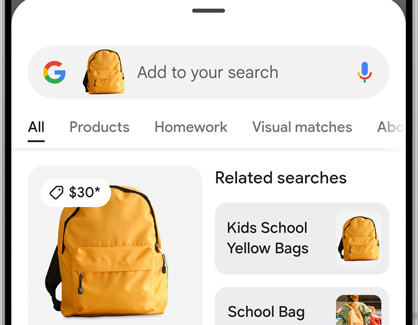
- Select a result to open it in a new window, where you'll find relevant articles, videos, or apps depending on the searched items.
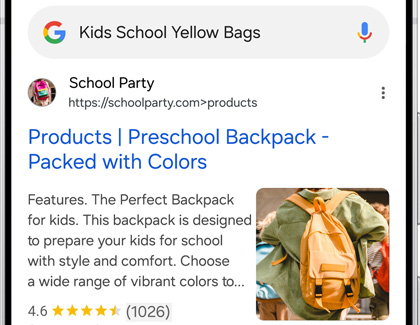
- If text is detected, tap Copy to extract text to your clipboard, or tap Translate to receive an instant translation.
If you ever need to review your past searches, they are saved along with other Google searches and can be managed with Google.
You can learn more about Circle to Search using our guide.
Read less
Zoom nightography
Note
Zoom Nightography is only available on the Galaxy S26 series, S25 series, S24 series, Z TriFold, Z Fold7, Z Flip7, Z Flip7 FE, Tab S10+, and Tab S10 Ultra. This feature is not available on other models.
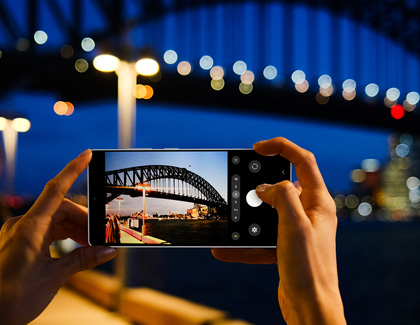
Select Galaxy phones and tablets are equipped with AI Nightography Zoom, so you can spend less time adjusting the camera lenses and more time capturing sharper, brighter, and smoother photos with ease. You can even use this feature with Portrait mode.
To learn more about AI Nightography Zoom, check out our guide to Night mode.
Read less
Writing assist or Chat assist
Notes
- Writing assist (Chat assist) with Galaxy AI is available on select phones and tablets running Android 14 with One UI 6.1 or higher. If the feature is not available on your device, it may not be compatible. Ensure your device is updated.
- Supported languages: English (US/India/Great Britain/Australia), Portuguese (Brazil), Spanish (Spain/Mexico/US), Chinese (Simplified/Hong Kong), French (France/Canada), Korean, German, Italian, Japanese, Thai, Polish, Arabic, Hindi, Vietnamese, Russian, Indonesian.
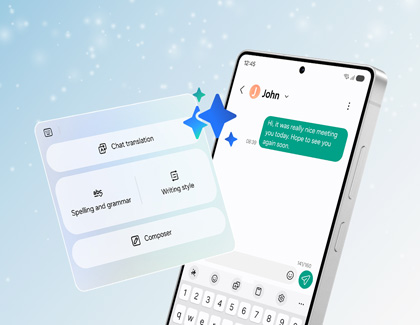
AI Writing assist or Chat assist will suggest corrections and other useful details when you’re typing messages, posting to social media, and more. For instance, you'll be prompted to include emojis, hashtags, punctuation, and proper tone and grammar.
You can learn more about Writing assist or Chat assistusing our guide.
Read less
Drawing assist and AI select
Note
Drawing assist and AI select with Galaxy AI are available on select phones and tablets running Android 14 with One UI 6.1 or higher. If the feature is not available on your device, it may not be compatible. Ensure your device is updated.
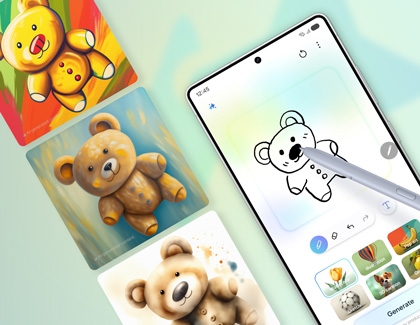
AI Drawing assist brings your drawings and doodles to life! You can create AI sketches when using Air command, Samsung Notes, the Gallery app, and the new AI select feature in the Edge panel. Plus, AI Drawing assist can be used with the S Pen on compatible devices for extra precise sketching.
You can learn more about Drawing assist using our guide.
Read less
Audio eraser
Note
Audio eraser with Galaxy AI is available on select phones and tablets running Android 14 with One UI 6.1 or higher. If the feature is not available on your device, it may not be compatible. Ensure your device is updated.
The Audio eraser feature is designed to remove unwanted background noises from your video recordings. By utilizing advanced signal processing techniques, Audio eraser can identify and eliminate distracting sounds such as voices and wind, leaving behind clear and crisp audio.
- Navigate to and open the Gallery app, and select your desired video.
- Tap Edit (the pencil icon), and then tap Audio (the speaker icon) on the bottom right.
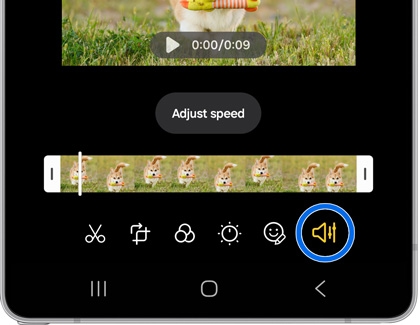
- Tap Audio eraser.
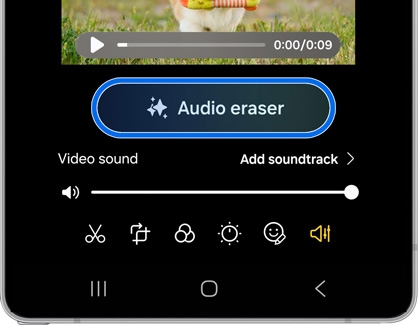
- Once the extra sounds are removed, tap the Play icon on the video to watch the playback.
- Tap Done.
Read less
Now brief and Now bar
Note
- Now brief with Galaxy AI is available on select phones and tablets running Android 14 with One UI 6.1 or higher. If the feature is not available on your device, it may not be compatible. Ensure your device is updated.
- Now brief displays daily information from select apps (some apps may require an internet connection).
The Now brief service provides you with a quick overview of your day based on your preferences and location. It includes information such as health and wellness, travel, schedule reminders, phone settings, memories, music and podcast, Smart home, and news headlines.
- Navigate to and open Settings, and then tap Galaxy AI.
- Swipe to and tap Now brief.
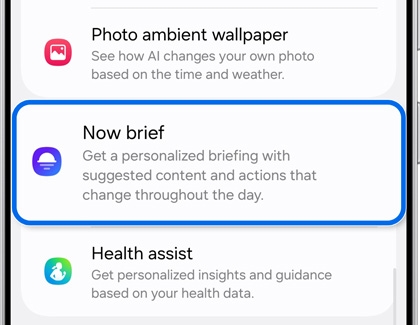
- Tap Content to include, and select your desired content, such as Health and wellness, Travel, or Phone settings. The selected content will appear in the brief.
- Tap Back.
- If desired, tap the switch next to Show Now brief while phone is locked.
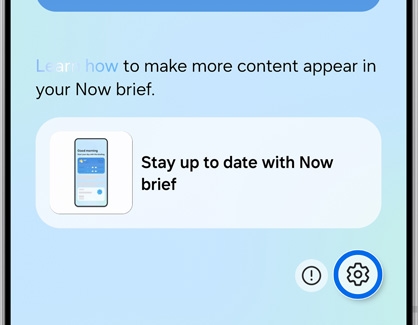
- Next, navigate to your device's Home screen, and tap the Now brief widget to view your current Now brief.
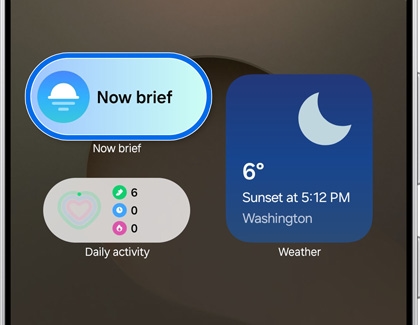
- Tap the Settings icon to open the Now brief settings if needed.
Note
- Now bar with Galaxy AI is available on select phones and tablets running Android 14 with One UI 6.1 or higher. If the feature is not available on your device, it may not be compatible. Ensure your device is updated.
- A screen lock must be enabled to use the Now bar.
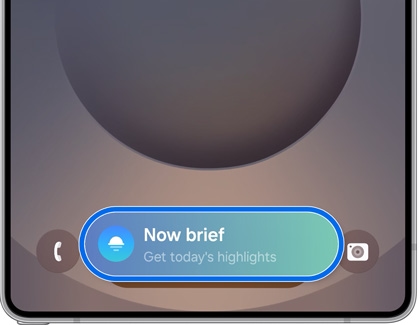
The Now bar offers quick access to tools like sports updates, Maps, and media controls, keeping you informed and connected right from the Lock screen, the status bar, and at the top of the Notification panel.
- Open Settings, and then tap Lock screen and AOD or Lock screen.
- Tap Now bar, then tap View more.
- Turn on the switches for categories you like.
Note: Available categories may vary by model and software version.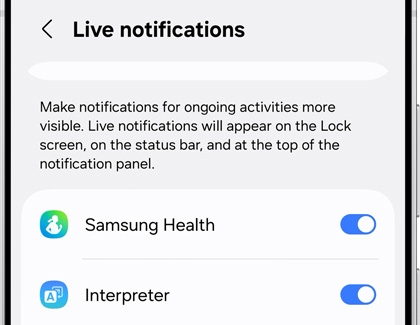
- Tap Back, and then tap turn on the switches next to Media player and Current mode if desired.
- To use the Now bar, double tap the screen or press the Power button to wake the screen.
- Swipe upward on the Now bar to select an item.
- Touch and hold the Now bar to open additional options.
Read less
Note assist in Samsung Notes
Note
Note assist with Galaxy AI is available on select phones and tablets running Android 14 with One UI 6.1 or higher. If the feature is not available on your device, it may not be compatible. Ensure your device is updated.
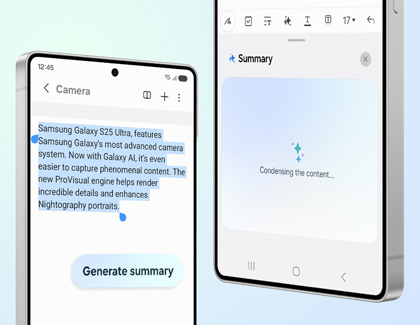
When writing in the Samsung Notes app with the keyboard or S Pen, you can instantly summarize, translate, and format your writing with AI Note assist. This feature is also available when you're using voice recording or importing a PDF in the app.
You can learn more about Note assist using our guide.
Read less
Live translation with Call assist and Interpreter
Note
- Translation assist with Galaxy AI is available on select phones and tablets running Android 14 with One UI 6.1 or higher. If the feature is not available on your device, it may not be compatible. Ensure your device is updated.
- English and Spanish are pre-installed in the Interpreter app. Additional languages require a free download. Translation results may vary.
- Certain regions and languages may not be supported. Arabic, Chinese (Simplified, Cantonese), English (US, Great Britain, India, Australia), French (France, Canada), German, Hindi, Indonesian, Italian, Japanese, Korean, Polish, Portuguese (Brazil), Russian, Spanish (US, Spain, Mexico), Thai, Vietnamese, Turkish, Romanian, Swedish, and Dutch are supported languages.
- Live translation is available through the Samsung phone dialer and other apps, such as WhatsApp, Facebook Messenger, Instagram, Signal, Line, WeChat, Telegram, Meet, and Kakao Talk.
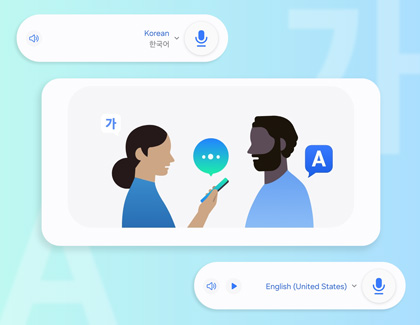
AI Live translate offers call assist and message assist functions, which lets you perform real-time translations when speaking or typing. You can select a language for yourself and the other person you are contacting, and your device will translate the words and text for you. You can learn more about Live translation using our guide.
You can also use Live translation during in-person conversations with the Interpreter option in the Quick settings panel.
- Swipe down from the top of the screen using two fingers to open the Quick settings panel, and then tap the Interpreter icon.
- Select your desired languages by tapping the language drop-down menus.
- Next, tap the microphone icon next to your desired language to begin recording and interpreting the conversation.
Read less
Photo assist
Note
- Photo assist with Galaxy AI is available on select phones and tablets running Android 14 with One UI 6.1 or higher. If the feature is not available on your device, it may not be compatible. Ensure your device is updated.
- The feature requires an internet connection. Editing with Generative edit results in a resized photo up to 12MP.
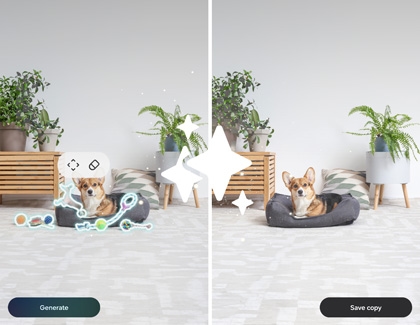
If you're unsure how to edit a photo or video in the Gallery app, let AI Edit suggestion help you out. This feature lets you move and delete unwanted objects in order to create an entirely new image. You can also use additional options such as remastering, colorizing, removing reflections, and adding portrait effects to transform and elevate your photos and videos. You can learn more about AI Edit suggestions using our guide.
Generative edit is an AI editing tool that lets you customize your images. Just find your desired image in the Gallery app, tap the Photo assist icon (the three stars), and then tap or draw around an object in the photo you'd like to adjust. You can move the object to another part of the photo. When you tap Generate, AI will fill in the photo's missing parts.
Note: Generative edit requires an internet connection and will resize photos to 12MP.
Drawing assist lets you bring your drawings to life. You can create AI sketches using Air command, Samsung Notes, Gallery, and the AI Select feature in the Edge panel.
Portrait Studio lets you add extra flair to your selfies. Select your desired selfie in the Gallery app, then tap the Photo assist icon (the stars), and then tap Generative portrait on the image. You can select from the available styles at the bottom of the screen, and then tap Generate to create a new image.
Live effects will bring your photos to life with animations. Select a photo in the Gallery app, then swipe up to view more details, and then tap 3D photo. AI will generate the photo's effects. You may see a zooming motion, a panning motion, or a swivel motion.
Read less
AI enhanced wallpaper
Note
- Photo Ambient Wallpapers and Generative Wallpapers with Galaxy AI are available on select phones and tablets running Android 14 with One UI 6.1 or higher. If the feature is not available on your device, it may not be compatible. Ensure your device is updated.
- Per Google's policy, account users under the age of 13 are restricted from using Generative Wallpaper. The age restriction may vary by country and is subject to change dependent upon Google's policy updates.
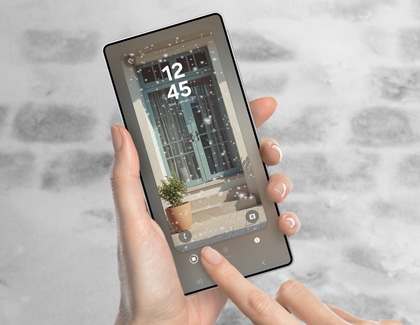
Customize your Lock and Home screens with live weather animations and a selection of different styles with AI Photo Ambient Wallpapers. After selecting a photo to display, this feature will animate the photo to reflect your current area's weather conditions, such as water droplets when it’s rainy or rays of light when it's sunny.
You'll also be able to create totally unique wallpapers featuring incredible scenes and backgrounds generated from your customized prompts. You can learn more about Photo Ambient Wallpapers using our guide.
You can further personalize your Lock and Home screens with Generative Wallpaper. Just pick your desired template and expression, and then let Galaxy AI convert the words you choose into a beautiful masterpiece. When you're done, you can apply the artistic wallpaper to your Lock or Home screen, or both. You can learn more about Lock screen and Home screen wallpapers using our guide. The front screens on the Galaxy Z Fold and Z Flip can be customized as well.
Read less
Browsing assist
Note
Browsing assist with Galaxy AI is available on select phones and tablets running Android 14 with One UI 6.1 or higher. If the feature is not available on your device, it may not be compatible. Ensure your device is updated.
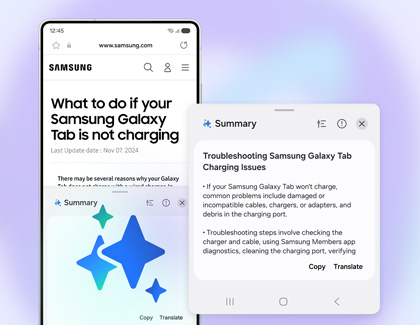
The Samsung Internet app can translate content for you in an instant with AI Browser Assist. Plus, you can select from a variety of languages for translation. Browser Assist will also summarize lengthy content if you need to quickly brush up on a topic.
For more tips and tricks when browsing the web, check out our Samsung Internet article.
Read less
Voice recorder and Transcript assist
Note
- Voice recorder and Transcript assist with Galaxy AI are available on select phones and tablets running Android 14 with One UI 6.1 or higher. If the feature is not available on your device, it may not be compatible. Ensure your device is updated.
- 200 - 4,000 characters are required when using these features in the Samsung Notes app, as well as a Samsung account and internet connection.
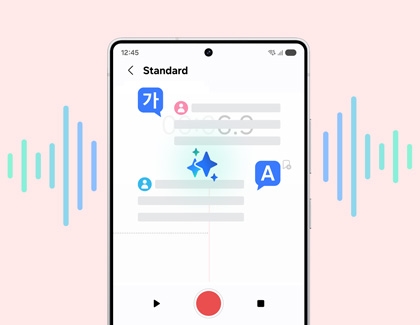
There's no need to be concerned about language barriers anymore with the AI Voice Recorder and Transcript Assist features. When speaking during a call or in person, these features will automatically provide translations in your chosen languages, as well as transcripts for your reference. You can learn more about Transcript assist, Dual screen Interpreter, and PDF translations using our guides.
When you're using the Galaxy Z Fold in particular, you can turn your device sideways to enable a side-by-side experience with landscape mode. This is especially helpful when using AI features in Samsung Notes.
Read less
Health assist
Note
Health assist is available in the Samsung Health app version 6.27 or above, on Galaxy phones and tablets running Android 10 or above.
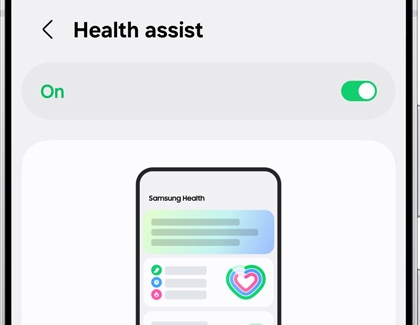
Health assist provides personalized insights and guidance based on your data that is stored in the Samsung Health app.
- Navigate to and open the Samsung Health app. Depending on your health data, you may see a message at the top of the app's Home screen.
- Select the message to view additional information.
- You can also check the Health assist page in your device's Settings menu. From Settings, tap Galaxy AI, and then tap Health assist.
Read less
Auto zoom, auto framing, and suggested replies
Note
Auto zoom, auto framing, and suggested replies are only available on Galaxy Z Flip7, Z Flip7 FE, and Z Flip6. Features are not available on other models.
Auto zoom and auto framing will automatically frame your Cover screen camera shots by zooming in on you or another subject. You can learn more about using these options in our Z Flip6 FlexCam guide or Z Flip7 FlexCam guide.
Additionally, you can quickly reply to messages on the Cover screen using AI-suggested replies. Simply tap your desired message notification, and then swipe up to review the suggested replies. Tap your desired reply, and then tap the Send icon to send it. For more details, check out our Galaxy Z Flip6 guide or Galaxy Z Flip7 guide.
Read less
Disable Galaxy AI features
Note
Available Galaxy AI features may vary depending on your device and software version.
Disabling AI features may affect the performance and functionality of your device. Additionally, some AI features may be integrated into the system and cannot be disabled.
To disable Galaxy AI features:
- Navigate to and open Settings on your phone or tablet.
- Tap Galaxy AI. Depending on your device, you may need to swipe to and tap Advanced features first, then tap Galaxy AI or Awesome Intelligence.
- You'll see a list of AI features on your device. Tap a sub-menu, such as Call assist, and then turn off the switch next to the feature(s) you want to disable.
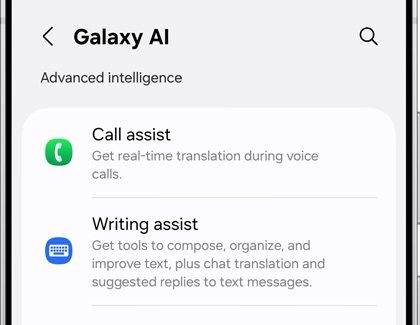
Some AI features can be turned off directly in the settings of individual apps, such as the Phone app, Notes app, Camera app, Gallery app, Samsung Messages app, Samsung Health app, or SmartThings app. To disable these features, go to the app, access the app's settings, and then turn off the switch for the AI feature you want to disable.
Be sure to restart your device after disabling AI features to ensure the changes take effect.
Read less
FAQs about Galaxy AI
How do I enable the AI features?
Signing in to the device with your Samsung account will automatically activate all the AI features. After the Samsung account sign-in, you will be able to see all the features as part of the consolidated introduction page. Using AI in a particular app for the first time will trigger a pop-up that explains the feature again.
What features are on-device versus cloud-based?
Most translations are handled on the device itself. Edit Suggestions within the Gallery are handled on-device. Most other features require a network connection and will utilize the cloud in some way.
How can I distinguish between on-device functions and cloud-based functions when using the new AI features?
- On-device functions include: Translation, time and weather Ambient wallpapers, and Google Messages (Magic Compose, message suggestions, and rewrite suggestions).
- Cloud-based functions include: Auto formatting, auto summarizing, auto corrections, and image editing.
Can I disable the cloud-based processing?
Yes, you can disable or only allow on-device processing for the AI features. There is also a "master switch" to disable all cloud-based processing for the Galaxy AI features. To find this, navigate to Settings, then tap Galaxy AI, and then tap the switch by Process data only on device.
Note
Available Galaxy AI features may vary depending on your device and software version.
Which Samsung phones or tablets support Galaxy AI?
The Galaxy S26 Ultra, S26+, S26, S25 Ultra, S25 Edge, S25+, S25, S25 FE, S24 Ultra, S24+, S24, S24 FE, Tab A11+, Tab S11 Ultra, Tab11, Tab S10+, Tab S10 Ultra, Tab S10 Lite, Z TriFold, Z Fold7, Z Fold6, Z Flip7, Z Flip7 FE, Z Flip6, A57 5G, A56 5G, A37 5G, A36 5G, A26 5G, and A17 5G are ready for AI right away.
The Galaxy S23 Ultra, S23+, S23, S23 FE, S22 Ultra, S22+, S22, Z Fold5, Z Flip5, Z Fold4, Z Flip4, A35 5G, A54 5G, Tab S10 FE+, Tab S10 FE, Tab S9 Ultra, Tab S9+, Tab S9, Tab S8 Ultra, Tab S8+, and Tab S8 will require a software update to utilize Galaxy AI. Features are not available on the Tab S9 FE+, Tab S9 FE, A series phones or tablets, or on other models not listed.
Read less