Use Security and privacy settings on Galaxy phones and tablets (original) (raw)
Note
The Permission manager allows you to manage your overall permissions, including apps and services like Calendar, Camera, location, and microphone.
Samsung privacy settings
Your device comes with several privacy settings to help keep your personal data secure. In the Samsung privacy section, you can dictate app permissions as well as customize the advertising content you see in your apps.
Navigate to Settings, then tap Security and privacy, and then tap More privacy settings. The following settings are available in the Samsung section:
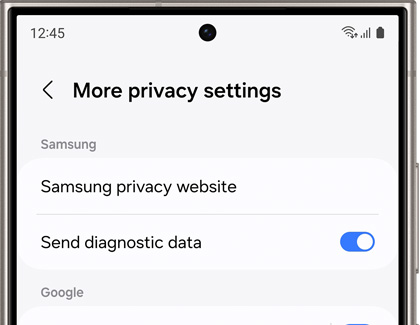
- Samsung privacy website: Review Samsung’s privacy guidelines for additional information.
- Send diagnostic data: Allow Samsung to collect diagnostic data from your device to improve its services.
You can also access the Permission manager from the Privacy screen to configure your desired permissions for the camera and microphone, as well as other services. Tap Back, then tap Permission manager, and then tap Camera or Microphone. Next, select an app to change the permissions. Choose your desired option, such as Allow or Don’t Allow. Depending on the service you choose, the options may also say "Allowed only while using the app" or "Ask every time."
Read less
Google privacy settings
Google offers additional privacy settings as well. From this section, you can enable location services, ads, and personalized recommendations on your device.
To find this section, navigate to Settings, then tap Security and privacy, and then tap More privacy settings. The following settings will be available in the Google section:
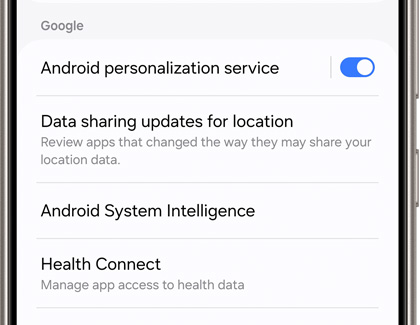
- Android personalization service: Enable this to receive personalized content based on your app usage.
- Data sharing updates for location: Review apps that have changed the way they share your location data.
- Android System Intelligence: View suggestions based on the content you look at. Your device will store this data for future use as well. You can also clear your device’s learned data.
- Health Connect: Manage the apps that have access to your health and fitness data.
- Autofill service from Google: Allows you to automatically fill in certain information when browsing websites, such as passwords, addresses, and credit card information. You can edit your information at any time if you receive a new credit card, or if you prefer not to use Autofill.
- Activity controls: Your device will save your website and app activity to provide you with faster searching.
- Ads: Reset your advertising ID or disable apps from using your ID.
- Usage & diagnostics: Allow Google to collect diagnostic data from your device to improve its services.
Read less
Check up on your security and privacy
Note
Not all features will be available on all devices.
You can scan your device for threats and resolve any issues right from the Security and privacy screen. Navigate to and open Settings, then tap Security and privacy, and your device will automatically be scanned. The first time you visit this feature, you may need to tap Dismiss on the notification. Then, tap the following results to resolve the issues if necessary:
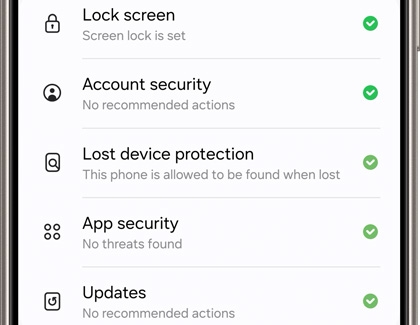
- Lock screen: Create a PIN, Pattern, or Password for your device to restrict entry and protect your data. Tap Lock screen, then tap Screen lock, and then select your desired option. Follow the on-screen instructions to set it up.
Note: You can set up Fingerprint security from here as well. - Account security: A security checkup for your Google and Samsung accounts. Tap the account to view suggestions for improving your security.
- Lost device protection: Find My Mobile helps you locate your missing Galaxy device, such as a phone, tablet, watch, or earbuds.
- App security: To detect potentially harmful apps on your phone, tap App security, and then tap Google Play Protect. Some devices may also include App protection with an additional scanner.
- Updates: Check your Galaxy for Security updates and Google Play system updates. Tap Updates, and then tap Security update to access the different update settings for your phone. From here, you can check for software updates, view your software update history, enable Smart updates, and use the Software Upgrade Assistant. Or, tap Google Play system update, and then tap Download & install. Your phone may need to restart to finish installing. If prompted, tap Restart now.
- Privacy: View your privacy permissions, adjust the Permission manager, and control access to the camera, microphone, and clipboard. Tap More privacy settings to adjust additional options.
Read less
Use additional security features
Note
Not all features will be available on all devices.
Whether you want to use biometrics to sign in to your Galaxy device or set up Samsung Pass, you can find everything you need in the Security and privacy menu. Navigate to and open Settings, and then tap Security and privacy. The following options will be available in the Additional security settings section:
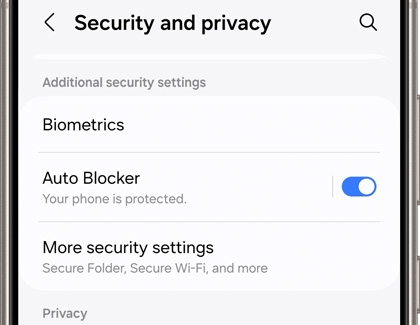
- Biometrics: View your options for unlocking your device and for verifying yourself when entering passcodes. You can select from Face recognition or Fingerprints. Tap your desired option, and then tap Continue. Follow the on-screen instructions to register your face or your fingerprint.
- Auto Blocker: Use options to block apps from unauthorized sources, enable app security checks, and disable commands sent over a USB cable. You can also enable extra protection in your messaging apps, and prevent software updates over USB.
Even more security options are available if you tap More security settings.
- Secure Folder: If you need to store private or sensitive information, such as files and photos, you can use Secure Folder. This folder will stay locked so only you can access it.
- Secure Wi-Fi: You can use Secure Wi-Fi when connecting to public or unsecured networks. Tap Secure Wi-Fi, then tap Protect, and then follow the on-screen instructions to set it up.
- Enhanced data protection: Protect your cloud data by encrypting it.
- Samsung Pass: When you are logged in to your Samsung account, Samsung Pass will keep your apps and accounts secure by authenticating your identity with biometric data. Samsung Pass will remember your login information for apps and websites as well.
- Samsung Blockchain Keystore: Manage your private key when signing in to and using blockchain transactions. Tap Samsung Blockchain Keystore, then tap Continue, and then follow the on-screen instructions to set it up.
- Install unknown apps: This menu lets you install unknown apps if desired. Keep in mind that installing apps from this menu may put your device and data at risk. It is recommended to install apps from the Play Store and Galaxy Store.
- Encrypt or decrypt SD card: Encrypting your SD card will protect your data, since an encrypted SD card can only be read on the device that was used to encrypt it. Tap Encrypt or decrypt SD card, and then enter your security credentials if you have a screen lock set up. Review the information, and then tap Encrypt SD card. To decrypt the SD card, tap Decrypt SD card.
Note: This setting may not appear unless you have a SD card inserted in your phone. - Other security settings: Manage your preferences for additional security settings, such as password visibility, administrative apps, and credentials.
Read less
Check which apps are using the camera or microphone
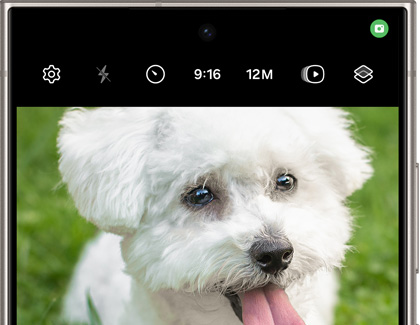
When an app is using either the camera or microphone, you’ll see a small green dot in the top right corner of your device's screen.
Maybe you have multiple apps opened and you're unsure which one is accessing the camera or microphone. There is a simple way to check this: when the green dot is on the screen, swipe down from the top to open the Notification panel, and then tap the green dot. You’ll see a pop-up notification with the app’s icon, as well as information about the camera or microphone. Then, you can find and close the app if you need to.
Read less