Use the Galaxy Z Flip6 FlexCam and other camera features (original) (raw)
Note
Galaxy AI basic features provided by Samsung are free. Any Samsung enhanced AI features and all third party AI features are subject to different terms and may be subject to fees. (Galaxy AI basic features are listed under "Advanced intelligence" in Samsung Services Terms and Conditions.)
Camera specs
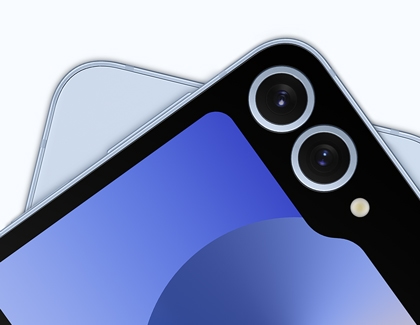
The Galaxy Z Flip6 includes a 50MP Wide lens, a 12MP Ultra Wide lens, and a 10MP selfie lens.
When you’re ready to launch the FlexCam on the Cover screen, you can double press the Power button. (Pressing and holding the Power button will open Bixby instead.)
Read less
Use FlexCam shooting modes
The FlexCam offers three shooting modes on the Cover screen. Once the FlexCam is open, you can swipe left and right to select a mode. Portrait and Photo modes are compatible with Nightography, which means you’ll still get bright and clear photos at night.
You can choose from the following:
- PORTRAIT: Take a quick selfie using Portrait mode. Tap the Quick controls icon (it looks like a circle with four dots) to set a timer and change the screen aspect ratio.
- PHOTO: Take a quick photo of yourself or with your friends. Tap the Quick controls icon (it looks like a circle with four dots) to set a timer or adjust the screen aspect ratio, resolution, effects, and zoom.
- VIDEO: Film a video using the Cover screen. Tap the Quick controls icon (it looks like a circle with four dots) to adjust options such as super steady, screen aspect ratio, video size, and auto framing.
Read less
Use Auto zoom and auto framing
Note
The FlexCam Auto zoom length varies and is shorter than the standard zoom length.
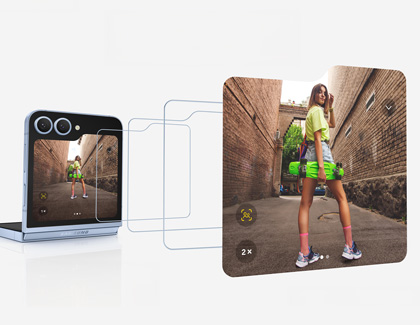
Zoom in smoothly with the slider in Photo Mode, get sharp shots with Auto Zoom, and let Auto Framing adjust your video to keep the subject perfectly centered.
Manual zoom
- Double press the Power button to launch the FlexCam. Select PHOTO as your shooting mode.
- Fold your phone to launch Flex Mode, and then place the phone on a flat surface.
- Place two fingers together on the screen and slowly spread them outwards to zoom in, or pinch them together to zoom in. Alternatively, you can touch and drag the zoom icon to adjust the zoom slider.
Auto zoom
- Double press the Power button to launch the FlexCam. Select PHOTO as your shooting mode. Auto zoom will be on by default when using this mode.
- Fold your phone to launch Flex Mode, and then place the phone on a flat surface.
- The FlexCam will follow your movements and zoom in and out.
- To capture a hands-free photo, show the palm of your hand to initiate the shutter. You can also use voice commands if desired. Please see the “Access and adjust Camera settings” section for more details.
- To turn off Auto zoom, tap the Auto zoom icon. The icon will appear white when turned off.
Auto framing
- Double press the Power button to launch the FlexCam. Select VIDEO as your shooting mode.
- Fold your phone to launch Flex Mode, and then prop up your phone on a table or other flat surface.
- Tap the Quick controls icon (it looks like a circle with four dots), and then tap the Auto framing icon (it looks like a square with a dot in the center). The icon will glow yellow when turned on.
Note: To turn off Auto framing, tap the icon again. - Next, show the palm of your hand to begin recording. The camera will automatically zoom in to track the first person you are recording, and then zoom out and continue tracking when another person enters the frame.
- When you’re finished filming, tap Stop, and then tap the Gallery thumbnail to view your video.
You can also use the pinch gesture on the Galaxy Ring, Galaxy Watch7, or Galaxy Watch Ultra to take a picture if you've stepped away from your Z Flip6.
Read less
Access and adjust Camera settings
The Camera app includes multiple features and settings that can be turned on or adjusted. For example, you can move the shutter button around on the screen or change up your preferred shooting methods.
Navigate to and open the Camera app, and then tap the Settings icon. You can select from the following:
Intelligent features
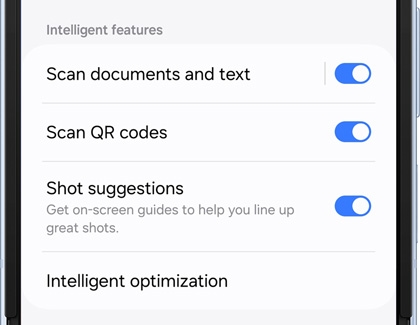
- Scan documents and text: Automatically show a button when a document is detected to scan it. Tap the option to enable Auto scanning, which will scan a document without a tap. You'll also have the option to remove unwanted objects, in case your fingers are in the frame.
- Scan QR codes: Automatically detects QR codes when using the camera.
- Shot suggestions: Get on-screen guides to help you line up great shots.
- Intelligent optimization: Set the quality optimization options to prioritize quality or speed of Photo mode. You can also enable Scene optimizer to automatically adjust exposure, contrast, white balance, and more based on what is detected in the camera frame. The Scene optimizer is only available when using the rear camera.
Pictures
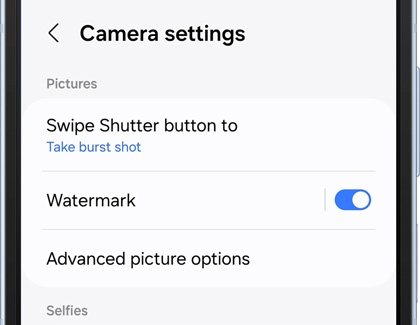
- Swipe Shutter button to: Choose to either take a burst shot or create a GIF when you swipe the shutter to the nearest edge.
- Watermark: Place a watermark on your photos. You can select the information included in the watermark as well.
- Advanced picture options: You can choose to save images in HEIF or RAW formats.
Selfies
- Save selfies as previewed: Save selfies as they appear in the preview without flipping them.
Videos
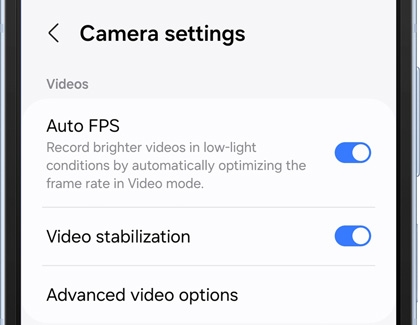
- Auto FPS: Automatically record brighter videos in low-light conditions by optimizing the frame rate.
- Video stabilization: Activate anti-shake to keep the focus steady when the camera is moving.
- Advanced video options: Enhance your videos with advanced recording formats. Available options include High efficiency videos, High bitrate videos, Reduce file size, HDR10+ videos, Zoom-in mic, and 360 audio recording.
General
- Fit to screen (3:4 ratio): Remove the black bars around the preview on the main screen while in Flex mode.
- Cover camera effects: Display visual effects around the camera lenses when using the FlexWindow.
- Tracking auto focus: Keep a moving subject in focus.
- Composition lines: Display viewfinder grid lines to help compose a picture or video.
- Location tags: Attach a GPS location tag to your pictures and videos.
- Swipe preview up/down to: Switch between the front and rear cameras with just a swipe.
- Shooting methods: There are a few different methods you can choose from and enable, such as Press Volume buttons to, Voice commands, Floating Shutter button, and Show palm.
- Settings to keep: Choose whether to use the same shooting mode, selfie angle, and filters as the last time.
- Shutter sound: Play a tone when taking a picture.
- Vibration feedback: Enable vibrations when tapping the screen in the Camera app.
Privacy
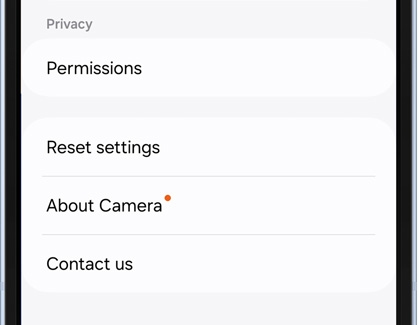
- Permissions: View the Camera's permissions.
- Reset settings: Reset the Camera’s settings.
- About Camera: View app and software information.
- Contact us: Contact Samsung support through Samsung Members (if supported by your carrier).
Read less
Use Camcorder mode
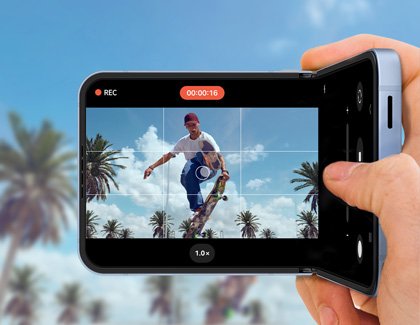
While in Flex Mode, you can use your Z Flip6 like a camcorder when shooting videos in landscape mode.
- Navigate to and open the Camera app, and then tap VIDEO.
- Make sure you’re using the rear camera lens. You can swipe up or down on the screen to switch between the front and rear cameras.
- Next, hold the phone on its side using one hand so you can easily access the controls while filming.
- Tap the Record icon to start recording with one hand.
Note
If the Flex mode panel is enabled, the Camera controls will only be available when the phone isn't positioned horizontally.
Read less
Apply filters to your photos from FlexCam mode
Enhance your selfies and photos with the new filter options available in FlexCam mode on your Galaxy Flip6! FlexCam now lets you apply analog film-style and AI-powered filters directly from the camera, giving you more creative freedom to capture the perfect shot.
- Double press the Power button to launch the FlexCam. Select PHOTO as your shooting mode.
- Tap the Quick controls icon (it looks like a circle with four dots) on the screen.
- Tap the Filters icon (three circles) to browse through the available filters.
- Choose from analog film styles or AI-powered options to add a unique touch to your photo.
Read less
Use Galaxy AI photo editing
Note
- Galaxy AI photo editing requires a Samsung account and internet connection.
- Editing with Generative Edit results in a resized photo up to 12MP.
- A Galaxy AI watermark will appear on AI-generated images.
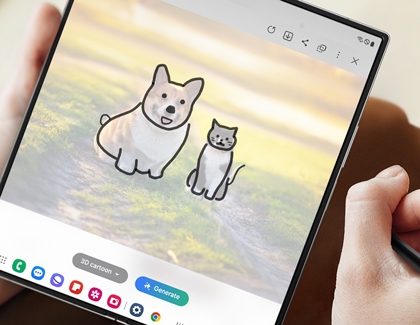
Once you’ve taken your selfies using the FlexCam on your Galaxy Z Flip6, why not have some extra fun with the available AI editing features? Generative Edit will fill in blank spots, AI drawing will let you add your own designs to your images, and Edit suggestions will provide editing feedback.
Edit suggestion
- Navigate to and open the Gallery app, and then select a picture you'd like to edit.
- Tap the Details icon (the “i”), and then tap the available edit suggestions. For instance, you may see options for Remaster, Erase shadows, or Erase reflections.
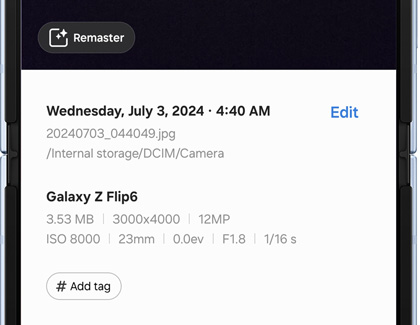
- Select your desired suggestion, and then follow the instructions to apply the changes. You may need to tap or draw around objects or adjust a slider bar.
Live Effect
- Open the Gallery app, and then find and select a photo.
- Swipe up to view more details, and then tap 3D photo on the image.
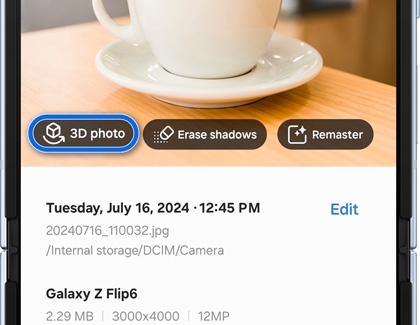
- AI will generate the photo’s effects. You may see a zooming motion, a panning motion, or a swivel motion.
- You can share the generated photo by tapping Share at the bottom of the screen.
- Or, tap Save copy.
You can also use the Galaxy Enhance-X app to further customize and edit your photos. Available from the Galaxy Store, this app uses AI techniques to enhance and improve your photos.
Read less