What to do if your Samsung Galaxy phone has been hacked (original) (raw)
If you're worried about your phone getting hacked, or if you think it may have been hacked already, there are some steps you can take to keep it safe. For example, you should only download apps using the Galaxy Store or Play Store and you shouldn’t select malicious links in apps, texts, or emails.

What to do if your Samsung Galaxy phone has been hacked
1
Look for signs you may have been hacked.
- Check for pop-up advertisements when using apps or browsing the internet. You should avoid clicking on or selecting the pop-up ads. To remove the ads, you can use ad blockers in the Samsung Internet app, and uninstall third-party apps with intrusive pop-up ads.
- Check for messages you did not send or calls you did not make. Navigate to the Phone app or Messages app to check your recent outgoing calls and messages.
- Check for apps that you don’t recognize, such as suspicious apps that you didn’t download. To remove these apps, touch and hold the app’s icon, and then tap Uninstall.
- Check for high data usage by navigating to Settings, and then tapping Connections. Tap Data usage, and then review your current amount of available data.
- Check for signs of battery drainage. For example, your battery may be depleting very quickly or you may need to charge your phone often.
- Scan your device with App Protection. Navigate to Settings, and then tap Security and privacy. Tap App security, and then App protection. Tap Scan phone.
Note
App protection may not be available on some models and carriers. Some carriers may also provide alternate solutions.
2
Remove unrecognized or problem apps in Safe mode.
If you have some apps on your phone that are causing problems, you can determine which ones should be deleted by using Safe mode. In Safe mode, your phone will not run any third-party apps. While in Safe mode, uninstall any suspicious apps.
- Boot your device into Safe mode.
- Open Settings, and then tap Apps.
- Check the list for apps with blank or random letters in the name, apps you don't recognize, or apps you have identified as problematic.
- Uninstall any suspicious apps.
3
Block malicious ads and popups.
Sometimes while browsing the web, you’ll see an ad that indicates that your phone has been hacked. You can use Ad blockers in Samsung Internet to prevent pop-ups.
- Navigate to and open Samsung Internet, and then tap Menu (the three horizontal lines).
- Tap Ad blockers, and then choose the services you’d like to use.
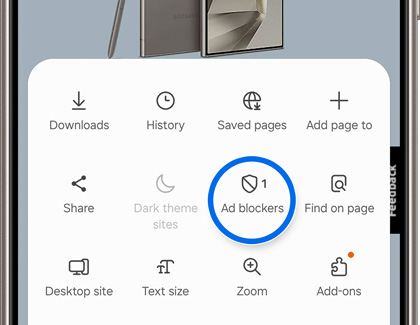
- Tap the Download icon to begin downloading.
4
Enable Auto Blocker and use Maximum restrictions.
Your phone’s Auto Blocker feature will block threats and other suspicious activity. Maximum restrictions in Auto Blocker provides increased protection as well.
- Navigate to and open Settings, then tap Security and privacy, and then tap Auto Blocker.
- Tap the switch to turn on Auto Blocker.
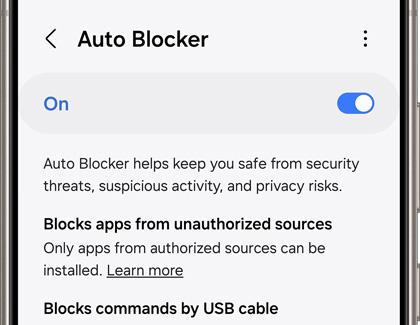
- Tap Maximum restrictions.
- Tap the switch to turn on Maximum restrictions. Keep in mind that this option will restrict some features.
5
Perform a Factory data reset.
If your phone still hasn't returned to normal, you can perform a Factory data reset to remove all installed apps and data from the phone.