Google Ads Account: What Is It & How to Create One (original) (raw)
What Is a Google Ads Account?
Before we dive into the Google Ads account, let’s quickly talk about Google Ads.
Google Ads is a pay-per-click (PPC) advertising platform that allows businesses to promote their products and services across the Google Network.
The Google Network consists of two groups:
- Search Network: Lets you advertise on Google Search and other search platforms like Maps and Shopping
- Display Network: Lets you advertise on the Google Display Network (GDN), consisting of millions of websites, apps, and videos
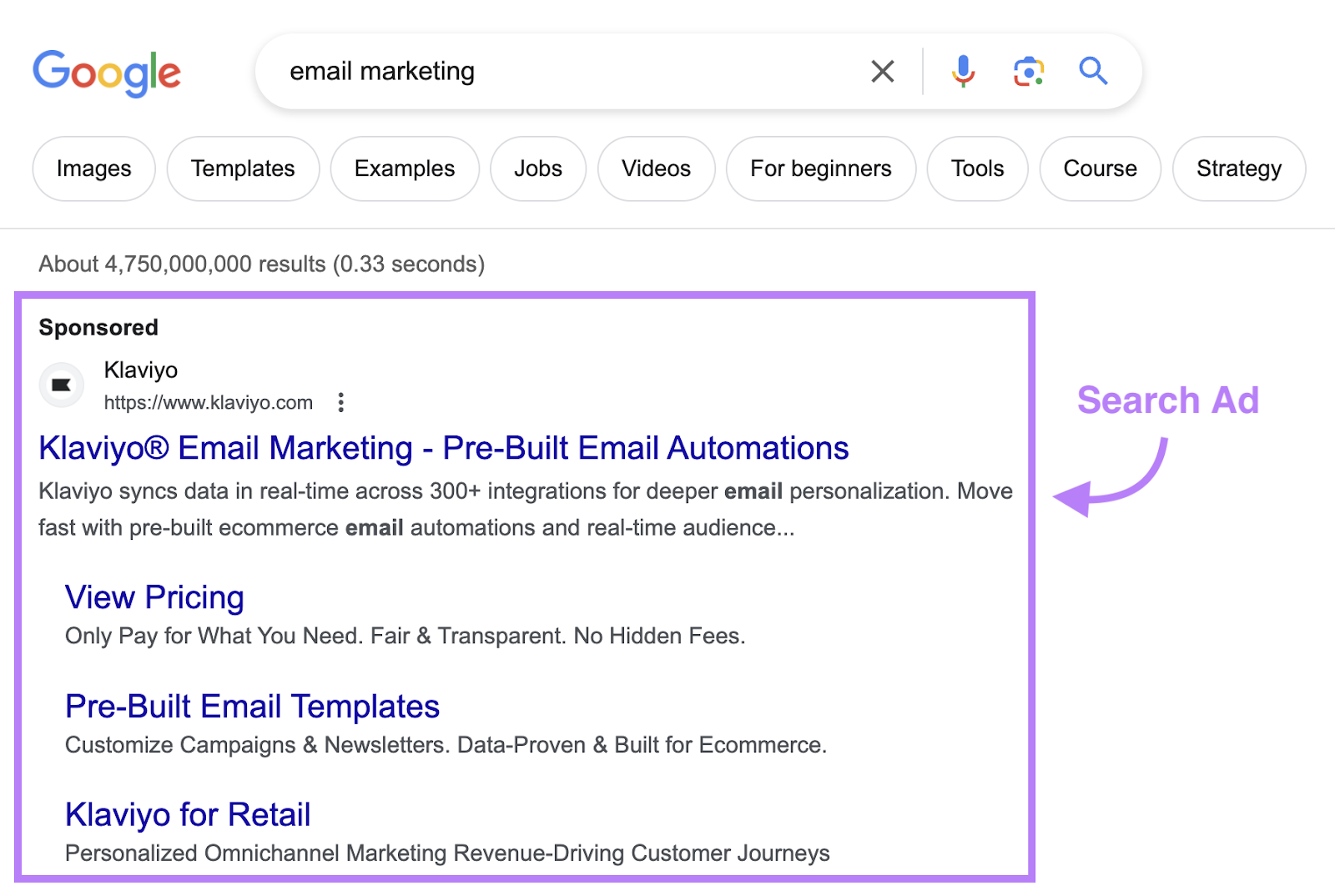
Here’s an example of a search ad.
And here’s an example of a Google Display Network Ad:

You need a Google Ads account to create and manage ad campaigns.
A Google Ads account also gives you access to various tools and features to create tailored campaigns for specific audiences. And lets you measure those campaigns’ performance.
How to Create a Google Ads Account and Set Up Your First Ad Campaign
Setting up a basic Google Ads account is pretty straightforward.
Here are the things you need to create one:
- A regular or business Google account. If you don’t have one, sign up for it.
- A business website
- A specific landing page you want to promote (You need this to create campaigns.)
Here’s a step-by-step process to set up your Ads account.
1. Sign In to Your Google Account
First, sign in to your Google account and open the Google Ads homepage. Then, click “Start Now.”

Google will confirm that you are using the right account for ads. If you are, click “New Google Ads Account.”

At this point, Google will usually tell you to start entering your business information.
Although, sometimes, it asks users to create a campaign right off the bat. Simply click on “Skip campaign creation” if you don’t want to set up a campaign yet.

But for the purposes of this workflow, we’ll show you how to set up your campaign, starting in step three.
2. Enter Your Business Information
Enter your business name. And click “Next.”
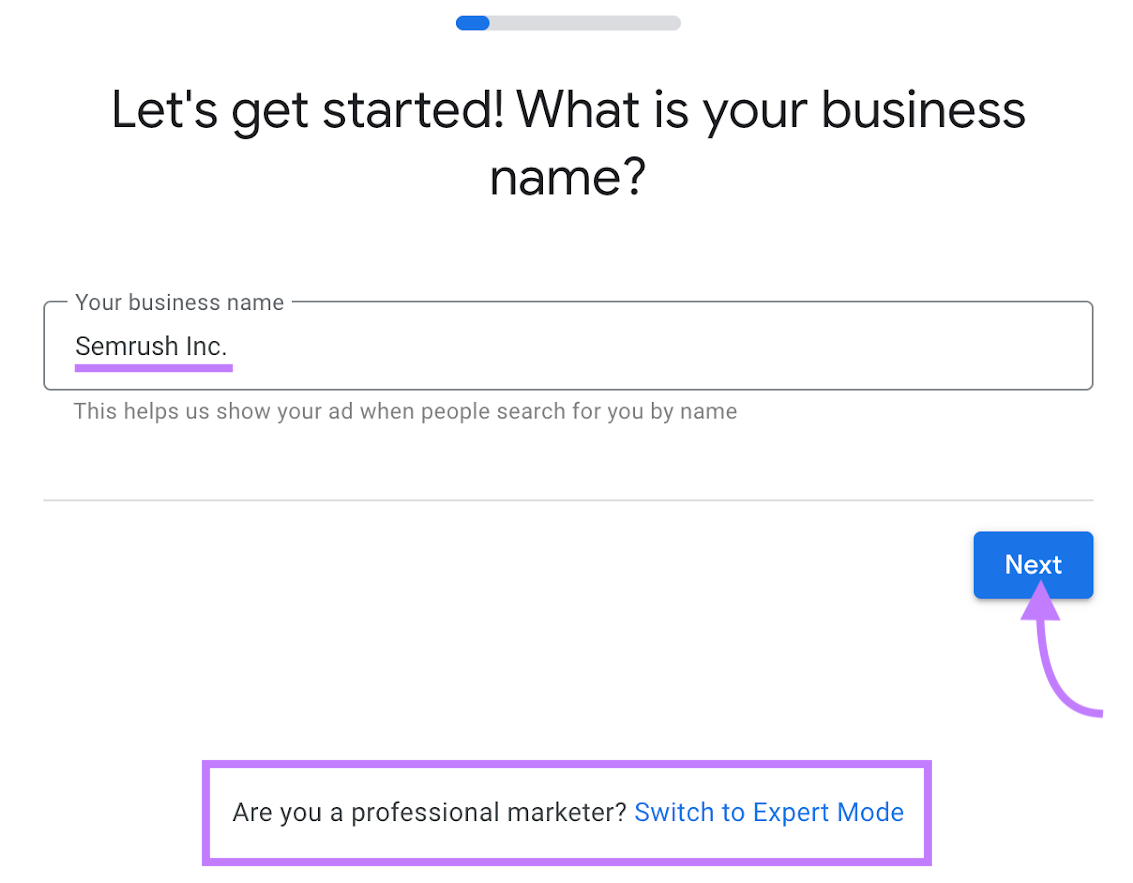
Take note: We are currently setting up this Google Ads account using Google’s “Smart Mode”—default settings. It’s a simplified version of Google Ads to help new users create automated campaigns quickly.
But if you’re an expert marketer, click on “Switch to Expert Mode” to create your account. It has more features and gives you better control over bidding strategies.
Watch this video to learn how to create Google Ads account in “Expert Mode.”
Next, enter your website URL. And click “Next.”

After that, check the preview of your mobile and desktop site.

Then click “Next.”
3. Define Your Advertising Goal
Now let’s start creating our first ad campaign.
Select your main advertising goal from the given options. And hit “Next.”

Note: You can set custom goals while creating ad campaigns in “Expert Mode.”
The following workflow will change based on the goal you select. Since we selected “Get more website sales or leads,” we also need to select the desired outcome for our campaign.
Choose the options that best align with your conversion goals and click “Next.”

4. Compose Your Ad
In Smart campaigns, Google Ads auto-generates the ad copy, headlines, and descriptions. You can edit them to fit your requirements.
For this demo, we’ll just check the preview of the auto-generated ad and click “Next.”

Then, you’ll see keyword theme suggestions. Select the relevant ones and click “Next.”

Tip: If you’re creating ad campaigns in Expert Mode, use Semrush’s PPC Keyword Tool for better keyword targeting and ad optimization. It also allows you to upload your keyword list directly from the tool to Google Ads.
5. Set Ad Location and Budget
The next step is to set the target location for your ad. You can set the target location to be as specific as your physical storefront area or as broad as multiple countries.
Once done, hit the “Next” button.

Next, you need to select your daily ad budget.
If you’re just creating a dummy campaign for now, select any of the options. As you won’t be running this ad.
Then click “Next.”

6. Review Your Campaign and Confirm Payment Details
Finally, take a look at your campaign details. And hit “Next.”

Make sure to select the correct billing country and enter accurate payment details. Because Google Ads won’t allow you to change the currency once you’ve created your account.
Then, click “Submit.”

Now your Google Ads account and campaign is set up.
If you’ve created this campaign for account setup purposes, you need to pause it. Otherwise, it’ll go live within 24 hours and you may get charged for it.
To pause the campaign, hit the “Explore your campaign” button.

Next, click “Pending” > “Pause campaign.”

Now that you’ve set up your Google Ads account, let’s understand its key components in detail.
Understanding the Components of a Google Ads Account
The Google Ads account has three main layers: account, campaigns, and ad groups. Each ad group contains a set of similar keywords and ads.
So, a high-level overview of a Google Ads account structure looks like this.
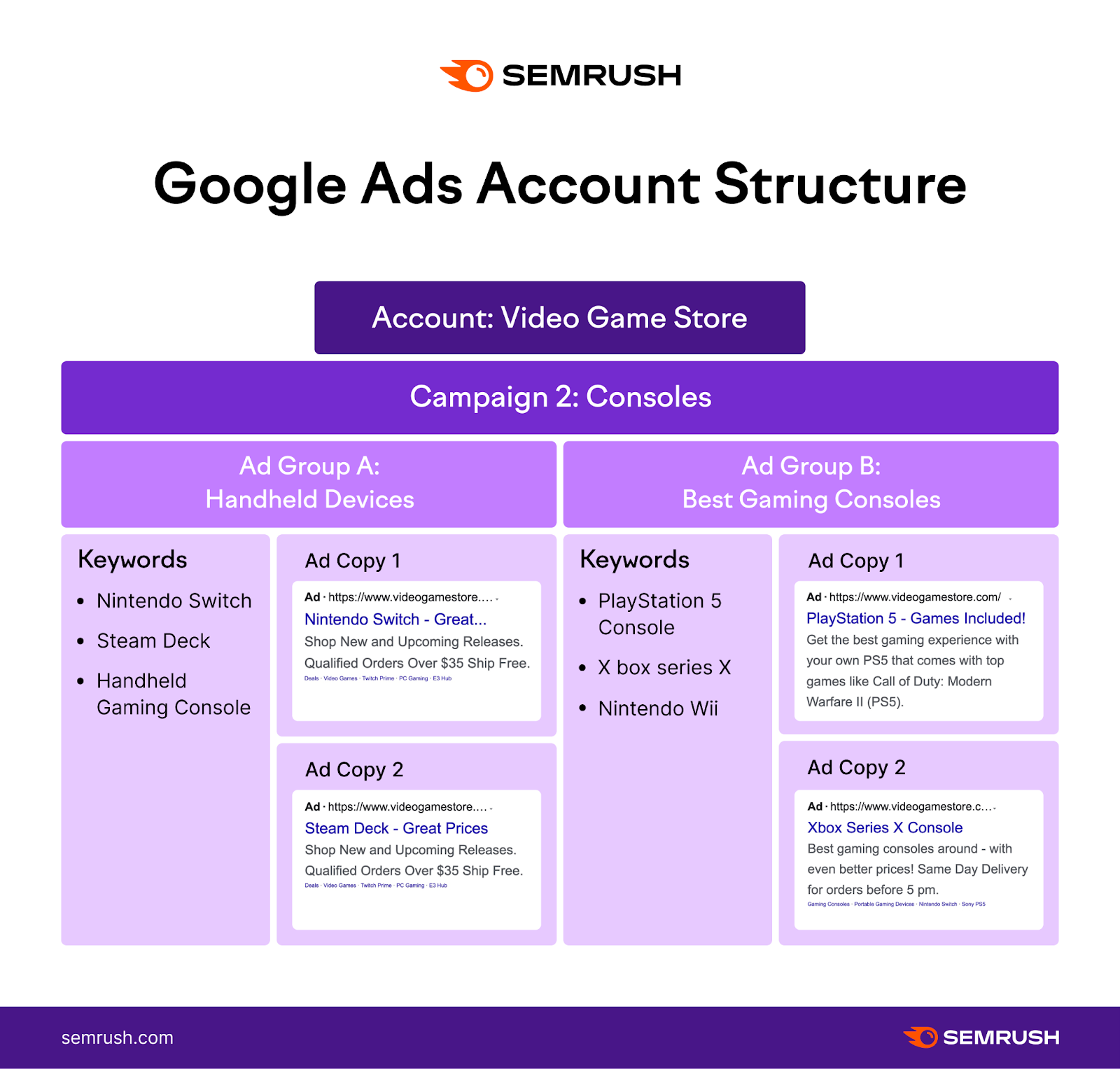
That said, let’s look at each of these components in detail.
Account
The account is the first layer of the Google Ads account structure. Think of it as a container that holds all the information about your business and PPC ads.
At this level, you can set the basic Google Ads account preferences that apply to your entire account. It includes settings like account name, time zone, billing information, language, etc.

Account-Level Best Practices
- Create your campaigns in “Expert Mode” for better control over target audience selection, budget management, and bidding strategy. You can also perform A/B tests for your ads in “Expert Mode.”
- Use the auto-tagging feature to understand how (or whether) the ad clicks are leading to desired conversion actions. Such as leads, downloads, purchases, etc. It helps you track the performance of your PPC ads.
- Link ads account to Google Analytics for better performance tracking
- Regularly review and update your billing information to ensure uninterrupted ad delivery
- Grant access to team members based on their roles and responsibilities
- If you have a data protection compliance officer in your organization, add their details in data protection contacts. Even if they don’t manage a Google Ads account directly, they’ll get notified if Google makes any changes to how they process your data.
Campaign
A campaign houses a bunch of ad groups consisting of ads, keywords, and bids. Each campaign is tied to a specific advertising goal, such as driving website traffic, generating leads and sales, or creating brand awareness.
One Google Ads account can accommodate up to 10,000 campaigns. That’s a lot!
Here are some of the main campaign types:

- Search: A common campaign type. Search ads trigger when users search for a specific query on Google.
- Performance Max: It allows you to advertise a single campaign across all the Google Ads channels like Search, YouTube, Gmail, Display, Discover, etc.
- Display: Includes images, graphics, or video-based ads. Display ads appear on websites and apps affiliated with Google Display Network (GDN).
- Shopping: Triggers on the SERP (search engine results page) and shopping tab when users search for products
- Video: Appears on YouTube and other video platforms in GDN
- Discovery: A visually rich ad format that shows up when users browse content on feed-based platforms like Google Discover
Campaign-Level Best Practices
- Start with a small daily budget. Once your ads have been running for a few weeks and you can see how they’re performing, optimize your budget and campaigns accordingly.
- Optimize your campaigns for specific cities, regions, or countries based on your target audience’s location
- Ensure your bidding strategy is aligned with your campaign goals. For example, if you want to drive website traffic, consider using cost per click (or CPC) bidding.
- Try different types of campaigns to find the right strategy for your business
- Instead of keeping the default settings, customize them at the campaign level. For example, you can set a custom budget for a specific campaign. Or add a target cost-per-action (CPA) in your bids.
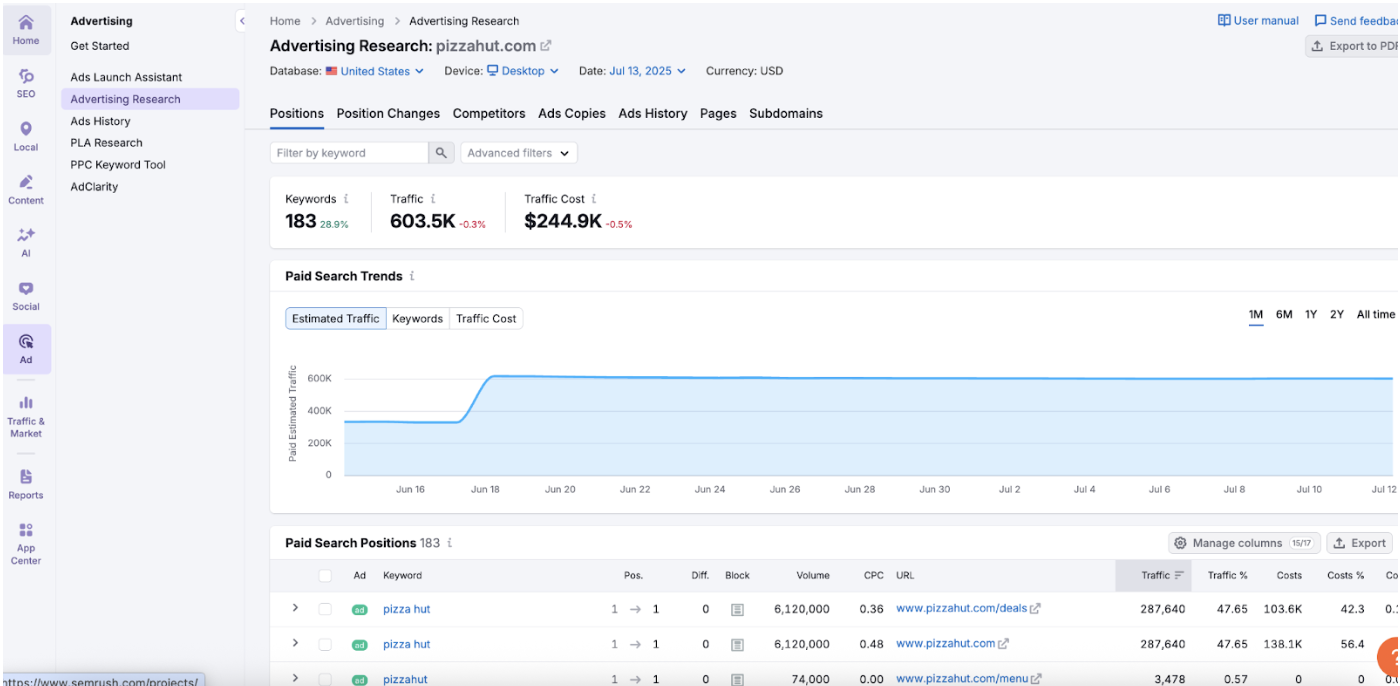
Pro tip: Use the Advertising Research tool to look into your competitors’ ad strategies, budget, keywords, and ad copy before creating your campaigns.
Doing so will help you identify their strengths and weaknesses. And optimize your ads accordingly.
Let’s say you’re a pizza brand and you want to research your competitor’s PPC strategy.
Log in to your Semrush account: Hover over “Ad” toolkit and click “Advertising Research.” Then, enter your competitor’s domain name.
Further reading: Analyzing Your Competitor's Advertising Strategy with Semrush
Ad Groups
An ad group is a set of ads and corresponding keywords that share similar targets. By bundling the related ads together in an ad group, you can reach a higher number of relevant customers.
To make your ads effective, group them according to the categories of products or services on your website.
Let’s assume you sell sports gear and equipment online. Here’s how you can create ad groups for different product categories.
| Ad Group 1 - Basketball | Ad Group 2 - Tennis | Ad Group 3 - Golf |
|---|---|---|
| Shoes | Rackets | Gloves |
| Wristbands | Shoes | Putter stands |
| Scrimmage vests | Bags | Clubs |
| Braces | Towels | Caps |
Ad Groups-Level Best Practices
- Select a narrow theme for each ad group and create related ads around that theme. This helps you improve ad relevance and the overall quality score of your ads.
- Create two or three ads for each ad group. And use the ad rotation setting so all the ads are shown in rotation.
- Keep organizing your ad groups as you create them. If you reorganize them later, you may lose important ad performance data.
- Although there’s no official number from Google, it’s a good practice to create 6-10 ad groups within each campaign. But don’t just go by this number; use your best judgment depending on the scale of your business and advertising budget.
Keywords
In the context of Google Ads, keywords are the words or phrases that Google uses to match ads with searchers’ queries.
Google Ads requires you to assign a match type to your keywords. The match types include:
- Broad match: Matches your ads to broadly related search queries
- Phrase match: Matches your ads to search queries that include the meaning of your keyword
- Exact match: Matches your ads to queries that have the same meaning as your keywords

Refer to this table for a better interpretation of the above image.
| Match Type | Required Annotation | Example Keyword | Appears For | Could Match To |
|---|---|---|---|---|
| Broad | Not required | best puppy food | Wider variation of search queries | puppy food price, high-quality puppy meals, etc. |
| Phrase | “.....” | “best puppy food” | Close and contextual variation of queries | puppy food near me, puppy treats, baked snacks for puppies, etc. |
| Exact | [.....] | [best puppy food] | Queries with the same meaning | best food for puppies, kibble for puppies, etc. |
Keywords-Level Best Practices
- Choose specific keywords that are relevant to what you’re promoting. For example, if you sell backpacks for kids, you can target keywords like “kids backpacks,” “backpack for children,” etc.
- Consider using a mix of all three keyword match types for better ad optimization. This helps with both—reaching wider audiences and precise targeting.
- Use a keyword research tool to conduct thorough keyword research for your ads
- Create a list of 15-20 keywords per ad group
- Add a list of negative keywords—queries for which you don’t want to trigger your ads (also called a negative match
Ads
An ad is the final product of all the processes we discussed so far. This is what your customers will see and click on (hopefully!) to land on your desired page.
At this level, you can create new ad copy, edit the existing ad copy, or upload the existing ads.
Pro tip: Analyze the past ads for your target keyword using Semrush’s Ads History tool. Check the highest-performing ads and learn from their ad copy. Also, see if there’s any dominant pattern in competition level during specific months of the year. This way, you can optimize your ads effectively.

Ads-Level Best Practices
- Ensure you’ve included at least one keyword from the ad group in your ad’s headline. It improves your ads’ click-through rate (CTR). For instance, when users search for specific terms and see similar keywords in the title. They will probably find these ads more relevant and are therefore more likely to click on them than ads with titles unrelated to their search.
- Run A/B tests to discover the best-performing ads in your campaigns
- Make sure your ad is relevant to the landing page where users will be sent once they click your ad
- Use a clear and compelling CTA (call to action) that promises the benefits of clicking your ad and visiting the page you’re advertising
- Capitalize the first letter of every word in your ad’s headline and body text. This helps you capture users’ attention. (But you should test other capitalization and see which approach works best for your ads.)
Is a Google Ads Account Different from a Google Ads Manager Account?
Google Ads accounts and Google Ads manager accounts are different. The manager account acts as a hub to which multiple Google Ads accounts can be linked.
With a manager account, you can view and manage all the linked ads accounts from a single location. You can also connect and manage other manager accounts to your account.
It’s an ideal tool for a PPC agency or marketing professional who manages more than 20 Google Ads accounts. Which means most people may not need the Manager account.
Get the Most Out of Your Google Ads Account with Semrush
With the right approach, Google Ads is a powerful platform to drive qualified traffic, leads, and conversions for your website. But it can burn money on ad spend if you don’t plan your ad campaigns strategically.
Targeting the right PPC keywords with well-designed ads is key to successful Google Ads campaigns. Find the most relevant keywords for your ads with Semrush’s PPC Keywords Research Toolkit.