What Is a Sitemap? Website Sitemaps Explained (original) (raw)
What Is a Sitemap?
A sitemap is a file that shows the structure of your website, including its pages and content. And the relationships between them.
One type is intended to help search engines crawl your site more efficiently. Another type is intended to help users better navigate your website.
Why Do You Need a Website Sitemap?
The larger and more complex your website is, the more difficult it can be for both users and search engines to navigate. But sitemaps make it easier.
All this means sitemaps are important. Because they can lead to:
- Better discoverability: An XML sitemap (more on this in the next section) helps search engines discover important pages on your website. This is particularly helpful for large websites that have thousands of pages and may be impacted by a limited crawl budget.
- Faster indexation: For newer websites, submitting an XML sitemap can lead to more pages ranking sooner. And for websites that update existing content, Google can discover those changes sooner when they’re included in the sitemap.
- Improved user experience: HTML sitemaps (more on this in the next section) can make it easier for users to find exactly what content they’re looking for. Because they’re able to see all your most important pages in one place.
Different sitemaps offer different benefits, so let’s discuss those next.
What Are the Different Types of Website Sitemaps?
There are two types of sitemaps:
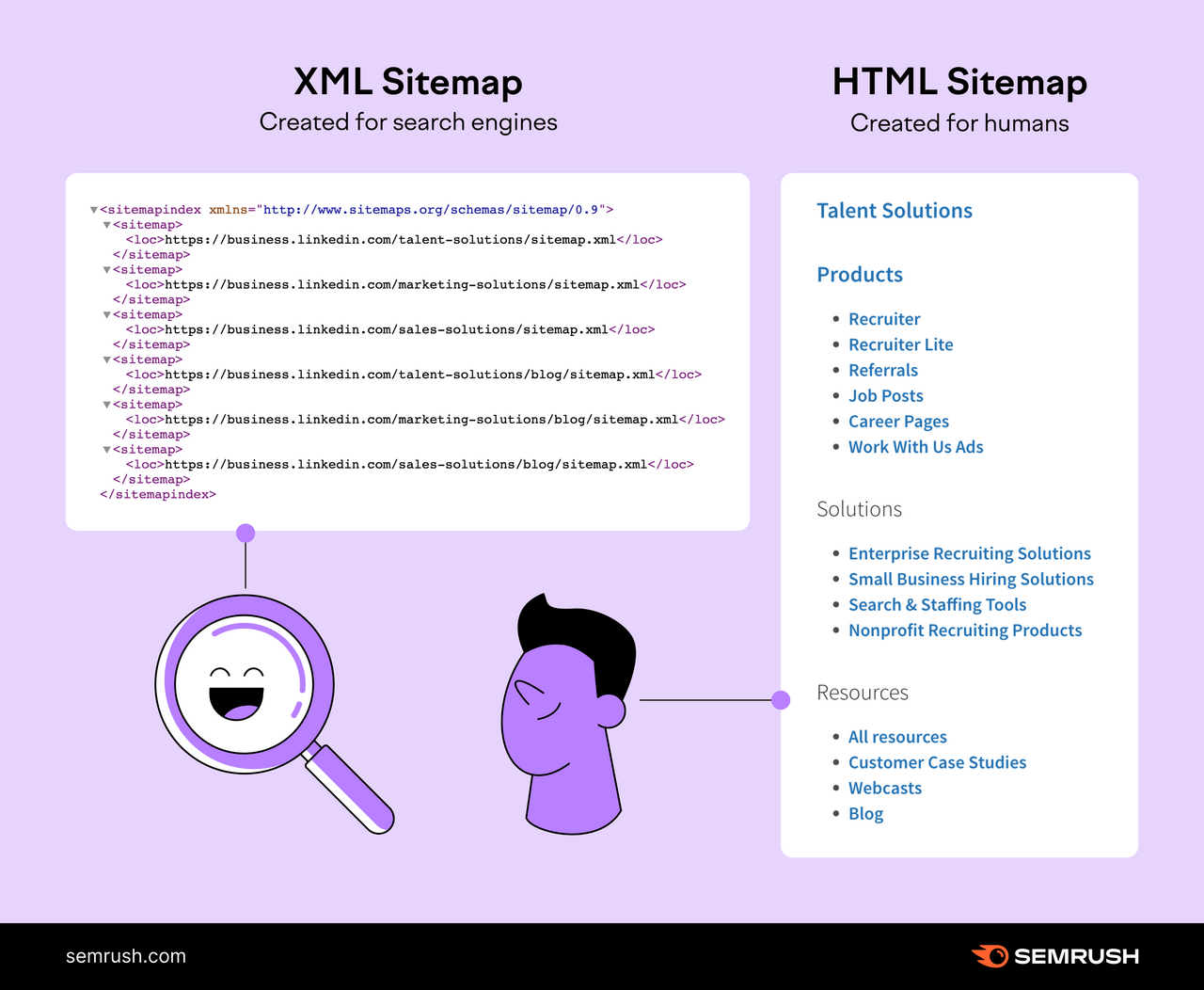
- XML sitemaps: Sitemaps written in a specific format designed for search engine crawlers
- HTML sitemaps: Sitemaps that look like regular pages and help users navigate the website
XML Sitemaps
Extensible Markup Language (XML) sitemaps are the preferred format for search engines like Google.
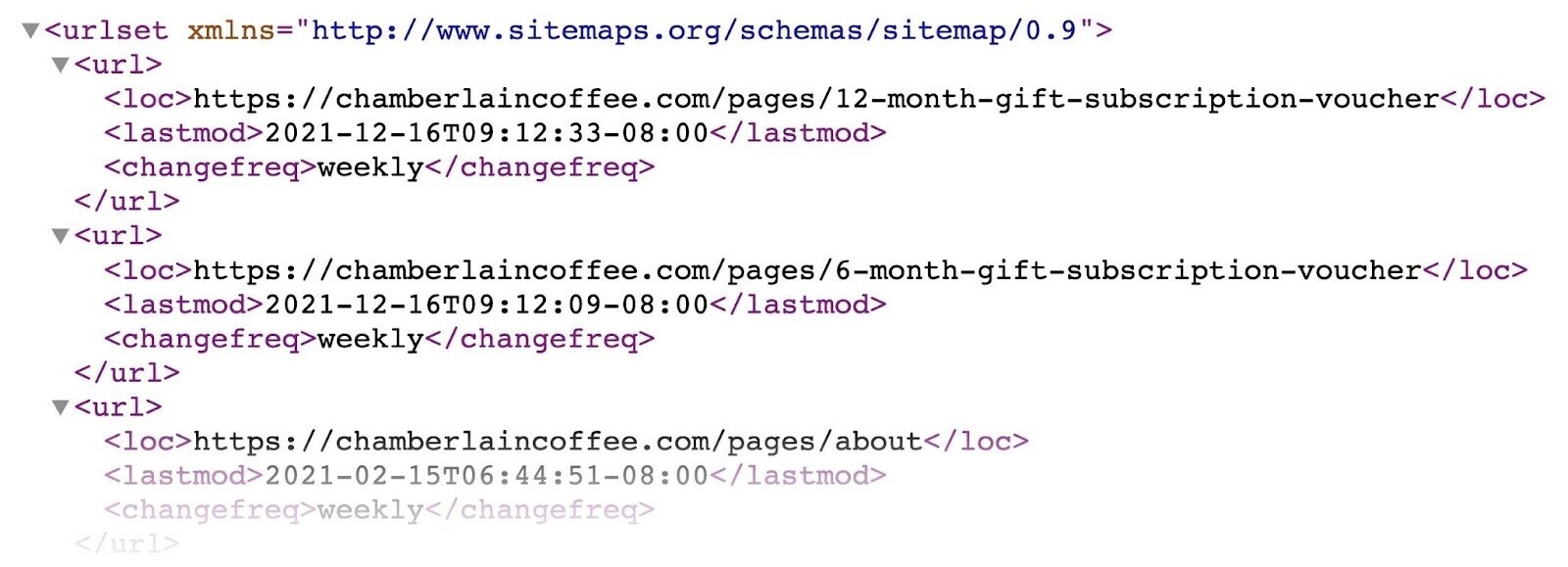
They provide three main types of information to search engines:
- The list of all the URLs you want to have indexed
- The “lastmod” attribute that informs when the URLs were last updated
- The "hreflang" attribute that reveals local variants of the URLs
These sitemaps look something like this:
While XML sitemaps are especially suitable for large websites, websites with extensive archives, or new websites with few links, every website can benefit from having one.
Plus, it only takes a few minutes to create one.
Further reading :
- XML Sitemap: What It Is & How to Generate One
- WordPress Sitemap: How to Create, Check, and Submit One
HTML Sitemaps
HTML sitemaps used to be a popular way to improve a website's navigation and provide links to all your important pages in one place.
Here's an example of an HTML sitemap from H&M Group:
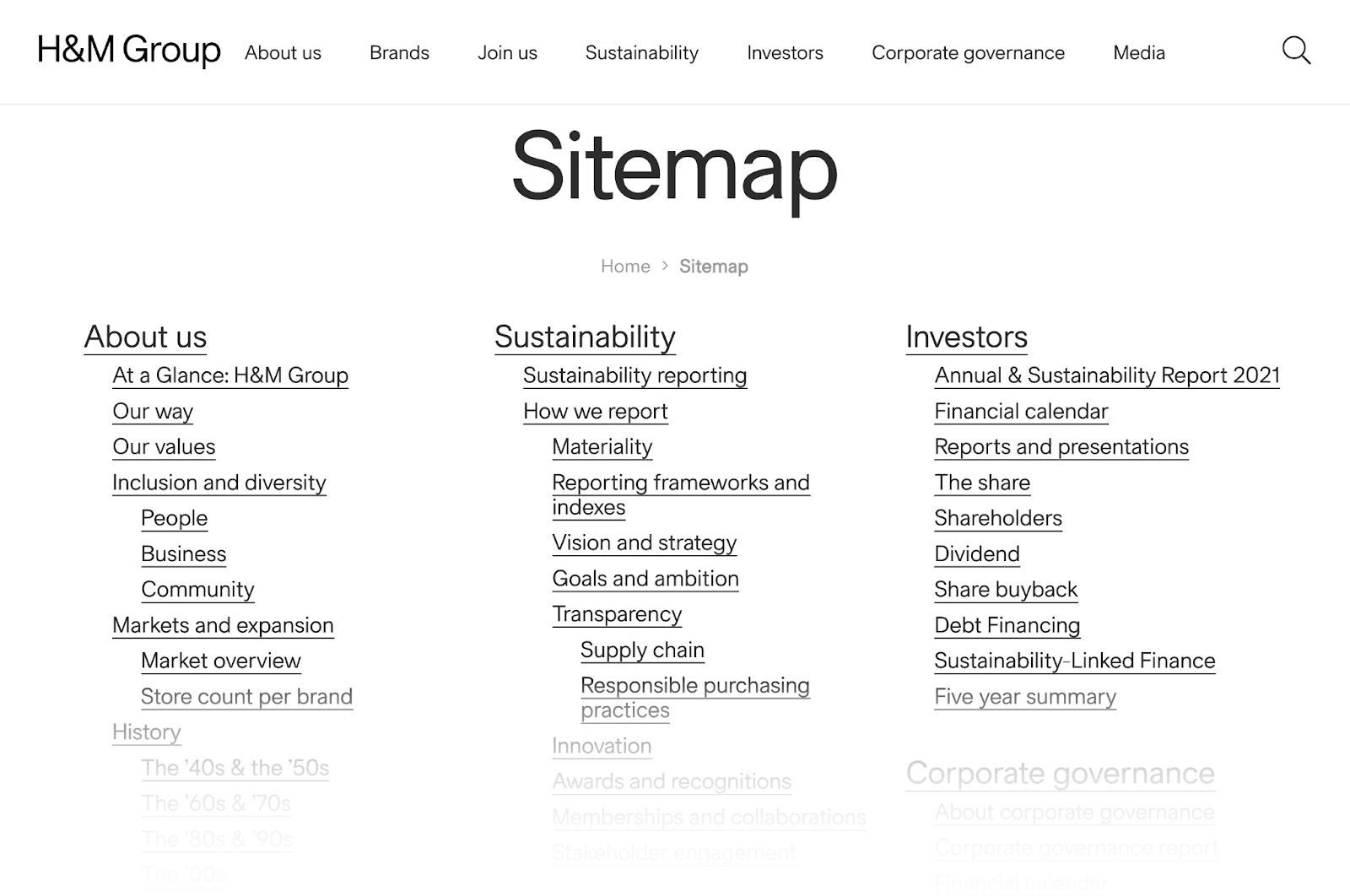
As you can see, it’s a standard page with links to various pages organized in a hierarchical way.
Although HTML sitemaps aren’t that common anymore, some voices in the SEO community still say they’re a must. Because HTML sitemaps can improve your internal linking and provide another layer of navigation for complex websites with many pages.
But don’t use an HTML sitemap as a replacement for good site navigation elements (such as menus, footer links, breadcrumbs, categories, etc.).
Google’s John Mueller spoke to this on Mastodon:
If you feel the need for an HTML sitemap, spend the time improving your site's architecture instead.
In other words, users shouldn’t need a sitemap to effectively navigate your website.
How to Find a Sitemap
Here are some effective ways to find a sitemap on a website:
Manual Check
The easiest way to find an XML sitemap is to look for it manually. Most commonly, a website’s XML sitemap will be located at this URL address: “https://domain.com/**sitemap.xml**.”
Quite often—especially if the website uses WordPress and the Yoast SEO plugin—you'll be redirected to a sitemap index (/sitemap_index.xml).
In that case, it’ll look like this:
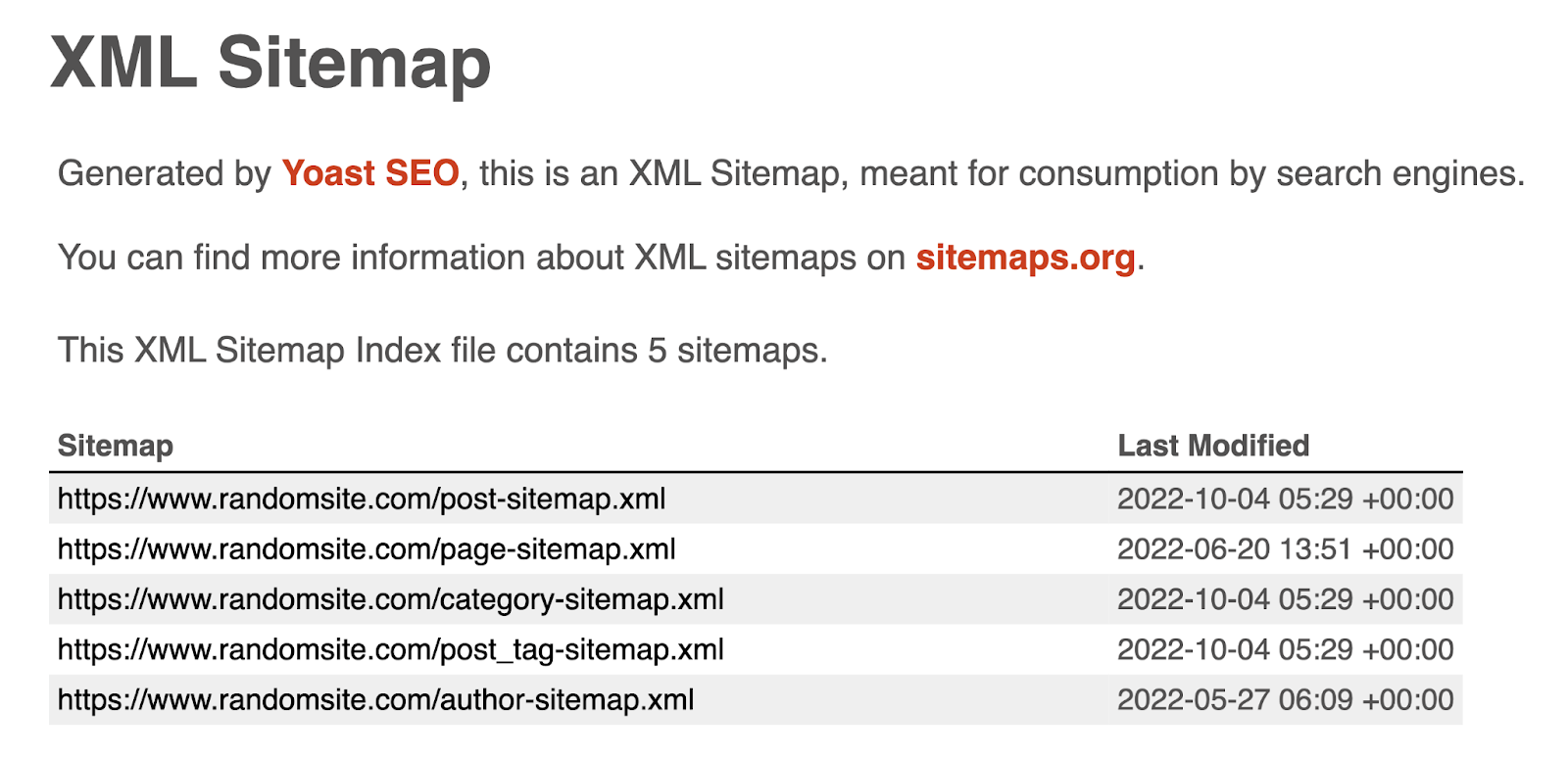
As you can see, a sitemap index is a simple file that lists all the sitemaps a website has. (Yes, there can be multiple sitemaps.)
To see the actual sitemap, just click the link to the specific sitemap in the index.
Search Operators
Search operators are special commands you can add to search queries to return more specific results.
Here are some search operators you can use to find a website’s sitemap:
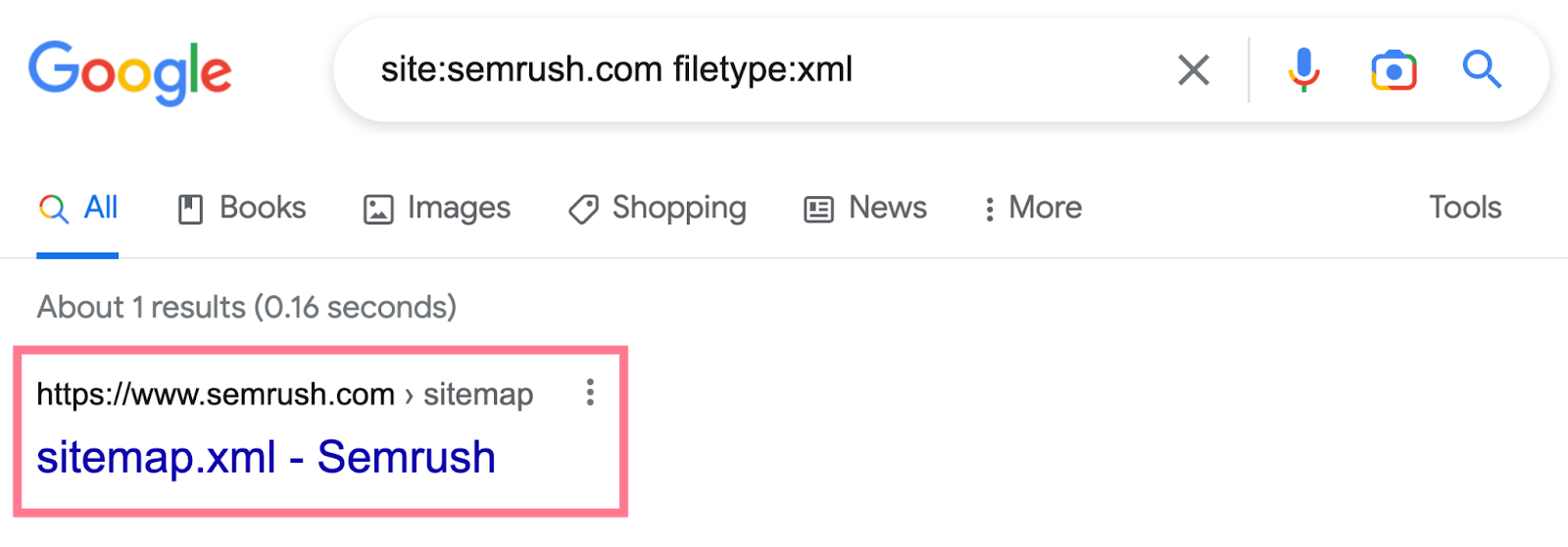
- “site:[domain.com] filetype:xml”
- “site:[domain.com] inurl:sitemap”
- “site:[domain.com] intitle:sitemap”
Simply enter the operator into the search bar and replace “domain.com” with the actual website's address.

The search results should return the location of the website sitemap—if it exists and the search engine you’re using has indexed it.
Google Search Console
If you have access to your website's Google Search Console (GSC), there's a chance the sitemap has been submitted there.
Head to the “Sitemaps” report in the “Indexing” section of the left menu.

Here, you'll see a section called “Submitted sitemaps.”
If someone has submitted an XML sitemap before, you'll find its URL in the list.

Robots.txt
A robots.txt file tells search engine crawlers which sections of the website they should crawl and which they should avoid.
It should go in the root folder of your site: “https://domain.com/**robots.txt**.”
If the robots.txt file follows best practices, it’ll link to the website sitemap. Just search for “sitemap” within the robots.txt file.
The section linking to a sitemap will look something like this:

How to Review Your Sitemap for Issues
To ensure your sitemap is set up correctly, use Semrush’s Site Audit.
The tool will crawl your website (similar to the way Googlebot does) and detect any problems related to your sitemap (if present). And will also check for other technical issues on your site.
To begin, add your homepage URL to the text bar. Then, click “Start Audit.”

Next, choose your settings for the audit.
Follow our detailed setup guide if you need help.
Next, click “Start Site Audit.”

Once the audit is complete, you’ll arrive at the tool's “Overview” report. Here’s what it looks like:

Click the “Issues” tab. Then, search for “sitemap” in the text box.

You'll get a list of issues related to your sitemap.xml file.
Address “Errors” first, then move on to “Warnings” and “Notices.”
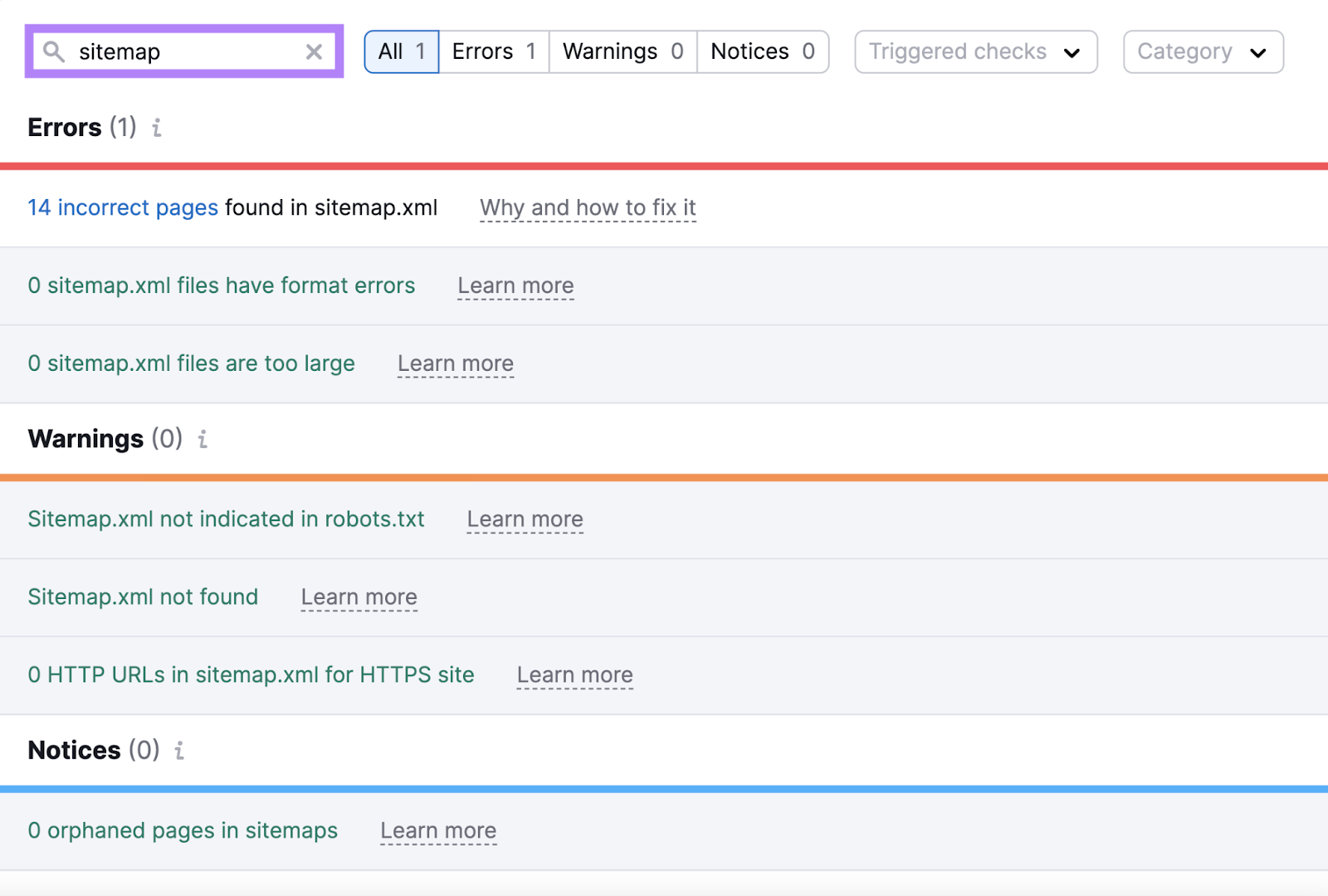
Some common sitemap-related issues include:
- Sitemap has format errors: There are format errors (like missing XML tags) in your sitemap file
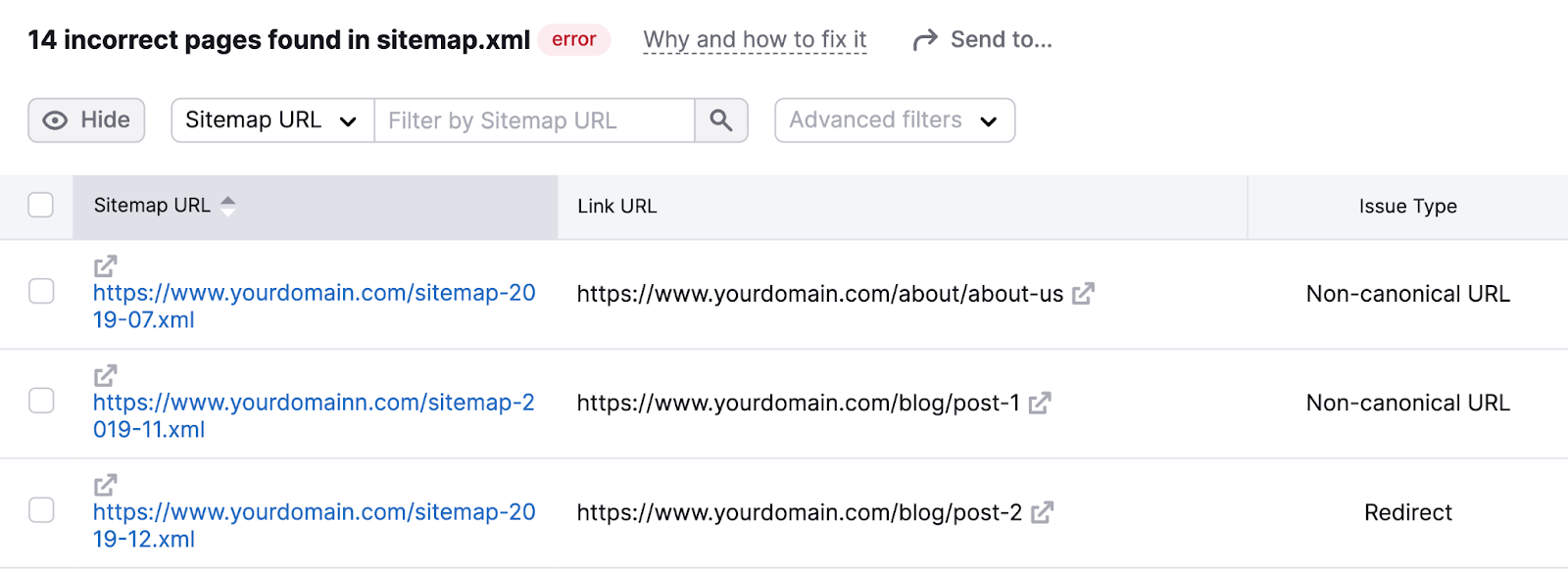
- Incorrect pages found in a sitemap: Your sitemap contains pages that aren’t supposed to be in a sitemap (like pages with redirects or pages that aren’t canonical versions)
- Sitemap files are too large: Your sitemap exceeds Google's size limit (more than 50MB or more than 50,000 URLs)
- Sitemap not indicated in robots.txt: Your robots.txt file doesn’t indicate the path to your sitemap. Including this path is a best practice because it directs search engines to your sitemap. And facilitates faster and more complete indexing.
- Sitemap not found: The sitemap URL provided returns a 404 error. This could be due to a typo in the sitemap URL, the sitemap not being uploaded, or it being placed in the wrong directory.
- HTTP URLs in sitemap for HTTPS site: Your sitemap contains HTTP URLs on an HTTPS site. All URLs should be HTTPS to prevent duplicate content issues and security warnings in browsers.
- Orphaned pages in sitemaps: These are pages that are listed in the sitemap but don’t have any internal links pointing to them from other pages on the site. This makes it hard to find them and can limit those pages’ ability to rank well.
Click one of the links with the number of affected pages to see a full list of pages with that specific issue.

Next, click “Why and how to fix it” next to each type of issue.
This will open a window with an explanation of the problem. And tips on how to fix it.
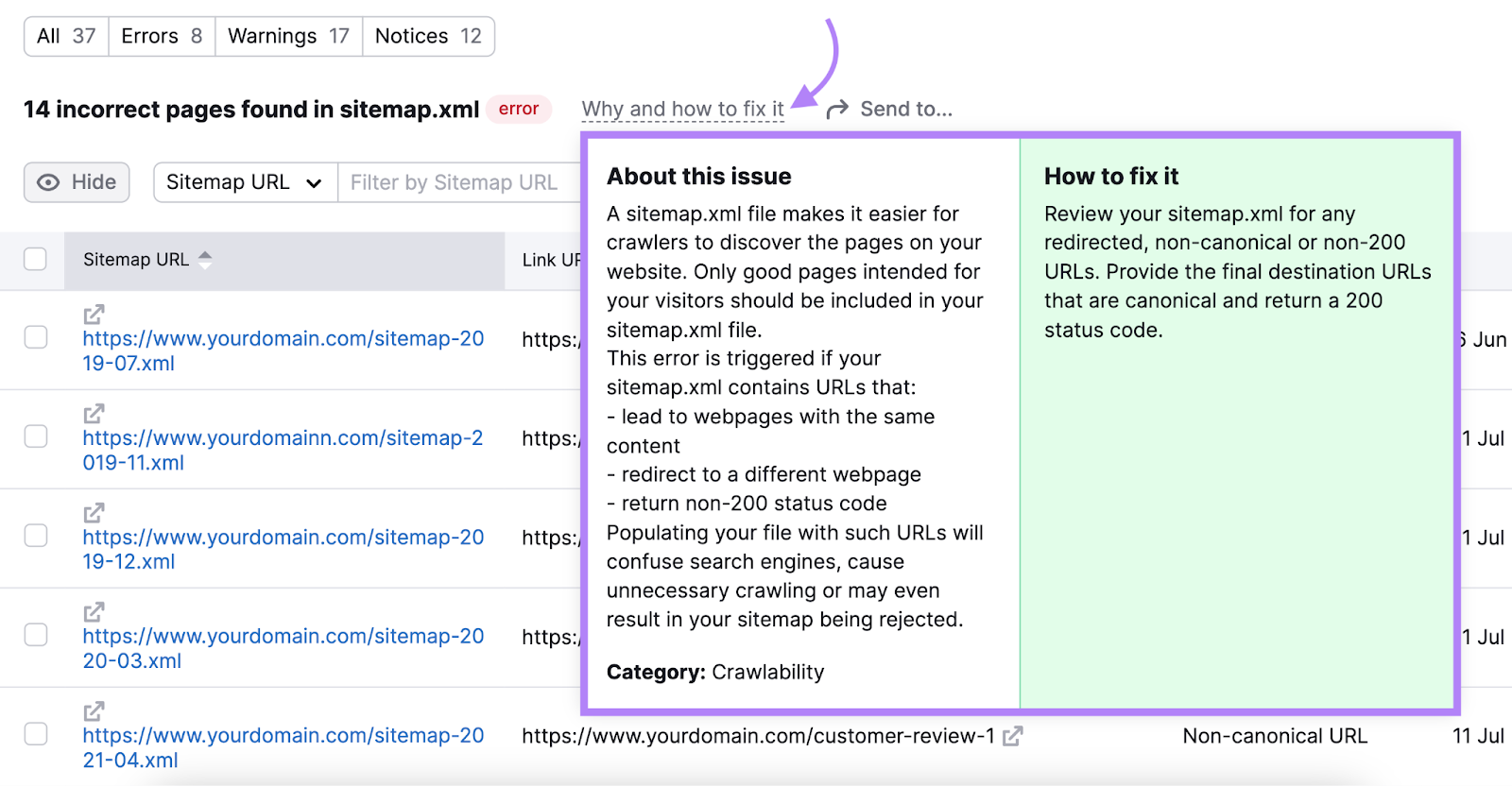
Go through the list and implement the necessary changes.
Then, rerun the audit to confirm that all issues have been successfully resolved.
How to Submit a Sitemap to Google
Submitting your XML sitemap to Google is an SEO best practice.
Why?
- It can speed up the process of Google discovering your sitemap
- It can help you detect issues with your sitemap
Submit your sitemap in Google Search Console. (If you don't have an account yet, create one so you can log in to GSC.)
To submit your sitemap, go to the "Sitemaps" report. You'll find it in the "Indexing" section of the left menu.

There, enter your XML sitemap’s URL in the “Add a new sitemap” section. And click the “Submit” button.
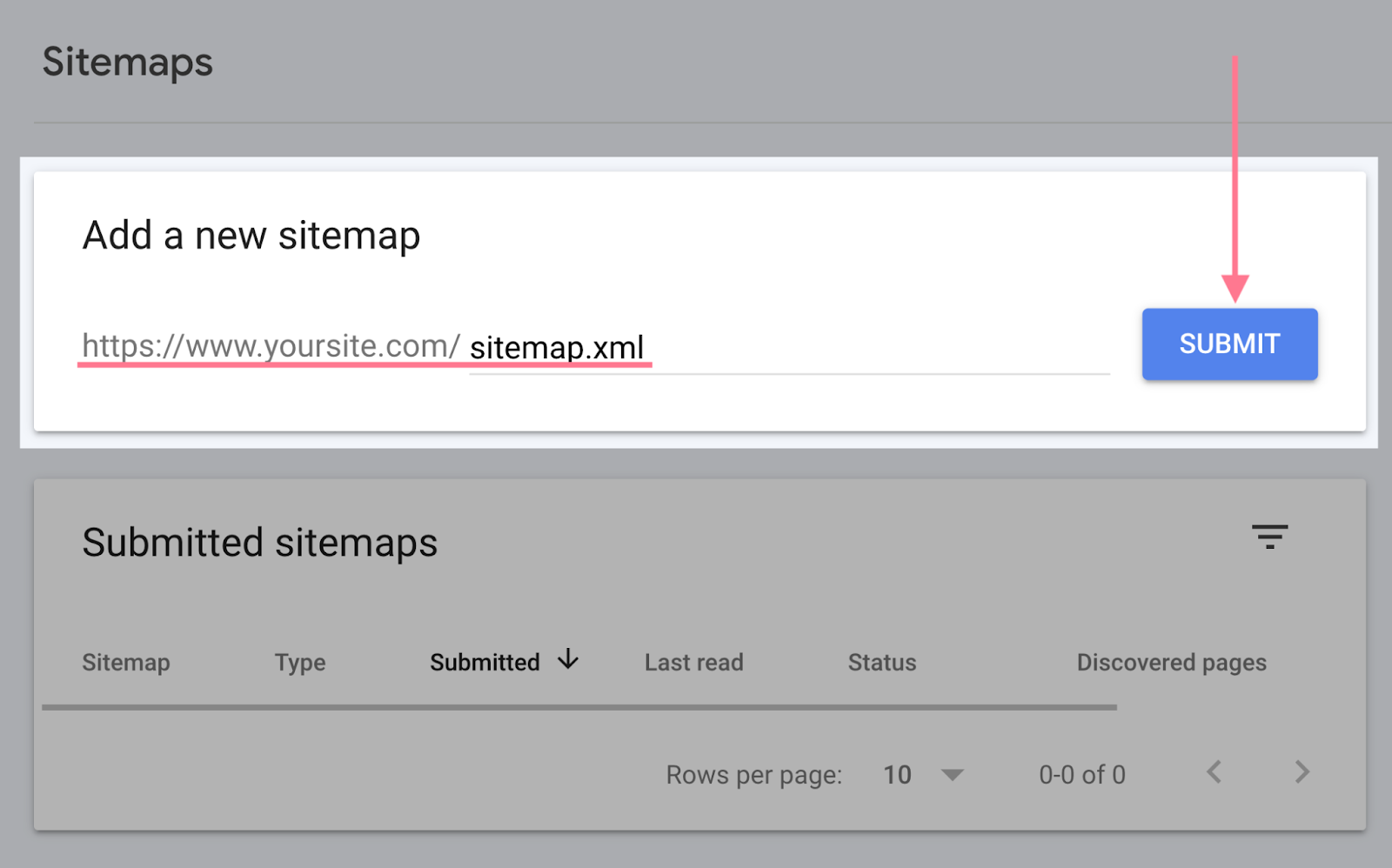
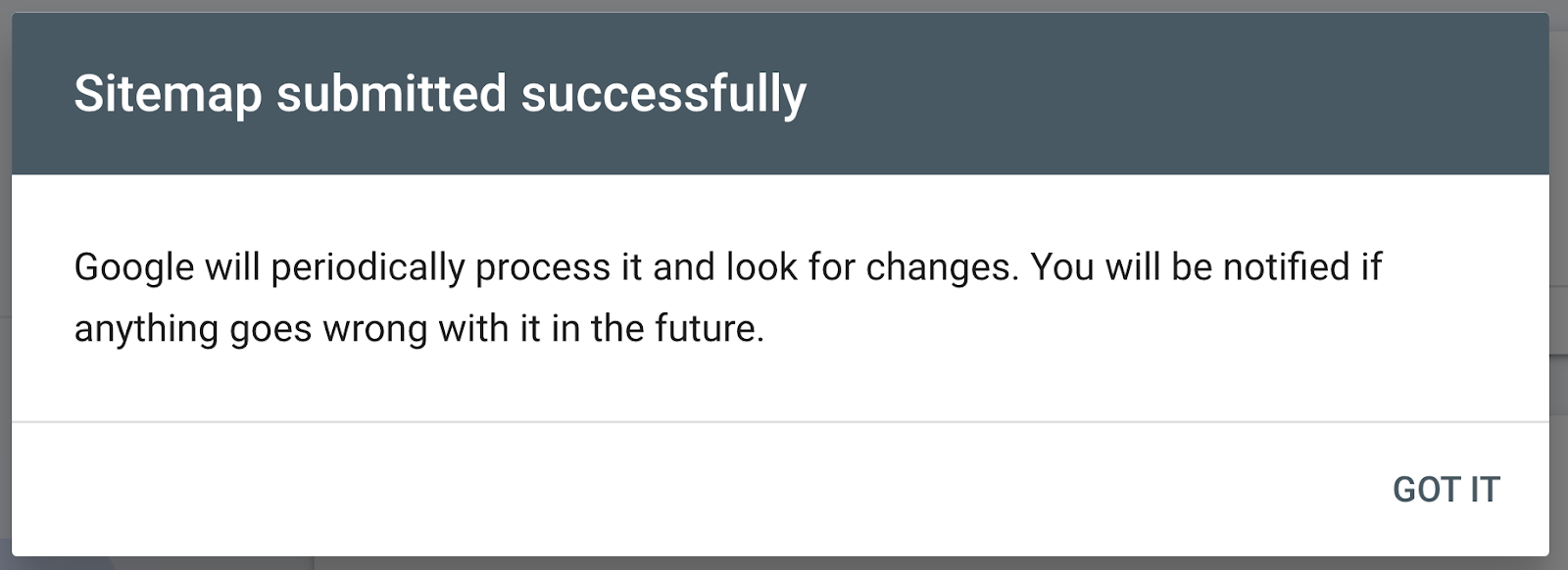
After you've submitted your sitemap, you'll get a message like this:
For a more in-depth guide, read our post on how to submit a sitemap to Google.
Monitor the status of your sitemap anytime you visit the report. If there's a green “Success” message, you're all good.
If there's an issue with your sitemap, you'll see a red “Couldn't fetch” or “Has errors” status. In this case, the report will provide a detailed explanation of what went wrong and how to fix it.
Check the full list of possible errors and how to fix them in Google’s guide to the “Sitemaps” report.
FAQs
Below are some common questions related to sitemaps. With answers and additional resources.
Do I Need a Sitemap for a Small Website?
Google states that websites with 500 or fewer pages may not need a sitemap. But only if all of the pages are properly linked and discoverable by search engine crawlers.
That said, there are no downsides to having an XML sitemap. And if your website regularly updates content for SEO purposes, a sitemap can speed up the process of Google finding those changes.
What Shouldn’t Be Included in a Sitemap?
All of the pages listed in your sitemap should show Google that your site is high-quality and well-maintained.
That means you should leave out some pages. Such as:
- Pages with 3xx, 4xx, or 5xx status codes
- Orphaned pages
- Duplicate pages
- Pages that aren’t the canonical version
- Pages with a “noindex” robots tag
- Pages blocked in your robots.txt file
How Big Is Too Big for a Sitemap?
A single sitemap should be limited to 50MB or 50,000 URLs.
Google encourages users to follow best practices outlined by sitemaps.org.
If yours exceeds the size limits, you’ll need to split up your sitemap.
Then, create and submit a sitemap index file to Google. So it can identify all of your sitemaps.
How Often Should You Generate a Sitemap?
The more often you update and publish new content, the more often you should generate a sitemap.
As a general rule, we recommend auditing your sitemap once per month. If you publish multiple pieces of content per day, you may need to update your sitemap on a weekly basis.
Just keep an eye out for errors. Which is easy with the Site Audit tool.