What is Keyword Overview? (original) (raw)
The Keyword Overview is our top-level report to look up any keyword in the Semrush database. After entering your word or phrase in the search bar, you’ll see the keyword’s search volume (national, global, and local level), intent, number of results, CPC, Competition level, volume trend, and more.
- Top-level examination of any keyword in the Semrush database
- Instantly judge a keyword’s estimated value and competition
- Portal to deeper keyword research reports in the software
- Option to send keywords from the Bulk Analysis tab directly to Keyword Strategy Builder
- AI-powered personalized insights for keyword research
In digital marketing, keywords intersect with you and your potential customers. You can target keywords by writing content on your website or through an advertising budget on Google Ads.
But before bringing in any traffic from search, you must decide which search terms are worth targeting. This is where keyword research becomes so important.
The Keyword Overview report is the easiest place to start your keyword research and get familiar with Semrush's reports and metrics.
Analyzing a Keyword’s Value
When you launch a Keyword Overview report, Semrush will provide you with an initial assessment of a keyword’s value.
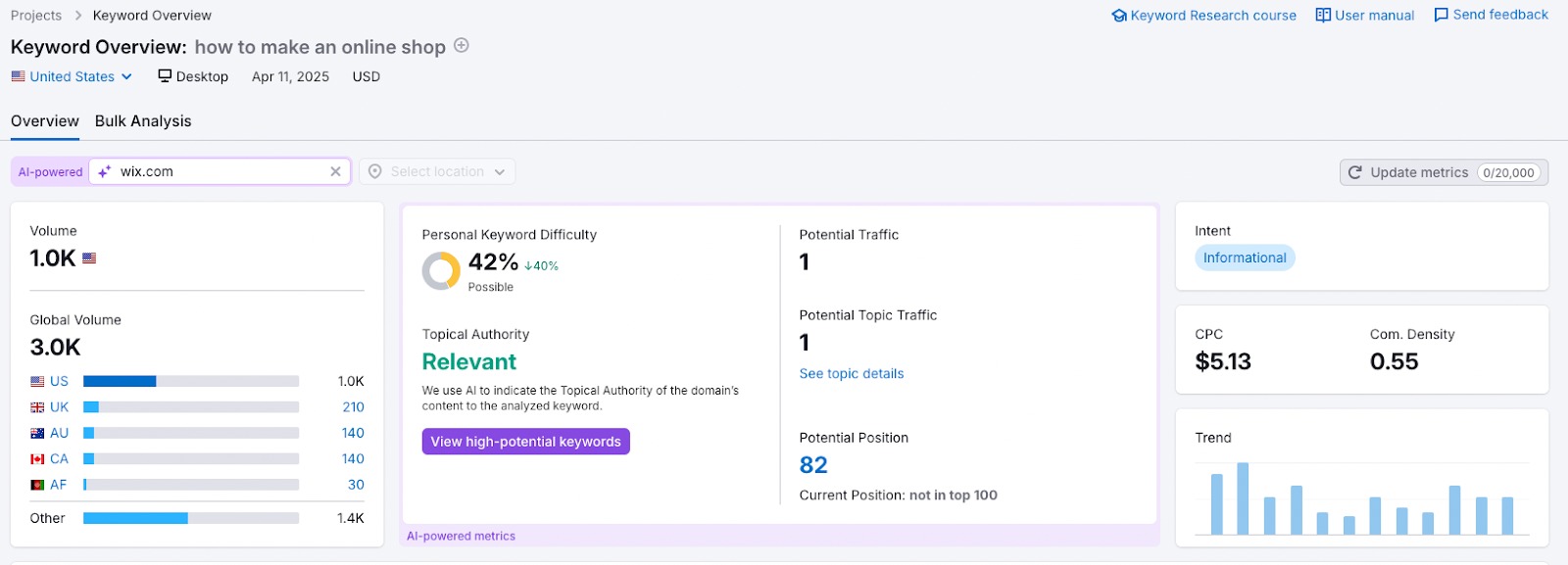
- Volume: the average number of times per month that a keyword was queried on Google (on the national/local level).
- Global Volume: the combined total of the keyword’s monthly search volumes across all of our country databases.
- Personal Keyword Difficulty (PKD): is calculated using AI algorithms to analyze any domain's relevance to any specific keyword. Find out how it’s calculated here.
- **Potential Traffic**is calculated using AI algorithms to estimate the domain-specific traffic for a keyword and its related topic. Find out how it’s calculated here.
- Topical Authority: relevance of the domain’s content to the analyzed keyword. Find out how it’s calculated here.
- Potential SERP Position: your current and potential position for an analyzed keyword
- Intent: the purpose of a user’s query in a search engine. Intents can be read by search engine algorithms to show the proper results and SERP features. The main types of search intents are: informational, navigational, commercial, and transactional.
- CPC: cost-per-click ad advertiser pays Google for a click on their PPC ad on this keyword’s SERP.
- Competitive Density: the density of advertisers bidding on this keyword for their ads on the national level. A score of 1.00 indicates the highest level of competition, and a score of 0.00 indicates no competition. Although this metric refers to competitors in paid search, it can be representative of a keyword’s organic value as well.
- Trend: how much interest web searchers have shown in a given keyword in the last 12 months.
Knowing search volume allows you to estimate how popular a keyword is. But popularity isn’t the most important thing when picking your targets.
Checking a Keyword’s Intent
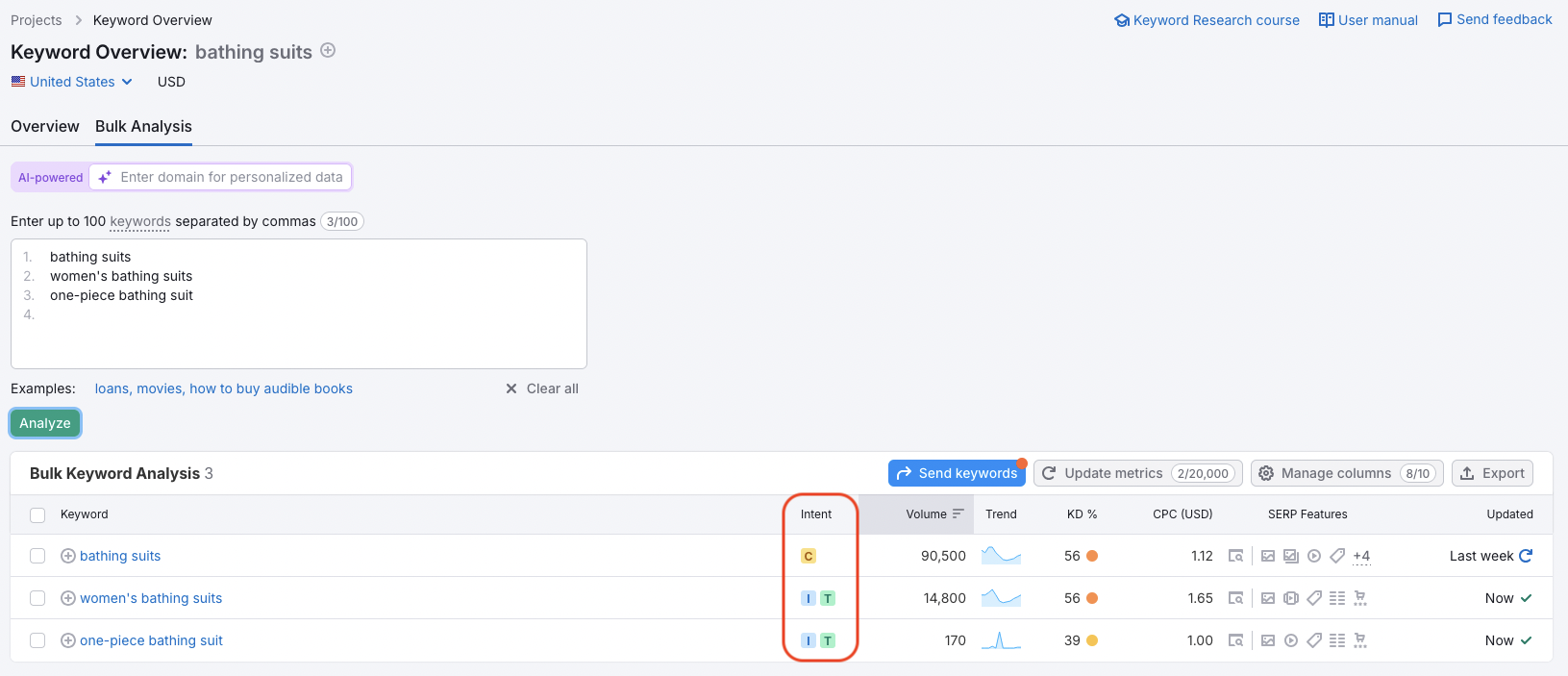
You can enrich your keyword research even further with an automated intent analysis in Semrush. We identified search intent for each keyword in our databases so you can quickly find out what users are searching for and intending to do. The Bulk Analysis tab allows you to analyze a user’s intent and several other key metrics for up to 100 of your target keywords at a time.
Tip: Use the Keyword Gap tool to find gaps in multiple competitors’ keyword strategies.
Keyword Variations, Questions & Keyword Clusters
The Keyword ideas widget shows a snapshot of similar groups of keywords that you can use to find your perfect target keywords.
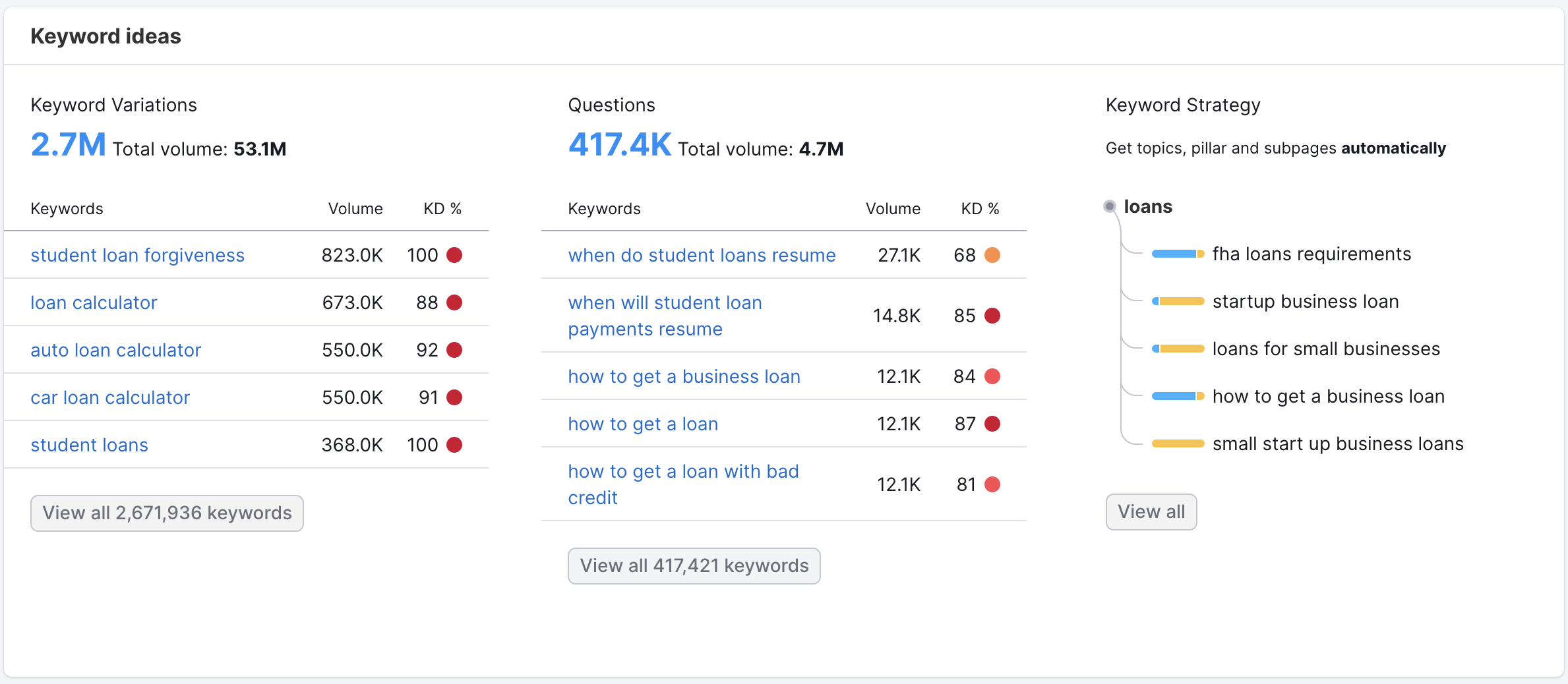
- Keyword Variations: search phrases that include your original keyword as well as additional modifying words. Keyword Variations help you find the most popular related searches to your main query.
- Questions: search terms where Semrush sees a "who, what, where, when, why, how, is, can, etc." Questions are great for generating content ideas for blog posts, FAQs, and content pages on your site. Answering commonly searched questions can help your SEO, including voice search optimization.
- Keyword Strategy - groups of keywords a page can rank well for. Keyword Overview displays a list of sample clusters and has a link leading to the full report in Keyword Strategy Builder. Keyword clusters are only available for a country-level report.
- Personal Keyword Difficulty (PKD %) - PKD tailors keyword difficulty scores to fit your domain, ensuring they resonate with your unique circumstances. This enables you to identify exclusive, easily accessible keyword opportunities tailored to your domain.
This data is pulled directly from our Keyword Magic Tool so you also get the total volume and average keyword difficulty. You will be brought directly to the Keyword Magic Tool if you click on the number of keyword suggestions.
Checking the Trend
A keyword’s trend helps you understand the seasonality of your target audience and predict when driving traffic with a particular search term will result in seasonal spikes.
The trend chart in this report shows whether a keyword’s search volume fluctuates throughout the year or stays relatively constant. The bars represent the last 12 months, with the last one always corresponding to the previous month.
For example, if we were to analyze a keyword in May 2025, the first bar (on the left) would represent May 2024, and the very last one—April 2025.
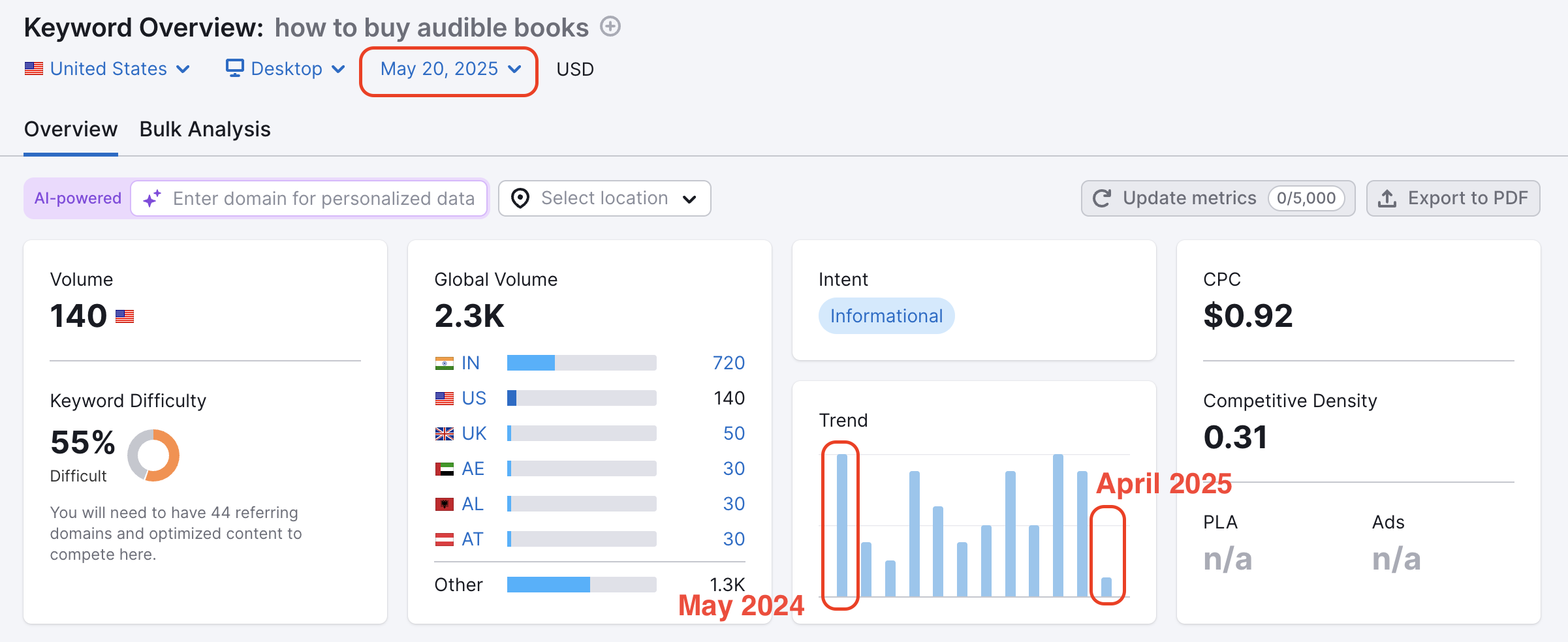
If you see that a keyword’s trend doesn’t peak and stays at the same level, then you’ll need to make sure that you're targeting this keyword year-round.
However, you can plan accordingly if a keyword has a seasonal spike. For example, a keyword like "bathing suits" may trend higher in the spring and summer.
As a website, you could strategize with seasonal website content or an advertising campaign to target this keyword.
Analyzing a keyword's organic value
If you scroll down, you’ll see the Keyword Overview report lists the top domains whose landing pages pop up organically for the search term you are analyzing.
You can view the SERP with the blue "View SERP" link and generate real-time metrics on these top-performing websites with the "Update metrics" button at the top of the report.
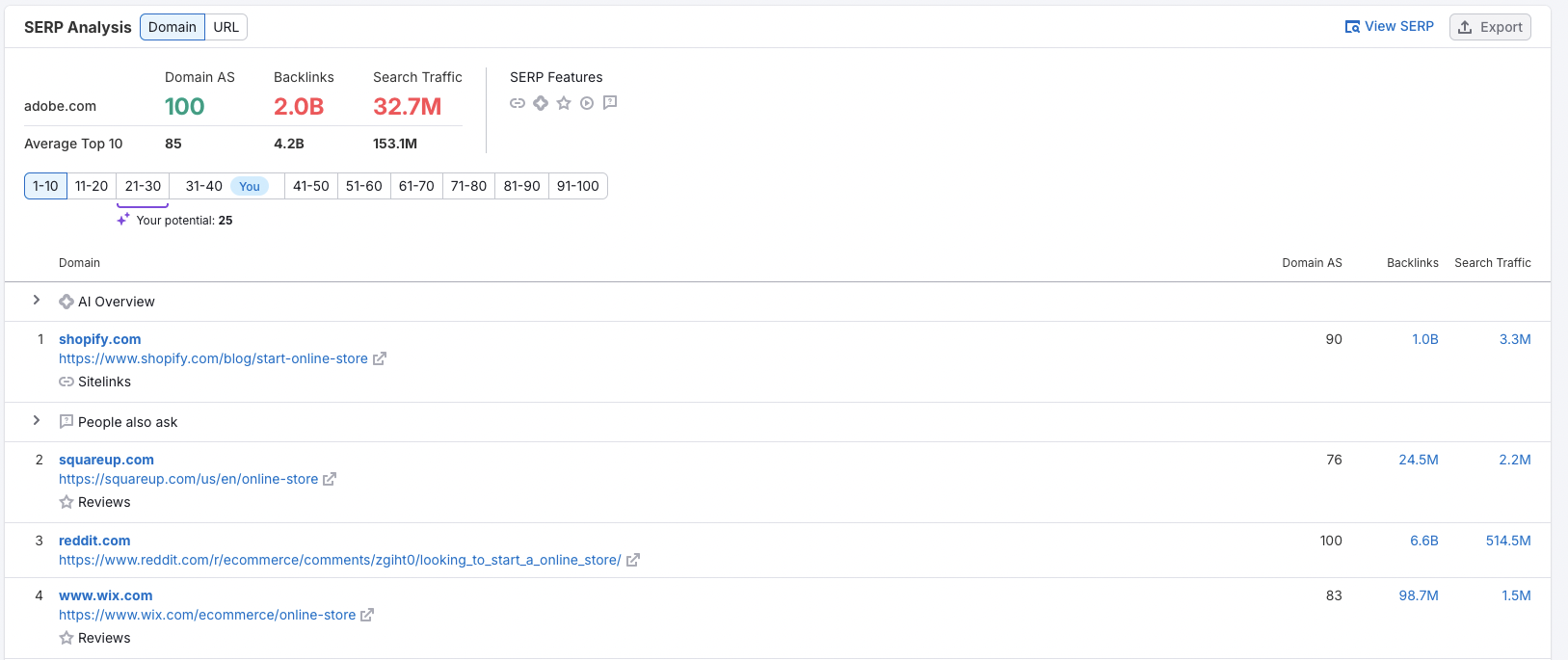
Your potential brackets show your domain's competitive power to rank for that keyword. This measures your domain’s ability to rank for specific keywords compared to the competition. It's a metric that supports strategic planning by clearly showing where you stand against competitors and identifying areas where you can potentially dominate.
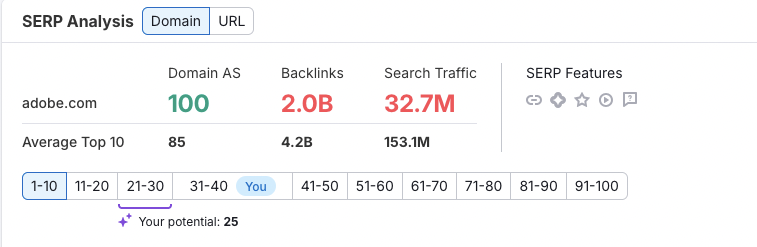
If you find your website in this list, congratulations! Google considers your page one of the best and most relevant to the given keyword. But don’t miss the chance to strengthen and improve your ranking.
Tip: You can export each part of the report in XLS or CSV formats.
Analyzing a keyword's advertising value
If your site doesn’t naturally rank for keywords, you can still get search traffic by bidding on keywords through Google Ads.
Below the organic listings, you can also find the top PLA Copies (product listing ads), and Ad Copies (Google Ads) that appear for a keyword in paid search results. Take these as inspiration for writing your own ad copy and analyze the landing pages they are pointing to.
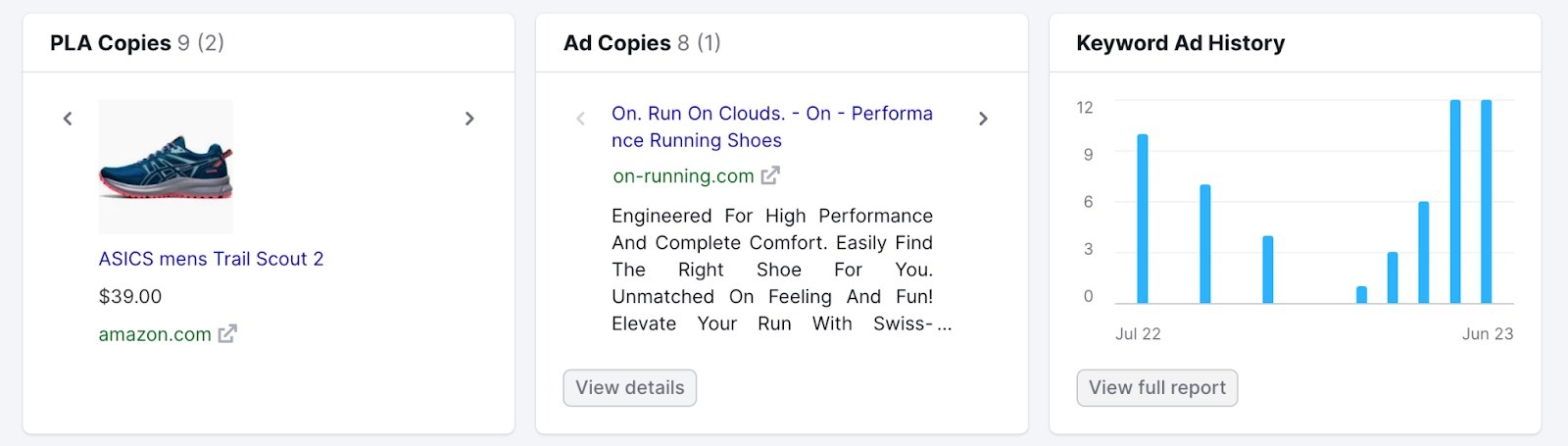
If you’re an ecommerce website, pay attention to the top product listing ads. These advertisers are your top Google Shopping competitors.
The Keyword Ad History widget will show how actively websites bid on the keyword in the last 12 months on the national level. Click it and you’ll be forwarded to the Keyword Ads History report, which will have more information.
By using Semrush Keyword Analytics you can determine your best-performing ads over the past year. With this information, you will be able to see which strategies are bringing in the greatest ROI and use this for continued success in your future search advertising.
If you have already been using the analyzed keyword for your advertising campaigns, you can use this data for improving your ads’ search visibility.
Now that you're comfortable querying a Keyword Overview report, be sure to check our the Keyword Magic Tool to dive even deeper into keyword research.
Tip: To view historical data for a keyword, use the selector at the top.
Local keyword metrics
It’s possible to get keyword metrics not only on a national but also on a local level.
Please note: domain-based keyword metrics are not available for local keyword research.
This filter allows you to evaluate the organic traffic potential of a keyword in your specific location, create a location-specific target keyword list, build better keyword plans for a local SEO campaign, and much more.
On the Keyword Overview landing page, specify a keyword, choose any local sub-location, city, or region as a location, and click search to get local data.
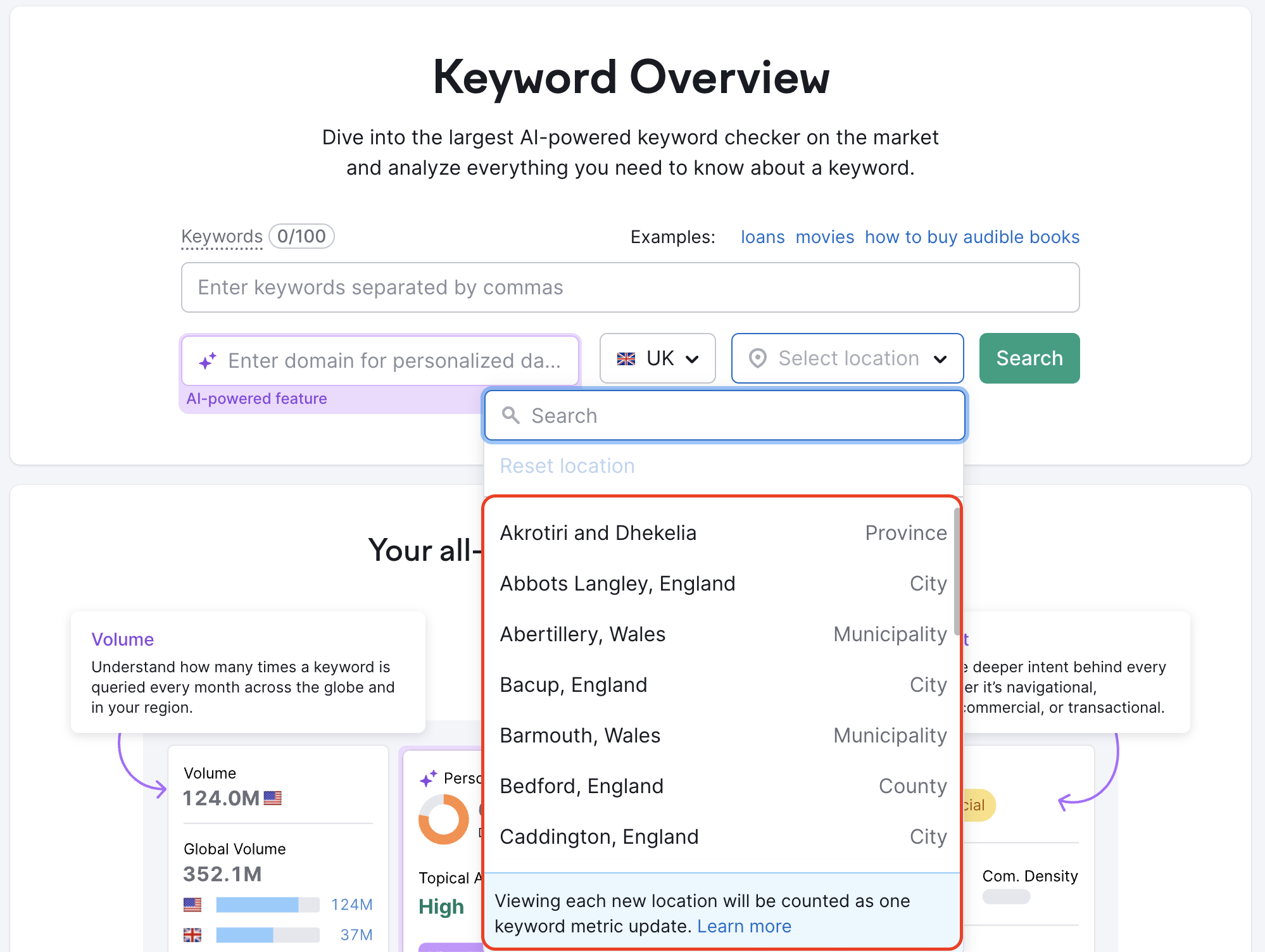
This is available only for single keyword searches, not in bulk.
Local data can also be requested inside the Keyword Overview tool. Here, you can easily distinguish what metrics are local data and which show national data.
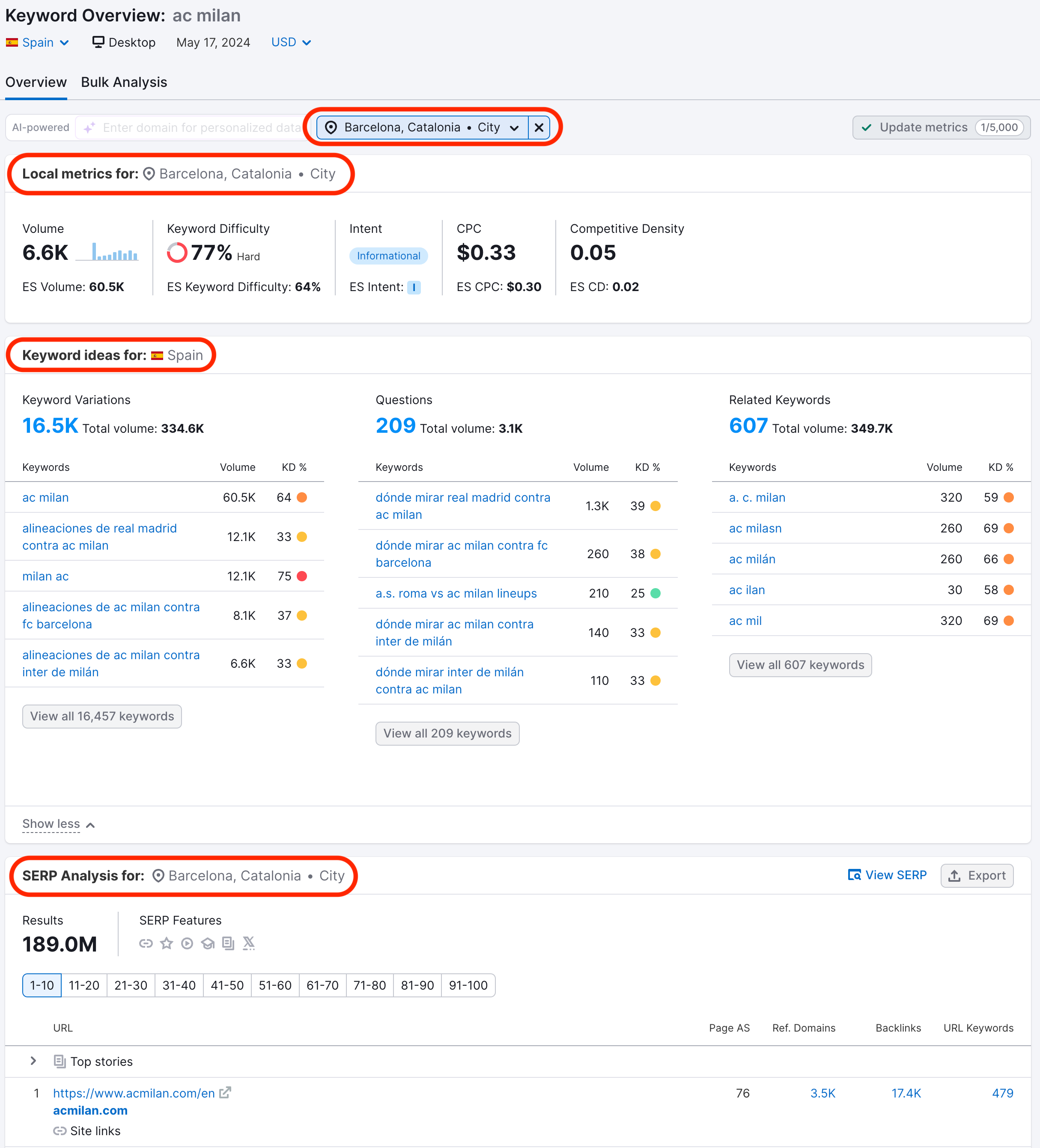
Viewing each new location will be counted as 1 more "Keyword metrics updates" limit.
When you use the local metrics filter, you’ll find local data for a keyword:
- Volume
- Volume trend
- Keyword Difficulty (KD%)
- Competitive Density
- Cost-per-click (CPC)
- Intent
- SERP analysis
- SERP features
- Results
Analyzing keywords in bulk
Using the Bulk Analysis tab, you can analyze the metrics for up to 100 keywords. For each keyword, you will get the Intent, Volume, Trend, Keyword Difficulty, CPC, Competitive Density, SERP Features, and Results.
After comparing the keywords, send the ones that best suit your SEO strategy to Keyword Strategy Builder, a repository for all your keywords gathered with different Semrush tools.
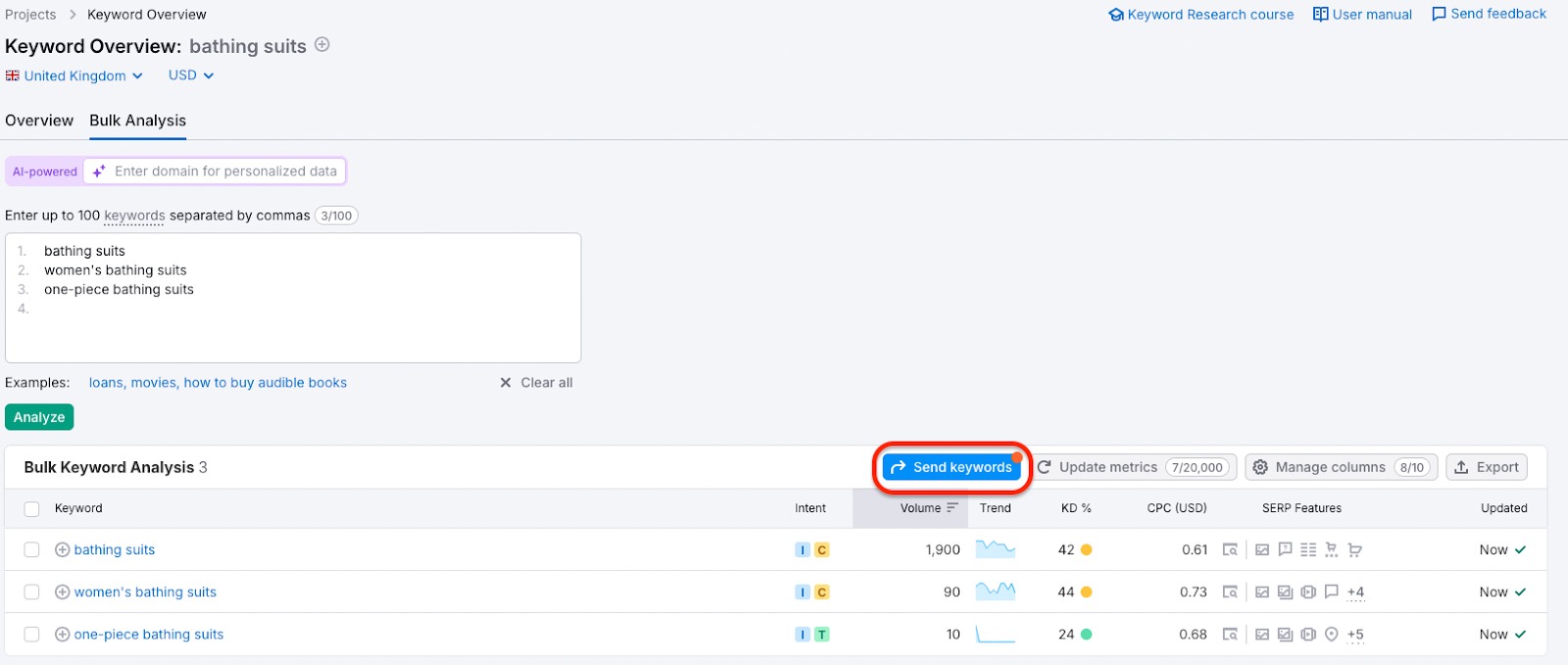
Note: local keyword metrics are not available in the Bulk Analysis report.
The Bulk Analysis Report also has an option to manage columns. By clicking the "Manage columns" button, you can select which data you would like to see in your report.
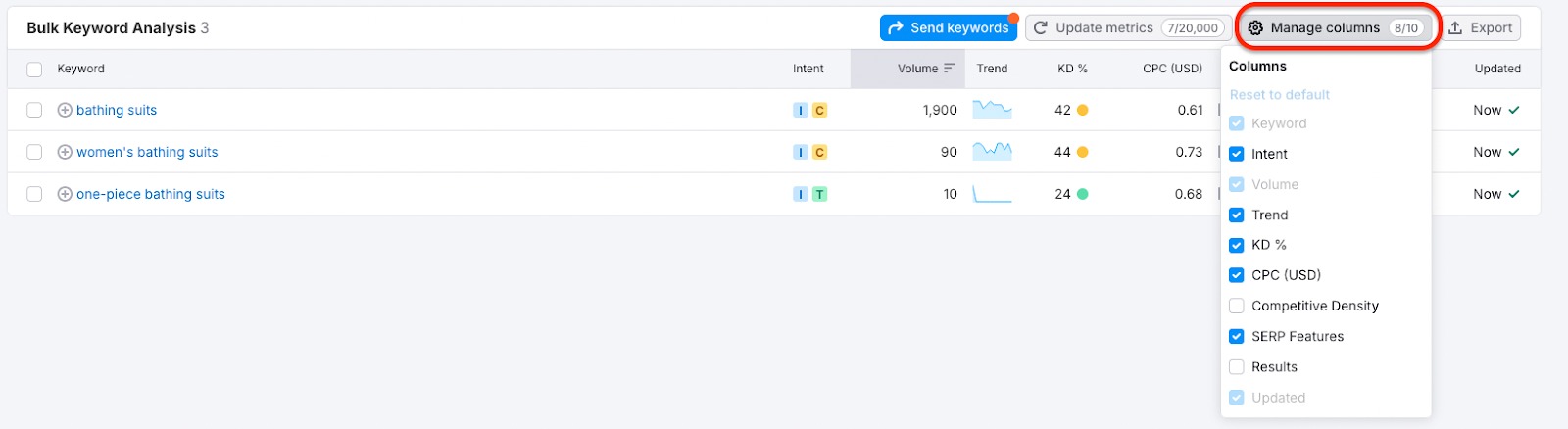
At the moment, the Keyword Overview tool allows you to get historical data only for one specific keyword at a time. Bulk Analysis allows you to analyze sets of keywords, but metrics are always up-to-date.
Tip: You can get historical data for keywords in bulk with the Semrush API Batch Keyword Overview call. The Standard API Package is available with the Business SEO Toolkit subscription.
Exporting options
Export data from Keyword Overview (Overview report) to PDF or create your custom report with the My Reports tool. Combine data from Traffic Analytics, other Semrush tools, Google Analytics 4, Google Search Console, and other sources to create custom PDF reports. Align the reports with your brand and schedule automatic updates for seamless report automation.
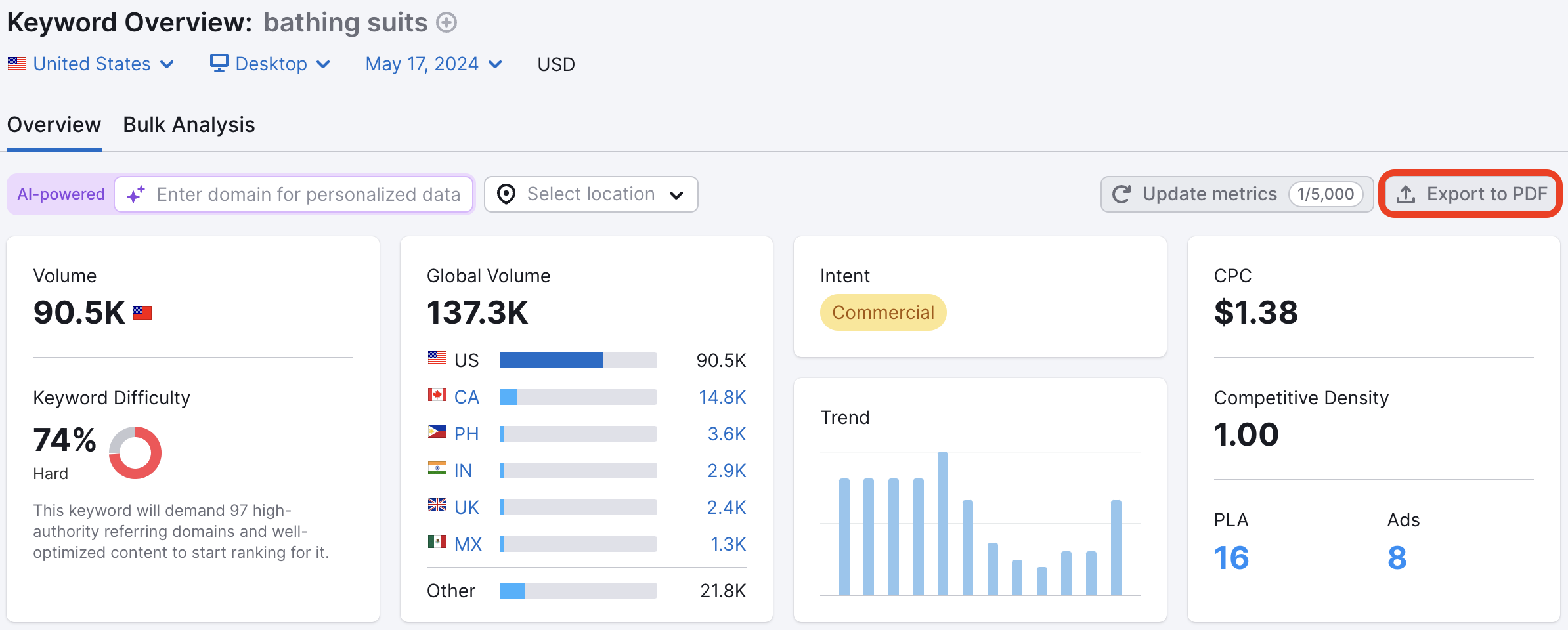
You can export your keyword list from Keyword Overview into a CSV, XLSX, and CSV semicolon file.

You may also export the data by copying it to the clipboard and pasting it into your file. When you select one or more keywords, the "Copy" button appears in the table's header. Click "Copy" and then paste the selected keywords into your chosen file.

It is possible to select keywords one at a time by clicking on a separate checkbox or in bulk. To select a contiguous group of keywords from the list, click the first keyword in the group. Next, hold down the Shift key as you click the last keyword in the group. This allows selecting everything between the two keywords.

Limits
The Keyword Overview tool is a part of the SEO Toolkit. Usage limits vary based on your subscription tier. Access to historical keyword data is available exclusively to Guru and Business tiers of the SEO toolkit.
Daily Request Limits:
- Pro SEO: Up to 3,000 requests/day
- Guru SEO: Up to 5,000 requests/day
- Business SEO: Up to 10,000 requests/day
Monthly Keyword Metrics Updates:
- Pro SEO: 250 updates/month
- Guru SEO: 1,000 updates/month
- Business SEO: 5,000 updates/month