Configure LDAP | Couchbase Docs (original) (raw)
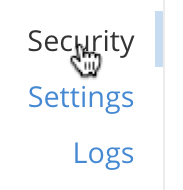
To configure LDAP, access the Security panel, by means of the entry in the left-hand navigation bar:
This brings up the Security screen. Note the options at the upper right:
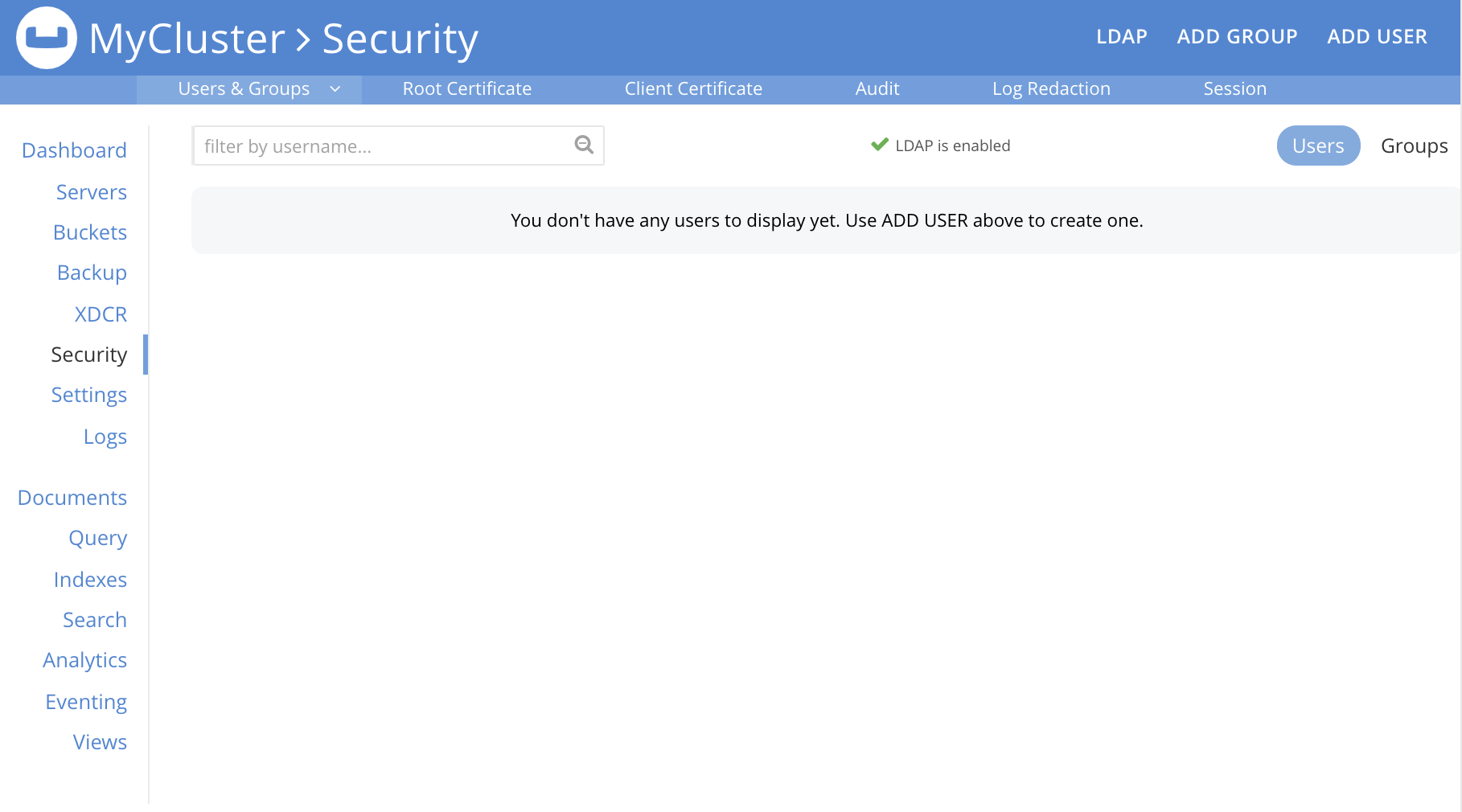
The LDAP tab allows an LDAP server to be specified for external authentication. The ADD GROUP tab allows definition of Couchbase-Server user-groups; which are to be associated with LDAP groups, and which can be assigned Couchbase-Server roles. The ADD USER tab allows individual users to be added, and allows their authentication optionally to be specified as external.
To perform LDAP configuration, left-click on the LDAP tab, at the upper right of the Security screen:

This brings up the LDAP Configuration dialog:
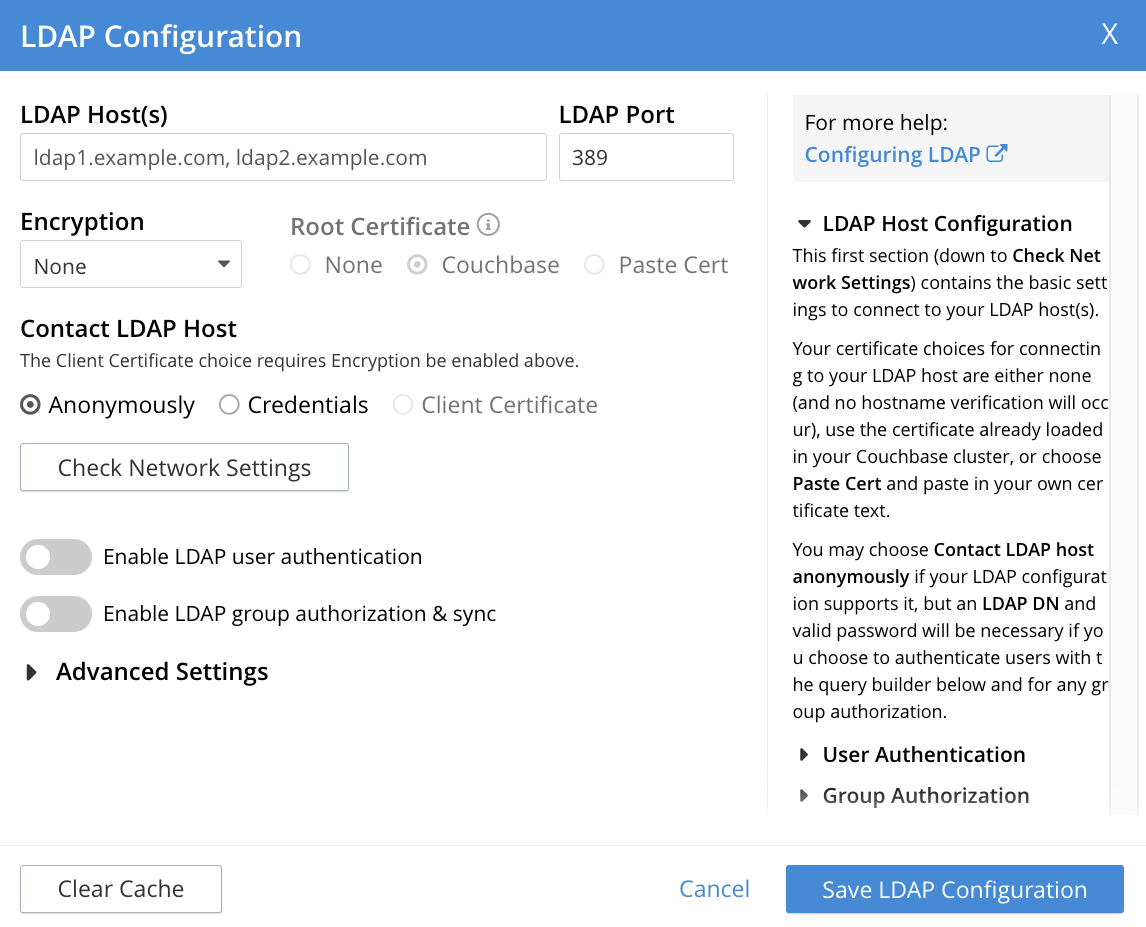
The dialog presents two main panels. The vertically scrollable right panel features help text, for LDAP Host Configuration, User Authentication, and Group Authorization. The left panel features options whereby LDAP can be configured.
The fields of the left panel are presented in three principal areas, each corresponding to a key aspect of LDAP configuration:
- LDAP host configuration. These fields occupy the upper part of the left panel. They can be used to establish which servers run LDAP, and how they are to be contacted.
- User authentication enablement. These fields can be accessed in the lower part of the left panel, by means of the Enable LDAP user authentication switch. They can be used to establish that users not recognized as local to Couchbase Server will be authenticated by means of the specified LDAP host configuration, and to specify the procedures to be used.
- Group authorization enablement. These fields can be accessed from near the bottom of the left panel, by means of the Enable LDAP group authorization & sync switch. They can be used to establish that the LDAP group-membership of authenticated LDAP users will be checked, to determine whether mappings to Couchbase-Server user-groups exist, and to specify the procedures to be used.
Each of these areas is described below.
LDAP Host Configuration
The upper area of the left panel of the LDAP Configuration dialog displays the following fields:
- LDAP Host(s). A comma-separated list of host-names, each of which is an LDAP server on which external authentication can occur. The first accessible server in the list is the one that is used. For example, if the list is
server1, server2, provided thatserver1is accessible, it is used. - LDAP Port. The port used on each of the LDAP servers for authentication.
Once all appropriate settings have been made to LDAP Host(s), Encryption, Certificate, and Contact LDAP host fields, optionally, the Check Network Settings button can be left-clicked on. This tests whether a specified LDAP host can be accessed by the specified means. If no such access is possible, an error is displayed on the dialog.
User Authentication Enablement
When you turn on the Enable LDAP user authentication toggle, several fields appear that let you enable LDAP authentication.
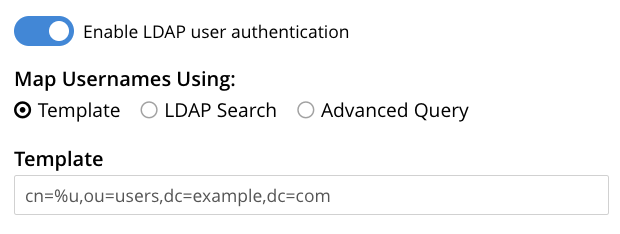
When enabled, Couchbase Server authenticates users who are not local users with the configured LDAP Hosts.
You have three options for how Couchbase Server maps the username in an authentication attempt to an LDAP Distinguished Names (DN). These options are explained in the following sections.
Template
The default option is Template. Enter a username-to-DN mapping template string into the Template text field. Directly providing the mapping avoids requiring the LDAP server itself provide the mapping itself. The field shows the format for the template string as placeholder text.
The username supplied to Couchbase Server by the user who’s attempting to authenticate replaces the %u in the template. For example, if the template is cn=%u,dc=example,dc=com and the user logs in as exampleUser, the template maps the user to the DN cn=exampleUser,dc=example,dc=com.
LDAP Search
Selecting LDAP Search displays the following:
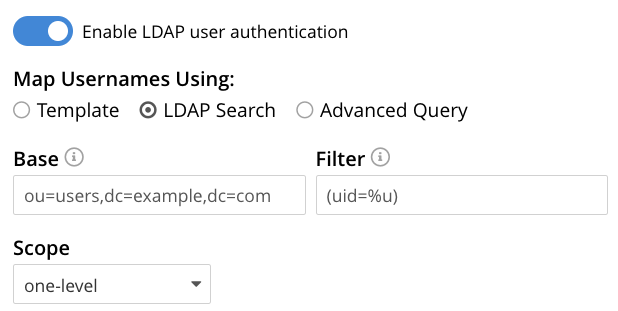
You use the three fields to define an LDAP search operation to get the user’s DN from LDAP server.
- Base is the search base DN.
- Filter is the search filter. For example, if Base is specified as
ou=users,dc=example,dc=com, Filter as(uid=%u), and the user has providedexampleUserto Couchbase Server as their username, Couchbase Server performs the following search, in order to obtain the user’s DN:ou=users,dc=example,dc=com??one?(uid=exampleUser). - Scope list sets the scope for the search. See LDAP Search Scopes for a description of LDAP search scopes.
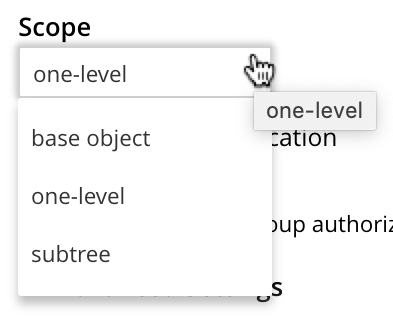
Advanced Query
The Advanced Query option lets you supply a list of regular expressions that Couchbase Server tests against the username. For each regular expression you also supply a replacement string that Couchbase Server uses to insert portions of the username into a DN or LDAP query. When you select the Advanced Query option, a Template text edit box appears for you to enter your list.
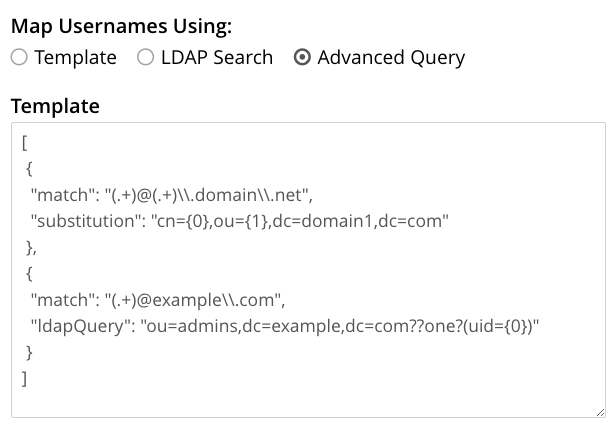
You enter your regular expressions and replacement strings as a JSON list. The list contains objects, each of which must have a match key containing the regular expression. The object must also contain either a substitution key that defines a DN string or a ldapQuery key that defines an LDAP query. In either case, these strings should contain back references to capture expressions in the regular expression to extract parts of the username.
For example, the following template has two regular expressions. The first attempts to extract the address and domain name from an email address. If this regular expression matches, Couchbase Server uses the address as the user ID and the domain name as the organization unit in a DN. The second regular expression captures the entire username and passes that as an LDAP query in the people organizational unit.
[
{
    "match": "([^@]+)@(.+)\\.com",
    "substitution": "cn={0},ou={1},dc=example,dc=com"
},
{
    "match": "(.*)",
    "ldapQuery": "ou=people,dc=example,dc=com??one?(uid={0})"
}
]
| | Always double any backslashes (\) that you use to escape special characters in your regular expressions because JSON also interprets backslash escapes. | | ----------------------------------------------------------------------------------------------------------------------------------------------------------- |
Couchbase Server attempts to match the regular expressions against the username supplied by the user who’s attempting to authenticate. If a regular expression matches the username, Couchbase Server applies any captured portions of the regular expression to the back references in the replacement string. Then it attempts to authenticate the user with LDAP using the DN or LDAP query.
If the authentication fails, Couchbase Server returns an authentication error. It does not attempt match any further regular expressions in the list. This behavior makes the order of the regular expressions in the list important. Always place more specific regular expressions before general ones. In the previous example, the regular expression to matching an email address comes before the general catch all regular expression that matches any username.
The Save LDAP Configuration button has no effect if your template contains invalid JSON or an invalid regular expression. Errors in the replacement strings only appear when you try to authenticate a user. Use the Test User Authentication section to verify that your regular expressions and replacement strings work the way you intend.
Testing User Authentication
Test User Authentication, when opened, provides options for testing the authentication of specific users:
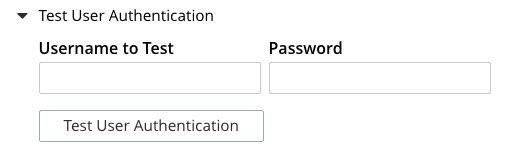
Enter the username and password for the user, and left-click Test User Authentication. Couchbase Server maps the specified username to an LDAP DN, and performs authentication on the LDAP server. Notifications confirming success or failure duly appear on the dialog.
In the area immediately below that used for User Authentication Enablement, fields for enabling LDAP Group Support can be made visible by means of the Enable LDAP group authorization & sync switch. Enablement means that when a user has been authenticated by the LDAP Hosts(s), Couchbase Server retrieves the LDAP group membership information for that user, in order to authorize them. In each case where an LDAP group has been mapped to a Couchbase-Server user-group, the user is granted the privileges corresponding to the roles assigned that user-group.
Switch on, to enable. This expands the dialog vertically, as follows:
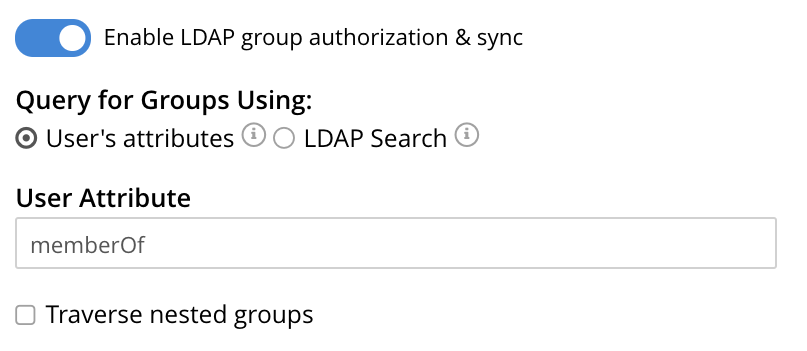
The LDAP groups of which a user is a member can be searched for by means of either the User’s attributes or an LDAP Search, each of which is provided as a radio-button option. Selection of either reveals a corresponding set of fields, in which information can be added. These are as follows.
User’s Attributes
The User’s attributes radio-button is selected by default. This instructs Couchbase Server to assume that each LDAP user-record contains an attribute featuring the list of groups of which the user is a member. Couchbase Server therefore performs the following LDAP search: <userDN>?<attribute>?one.
The value of the specified attribute is treated as a list of groups. For example, if attribute is set in the User Attribute field to memberOf, Couchbase Server performs the following search for the specified user’s groups:uid=exampleUser,dc=example,dc=com?memberOf?one.
Traverse Nested Groups, for User Attribute Search
The Traverse nested groups checkbox, when checked, allows nested groups to be traversed by the search. Couchbase Server uses the same search to find groups of groups recursively (with each group’s DN being substituted for %D). If nested search is selected, %u cannot be used.
Note that use of nested groups may significantly increase load on the LDAP server; and should therefore only be used if essential.
Test Groups Query, for User Attribute Search
Test Groups Query permits a query to be tested for a specific user. Left-click to open:
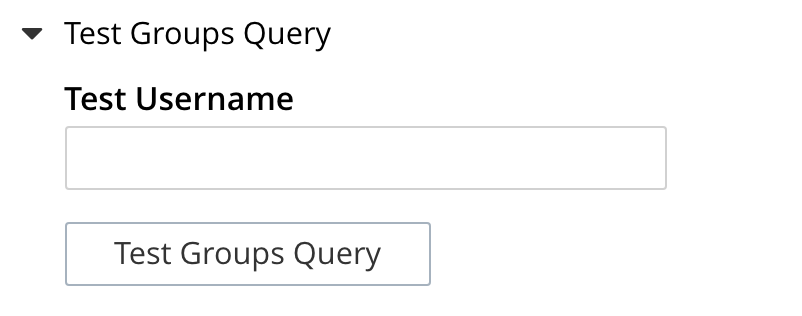
To perform the search, add a username, and left-click on the Test Groups Query button. Notifications confirming success or failure appear on the dialog.
LDAP Search
When the LDAP Search radio-button is selected, the Query for Groups Using panel appears as follows:
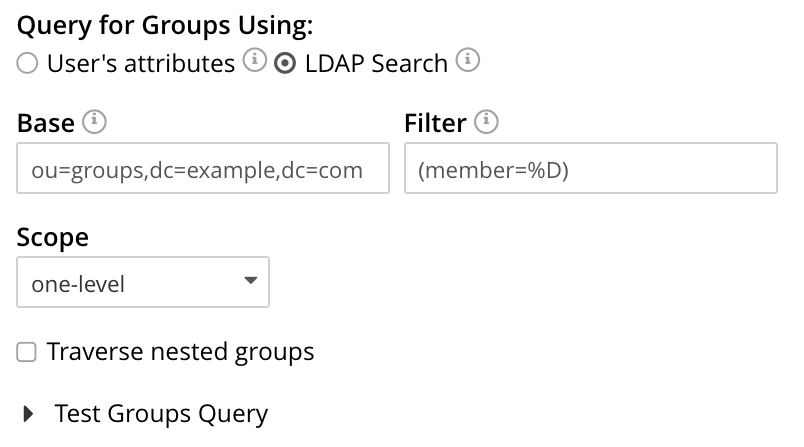
Selection of LDAP Search instructs Couchbase Server to perform an LDAP search operation, in order to retrieve a list of the user’s groups.Base is the search base DN.Filter is the search filter.Scope, accessed from a pulldown menu, can be base, one (the default), or sub.
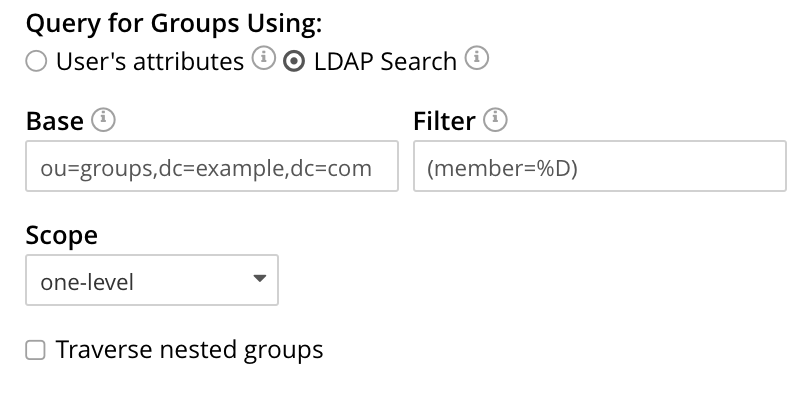
When the search is conducted, %u is replaced with the specified username; and %D is replaced with the user’s DN. For example, Base might be specified as ou=groups,dc=example,dc=com, Filter as (member=%D), and Scope as one-level:
Traverse Nested Groups, LDAP Search
See the description provided above, inTraverse Nested Groups, for User Attribute Search
Test Groups Query, for LDAP Search
See the description provided above, in Test Groups Query, for User Attribute Search
Advanced Settings
It is strongly recommended that the Advanced Settings not be changed; except in unusual circumstances, and in accordance with expert advice. Inappropriate settings may seriously impair system responsiveness.
Left-click to open:
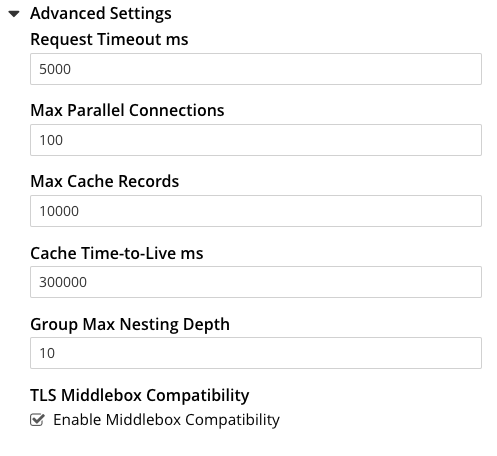
The advanced settings are as follows:
- Request timeout ms. The number of milliseconds to elapse before a query times out. The default is 5000.
- Max Parallel Connections. The maximum number of parallel connections to the LDAP server that can be maintained. The default is 100.
- Max Cache Records. The maximum number of requests that can be cached. The default is 10000.
- Cache Time-to-Live ms. The lifetime of values in cache, in milliseconds. The default is 300000.
- Group Max Nesting Depth. The maximum number of recursive group-queries that the server is allowed to perform. This option is only valid when nested groups are enabled. The value must be an integer between 1 and 100: the default is 10.
- TLS Middlebox Compatibility. Controls a low-level network compatibility setting affecting how Couchbase Server securely connects to an LDAP server through an intermediate system such as a proxy or firewall. This setting defaults to on. If you have difficulty getting Couchbase Server to connect to an LDAP server through an intermediate system, try toggling this setting.
When all required data has been entered, left-click on the Save LDAP Configuration button, at the bottom right:

Alternatively, left-click on Cancel to abandon the configuration procedure.
Clearing the Cache
The Clear Cache button is located at the lower left of the LDAP Configuration dialog:
Couchbase Server caches authentication responses and group-search results, thereby minimizing the number of requests to be made on the LDAP server. Each cached value is expired after a configured time-period (controlled by the Cache Time-to-Live ms value, provided in the Advanced Settings panel). Additionally, the Clear Cache button is provided, so that all currently cached values can be explicitly removed: each subsequent authentication or group request is, on its first instance following the removal, passed to the LDAP server; and the latest values established on the LDAP server are thereby retrieved.
Map LDAP Groups to Couchbase-Server Roles
To map an LDAP group to Couchbase-Server roles, create a Couchbase-Server user-group; associate the user-group with the LDAP group; and then assign roles to the user-group.
(Note that each Couchbase-Server user-group can be associated with at most one LDAP group — although if that LDAP group itself incorporates multiple additional LDAP groups by means of LDAP-group nesting, an indirect association with those LDAP groups occurs.)
Left-click on the ADD GROUP tab, at the upper right of the Users & Groups panel, on the Security screen:

This brings up the Add New Group dialog:
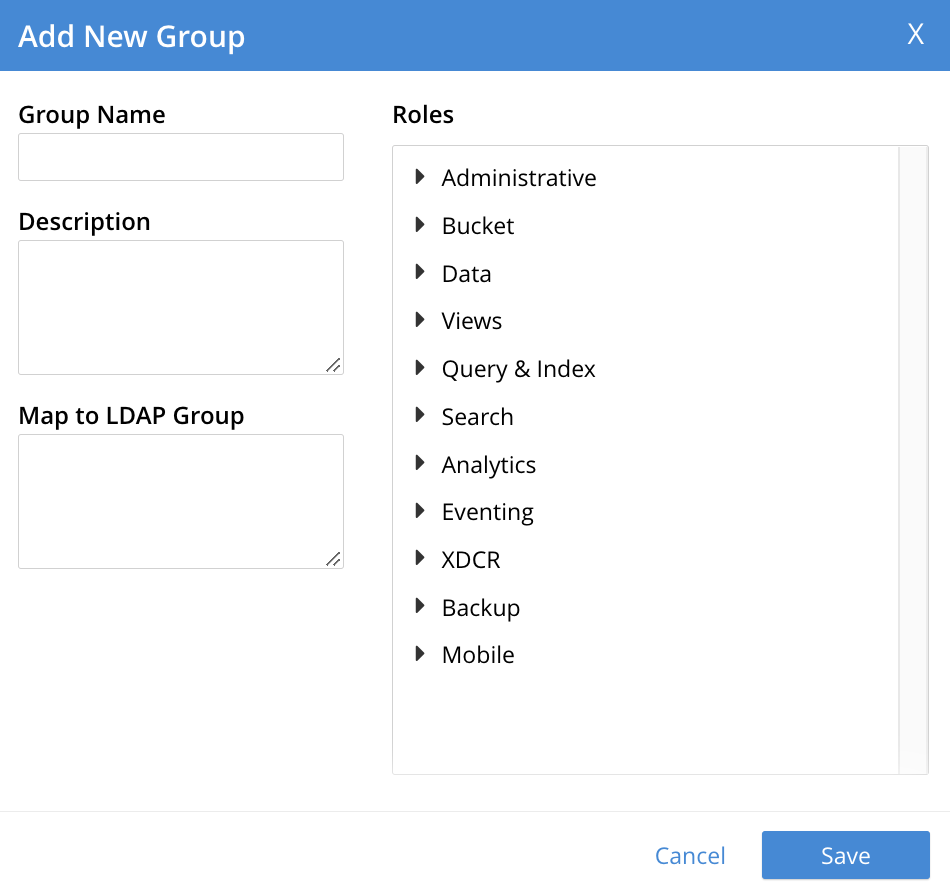
The fields are as follows:
- Group Name. The name of the new Couchbase-Server group to be created.
- Description. An optional description of the new Couchbase-Server group.
- Map to LDAP Group. Optionally, the name of the existing LDAP group to which the new Couchbase-Server group is to be mapped. After a user has authenticated by means of LDAP, provided that LDAP group authorization has been enabled (by means of the Enable LDAP group authorization & sync control, described above), a list of the LDAP groups to which the user is assigned on that server is returned to Couchbase Server: if this list contains the LDAP group specified here, the user inherits the roles associated with the Couchbase-Server group here defined.
- Roles. The roles to be associated with the new Couchbase-Server group. For information, see Authorization.
With appropriate data added, the dialog might appear as follows:
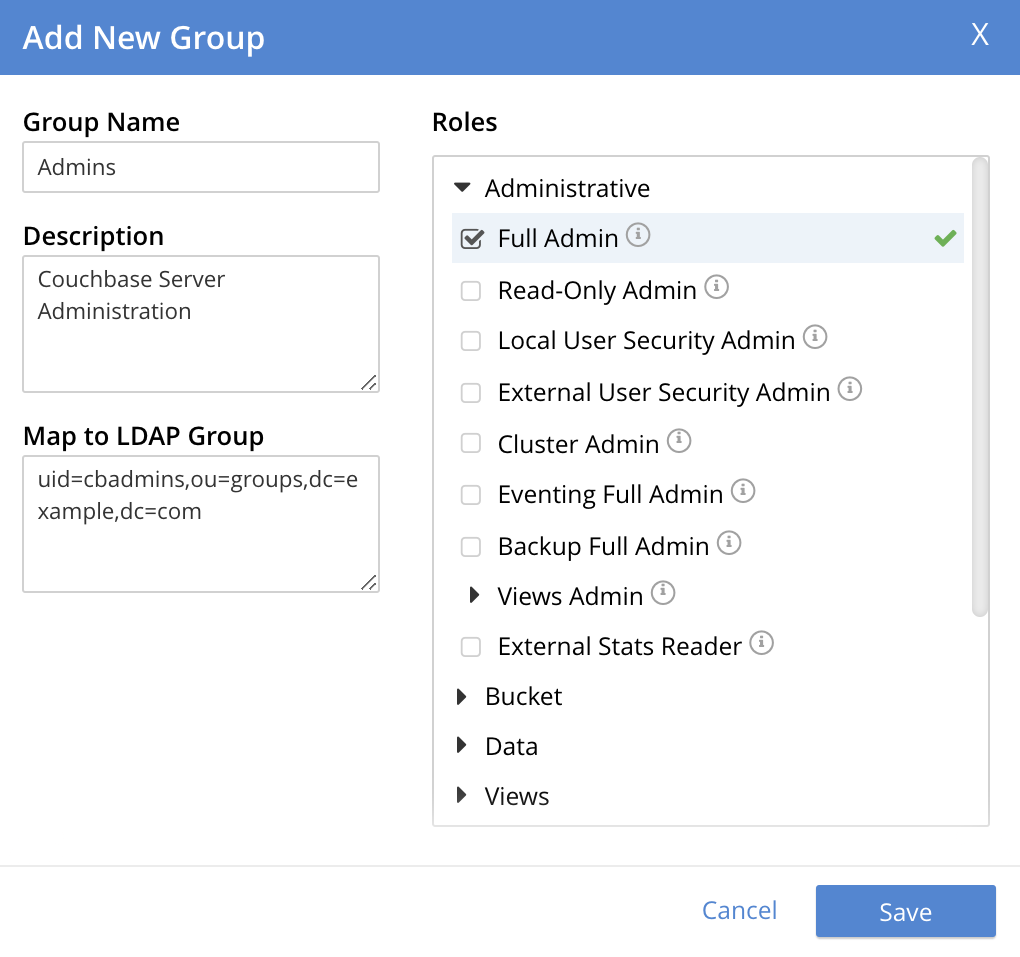
This creates a group named Admins, and assigns the Full Admin role to it, specifying as its LDAP-group mapping uid=cbadmins,ou=groups,dc=example,dc=com.
To save the group, left-click on the Save button, at the lower right.

Alternatively, left-click on Cancel to abandon group configuration.
Editing a Group Mapping
Once a group-mapping has been defined, it can be edited.
Access the Users & Groups panel of the Security screen. By default, this presents a users view, listing the currently defined users for the cluster. To display the groups view, left-click on the Groups tab, towards the upper right:
This brings up the groups view, which shows currently defined user-groups for the cluster.
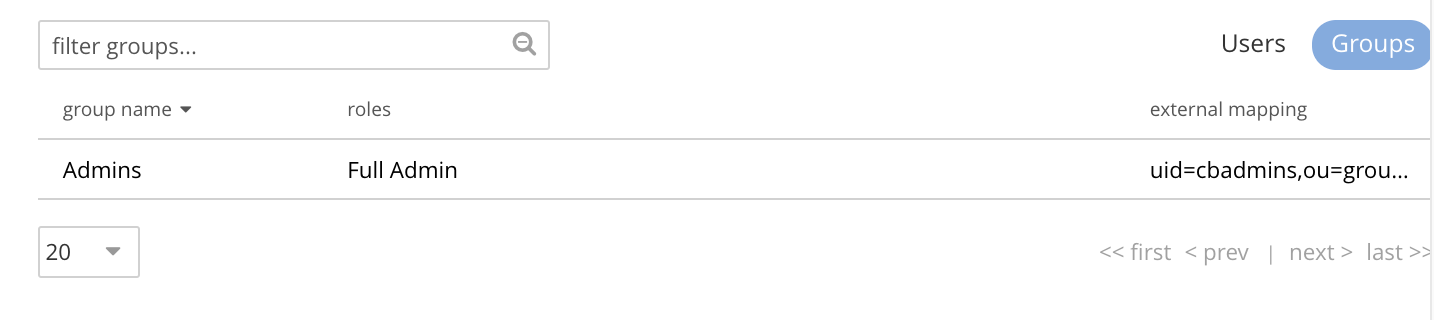
This confirms the existence of the user-group Admins.
Now, left-click on the row displayed for this group. The row expands vertically, and exposes additional controls:
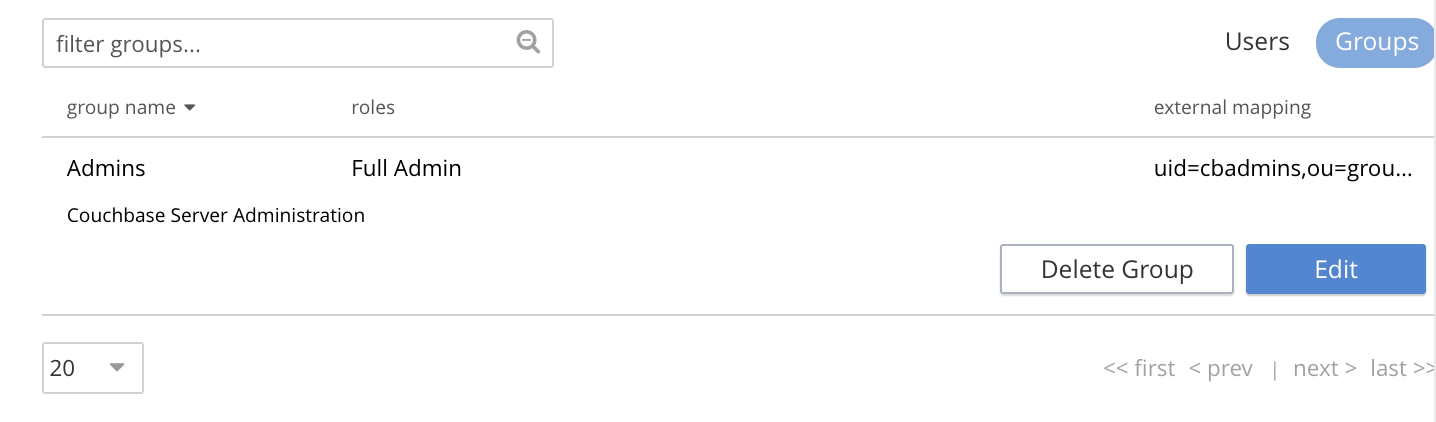
Left-click on the Edit button, at the lower right:
This brings up the Edit Group Admins dialog:
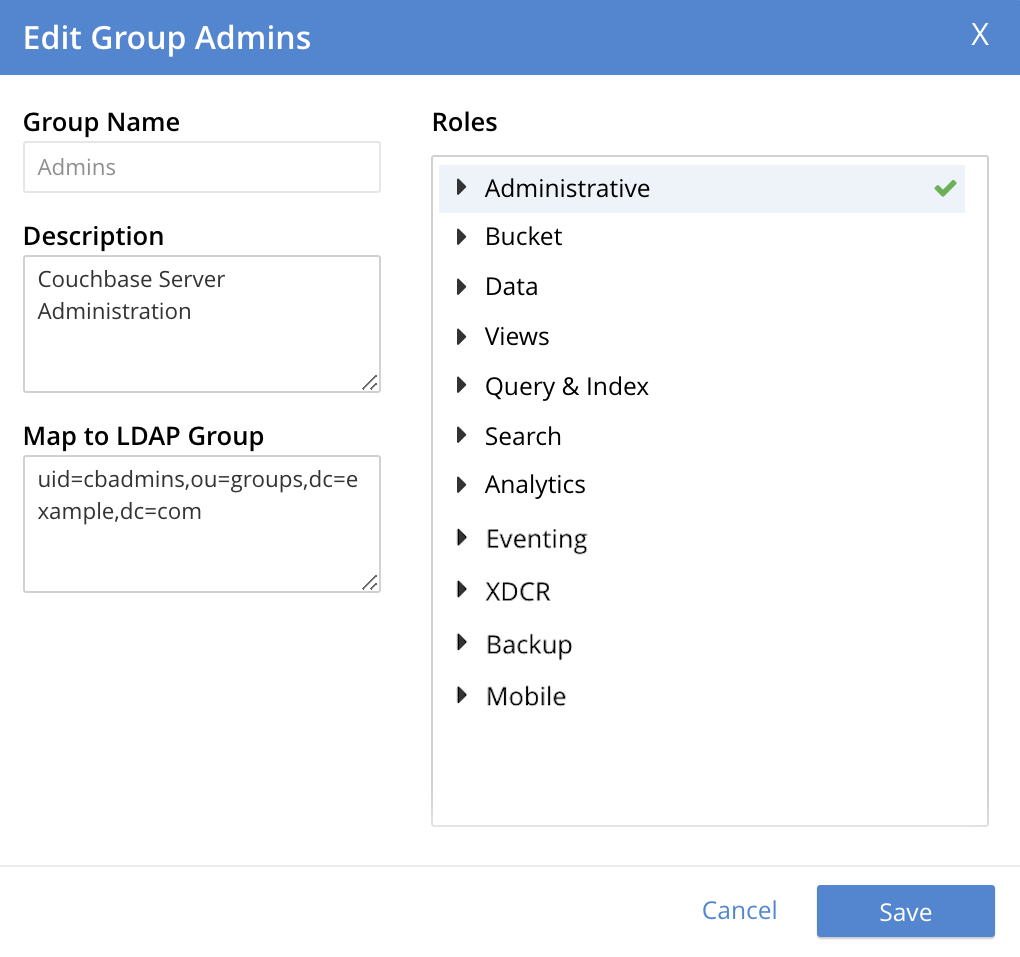
Within this dialog, the description, mapping, or roles for the group can be edited. For details of selecting roles within the Roles panel, see Manage Users, Groups, and Roles.
Note that if the Delete Group button is left-clicked on, the group is deleted. This means that all mappings between LDAP groups and the roles that were assigned to this group are also deleted.
Adding an Externally Authenticated User
Couchbase-Server users can be specified as externally authenticated, when they are added to the system. This allows roles to be assigned to them on the cluster; either directly, or by means of group-membership, or both. Additionally, if one or more LDAP group-mappings have been defined for LDAP groups of which the externally authenticated user is a member, the user is recognized as a member of the Couchbase-Server user-groups to which the mappings have been made, and is thereby assigned still more roles.