Property Page XML rule files (original) (raw)
The project property pages in the IDE are configured by XML files in the default rules folder. The XML files describe the names of the rules, the categories, and the individual properties, their data type, default values, and how to display them. When you set a property in the IDE, the new value is stored in the project file.
The path to the default rules folder depends on the locale and the version of Visual Studio in use. In a Visual Studio 2015 or earlier developer command prompt, the rules folder is %ProgramFiles(x86)%\MSBuild\Microsoft.Cpp\v4.0\<version>\<locale>. The <version> value is v140 in Visual Studio 2015. The <locale> is an LCID, for example, 1033 for English. You'll use a different path for each edition of Visual Studio that's installed, and for each language. For example, the default rules folder path for Visual Studio 2015 Community edition in English could be C:\Program Files (x86)\MSBuild\Microsoft.Cpp\v4.0\v140\1033\.
The path to the default rules folder depends on the locale and the version of Visual Studio in use. In a Visual Studio 2017 developer command prompt, the rules folder is %VSINSTALLDIR%Common7\IDE\VC\VCTargets\<locale>\. The <locale> is an LCID, for example, 1033 for English. In a Visual Studio 2015 or earlier developer command prompt, the rules folder is %ProgramFiles(x86)%\MSBuild\Microsoft.Cpp\v4.0\<version>\<locale>\, where the <version> value is v140 in Visual Studio 2015. You'll use a different path for each edition of Visual Studio that's installed, and for each language. For example, the default rules folder path for Visual Studio 2017 Community edition in English could be C:\Program Files (x86)\Microsoft Visual Studio\2017\Enterprise\Common7\IDE\VC\VCTargets\1033\.
The path to the default rules folder depends on the locale and the version of Visual Studio in use. In a Visual Studio 2019 or later developer command prompt, the rules folder is %VSINSTALLDIR%MSBuild\Microsoft\VC\<version>\<locale>\, where the <version> value is v160 in Visual Studio 2019. The <locale> is an LCID, for example, 1033 for English. In Visual Studio 2017, the rules folder is %VSINSTALLDIR%Common7\IDE\VC\VCTargets\<locale>\. In a Visual Studio 2015 or earlier developer command prompt, the rules folder is %ProgramFiles(x86)%\MSBuild\Microsoft.Cpp\v4.0\<version>\<locale>\. You'll use a different path for each edition of Visual Studio that's installed, and for each language. For example, the default rules folder path for Visual Studio 2019 Community edition in English could be C:\Program Files (x86)\Microsoft Visual Studio\2019\Community\MSBuild\Microsoft\VC\v160\1033\.
You only need to understand the internal workings of these files and the Visual Studio IDE in a couple of scenarios:
- You want to create a custom property page, or
- You want to customize your project properties without use of the Visual Studio IDE.
Contents of rule files
First, let's open the property pages for a project. Right-click on the project node in Solution Explorer and choose Properties:
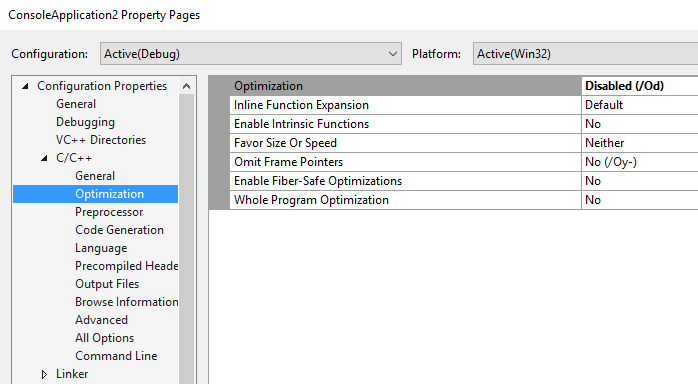
Each node under Configuration Properties is called a rule. A rule sometimes represents a single tool like the compiler. In general, the term refers to something that has properties, that executes and that may produce some output. Each rule is populated from an XML file in the default rules folder. For example, the C/C++ rule that's shown here is populated by cl.xml.
Each rule has a set of properties, which are organized into categories. Each sub-node under a rule represents a category. For example, the Optimization node under C/C++ contains all the optimization-related properties of the compiler tool. The properties and their values get rendered in a grid format on the right pane.
You can open cl.xml in notepad or any XML editor. You'll see a root node called Rule. It defines the same list of properties that get displayed in the UI, along with additional metadata.
<?xml version="1.0" encoding="utf-8"?>
<!--Copyright, Microsoft Corporation, All rights reserved.-->
<Rule Name="CL" PageTemplate="tool" DisplayName="C/C++" SwitchPrefix="/" Order="10" xmlns="http://schemas.microsoft.com/build/2009/properties" xmlns:x="http://schemas.microsoft.com/winfx/2006/xaml" xmlns:sys="clr-namespace:System;assembly=mscorlib">
  <Rule.Categories>
    <Category Name="General" DisplayName="General" />
    <Category Name="Optimization" DisplayName="Optimization" />
    <Category Name="Preprocessor" DisplayName="Preprocessor" />
    <Category Name="Code Generation" DisplayName="Code Generation" />
    <Category Name="Language" DisplayName="Language" />
    <Category Name="Precompiled Headers" DisplayName="Precompiled Headers" />
    <Category Name="Output Files" DisplayName="Output Files" />
    <Category Name="Browse Information" DisplayName="Browse Information" />
    <Category Name="Advanced" DisplayName="Advanced" />
    <Category Name="All Options" DisplayName="All Options" Subtype="Search" />
    <Category Name="Command Line" DisplayName="Command Line" Subtype="CommandLine" />
  </Rule.Categories>
  <!-- . . . -->
</Rule>
There's one XML file for every node under Configuration Properties in the property pages UI. You can add or remove rules in the UI: it's done by including or removing locations to corresponding XML files in the project. For example, it's how Microsoft.CppBuild.targets (found one level higher than the 1033 folder) includes cl.xml:
<PropertyPageSchema Condition="'$(ConfigurationType)' != 'Utility'" Include="$(VCTargetsPath)$(LangID)\cl.xml"/>
If you strip cl.xml of all data, you have this basic framework:
<?xml version="1.0" encoding="utf-8"?>
<Rule>
  <Rule.DataSource />
  <Rule.Categories>
    <Category />
    <!-- . . . -->
  </Rule.Categories>
  <BoolProperty />
  <EnumProperty />
  <IntProperty />
  <StringProperty />
  <StringListProperty />
</Rule>
The next section describes each major element and some of the metadata that you can attach.
Rule attributes
A <Rule> element is the root node in the XML file. It can have many attributes:
<Rule Name="CL" PageTemplate="tool" SwitchPrefix="/" Order="10"
          xmlns="http://schemas.microsoft.com/build/2009/properties"
          xmlns:x="http://schemas.microsoft.com/winfx/2006/xaml"
          xmlns:sys="clr-namespace:System;assembly=mscorlib">
  <Rule.DisplayName>
    <sys:String>C/C++</sys:String>
  </Rule.DisplayName>
Name: The Name attribute is an ID for theRule. It needs to be unique among all the property page XML files for a project.PageTemplate: The value of this attribute is used by the UI to choose from a collection of UI templates. The "tool" template renders the properties in a standard grid format. Other in-built values for this attribute are "debugger" and "generic". See the Debugging node and General node, respectively, to see the UI format resulting from specifying these values. The UI for "debugger" page template uses a drop-down box to switch between the properties of different debuggers. The "generic" template displays different property categories all in one page, as opposed to having multiple category sub-nodes under theRulenode. This attribute is just a suggestion to the UI. The XML file is designed to be UI independent. A different UI might use this attribute for different purposes.SwitchPrefix: The prefix used in the command line for the switches. A value of"/"would result in switches that look like/ZI,/nologo,/W3, and so on.Order: A suggestion to a prospective UI client on the relative location of thisRulecompared to all other rules in the system.xmlns: A standard XML element. You can see three namespaces listed. These attributes correspond to the namespaces for the XML deserialization classes, XML schema, and system namespace, respectively.DisplayName: The name that's shown on the property page UI for theRulenode. This value is localized. We createdDisplayNameas a child element ofRulerather than as an attribute (likeNameorSwitchPrefix) because of internal localization tool requirements. From an XML perspective, both are equivalent. So, you can just make it an attribute to reduce clutter or leave it as it is.DataSource: This important property tells the project system the location to read and write the property value, and its grouping (explained later). Forcl.xml, these values are:
<DataSource Persistence="ProjectFile" ItemType="ClCompile" Label="" HasConfigurationCondition="true" /> Persistence="ProjectFile"tells the project system that all properties for theRuleshould be written to the project file or the property sheet file (depending on which node was used to spawn the property pages). The other possible value is"UserFile", which will write the value to the.userfile.ItemType="ClCompile"says that the properties will be stored as ItemDefinition metadata or item metadata (the latter only if the property pages were spawned from a file node in solution explorer) of this item type. If this field isn't set, then the property is written as a common property in a PropertyGroup.Label=""indicates that when the properties are written asItemDefinitionmetadata, the label of the parent ItemDefinitionGroup will be empty (every MSBuild element can have a Label). Visual Studio 2017 and later use labeled groups to navigate the .vcxproj project file. The groups that contain mostRuleproperties have an empty string as a label.HasConfigurationCondition="true"tells the project system to affix a configuration condition to the value so that it takes effect only for the current project configuration (the condition could be affixed to the parent group or the value itself). For example, open the property pages off the project node and set the value of the property Treat Warnings As Error under Configuration Properties > C/C++ General to "Yes". The following value is written to the project file. Notice the configuration condition attached to the parent ItemDefinitionGroup.
<ItemDefinitionGroup Condition="'$(Configuration)|$(Platform)'=='Debug|Win32'">
  <ClCompile>
    <TreatWarningAsError>true</TreatWarningAsError>
  </ClCompile>
</ItemDefinitionGroup>
If this value is set in the property page for a specific file, such as stdafx.cpp, then the property value should be written under the stdafx.cpp item in the project file as shown Here. Notice how the configuration condition is directly attached to the metadata itself:
<ItemGroup>
  <ClCompile Include="stdafx.cpp">
    <TreatWarningAsError Condition="'$(Configuration)|$(Platform)'=='Debug|Win32'">true</TreatWarningAsError>
  </ClCompile>
</ItemGroup>
Another attribute of DataSource not listed here is PersistedName. You can use this attribute to represent a property in the project file using a different name. By default, this attribute is set to the property's Name.
An individual property can override the DataSource of its parent Rule. In that case, the location for that property's value will be different from other properties in the Rule.
- There are other attributes of a
Rule, includingDescriptionandSupportsFileBatching, that aren't shown here. The full set of attributes applicable to aRuleor on any other element can be obtained by browsing the documentation for these types. Alternately, you can examine the public properties on the types in theMicrosoft.Build.Framework.XamlTypesnamespace in theMicrosoft.Build.Framework.dllassembly. DisplayName,PageTemplate, andOrderare UI-related properties that are present in this otherwise UI-independent data model. These properties are almost certain to be used by any UI that is used to display the property pages.DisplayNameandDescriptionare two properties that are present on almost all elements in the XML file. And, these two properties are the only ones that are localized.
Category elements
A Rule can have multiple Category elements. The order in which the categories are listed in the XML file is a suggestion to the UI to display the categories in the same order. For example, the order of the categories under the C/C++ node you see in the UI is the same as the order in cl.xml. A sample category looks like this:
<Category Name="Optimization">
  <Category.DisplayName>
    <sys:String>Optimization</sys:String>
  </Category.DisplayName>
</Category>
This snippet shows the Name and DisplayName attributes that have been described before. Once again, there are other attributes a Category can have that aren't shown in the example. You can learn about them by reading the documentation or by examining the assemblies using ildasm.exe.
Property elements
Most of the rule file consists of Property elements. They contain the list of all properties in a Rule. Each property can be one of the five possible types shown in the basic framework: BoolProperty, EnumProperty, IntProperty, StringProperty, and StringListProperty. You might have only a few of those types in your file. A property has a number of attributes that allow it to be described in detail. The StringProperty is described here. The rest are similar.
<StringProperty Subtype="file" Name="ObjectFileName" Category="Output Files" Switch="Fo">
  <StringProperty.DisplayName>
    <sys:String>Object File Name</sys:String>
  </StringProperty.DisplayName>
  <StringProperty.Description>
    <sys:String>Specifies a name to override the default object file name; can be file or directory name.(/Fo[name])</sys:String>
  </StringProperty.Description>
</StringProperty>
Most of the attributes in the snippet have been described before. The new ones are Subtype, Category, and Switch.
Subtypeis an attribute available only forStringPropertyandStringListPropertyelements. It gives contextual information. For example, the valuefileindicates that the property represents a file path. Visual Studio uses such contextual information to enhance the editing experience. For instance, it may provide a Windows Explorer window that allows the user to choose the file visually as the property's editor.Category: The category under which this property falls. Try to find this property under the Output Files category in the UI.Switch: When a rule represents a tool such as the compiler tool, mostRuleproperties get passed as switches to the tool executable at build time. The value of this attribute indicates which switch literal to use. The<StringProperty>example specifies that its switch should beFo. Combined with theSwitchPrefixattribute on the parentRule, this property is passed to the executable as/Fo"Debug\". It's visible in the command line for C/C++ in the property page UI.
Other property attributes include:Visible: If you don't want your property to appear in the property pages, but want it available at build time, set this attribute tofalse.ReadOnly: If you want to provide a read-only view of this property's value in the property pages, set this attribute totrue.IncludeInCommandLine: At build time, a tool might not need some of its properties. Set this attribute tofalseto prevent a particular property from being passed.