Configurations for Intel® Processor Graphics (GPU) with OpenVINO™ — OpenVINO™ documentation (original) (raw)
To use the OpenVINO™ GPU plug-in and transfer the inference to the graphics of the Intel® processor (GPU), the Intel® graphics driver must be properly configured on the system.
Linux#
To use a GPU device for OpenVINO inference, you must install OpenCL runtime packages.
If you are using a discrete GPU (for example Arc 770), you must also be using a supported Linux kernel as per documentation.
- For Arc GPU, kernel 6.2 or higher is recommended.
- For Max and Flex GPU, or Arc with kernel version lower than 6.2, you must also install the
intel-i915-dkmsandxpu-smikernel modules as described in the installation documentation for Max/Flex or Arc.
Below are the instructions on how to install the OpenCL packages on supported Linux distributions. These instructions install the Intel(R) Graphics Compute Runtime for oneAPI Level Zero and OpenCL(TM) Driver and its dependencies:
- Intel Graphics Memory Management Library
- Intel® Graphics Compiler for OpenCL™
- OpenCL ICD loader package
Ubuntu 22.04 LTS / Ubuntu 24.04 LTS
Download and install the deb packages published hereand install the apt package ocl-icd-libopencl1 with the OpenCl ICD loader.
Alternatively, you can add the apt repository by following theinstallation guide. Then install the ocl-icd-libopencl1, intel-opencl-icd, intel-level-zero-gpu and level-zeroapt packages:
apt-get install -y ocl-icd-libopencl1 intel-opencl-icd intel-level-zero-gpu level-zero sudo usermod -a -G render $LOGNAME
Ubuntu 20.04 LTS
Ubuntu 20.04 LTS is not updated with the latest driver versions. You can install the updated versions up to the version 22.43 from apt:
apt-get update && apt-get install -y --no-install-recommends curl gpg gpg-agent &&
curl https://repositories.intel.com/graphics/intel-graphics.key | gpg --dearmor --output /usr/share/keyrings/intel-graphics.gpg &&
echo 'deb [arch=amd64 signed-by=/usr/share/keyrings/intel-graphics.gpg] https://repositories.intel.com/graphics/ubuntu focal-legacy main' | tee /etc/apt/sources.list.d/intel.gpu.focal.list &&
apt-get update
apt-get update && apt-get install -y --no-install-recommends intel-opencl-icd intel-level-zero-gpu level-zero
sudo usermod -a -G render $LOGNAME
Alternatively, download older deb version from here. Note that older driver version might not include some of the bug fixes and might be not supported on some latest platforms. Check the supported hardware for the versions you are installing.
RedHat UBI 8
Follow the guide to add Yum repository.
Install following packages:
yum install intel-opencl level-zero intel-level-zero-gpu intel-igc-core intel-igc-cm intel-gmmlib intel-ocloc
Install the OpenCL ICD Loader via:
Windows#
To install the Intel Graphics Driver for Windows, follow the driver installation instructions.
To check if the driver has been installed:
- Type device manager in the Search Windows field and press Enter. Device Manager will open.
- Click the drop-down arrow to display Display Adapters. You can see the adapter that is installed in your computer:
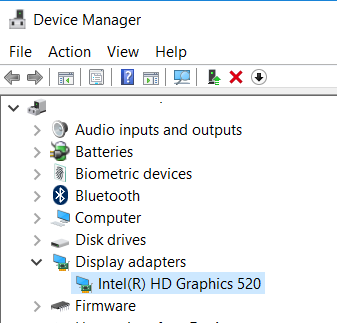
- Right-click on the adapter name and select Properties.
- Click the Driver tab to view the driver version.
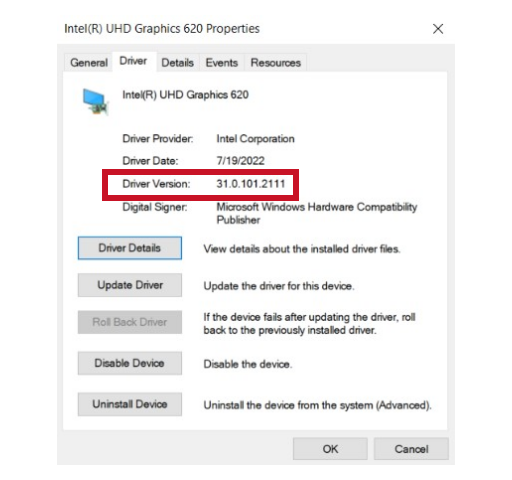


Your device driver has been updated and is now ready to use your GPU.
Windows Subsystem for Linux (WSL)#
WSL allows developers to run a GNU/Linux development environment for the Windows operating system. Using the GPU in WSL is very similar to a native Linux environment.
Note
Make sure your Intel graphics driver is updated to version 30.0.100.9955 or later. You can download and install the latest GPU host driver here.
Below are the required steps to make it work with OpenVINO:
- Install the GPU drivers as described above.
- Run the following commands in PowerShell to view the latest version of WSL2:
wsl --update
wsl --shutdown - When booting Ubuntu 20.04, 22.04, or 24.04 install the same drivers as described above in the Linux section
Note
In WSL, the GPU device is accessed via the character device /dev/drx, while for native Linux OS it is accessed via /dev/dri.
Additional Resources#
- GPU Device
- Install Intel® Distribution of OpenVINO™ toolkit from a Docker Image
- Docker CI framework for Intel® Distribution of OpenVINO™ toolkit
- Get Started with DockerHub CI for Intel® Distribution of OpenVINO™ toolkit
- Dockerfiles with Intel® Distribution of OpenVINO™ toolkit
- GPU Driver issue troubleshoot