Cortex Search | Snowflake Documentation (original) (raw)
Overview
Cortex Search enables low-latency, high-quality “fuzzy” search over your Snowflake data. It powers a broad array of search experiences for Snowflake users including Retrieval Augmented Generation (RAG)applications leveraging Large Language Models (LLMs).
Cortex Search gets you up and running with a hybrid (vector and keyword) search engine on your text data in minutes, without having to worry about embedding, infrastructure maintenance, search quality parameter tuning, or ongoing index refreshes. This means you can spend less time on infrastructure and search quality tuning, and more time developing high-quality chat and search experiences using your data. Check out the Cortex Search tutorialsfor step-by-step instructions on using Cortex Search to power AI chat and search applications.
When to use Cortex Search
The two primary use cases for Cortex Search are retrieval augmented generation (RAG) and enterprise search.
- RAG engine for LLM chatbots: Use Cortex Search as a RAG engine for chat applications with your text data by leveraging semantic search for customized, contextualized responses.
- Enterprise search: Use Cortex Search as a backend for a high-quality search bar embedded in your application.
Cortex Search for RAG
Retrieval augmented generation (RAG) is a technique for retrieving data from a knowledge base to enhance the generated response of a large language model. The following architecture diagram shows how you can combine Cortex Search withCortex LLM Functions to create enterprise chatbots with RAG using your Snowflake data as a knowledge base.
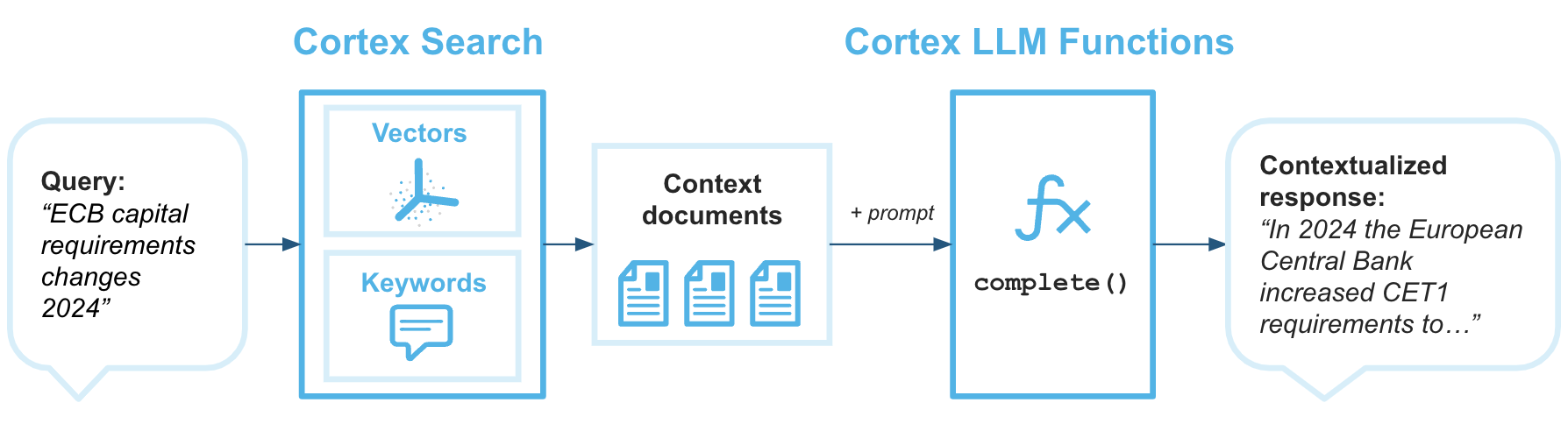
Cortex Search is the retrieval engine that provides the Large Language Model with the context it needs to return answers that are grounded in your most up-to-date proprietary data.
Example
This example takes you through the steps of creating a Cortex Search Service and querying it using the REST API. Refer to the Querying a Cortex Search Service topic for more details about querying the service.
This example uses a sample customer support transcript dataset.
Run the following commands to setup the example database and schema.
CREATE DATABASE IF NOT EXISTS cortex_search_db;
CREATE OR REPLACE WAREHOUSE cortex_search_wh WITH WAREHOUSE_SIZE='X-SMALL';
CREATE OR REPLACE SCHEMA cortex_search_db.services;
Run the following SQL commands to create the dataset.
CREATE OR REPLACE TABLE support_transcripts ( transcript_text VARCHAR, region VARCHAR, agent_id VARCHAR );
INSERT INTO support_transcripts VALUES ('My internet has been down since yesterday, can you help?', 'North America', 'AG1001'), ('I was overcharged for my last bill, need an explanation.', 'Europe', 'AG1002'), ('How do I reset my password? The email link is not working.', 'Asia', 'AG1003'), ('I received a faulty router, can I get it replaced?', 'North America', 'AG1004');
Create the service
You can create a Cortex Search Service with a single SQL query or from the Snowflake AI & ML Studio. When you create a Cortex Search Service, Snowflake performs transformations on your source data to get it ready for low-latency serving. The following sections show how to create a service using both SQL and in the Snowflake AI & ML Studio in Snowsight.
Note
When you create a search service, the search index is built as part of the create process. This means the CREATE CORTEX SEARCH SERVICE statement may take longer to complete for larger datasets.
Use SQL
The following example demonstrates how to create a Cortex Search Service with CREATE CORTEX SEARCH SERVICE on the sample customer support transcript dataset created in the previous section.
CREATE OR REPLACE CORTEX SEARCH SERVICE transcript_search_service ON transcript_text ATTRIBUTES region WAREHOUSE = cortex_search_wh TARGET_LAG = '1 day' EMBEDDING_MODEL = 'snowflake-arctic-embed-l-v2.0' AS ( SELECT transcript_text, region, agent_id FROM support_transcripts );
This command triggers the building of the search service for your data. In this example:
- Queries to the service will search for matches in the
transcript_textcolumn.- The
TARGET_LAGparameter dictates that the Cortex Search Service will check for updates to the base tablesupport_transcriptsapproximately once per day.- The columns
regionandagent_idwill be indexed so that they can be returned along with results of queries on thetranscript_textcolumn.- The column
regionwill be available as a filter column when querying thetranscript_textcolumn.- The warehouse
cortex_search_whwill be used for materializing the results of the specified query initially and each time the base table is changed.
Note
- Depending on the size of the warehouse specified in the query and the number of rows in your table, this CREATE command may take up to several hours to complete.
- Snowflake recommends using a dedicated warehouse of size no larger than MEDIUM for each service.
- Columns in the ATTRIBUTES field must be included in the source query, either via explicit enumeration or wildcard, (
*) .
Use Snowsight
Follow these steps to create a Cortex Search Service in Snowsight:
- Sign in to Snowsight.
- Choose a role that is granted the SNOWFLAKE.CORTEX_USER database role.
- In the navigation menu, select AI & ML » Studio.
- Select + Create from the Create a Cortex Search Service box.
- Select a role and warehouse. The role must be granted the SNOWFLAKE.CORTEX_USER database role. The warehouse is used for materializing the results of the source query when the service is created and refreshed.
- Select a database and schema in which the service is defined.
- Enter a name for your service, then select Let’s go.
- Select the table or view that contains the text data to be indexed for searching, then select Next. For this example, select the
support_transcriptstable.
Note
If you want to specify multiple data sources or perform transformations when defining your service,use SQL. - Select the columns you want included in the search results,
transcript_text,region, andagent_id, then select Next. - Select the column that will be searched,
transcript_text, then select Next. - If you want to be able to filter your search results based on a particular column(s), select those columns, then select Next. If you don’t need any filters, select Skip this option. For this example, you can skip this step.
- Set your target lag, which is the amount of time your service content should lag behind updates to the base data, then select Create search service.
The final step confirms that your service has been created and displays the service name and its data source.
Note
When you create the service from Snowsight, the name of the service is double-quoted. For details on what that means when referencing the service in SQL, see Double-quoted identifiers.
Grant usage permissions
After the service and index are created, you can grant usage on the service, its database, and schema to other roles like customer_support.
GRANT USAGE ON DATABASE cortex_search_db TO ROLE customer_support; GRANT USAGE ON SCHEMA services TO ROLE customer_support;
GRANT USAGE ON CORTEX SEARCH SERVICE transcript_search_service TO ROLE customer_support;
Preview the service
To confirm that the service is populated with data properly, you can preview the service via theSEARCH_PREVIEW function from a SQL environment:
SELECT PARSE_JSON( SNOWFLAKE.CORTEX.SEARCH_PREVIEW( 'cortex_search_db.services.transcript_search_service', '{ "query": "internet issues", "columns":[ "transcript_text", "region" ], "filter": {"@eq": {"region": "North America"} }, "limit":1 }' ) )['results'] as results;
Sample successful query response:
[ { "transcript_text" : "My internet has been down since yesterday, can you help?", "region" : "North America" } ]
This response confirms that the service is populated with data and serving reasonable results for the given query.
You can also use the CORTEX_SEARCH_DATA_SCAN table function to inspect the contents of the service.
SELECT * FROM TABLE ( CORTEX_SEARCH_DATA_SCAN ( SERVICE_NAME => 'transcript_search_service' ) );
- ---------------------------------------------------------- + --------------- + -------- + ------------------------------ + | transcript_text | region | agent_id | _GENERATED_EMBEDDINGS_MY_MODEL |
| ---------------------------------------------------------- | --------------- | -------- | ------------------------------ | | 'My internet has been down since yesterday, can you help?' | 'North America' | 'AG1001' | [0.1, 0.2, 0.3, 0.4] | | 'I was overcharged for my last bill, need an explanation.' | 'Europe' | 'AG1002' | [0.1, 0.2, 0.3, 0.4] |
- ---------------------------------------------------------- + --------------- + -------- + ------------------------------ +
Query the service from your application
Once you’ve created the search service, granted usage on it to your role, and previewed it, you can now query it from your application using the Python API.
The following code shows using the Python API to retrieving the support ticket most relevant to a query about internet issues, filtered to return results in the North America region:
from snowflake.core import Root from snowflake.snowpark import Session
CONNECTION_PARAMETERS = {"..."}
session = Session.builder.configs(CONNECTION_PARAMETERS).create() root = Root(session)
transcript_search_service = (root .databases["cortex_search_db"] .schemas["services"] .cortex_search_services["transcript_search_service"] )
resp = transcript_search_service.search( query="internet issues", columns=["transcript_text", "region"], filter={"@eq": {"region": "North America"} }, limit=1 ) print(resp.to_json())
Sample successful query response:
{ "results": [ { "transcript_text": "My internet has been down since yesterday, can you help?", "region": "North America" } ], "request_id": "5d8eaa5a-800c-493c-a561-134c712945ba" }
Cortex Search Services return all columns specified in the columns field in your query.
Required privileges
- To create a Cortex Search Service, your role must have the required privileges to use the Cortex embedding functions, which requires granting the SNOWFLAKE.CORTEX_USER database role or the SNOWFLAKE.CORTEX_EMBED_USER database role to the service creator role. You must also have the following privileges:
- The CREATE CORTEX SEARCH SERVICE or OWNERSHIP privilege on the schema where you create the service.
- The SELECT privilege on the underlying table(s) or view(s) that the service queries.
- The USAGE privilege on the warehouse that refreshes the service.
- Change tracking must be enabled on all underlying objects used by a Cortex Search Service. For more information about change tracking requirements, see Change Tracking Requirements.
- To query a Cortex Search Service, the role of the querying user must have USAGE privileges on the service itself, as well as on the database and schema in which the service resides. See Cortex Search Access Control Requirements.
- To suspend or resume a Cortex Search Service using the ALTER command, the role of the querying user must have the OPERATE privilege on the service. See ALTER CORTEX SEARCH SERVICE.
Understanding Cortex Search quality
Cortex Search leverages an ensemble of retrieval and ranking models to provide you with a high level of search quality with little to no tuning required. Under the hood, Cortex Search takes a “hybrid” approach to retrieving and ranking documents. Each search query utilizes:
- Vector search for retrieving semantically similar documents.
- Keyword search for retrieving lexically similar documents.
- Semantic reranking for reranking the most relevant documents in the result set.
This hybrid retrieval approach, coupled with a semantic reranking step, achieves high search quality across a broad range of datasets and queries.
You can customize the scoring of search results by applying numeric boosts, time decays, adjusting component weights, or disabling reranking. For more information, see Customizing Cortex Search Scoring.
Cortex Search Embedding Models
Cortex Search allows users to select a hosted embedding model to be leveraged in the vector search stage of retrieval. The following embedding models are available in Cortex Search.
Important
Model pricing varies. Canonical model pricing is available in the Snowflake Service Consumption Table. If a price shown below differs from the price shown for the model in the Snowflake Service Consumption Table, the Snowflake Service Consumption table shall govern.
| Model name | Output Dimensions | Context window size (tokens) | Language support | Credit cost per 1M tokens | Description |
|---|---|---|---|---|---|
| snowflake-arctic-embed-m-v1.5 (default) | 768 | 512 | English-only | 0.03 | Snowflake’s most practical, English-only embedding model. This open-source, 110M-parameter model yields the fastest indexing times of the available models in Cortex Search. For more information, see theArctic Embed 1.5 blog post andArctic Embed 1.5 model card. |
| snowflake-arctic-embed-l-v2.0 | 1024 | 512 | Multilingual | 0.05 | Snowflake’s price-performant multilingual embedding modell with a context window of 512 token. This open-source, 568M-parameter model yields high quality on both English and non-English datasets. For more information, see theArctic Embed 2 blog post andArctic Embed 2 model card. |
| snowflake-arctic-embed-l-v2.0-8k | 1024 | 8192 | Multilingual | 0.05 | Snowflake’s price-performant multilingual embedding model, with an increased context window of 8000 tokens. This open-source, 568M-parameter model yields high quality on both English and non-English datasets. |
| voyage-multilingual-2 | 1024 | 32,000 | Multilingual | 0.07 | Voyage’s multilingual embedding model. This model yields high quality on both English and non-English datasets. For more information, see theVoyage Multilingual 2 blog post |
Some embedding models are only available in certain cloud regions for Cortex Search. For an availability list by model by region, see Cortex Search Regional Availability.
Each model has different performance, cost, context window size, and quality characteristics. Carefully review the model specifications to determine the best model for your specific workload. Refer to the Snowflake Service Consumption Table for most accurate view of each model’s cost in credits per million tokens.
Tokens, model context windows, and text splitting
A token is a sequence of characters and is the smallest unit of text that can be processed by a large language model. As an approximation, one token is equivalent to about 3/4 of an English word, or around 4 characters. To calculate the number of tokens in a string, use theCOUNT_TOKENS Cortex Function. For example, calculating the tokens for a string to be embedded with the snowflake-arctic-embed-m-v1.5 model:
SELECT SNOWFLAKE.CORTEX.COUNT_TOKENS('snowflake-arctic-embed-m', '') as token_count
Each vector embedding model supports a fixed size context window for text inputs, indicated in the preceding embedding model table. During both indexing and serving, when the number of tokens in a value in the search column exceeds the context window size, Cortex Search truncates the string to the size of the context window before embedding it into vector space for semantic search. However, Cortex Search uses the full body of text for keyword-based retrieval.
Snowflake provides built-in functions to assist in splitting of text into smaller chunks. For more information, seeSPLIT_TEXT_RECURSIVE_CHARACTER.
For best search results with Cortex Search, Snowflake recommends splitting the text in your search column into chunks of no more than 512 tokens (about 385 English words). While there are longer-context embedding models available today, such as snowflake-arctic-embed-l-v2.0-8k, research shows that a smaller chunk size typically results in higher retrieval and downstream LLM response quality. With smaller chunks, retrieval can be more precise for a given query and, in a retrieval-augmented generation (RAG) scenario, the downstream LLM receives text chunks that are more relevant to the query.
Refreshes
The content served in a Cortex Search Service is based on the results of a specific query. When the data underlying a Cortex Search Service changes, the service updates to reflect those changes. These updates are referred to as a refresh. This process is automated, and it involves analyzing the query that underlies the table.
Cortex Search Services have the same refresh properties as Dynamic Tables. See Understanding dynamic table initialization and refresh topic to understand the refresh characteristics of a Cortex Search Service.
The source query for a Cortex Search Service must be a candidate for dynamic table incremental refresh. For details on those requirements, see Support for incremental refresh. This restriction is designed to prevent any unwanted runaway costs associated with vector embedding computation. For more information about the constructs that are not supported for dynamic table incremental refresh, see Supported queries for dynamic tables.
Primary keys
A primary key of a Cortex Search Service is an optional set of columns that uniquely identify each row in the source query (that is, only one row has that exact combination of values in the designated columns). To be used with Cortex Search Services, primary key columns must be of the TEXT data type.
A primary key can be specified when creating the service as follows:
CREATE OR REPLACE CORTEX SEARCH SERVICE transcript_search_service ON transcript_text PRIMARY KEY (region, agent_id) WAREHOUSE = cortex_search_wh TARGET_LAG = '1 day' AS ( SELECT transcript_text, region, agent_id FROM support_transcripts );
The primary key columns of existing services can be modified with ALTER CORTEX SEARCH SERVICE ... SET PRIMARY KEY (...). For detailed syntax, see ALTER CORTEX SEARCH SERVICE.
Services with primary keys can make use of an optimized refresh path when data underlying the service changes. This optimized path can result in significant reductions to the cost and latency of a refresh. The optimized refresh can be performed if the number of changed rows since the last full refresh is small, and if the last full refresh occurred within the previous week or within DATA_RETENTION_TIME_IN_DAYS, whichever is shorter.
Queries to services with primary keys may also make use of the @primarykey filter operator.
Important
The set of primary key column values must be unique for each row in the source query. Duplicates are ignored in the resulting search index.
Suspension of indexing and serving
Similarly to Dynamic Tables, Cortex Search Services will automatically suspend their indexing state when they encounter five consecutive refresh failures related to the source query. If you encounter this failure for your service, you can view the specific SQL error using either DESCRIBE CORTEX SEARCH SERVICE or the CORTEX_SEARCH_SERVICES view. The output from both includes the following columns:
- The INDEXING_STATE column will have the value of SUSPENDED.
- The INDEXING_ERROR column will contain the specific SQL error encountered in the source query.
Once the root issue is resolved, you can resume the service with ALTER CORTEX SEARCH SERVICE <name> RESUME INDEXING. For detailed syntax, see ALTER CORTEX SEARCH SERVICE.
Cost considerations
A Cortex Search Service incurs cost in the following ways:
| Category | Description |
|---|---|
| Virtual warehouse compute | A Cortex Search Service requires a virtual warehouse to refresh the service: to run queries against base objects when they are initialized and refreshed, including orchestrating text embedding jobs and building the search index. These operations use compute resources, which consume credits. If no changes are identified during a refresh, virtual warehouse credits aren’t consumed since there’s no new data to refresh. |
| EMBED_TEXT tokens compute | A Cortex Search Service automatically embeds each text row in the search column specified in the ON parameter into vector space to enable semantic search, which incurs a credit cost per token embedded. This involves calling EMBED_TEXT_768 orEMBED_TEXT_1024 to convert each document as a series of numbers that encodes its meaning. Embeddings are computed each time a row is inserted or updated. Embeddings are processed incrementally in the evaluation of the source query, so the embedding cost is only incurred for added or changed documents. See Vector Embeddings for more information on vector embedding costs. |
| Serving compute | A Cortex Search Service uses multi-tenant serving compute, separate from a user-provided Virtual Warehouse, to establish a low-latency, high-throughput service. The compute cost for this component is incurred per GB per month (GB/mo) of uncompressed indexed data, where indexed data is the user-provided data in the Cortex Search source query, plus vector embeddings computed on the user’s behalf. You incur these costs while the service is available to respond to queries, even if no queries are served during a given period. For the Cortex Search Serving credit rate per GB/mo of indexed data, see the Snowflake Service Consumption Table. |
| Storage | Cortex Search Services materialize the source query into a table stored in your account. This table is transformed into data structures that are optimized for low-latency serving, also stored in your account. Storage for the table and intermediate data structures are based on a flat rate per terabyte (TB). |
| Cloud services compute | Cortex Search Services use Cloud Services computeto identify changes in underlying base objects and whether the virtual warehouse needs to be invoked. Cloud services compute cost is subject to the constraint that Snowflake only bills if the daily cloud services cost is greater than 10% of the daily warehouse cost for the account. |
For best practices on managing the costs of a Cortex Search Service, see Understanding cost for Cortex Search Services.
To view the AI Services-related consumption costs for each Cortex Search Service in your account, aggregated daily, see the CORTEX_SEARCH_DAILY_USAGE_HISTORY view
Known limitations
Usage of Cortex Search is subject to the following limitations:
- Base table size: The result of the materialized query in the search service must be less than 100M rows in size to maintain optimal serving performance. If the materialized result of your query has more than 100M rows, the creation query fails with an error.
Note
To increase the row scaling limits on a Cortex Search Service above 100M, please contact your Snowflake account team. - Query constructs: Cortex Search Service source queries must adhere to the same query restrictions that Dynamic Tables have. Please see the Dynamic table limitations for more detail.
- Data retention: Cortex Search Services have the same requirements as dynamic tables around data retentions. Specifically, you can’t set the DATA_RETENTION_TIME_IN_DAYS object parameter in your base tables to zero or set this parameter on the schema or database containing the search service. Additionally, search services can become stale if they are not refreshed within MAX_DATA_EXTENSION_TIME_IN_DAYS. Once stale, they must be recreated to resume refreshes. Please see the Dynamic table limitations for more detail.
- Replication and cloning: Cortex Search Services do not currently support cloning. Snowflake intends to provide this capability in some future release, but cannot guarantee it.
- Table immutability: While running, your Cortex Search Services require tables they access aren’t modified or dropped. To safely update tables used by a Cortex Search Service, stop the service before making your changes.
Regional availability
Support for this feature is available to accounts in the following Snowflake regions. Availability for specific embedding models within a region is denoted with a checkmark.
| Cloud Provider | Region | snowflake-arctic-embed-m-v1.5 | snowflake-arctic-embed-l-v2.0 | snowflake-arctic-embed-l-v2.0-8k | voyage-multilingual-2 |
|---|---|---|---|---|---|
| AWS | US West 2 (Oregon) | ✔ | ✔ | ✔ | ✔ |
| AWS | US East 2 (Ohio) | ✔ | ✔ | ✔ | |
| AWS | US East 1 (N. Virginia) | ✔ | ✔ | ✔ | ✔ |
| AWS | US East (Commercial Gov - N. Virginia) | ✔ | ✔ | ✔ | ✔ |
| AWS | Canada (Central) | ✔ | ✔ | ✔ | |
| AWS | South America (São Paulo) | ✔ | ✔ | ✔ | |
| AWS | Europe (Ireland) | ✔ | ✔ | ✔ | |
| AWS | Europe (London) | ✔ | ✔ | ✔ | |
| AWS | Europe Central 1 (Frankfurt) | ✔ | ✔ | ✔ | ✔ |
| AWS | Europe (Stockholm) | ✔ | ✔ | ✔ | |
| AWS | Asia Pacific (Tokyo) | ✔ | ✔ | ✔ | ✔ |
| AWS | Asia Pacific (Mumbai) | ✔ | ✔ | ✔ | |
| AWS | Asia Pacific (Sydney) | ✔ | ✔ | ✔ | |
| AWS | Asia Pacific (Jakarta) | ✔ | ✔ | ✔ | |
| AWS | Asia Pacific (Seoul) | ✔ | ✔ | ✔ | |
| Azure | East US 2 (Virginia) | ✔ | ✔ | ✔ | |
| Azure | West US 2 (Washington) | ✔ | ✔ | ✔ | |
| Azure | South Central US (Texas) | ✔ | ✔ | ✔ | |
| Azure | UK South (London) | ✔ | ✔ | ✔ | |
| Azure | North Europe (Ireland) | ✔ | ✔ | ✔ | |
| Azure | West Europe (Netherlands) | ✔ | ✔ | ✔ | ✔ |
| Azure | Switzerland North (Zürich) | ✔ | ✔ | ✔ | |
| Azure | Central India (Pune) | ✔ | ✔ | ✔ | |
| Azure | Japan East (Tokyo, Saitama) | ✔ | ✔ | ✔ | |
| Azure | Southeast Asia (Singapore) | ✔ | ✔ | ✔ | |
| Azure | Australia East (New South Wales) | ✔ | ✔ | ✔ | |
| GCP | Europe West 2 (London) | ✔ | ✔ | ✔ | |
| GCP | Europe West 3 (Frankfurt) | ✔ | ✔ | ✔ | |
| GCP | Europe West 4 (Netherlands) | ✔ | ✔ | ✔ | |
| GCP | Middle East Central 2 (Dammam) | ✔ | ✔ | ✔ | |
| GCP | US Central 1 (Iowa) | ✔ | ✔ | ✔ | |
| GCP | US East 4 (N. Virginia) | ✔ | ✔ | ✔ |
Note
You can specify the cross-region inference parameter in any of the above regions to access models which aren’t directly supported from your default region.
Cortex Search is available in the following regions only using cross-region inference. To use Cortex Search with cross-region inference, use the cross-region inference parameter.
- AWS Europe (Paris)
- AWS Europe (Zurich)
- AWS Asia Pacific (Singapore)
- AWS Asia Pacific (Osaka)
- Azure Canada Central (Toronto)
- Azure Central US (Iowa)
- Azure UAE North (Dubai)
Note
When using cross-region inference, query latency between regions depends on the cloud provider infrastructure and network status. Snowflake recommends that you test your specific use-case with cross-region inference enabled.
Legal notices
The data classification of inputs and outputs are as set forth in the following table.
| Input data classification | Output data classification | Designation |
|---|---|---|
| Usage Data | Customer Data | Generally available functions are Covered AI Features. Preview functions are Preview AI Features. [1] |
For additional information, refer to Snowflake AI and ML.