eCAL Rec CLI — Eclipse eCAL™ (original) (raw)
 eCAL Rec CLI#
Note
eCAL Rec CLI is available since eCAL 5.9
eCAL Rec CLI is the Command Line eCAL Rec Host Application (i.e. a replacement for eCAl Rec GUI). The binary is ecal_rec /.exe. eCAL Rec CLI can be used both with single-shot parameters, as well as from an interactive console. When using an interactive console, the application will not exit automatically, but accept commands from STDIN.
Important
Don’t confuse the two command line eCAL Rec Applications:
ecal_rec /.exe: The recorder client that is used for distributed recordings.This is the application this topic is aboutecal_rec_client /.exe: The recorder host application in command-line flavour.
Just like eCAL rec GUI, the CLI application can:
- Load, create and save
.ecalrecconfiguration files - Create local and distributed recordings
Additional to those features, eCAL Rec CLI has three modes:
- Direct mode (default): By default, eCAL Rec CLI will load a config and execute commands by itself. It will just act as a normal eCAL Rec Host application.
- Remote-control mode: The remote control mode can by activated by passing the
--remote-controlparameter. When starting eCAL Rec CLI in remote-control mode, it will not execute commands by itself, but relay them to another eCAL Rec Host applicaiton (i.e. an eCAL Rec GUI or an eCAL Rec CLI running in direct + interactive mode). This mode is usefull, if you e.g. want to use the GUI, but still want to automatically trigger a recording in certain events.
Both eCAL Rec GUI and eCAL Rec CLI (in non-remote-control mode) can be remote-controlled. - Interactive mode: The interactive mode can be activated by passing the
--interactiveparameter. When in interactive mode, eCAL Rec CLI will keep running and start an interactive console, where you can type additional commands.
The interactive mode and remote-control mode can be used simultaneously.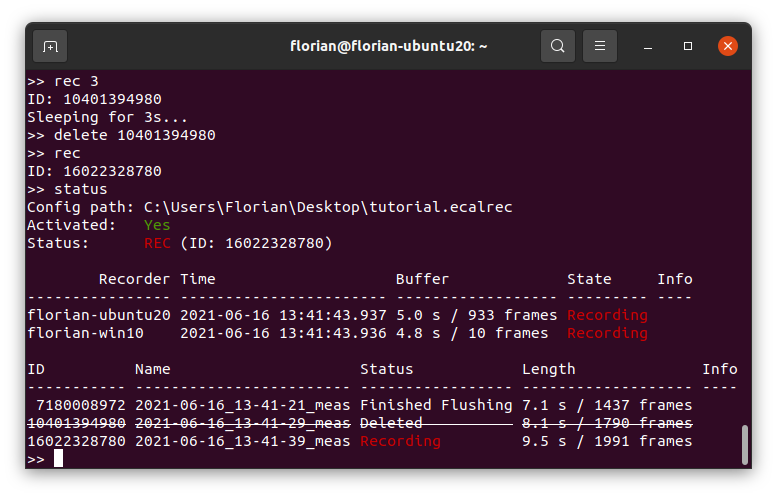
Usage#
USAGE:
ecal_rec [-c
Where:
-c
--no-default Prevent creating a default config, when no config file is loaded. This prevents having a default root-dir, meas-name and localhost recorder. Not applicable in remote-control mode.
--remote-control Remote control another eCAL Rec host application.
--remote-host Set the hostname for remote-controlling.
-r , --record Start a new recording. If a duration in seconds is provided, the recording will be stopped after that time. Otherwise, it will keep running until stopped by the user or a succeeding stop-recording call.
--savebuffer Save the content of the pre-buffer as its own recording. Only available in remote-control mode.
-x, --stop Stop the currently running recording. Only available in remote-control mode.
--activate Activate the recorder and all clients.
--deactivate Deactivates the recorder and all clients.
--comment [MeasID] Adds a comment to a measurement. If no ID is given, the comment is added to the last measurement. When your intention is to comment a measurement started with -r (--record), you should leave out the MeasID or set it to 0.
--delete Delete a measurement from the host and all clients.
--upload Upload the given measurement. If no measurement ID is provided, all measurements will be uploaded. When -r (--record) is provided with a duration, the mesasurement will be uploaded after the recorder has finished the measurement. As a recorder may still be flushing, a small delay (1s) is introduced before uploading in this case. Use interactive mode, if this is not sufficient.
-s, --status Print the status of a remote-controlled recorder.
--meas-status Print the status of the given measurement. Only available in remote-control mode.
--client-status Print the status of the given recorder client. Only available in remote-control mode.
--get-config Print the configuration of the recorder to the console.
--set-client Hostname:Hosts,To,Record (accepted multiple times) Sets which hosts shall be recorded by the given client. Use the syntax "Hostname:Host,To,Record". For instance, to let PC1 record itself and PC2, use "PC1:PC1,PC2". If no tailing list is provided, the client will record topcis from all hosts by default. If a configuration file is being loaded, this will override the setting from the config. Not available in remote-control mode.
--set-addons Hostname:List,Of,Addon,IDs (accepted multiple times) Sets the addons that the given client shall enable. Use the syntax "Hostname:List,Of,Addon,IDs". You can only set enabled addons for clients that have already been added; i.e. the client will not be added automatically. If no tailing list of addon IDs is provided, all addons will be disabled. If a configuration file is being loaded, this will override the setting from the config. Not available in remote-control mode.
--remove-client (accepted multiple times) Removes the given client. If the client had any addons enabled, those are removed as well. Not available in remote-control mode.
-b , --pre-buffer Pre-buffer data for some seconds. To turn off pre-buffering, provide a value <= 0.0. If a configuration file is being loaded, this will override the setting from the config. Not available in remote-control mode.
--blacklist Record all topics except the listed ones (Comma separated list, e.g.: "Topic1,Topic2"). If a configuration file is being loaded, this will override the setting from the config. Not available in remote-control mode.
--whitelist Only record these topics (Comma separated list, e.g.: "Topic1 ,Topic2"). If a configuration file is being loaded, this will override the setting from the config. Not available in remote-control mode.
-d
-n , --meas-name Name of the measurement, when -r (--record) is set. This will create a folder in the directory provided by -d (--meas-root-dir). If a configuration file is being loaded, this will override the setting from the config. Not available in remote-control mode.
--max-file-size Maximum file size of the recording files, when -r (--record) is set. If a configuration file is being loaded, this will override the setting from the config. Not available in remote-control mode.
--description Description stored in the measurement folder, when -r (--record) is set. If a configuration file is being loaded, this will override the setting from the config. Not available in remote-control mode.
--enable-one-file-per-topic <yes/no> Whether to separate each topic in HDF5 file. This helps faster file transfer and less network congestion in case of interest of specific topics only.
--ftp-server The server where to upload to when uploading a measurement. Use "internal" for the integrated FTP Server. When using an external FTP Server, provide it in the following form: ftp://USERNAME:PASSWORD@HOSTNAME:PORT/path/to/root_dir. If a configuration file is being loaded, this will override the setting from the config. Not available in remote-control mode.
--delete-after-upload <yes/no> Whether to delete the local measurement files after they have been uploaded to an FTP server. If a configuration file is being loaded, this will override the setting from the config. Not available in remote-control mode.
-i, --interactive Start eCAL Rec and listen for commands on stdin. When not in remote-control mode itself, eCAL Rec will offer the eCAL Rec Service for being remote-controlled. Note that eCAL Rec will exit, when stdin is closed. To prevent that, combine this option with (--interactive-dont-exit).
--interactive-dont-exit When in interactive mode, this option prevents eCAL Rec from exiting, when stdin is closed.
--, --ignore_rest Ignores the rest of the labeled arguments following this flag.
--version Displays version information and exits.
-h, --help Displays usage information and exits.
Interactive mode#
You can activate the interactivate mode by passing the --interactive parameter on command line. Instead of exiting eCAL rec will then go to an interactive console that lets you control it interactively by typing in commands.
If you want to remote-control eCAL Rec CLI with another eCAL Rec CLI instance, you also have to set it to interactive mode, just to prevent it from shutting down prematurely.
load
save
getconfig Prints the configuration of the recorder.
setconfig [--set-client Hostname:Hosts,To,Record] ...
| [--set-addons Hostname:List,Of,Addon,IDs] ...
| [--remove-client ] ...
| [--pre-buffer ]
| [--blacklist ]
| [--whitelist ]
| [--meas-root-dir
activate Activates the recorder and all clients. If Pre-buffering is enabled, all recorders will start to buffer data.
deactivate Deactivates all clients. They keep running but will not subscribe to any channels and buffer data until activated again.
rec [Seconds] Starts a recording. If SECS_TO_RECORD is given, the recording will be stopped afterwards.
savebuffer Saves the content of the current pre-buffer to its own measurement.
stop Stops the current recording.
status [--meas ] | [--host ] Prints the recorder status. If no argument is provided, the recorder status, job history and client list ist printed. To get more detailed information, provide the measurement ID or hostname. The --meas and --host specifiers can be omitted, if the given measurement id / hostname is unique.
comment [MeasID] Adds a comment to a measurement. If no ID is given, the comment will be added to the last measurement.
upload [MeasID] Uploads a measurement. If no ID is given, all measurements that can be uploaded will be uploaded.
delete Deletes the given measurement from all machines.
sleep Sleeps for the given amount of time. Usefull when automatically piping input to eCAL Rec via stdin.
exit Quit eCAL Rec
Automatize eCAL Rec CLI#
You can use the ecal_rec interactive mode to automatize it via STDIN. Commands are read line-by-line, i.e. they have to be divided by \n. Semicolons do not work. The most concise would probably be to write all your commands in a text file and pipe the content of that to ecal_rec.
Important
Unlike typing commands by hand, piping them into ecal_rec causes them to be executed as fast as possible. However, e.g. when using the upload command, ecal_rec will not check, if it would have to wait for other things to finish (like flushing a recording for example!).
So make sure you always add at least a sleep 1 before performing operations on measurements!
Let’s look at some examples. The examples will load a config, create a 5 seconds measurement, upload it, print the current status and exit.
- Ubuntu:
Commands from command line:
printf "rec 5 \n sleep 1 \n upload \n sleep 1 \n status" | ecal_rec -c ~/tutorial.ecalrec --interactive
Commands from a file:
cat commands.txt | ecal_rec -c ~/tutorial.ecalrec --interactive
- Windows CMD.exe:
rem Commands from command line:
(echo rec 5 & echo sleep 1 & echo upload & echo sleep 1 & echo status) | ecal_rec -c tutorial.ecalrec --interactive
rem Commands from a file:
more commands.txt | ecal_rec -c tutorial.ecalrec --interactive - Windows PowerShell:
Commands from command line:
echo "rec 5 n sleep 1 n upload n sleep 1 n status" | ecal_rec -c tutorial.ecalrec --interactive
Commands from a file:
cat commands.txt | ecal_rec -c tutorial.ecalrec --interactive