Dash User Guide - Complete Documentation Browser Tutorial (original) (raw)
Complete guide to using Dash, the powerful documentation browser for macOS developers. Learn to efficiently manage documentation sets, create code snippets, integrate with editors, and troubleshoot common issues. As always, feel free to contact me about anything if you need further help.
1. Documentation Sets#
Documentation sets, or docsets, consist of collections of HTML files. Dash uses these docsets to store the docs you need. This section describes the various features Dash has to help you acquire and manange docsets.
1.1. Downloading Docsets#
Docsets can be downloaded Dash's Settings > Downloads.
1.3. Managing and Searching Docsets#
You can manage the docsets you have installed from within Settings > Docsets. You can drag and drop docsets to change the order in which results appear. If you're looking for more advanced ways of managing docsets and easier switching between them, see the sections below about Search Profiles and Docset Keywords.
If you're looking for a way to download/install docsets, see the Downloading Docsets section.
1.3.2. Search Profiles#
You can set up collections of docsets and easily switch between them using search profiles. For example, let's say you do both macOS and Web development, you could set up a "macOS" search profile which automatically gets activated when Xcode launches and a "Web" search profile which automatically gets activated when Sublime Text launches.
Search profiles persist between Dash launches and searches. If you explicitly do not need persistence, use Docset Keywords.
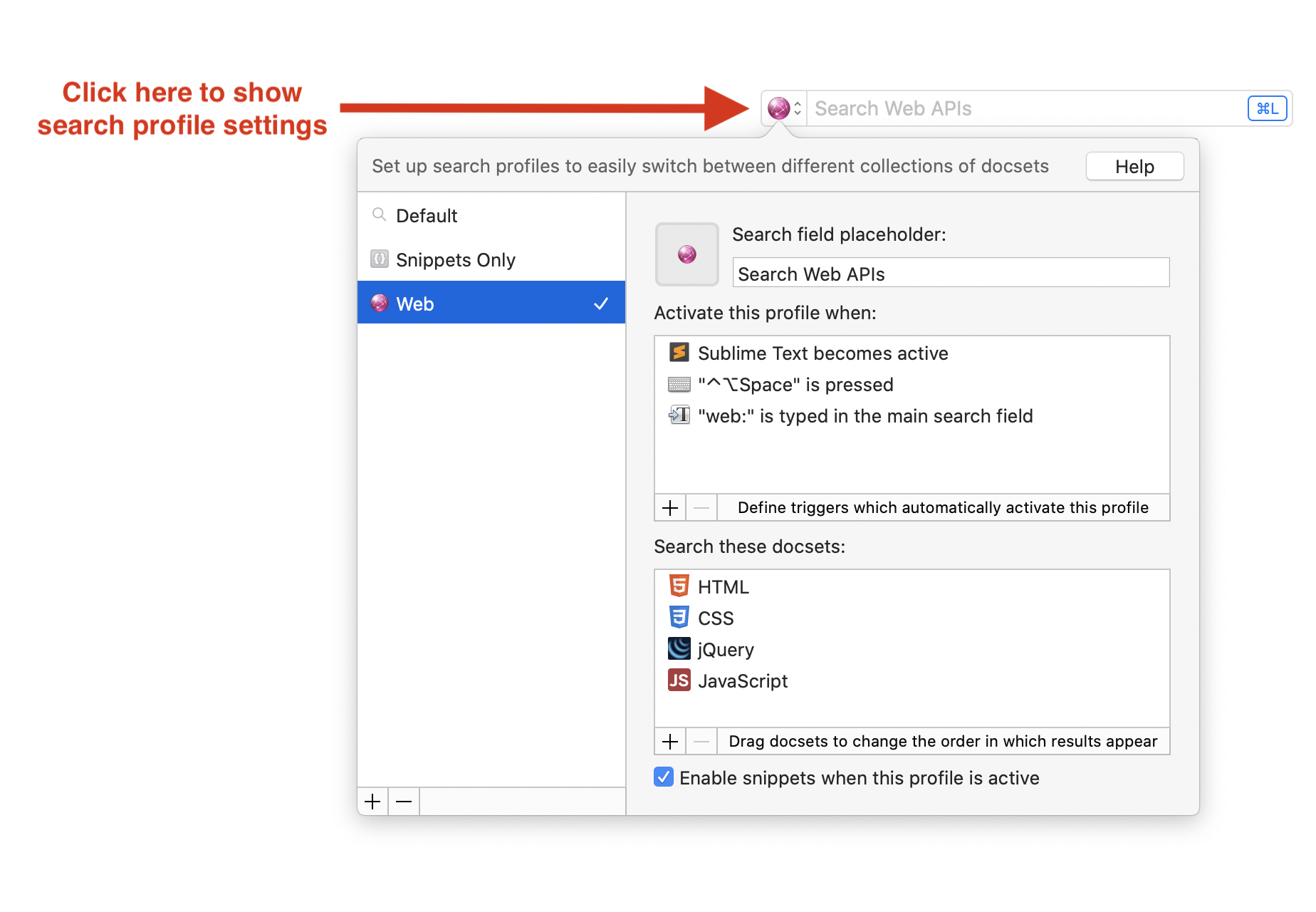
You can find the search profile settings by clicking on the icon of the main search field:
Trigger Types:
Search Keywords
Search keywords are typed inside of Dash's main search field and activate a profile. In the screenshot above, whenever the user types "web:" in the search field, the Web search profile is activated. Search keywords can also be used with the dash:// URL scheme, which makes it very easy to integrate them into plugins and extensions. For more details, see the dash:// custom URL scheme section.
App Activation
App Activation triggers activate a search profile whenever a given app becomes active. In the example in the screenshot above, whenever Sublime Text becomes active, it also activates the "Web" search profile.
Global Keyboard Shortcut
Whenever you press a combination of keys in any app, the profile gets activated and Dash is shown.
1.3.3. Docset Keywords#
Docset keywords are a very easy way to search a specific docset, regardless if it's enabled or not. Each docset has a default keyword which can be edited in Settings > Docsets. Keywords are typed inside of the main search field.
For example, PHP's default keyword is "php:". Typing "php:printf" would search the PHP docset for "printf". Note: this assumes you have the PHP docset installed.
Docset keywords can also be used with the dash:// URL scheme, which makes it very easy to integrate them into plugins and extensions. For more details, see the dash:// custom URL scheme section.
You can assign the same keyword to more than one docset, and Dash will search them all. However, you might want to consider using Search Profiles instead which provide more flexibility for activating collections of docsets.
1.4. Current Page's Table of Contents#
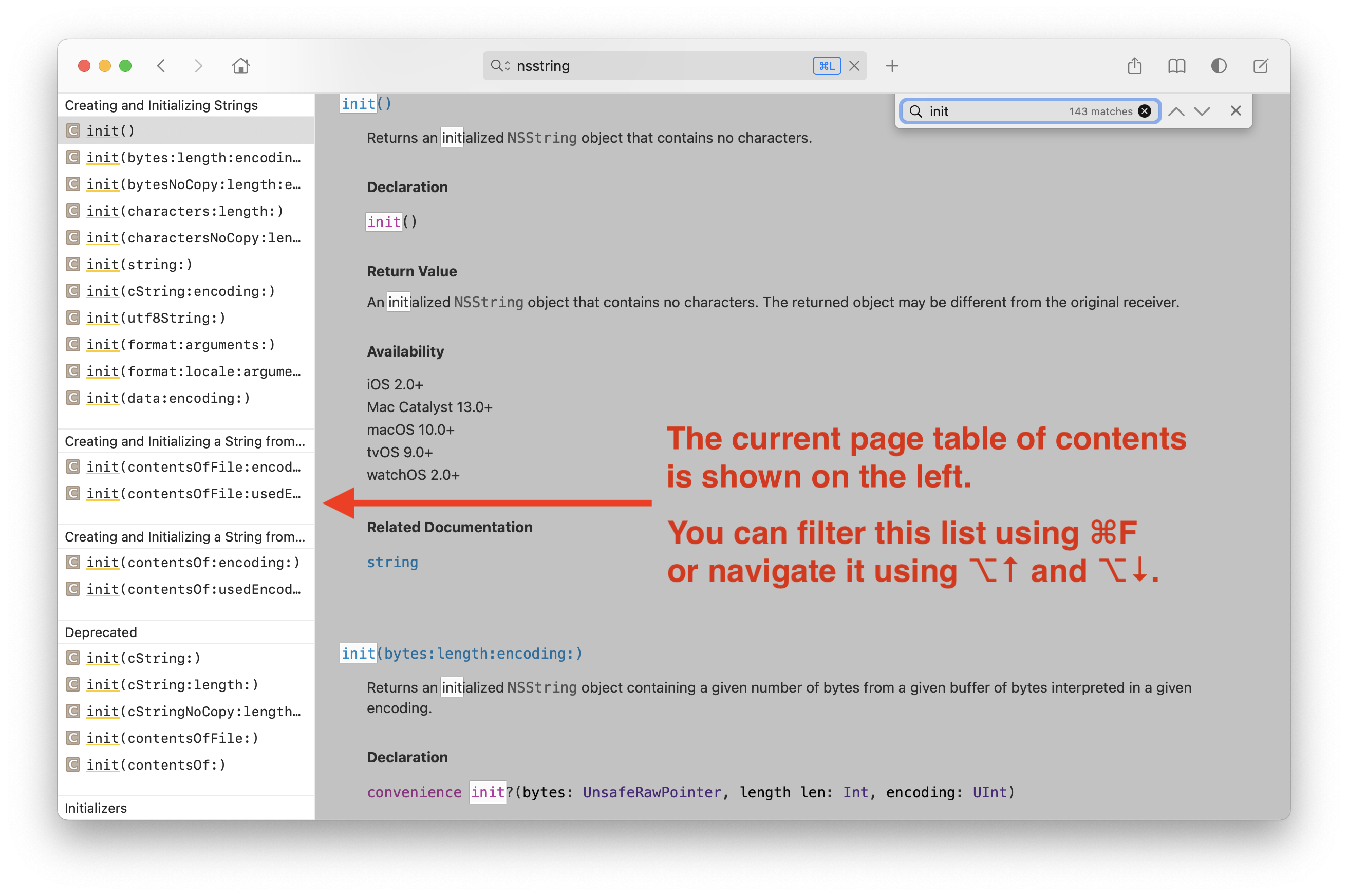
Docsets which support the "Table of Contents" feature show a filterable list of entries inside Dash's table of contents which is located on the left side of the Dash window (when shown). You can easily navigate this table using ALT+Down/Up Arrow.
The screenshot below shows the table of contents in action:
2. Integration with Other Apps#
Dash can integrate with almost any app you use. Once Dash becomes a part of your workflow, it will always be one key press away.
2.1. Integration Plugins#
Integration plugins for various 3rd party apps, as well as generic integration methods (e.g. AppleScript or Shell/Terminal scripts) can be found in Settings > Integration.
All the integration plugins use the dash:// URL scheme behind the scenes, so it might be worth reading the help section for the dash:// custom URL scheme to gain understanding of search keywords and how to limit a plugin to search only a specific docset.
2.2. Global Search Shortcut#
The global search shortcut is an easy way to activate Dash in a similar style as the Spotlight shortcut. You can assign a search shortcut in Settings > General and then use that hotkey in any app when you want to bring up Dash. You can also assign a shortcut to search using the selected text.
You can assign more global search shortcuts using Search Profile activation triggers. Search Profiles can also automatically switch and enable different collections of docsets.
2.3. The "dash://" Custom URL Scheme#
The dash:// custom URL scheme can be used to initiate a Dash search from any app that supports opening a custom URL.
- The format is:
dash://?query={query}. Example: dash://string. - You can also include an optional keyword:
dash://?query={keyword}:{query}. Example: dash://?query=php:printf (note: PHP docset must be installed).- Keywords can be used to specify which docsets exactly you wish to search. Keywords can be either Docset Keywords or Search Profile keyword triggers.
A more advanced [dash-plugin://](/dash%5Fplugins) custom URL scheme is available for plugin developers.
3. Snippets#
Snippets can be enabled or disabled in Settings > Snippets.
Snippets are really simple pieces of text which you reuse often. The idea is to save a text/code snippet for later and expand it whenever you need to.
A snippet consists of:
Abbreviation
- This is what you type in any app to expand snippets. The abbreviation gets replaced by the snippet body wherever you type it.
- It is highly recommended that your snippet's abbreviation should contain a symbol, in order to avoid expansions by mistake. I personally use a backtick (
`).
Body
- This is the piece of text/code you'd like to save and reuse.
Variable Placeholders
- Placeholders are the parts of the snippet that change on each expansion. For example, variable names could be placeholders.
- Placeholders are defined by wrapping them in
__(double underscores). For example,__var__is a placeholder. - Each time you expand a snippet, you are asked to fill in placeholders (if any).
- Placeholders can have default values. Just name your placeholder using the default value you want and when you press Enter while expanding, the default value is used.
- Placeholders can change the case of the first letter (e.g. lowercase to uppercase). For example,
__name__and__Name__. - If
__does not suit your needs, you can define your own placeholder delimiter in Settings > Snippets.
Special Placeholders
@clipboard- expands into the contents of the clipboard.@cursor- repositions the cursor after expansion. Warning: this feature does not work very well with non-accessible apps.@date- expands into the current date. You can modify the format in Settings > Snippets.@time- expands into the current time. You can modify the format in Settings > Snippets.- You can escape (disable) these special placeholders by typing a
\before them.
3.1. Tips and Best Practices#
It is highly recommended that your snippet's abbreviation should contain a symbol, in order to avoid expansions by mistake. I personally use a backtick (`).
3.2. Creating and Editing Snippets#
To create or edit a snippet go to Snippets in the main search field. Snippets are automatically saved as you type.
3.3. Searching Snippets#
You can search snippets by typing in the main search field. However, it might be hard to find the snippet you want if you have a lot of docsets enabled. To avoid this, you can create a snippets only Search Profile. For more information about search profiles, see the Search Profiles help section.
3.4. Syncing Snippets#
Dash can sync snippets between Macs if you save your snippet library into your Dropbox or iCloud Drive folder. You can change your snippets library location in Settings > Snippets.
3.5. Disabling Snippet Expansion#
To disable snippet expansion, either delete the snippet or add a few symbols (e.g. whitespaces) at the end of the snippet's abbreviation.
You can also completely disable snippet expansion by disabling Dash's accessibility support. You can do this in System Settings > Security & Privacy > Privacy > Accessibility > Disable Dash.
4. Troubleshooting#
Common issues are listed below. If you notice a bug or have any feedback, please contact me.
4.1. "Snippet expansion is not working"#
The following things could prevent snippet expansion from working:
- Snippets are disabled. Enable them in Settings > Snippets.
- Support for assistive devices is turned off. This needs to be turned on for snippet expansion to work. You can turn this on in System Settings > Security & Privacy > Privacy > Accessibility. If it was turned off, restart Dash after turning it on.
- You have an app running that enables Secure Input but forgets to turn it off, you need to identify which app is causing this. Usually, web browsers or an extension inside web browsers is the culprit. To find where the problem is, quit the apps you have running one by one and try expanding after each one. If expansion starts working after you quit an app, that was the app that turned on Secure Input and forgot to turn it off.
- Sometimes a macOS restart is required for things to start working again.