DebugView - Sysinternals (original) (raw)
By Mark Russinovich
Published: June 17, 2026
 Download DebugView (1.7 MB)
Run now from Sysinternals Live.
Introduction
DebugView is an application that lets you monitor debug output on your local system, or any computer on the network that you can reach via TCP/IP. It is capable of displaying both kernel-mode and Win32 debug output, so you don't need a debugger to catch the debug output your applications or device drivers generate, nor do you need to modify your applications or drivers to use non-standard debug output APIs.
Note
DebugView v5.0 requires Windows 10 version 1809 (build 17763) / Windows Server 2019 or later.
DebugView Capture
DebugView will capture:
- Win32 OutputDebugString
- Kernel-mode DbgPrint
- All kernel-mode variants of DbgPrint
DebugView also extracts kernel-mode debug output generated before a crash from Windows crash dump files if DebugView was capturing at the time of the crash.
DebugView Capabilities
DebugView has a powerful array of features for controlling and managing debug output.
Features new to version 5.02:
- Command-line interface (DbgViewCLI): A new standalone command-line tool (
dbgviewcli.exe) provides full debug capture capabilities from the terminal. Designed for scripted, automated, and AI-agent-driven workflows with bounded execution, machine-readable output, and process-specific filtering. See the DbgViewCLIsection below for full details. - AI-agent automation parameters: New CLI options (
--duration,--max-lines,--wait-for,--tail,--no-banner,--status,--pid-filter,--process-filter) guarantee bounded execution and clean output for programmatic use by coding agents. - Embedded agent skills with one-command install: DbgViewCLI embeds agent skill files as a binary resource and can install them directly into supported AI coding agents (GitHub Copilot, Claude, Cursor, Codex) using
--install-skills <agent>.
Features new to version 5.0:
- Dark mode and modern UI: DebugView now features a completely redesigned interface using Windows XAML Islands technology. The UI automatically follows the system-wide light or dark theme setting, with dark mode applied consistently to the title bar, menus, toolbar, dialogs, and the output list view. The modernized toolbar and menu bar provide a visual style consistent with other Sysinternals tools such as Process Monitor.
- Automatic crash recovery: When DebugView detects that the previous session ended due to an ungraceful shutdown (such as a system crash), it automatically scans the Windows crash dump file, recovers pending kernel debug traces from the previous session, and displays them in the output window. This enables post-mortem analysis of kernel-mode debug output that was captured right up to the moment of a system failure, without any manual intervention.
- UI virtualization for large captures: The output list view now uses owner-data virtualization, which means only the visible rows are rendered at any time. This allows DebugView to efficiently handle captures containing hundreds of thousands or millions of debug messages without excessive memory consumption or UI slowdown.
- Dedicated PID column: A new Process ID column is displayed by default, making it easier to identify which process generated each debug output message. The PID column can be toggled on or off from the Options menu.
- On-demand UAC elevation: DebugView no longer requires administrative privileges at launch. It starts as a standard user and requests elevation via a UAC prompt only when you enable kernel-mode capture or other operations that require elevated privileges.
- DPI-aware rendering: Menu icons, toolbar buttons, dialogs, and the output list all scale correctly on high-DPI displays.
Features new to version 4.6:
- Support for Windows Vista 32-bit and 64-bit
Features new to version 4.5:
- Support for log-file rollover: To better support long-running captures, DebugView can now create a new log file each day, optionally clearing the display when doing so.
Features new to version 4.4:
- Support for Windows Server 2003 64-bit Edition and Windows XP 64-bit Edition for x64:DebugView now captures kernel-mode debug output on 64-bit versions of Windows.
- Clock-time toggle: you can now toggle between clock time and elapsed time modes.
Features new to version 4.3:
- Support for Windows XP SP2:DebugView now captures kernel-mode debug output on Windows XP SP2.
- More highlighting filters: Many people have asked for more highlighting filters.
- Log file wrapping: A new log file option has DebugView wrap around to the start of the log file when the specified size limit is reached.
- Larger buffers: Larger Win32 and kernel-mode buffers lessen the chance of dropped debug output.
- Clear-output string: When DebugView sees the special debug output string "DBGVIEWCLEAR" it clears the output.
- Client minimize-to-tray: You can now run the client minimized in the tray.
Features new to version 4.2:
- Kernel-hook bug fixed:DebugView sometimes mistakenly report that it couldn't hook kernel-mode debug output on Windows XP and Server 2003.
- Client global-capture option: A new option allows the client to capture console Win32 debug output on Terminal Server systems when run from a non-console session.
- Filtering improved: Filters can be much longer and now apply to Win32 process IDs when process IDs are included in the output.
- Crash-dump support improved: Several bugs related to extracting kernel-mode output from crash dumps are fixed and DebugView now loads resulting log files.
- More highlight filters:DebugView now has 10 highlight filters, up from 5.
- Insert comments: A new menu item lets you insert comments into output.
- New switches: New command-line switches allow you to specify history depth and load log files.
- Better balloon tips: If an output line is wider than the screen its mouse hover balloon tip word wraps.
Features new to version 4.1:
- Save and load filters: You can save and load filters, including the highlighting colors.
- Load saved logs: You can now load a log file back into the_DebugView_ output window.
- Capture boot-time kernel-mode debug output: Under Windows 2000, you can use DebugView to capture debug output generated by drivers from the earliest point in the boot process.
Here is a list highlighting some of DebugView's other features:
- Remote monitoring: Capture kernel-mode and/or Win32 debug output from any computer accessible via TCP/IP - even across the Internet. You can monitor multiple remote computers simultaneously.DebugView will even install its client software itself if you are running it on a Windows 2000 system and are capturing from another Windows 2000 system in the same Network Neighborhood.
- Most-recent-filter lists:DebugView remembers your most recent filter selections, with an interface that makes it easy to reselect them.
- Dedicated PID column: A separate Process ID column shows which process generated each debug message, toggleable from the Options menu.
- Clipboard copy: Select multiple lines in the output window and copy their contents to the clipboard.
- Log-to-file: Write debug output to a file as its being captured.
- Printing: Print all or part of captured debug output to a printer.
- One-file payload:DebugView is implemented as one file.
- Crash-Dump Support:DebugView can recover its buffers from a crash dump and save the output to a log file so that users can send you the output your Windows driver generated right up to the time of a crash. In version 5.0, this recovery is performed automatically on startup when an ungraceful shutdown is detected.
The on-line help file describes all these features, and more, in detail.
System Requirements
DebugView v5.0 requires Windows 10 version 1809 (build 17763) or Windows Server 2019 or later. The modern UI is built on Windows XAML Islands, which requires this minimum OS version. Users on older versions of Windows should use DebugView v4.90.
Installation and Use
Simply execute the DebugView program file (dbgview.exe) and_DebugView_ will immediately start capturing debug output.DebugView starts as a standard user; you will be prompted for elevation via UAC only when you enable kernel-mode capture or other operations that require administrative privileges. Menus, hot-keys, or toolbar buttons can be used to clear the window, save the monitored data to a file, search output, change the window font, and more. The on-line help describes all of DebugView's features.
If a previous DebugView session was active during a system crash,DebugView will automatically detect the ungraceful shutdown on the next launch, scan the crash dump file, and display any recovered kernel debug traces from the prior session.
For command-line and automation scenarios, use dbgviewcli.exe instead. DbgViewCLI provides the same capture engine in a terminal-friendly interface optimized for scripting and AI coding agents. Rundbgviewcli --help for a full list of options, or see theDbgViewCLI section below.
DbgViewCLI Command-Line Interface
DbgViewCLI (dbgviewcli.exe) is a standalone command-line tool for capturing real-time debug output from Windows applications (OutputDebugString) and kernel-mode drivers (DbgPrint/KdPrint). It is designed for scripted, automated, and AI-agent-driven debug capture workflows.
DbgViewCLI is a single native Windows executable with no external dependencies (statically linked). Place it on your PATH or reference the full path directly.
DbgViewCLI Requirements
| Requirement | Details |
|---|---|
| OS | Windows 10 version 1809 (build 17763) / Windows Server 2019 or later (x64, ARM64) |
| Privileges | Standard user for Win32 capture; Administrator for kernel/boot capture |
| Driver | Kernel capture requires the Dbgv.sys driver (auto-extracted and loaded when elevated) |
Capture Control Parameters
| Parameter | Short | Description | Default |
|---|---|---|---|
| --capture | -c | Enable capture | on |
| --no-capture | Disable capture | ||
| --kernel | -k | Enable kernel debug output capture (requires admin) | off |
| --no-kernel | Disable kernel capture | ||
| --win32 | -w | Enable Win32 OutputDebugString capture | on |
| --no-win32 | Disable Win32 capture | ||
| --global | -g | Enable global Win32 capture (session 0) | off |
| --no-global | Disable global Win32 capture | ||
| --passthrough | Allow debug output to pass through to attached debuggers | on | |
| --no-passthrough | Suppress pass-through of original debug output | ||
| --force-cr | Force carriage return on lines | on | |
| --no-force-cr | Don't force carriage return | ||
| --verbose-kernel | -v | Enable verbose kernel output | off |
| --no-verbose-kernel | Disable verbose kernel output | ||
| --pids | Show process IDs in output | on | |
| --no-pids | Hide process IDs |
Filtering Parameters
| Parameter | Short | Description |
|---|---|---|
| --filter | -i | Include filter — semicolon-separated wildcard patterns (default: *) |
| --exclude | -e | Exclude filter — semicolon-separated wildcard patterns |
| --pid-filter | Show only output from a specific process ID. Kernel output (which has no PID) is skipped when this is active. | |
| --process-filter | Show only output from a named process (case-insensitive substring match). Resolves PID to process image name at runtime. |
Automation Parameters (AI-Agent Friendly)
These parameters are specifically designed for use by AI coding agents and automation scripts that need guaranteed bounded execution andclean machine-readable output.
| Parameter | Description |
|---|---|
| --duration | Auto-stop capture after N seconds. Prints "Duration limit reached (N seconds)." to stderr and exits cleanly. Must be a positive integer. |
| --max-lines | Auto-stop capture after N lines have been emitted to stdout. Prints "Max lines reached (N)." to stderr and exits. Must be a positive integer. |
| --wait-for | Capture until a debug message matches the specified wildcard pattern, then exit. Compatible with --duration (whichever triggers first wins). |
| --tail | Buffer lines in a ring buffer of size N. Instead of emitting lines as they arrive, only the last N lines are flushed to stdout on exit. Useful for "what just happened" queries. |
| --no-banner | Suppress the version banner and the "Press Ctrl+C to stop..." hint text on stderr. Keeps output clean for piped/automated use. |
| --status | Print machine-readable status of a running DbgViewCLI instance and exit immediately. Outputs key=value pairs to stdout (see example below). |
Why these matter for AI agents:
- Bounded execution (
--duration,--max-lines,--wait-for) — Agents invoke CLI tools synchronously and need guaranteed exit. - Clean output (
--no-banner) — Banner text pollutes structured output and confuses parsers. - Queryable state (
--status) — Lets agents check tool state without parsing process lists. - Targeted capture (
--pid-filter,--process-filter) — Agents debugging a specific process need precise filtering. - Recent context (
--tail) — Agents often only need "what just happened" rather than full history.
Time Display Parameters
| Parameter | Description |
|---|---|
| --elapsed | Show elapsed time since capture start in seconds (default) |
| --clock | Show wall-clock time in HH:MM:SS format |
| --clock-ms | Show wall-clock time with milliseconds HH:MM:SS.mmm |
Output Format Parameters
| Parameter | Description |
|---|---|
| --format text | Tab-separated text output (default) |
| --format csv | Comma-separated values — suitable for spreadsheet or programmatic parsing |
| --format xml | Simple XML element output |
Logging Parameters
| Parameter | Description |
|---|---|
| --log | Log captured output to a file |
| --log-append | Append to an existing log file instead of overwriting |
| --log-limit | Limit log file size in megabytes |
| --log-wrap | Wrap log file back to the beginning when full (requires --log-limit) |
| --log-daily | Create a new log file each day |
| --log-daily-clear | Clear the output display when a new daily file is created |
History Parameter
| Parameter | Short | Description |
|---|---|---|
| --history | -h | Limit history depth to N lines (0 = unlimited) |
Boot Logging Parameters (Requires Admin)
| Parameter | Description |
|---|---|
| --boot-enable | Enable boot-time kernel debug logging. Configures the Dbgv.sys driver to load at boot and capture DbgPrint output from the earliest point in the boot process. Persists across reboots. |
| --boot-disable | Disable boot-time kernel debug logging and remove the boot-start configuration. |
| --boot-status | Show the current boot logging configuration status and exit. |
Remote Monitoring Parameters
| Parameter | Description |
|---|---|
| --connect | Connect to a remote computer running DbgView for remote debug capture (uses TCP ports 2020–2030). |
| --disconnect | Disconnect from a remote monitoring session. |
Crash Dump & File Operations
| Parameter | Description |
|---|---|
| --crashdump | Analyze a Windows crash dump file and extract debug output that was captured before the crash. |
| --load | Load a previously saved log file and display its contents. |
| --save | Save all captured output to a file on exit. |
Runtime Control Parameters (Inter-Process)
These commands communicate with an already-running DbgViewCLI instance via named events:
| Parameter | Description |
|---|---|
| --pause | Pause capture on a running DbgViewCLI instance. |
| --resume | Resume capture on a paused DbgViewCLI instance. |
| --stop | Gracefully stop a running DbgViewCLI instance. |
Agent Skills Parameters
| Parameter | Description |
|---|---|
| --install-skills [--global] | Install embedded agent skill files for the specified agent. See Agent Skills Installation below. |
| --export-skills |
Export the embedded skill files to the specified folder path. Useful for manual inspection or custom agent configurations. |
Miscellaneous Parameters
| Parameter | Short | Description |
|---|---|---|
| --quit | -q | Terminate a running GUI DebugView instance |
| --accepteula | Accept the EULA non-interactively (writes registry key, skips prompt) | |
| --version | Show version string and exit | |
| --help | -? | Display full help text |
DbgViewCLI Usage Examples
Basic Win32 Capture (bounded)
REM Capture for 30 seconds, no banner, output as text
dbgviewcli --no-banner --duration 30

REM Capture until a specific error appears
dbgviewcli --no-banner --wait-for "*ERROR*" --max-lines 10000
Kernel Debug Capture (requires Admin)
REM Run from an elevated prompt
dbgviewcli --kernel --no-banner --duration 60 --format csv --log kernel_debug.csv
Process-Specific Filtering
REM Filter by PID
dbgviewcli --no-banner --pid-filter 1234 --duration 10

REM Filter by process name (substring match)
dbgviewcli --no-banner --process-filter "myapp.exe" --max-lines 500
Pattern-Based Filtering
REM Include only lines matching pattern, exclude verbose noise
dbgviewcli --no-banner --filter "MyDriver*" --exclude "verbose*"
Tail Mode (recent context)
REM Capture for 30 seconds but only output the last 50 lines on exit
dbgviewcli --no-banner --tail 50 --duration 30
Status Check (machine-readable)
dbgviewcli --status
Output:
running=true
paused=false
elevated=true
Boot Logging Workflow
REM Enable boot logging (requires admin, persists across reboot)
dbgviewcli --boot-enable

REM Check boot logging status
dbgviewcli --boot-status

REM Disable boot logging
dbgviewcli --boot-disable
Remote Monitoring
dbgviewcli --connect SERVER01 --no-banner --duration 60
Runtime Control (from another terminal)
REM Pause a running instance
dbgviewcli --pause

REM Resume the paused instance
dbgviewcli --resume

REM Gracefully stop a running instance
dbgviewcli --stop
Unattended EULA Acceptance
REM Accept EULA non-interactively for automated deployments
dbgviewcli --accepteula --no-banner --duration 30
Combining Safety Bounds
REM Use duration AND max-lines together — whichever triggers first wins
dbgviewcli --no-banner --duration 60 --max-lines 10000 --format csv
Agent Skills Installation
DbgViewCLI v5.02 embeds a complete set of agent skill files as a binary resource within the executable. These skills teach AI coding agents how to use DbgViewCLI effectively for debug capture, filtering, boot logging, remote monitoring, and crash dump analysis.
The skills are also published to the globalmicrosoft/skills repository, which provides a central catalog of Skills, MCP servers, Custom Agents, and Agents.md files for SDKs to ground coding agents. You can reference them directly from that repository if you prefer not to use the embedded install command.
Supported Agents
| Agent | --install-skills value |
|---|---|
| GitHub Copilot | copilot |
| Claude | claude |
| Cursor | cursor |
| Codex | codex |
Installation Paths
Skills are installed to agent-specific directories. Use --global to install to the user profile (available across all projects) instead of the current workspace.
| Agent | Local Path (workspace) | Global Path (user profile) |
|---|---|---|
| GitHub Copilot | ./.github/skills/sysinternals-debugview/ | %USERPROFILE%/.copilot/skills/sysinternals-debugview/ |
| Claude | ./.claude/skills/sysinternals-debugview/ | %USERPROFILE%/.claude/skills/sysinternals-debugview/ |
| Cursor | ./.cursor/skills/sysinternals-debugview/ | (not supported) |
| Codex | ./skills/sysinternals-debugview/ | %USERPROFILE%/.codex/skills/sysinternals-debugview/ |
Installing Skills
REM Install skills for GitHub Copilot in the current workspace
dbgviewcli --install-skills copilot

REM Install skills globally for Claude (available in all projects)
dbgviewcli --install-skills claude --global

REM Install skills for Cursor (local only)
dbgviewcli --install-skills cursor

REM Install skills for Codex globally
dbgviewcli --install-skills codex --global
Exporting Skills to a Custom Location
REM Export all embedded skills to a folder for manual inspection
dbgviewcli --export-skills C:\MySkills\debugview
What the Skills Include
The embedded skill package contains the following resources that teach agents how to operate DbgViewCLI:
| File | Purpose |
|---|---|
| SKILL.md | Main skill definition — triggers, parameters, usage examples, best practices |
| references/driver-ioctls.md | Kernel driver IOCTL codes and buffer structures |
| references/output-formats.md | Text/CSV/XML output format specifications |
| references/remote-protocol.md | TCP remote monitoring wire protocol documentation |
| scripts/detect-dbgview.ps1 | PowerShell script to locate dbgviewcli.exe on PATH or common directories |
| scripts/capture-wrapper.ps1 | Safe bounded capture script with parameter validation |
| scripts/boot-logging-workflow.ps1 | End-to-end boot logging lifecycle management script |
Once installed, the agent will automatically use these skills when you ask it to capture debug output, analyze kernel traces, set up boot logging, or perform any other DbgViewCLI operation.
Best Practices for Agent Usage
- Always use
--no-bannerfor automated/agent use to keep output clean and parseable. - Always bound execution with
--duration,--max-lines, or--wait-for. Unbounded capture will run indefinitely. - Check status before capture — Use
--statusto detect if another instance is already running. - Use
--format csvor--format xmlwhen output will be parsed programmatically. - Prefer
--pid-filteror--process-filterover broad capture to reduce noise. - Run as Administrator only when needed — kernel and boot logging require elevation; Win32 capture does not.
- Combine bounds for safety — Use
--duration 60 --max-lines 10000together so whichever triggers first wins. - Use
--tailfor "what just happened" queries instead of capturing full history.
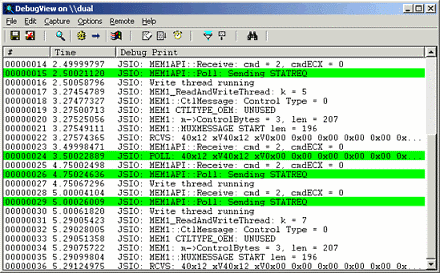
This is a screenshot of DebugView capturing debug output. Note the modern dark mode interface with the dedicated PID column and highlighting filter.
Download DebugView (1.7 MB)
Run now from Sysinternals Live.