Recover objects using Microsoft Entra Backup and Recovery - Microsoft Entra (original) (raw)
Learn how to recover objects to a previously known-good state by using Microsoft Entra Backup and Recovery. Recovery includes restoring, soft-deleting, and updating supported objects and attributes.
Key details:
- A recovery ID identifies the recovery job.
- Only one recovery runs at a time. If another job (recovery job or difference report) is already running, you must wait for it to complete or cancel it before starting a new one.
- Recovery History retains recovery details for 5 days after recovery completion date.
- Audit logs record all recovery actions.
Prerequisites
To recover objects, you need the Microsoft Entra Backup Administrator role.
Recover from a difference report
Use this method when you already created a difference report and reviewed the changes.
- Sign in to the Microsoft Entra admin center as at least a Microsoft Entra Backup Administrator.
- Go to Backup and recovery > Difference reports. Select a completed difference report.
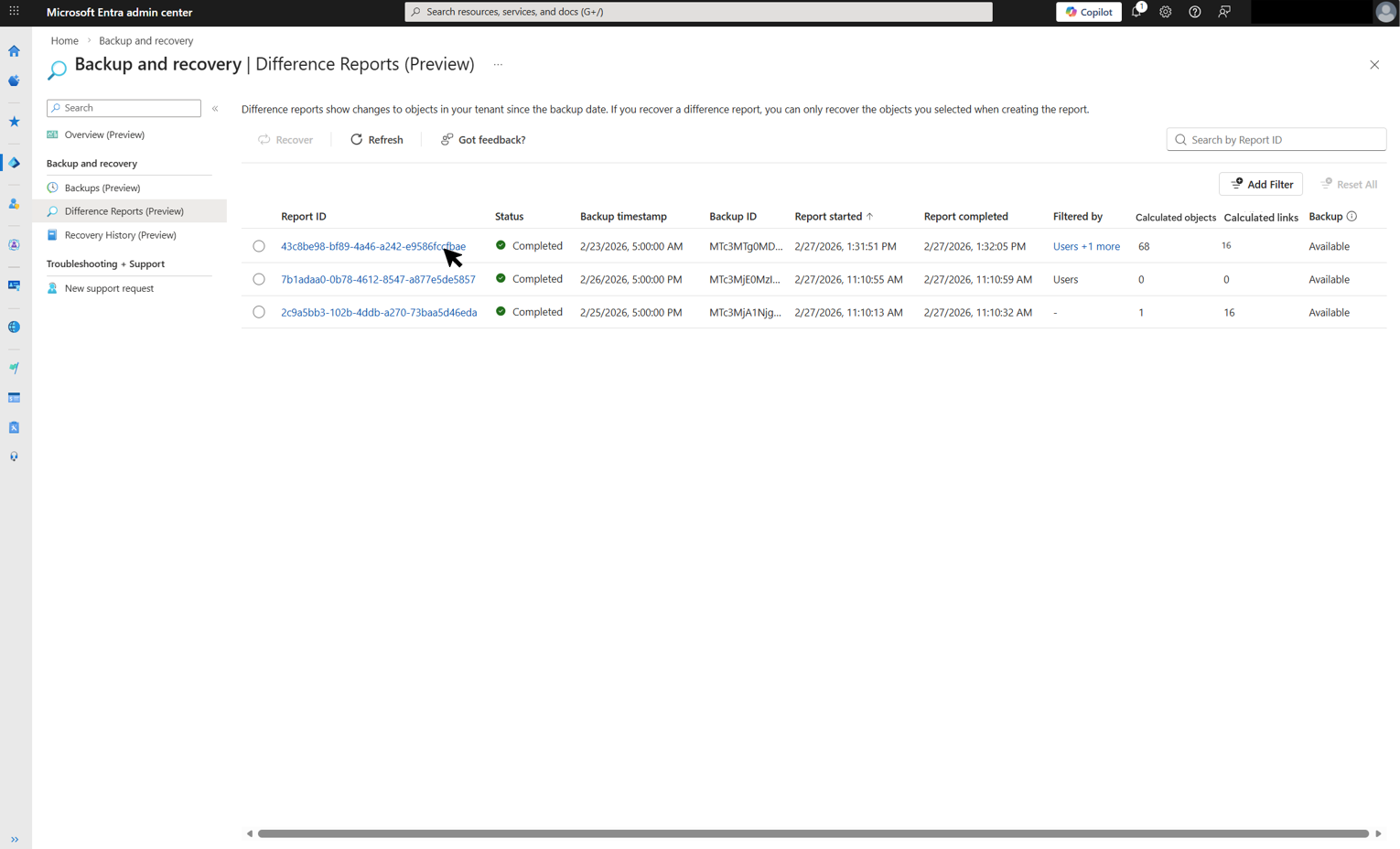
- After inspecting the objects listed in the difference report, select Recover to start recovery.

If you recover from a difference report that was created with scoping filters, recovery automatically uses the same scope and doesn't allow additional filtering. To recover a different set of objects, start from the backups page and run difference report to review changes. - (Optional) To recover a single high-priority object without initiating a full recovery job, open the object's changed attributes panel and select Recover this object.

Difference reports are a point-in-time comparison. If objects are modified in the tenant after the report is created, those changes aren't reflected in the report. When you recover from a difference report, recovery applies to the tenant's most current state. This might result in a different set of changes than the difference report shows.
Recover directly from a backup
Creating a difference report lets you preview changes before recovery. To skip this step, recover directly from a backup.
- Sign in to the Microsoft Entra admin center as at least a Microsoft Entra Backup Administrator.
- Go to Backup and recovery > Backups. Select a backup and select Recover backup.

- (Optional) Apply scoping filters to limit the objects included in recovery. Choose one of these options:
- Recover all objects in their previous state: Recovers all supported objects in the tenant.

- Recover only certain types of objects: Limits recovery to selected object types, such as Users or Conditional Access Policies.

- Recover only specific objects by their ID: Limits recovery to specific objects by their object IDs. Enter up to 100 object IDs across different object types.

- Recover all objects in their previous state: Recovers all supported objects in the tenant.
- Select Recover to start the recovery job.
Warning
Recovery actions apply directly to your tenant and can't be undone automatically. Review changes in a difference report before starting recovery. The recovery job records all changes in audit logs.
Cancel a recovery
Cancel a recovery job while it's running. Any recovery actions completed before cancelation remain in effect.
- Go to Backup and recovery > Recovery History.
- Select the in-progress recovery job, and then select Cancel.

Note
- Hard-deleted objects can't be recovered. Use Protected Actions to prevent unwanted hard deletions in your tenant.