Command Line Controls (original) (raw)
Lively can be controlled with commands from terminal which allows interaction through scripts or third party applications.
Contents
Instruction
Just send the commands through its main executable (Lively.exe).

(Alternatively download the command utility which includes --help documentation and also if required set it as PATH for easy access.)
For example the wallpaper audio can by muted by running the following commands
without PATH variable:
<install_location>\lively.exe app --volume 0
with PATH variable and command utility:
livelycu app --volume 0
Commands
Open Application
Open Lively main application.
--showApp <state>
state: true/false - open/minimize Lively tray application.
Quit Application
Close all wallpapers and exit Lively.
--shutdown <state>
state: true/false
Wallpaper Playback
Control wallpaper playback state.
--play <state>
state: true/false - play/pause wallpapers.
Wallpaper Volume
Set global sound level of all wallpapers.
--volume <value>
value: Absolute volume in the range 0-100 or Increment/decrement from current value when starting with +/- respectively.
Examples:
--volume 100
--volume +10
Screenshot
Take wallpaper screenshot.
screenshot --file <file-path> --monitor <screen-id>
screen-id: (optional) The screen number as seen in Lively control panel, if not given primary screen is default.
file-path: Screenshot savefile location (.jpg)
Desktop Icon
Control desktop icon visibility.
--showIcons <state>
state: true/false - show/hide desktop icons.
Screen Saver
Manage Lively screensaver.
screensaver --<command> <state>
state: true/false - start/stop.
command:
show
Show screensaver(s)
fadeIn
Show fade-in transition when starting screensaver, to be used alongside show command.
showExclusive
Starts exclusive screensaver mode in which:
- Lively process starts.
- No wallpaper(s) are loaded.
- Saved screensaver(s) are shown.
- No further commands are processed.
- On receiving user input screensaver closes and Lively process stops.
Note:
This command only has effect if app is not running, otherwise behaves same as show command.
This command only works with installer version of the app.
Set Wallpaper
setwp --file <file-path> --monitor <screen-id>
screen-id: (optional) The screen number as seen in Lively control panel, if not given primary screen is default.
file-path:
- Folder path containing LivelyInfo.json project file/File path of the wallpaper file (.html, .mp4..)
randomto set random wallpaper(s) from library as wallpaper.reloadto restart wallpapers.
Examples:
Set wallpaper project to primary screen.
setwp --file "C:\Users\rocks\AppData\Local\Lively Wallpaper\Library\wallpapers\xyz"
Set wallpaper to screen 1
setwp --file "D:\samples\video.mp4" --monitor 1
Set random wallpaper(s) to all screen(s.)
setwp --file random
Set random wallpaper to screen 1
setwp --file random --monitor 1
Note:
- If the wallpaper is not already installed in the library, this command will automatically import new wallpapers - provided they are media files (video, picture..) only.
- In Microsoft Store version of Lively replace package
file-pathwith LocalAppData. Example:..AppData\Local\Packages\12030rocksdanister.LivelyWallpaper_97hta09mmv6hy\LocalCache\Local\Lively Wallpaper\Library\wallpapers\xn0quq52.bq2->..AppData\Local\Lively Wallpaper\Library\wallpapers\xn0quq52.bq2
Close Wallpaper(s)
Closes the running wallpaper on the given screen.
closewp --monitor <screen-id>
screen-id: The screen number as seen in Lively control panel, if -1 then all wallpapers are closed.
Seek Wallpaper
Sets wallpaper playback position.
seekwp --monitor <screen-id> --value <seek_value>
screen-id: (optional) The screen number as seen in Lively control panel, if not given primary screen is default.
seek_value: Playback position value, several possible combinations given below.
- Absolute: Percentage(0 to 100) value, seeks to the given percent position.
Example:seekwp --value 10.5 - Relative: Percentage(-100 to 100) value starting with + or -, seeks from the current media position.
Example:seekwp --value +10
Special cases:
For webpages only value of 0 have effect which reloads the page.
Customize Wallpaper
Set the Lively Properties of the wallpaper.
setprop --monitor <screen-id> --property <arg>
screen-id: (optional) The screen number as seen in Lively control panel, if not given primary screen is default.
arg: LivelyProperty.json argument, syntax "keyValue=value".
- keyValue: JSON key name.
- value: Absolute value or Increment/decrement from current value when starting with ++/-- respectively.
Make sure to enclose the arg inside double quotes so that spaces in text are correctly parsed.
To get the keyValue navigate to the wallpaper project folder and check LivelyProperties.json file.
Examples:
To change the color control:
"backgroundColor": { "text": "Overlay Color", "type": "color", "value": "#C0C0C0" }
setprop --monitor 1 --property "backgroundColor=#ff0000"
To increment current value from 25 to 30:
"saturation": { "max": 100, "min": -100, "tick": 200, "text": "Saturation", "type": "slider", "value": 25 }
setprop --property "saturation=++5"
To change the file in folderDropdown control:
"imgSelect": { "type": "folderDropdown", "value": "image3.jpg", "text": "Image", "filter": ".jpg|.png", "folder": "wallpapers" }
setprop --monitor 1 --property "imgSelect=image1.jpg"
Special cases:
Reset properties: setprop --monitor 1 --property "lively_default_settings_reload=true"
Button press: setprop --monitor 1 --property "button_name=true"
The default Livelyproperty of media files can be referred here.
Placement Method
Changes the wallpaper placement method after closing the running wallpapers.
--layout <placement>
placement: per, span or duplicate.
Python
Python scripts can be used to control Lively, for example:
import subprocess
def changeProperty(name, value, monitor): """ Customize running wallpaper. """ runCommand(['setprop', f'--monitor={monitor}', f'--property={name}={value}']) return;
def setWallpaper(path, monitor): """ Set a wallpaper from the library. """ runCommand(['setwp', f'--monitor={monitor}', f'--file={path}']) return;
def runCommand(args): """ Execute lively commandline command with the list of arguments. Copy Livelycu.exe to the program folder or system PATH. """ si = subprocess.STARTUPINFO() si.dwFlags |= subprocess.STARTF_USESHOWWINDOW subprocess.run(['Livelycu'] + args, startupinfo=si) return;
setWallpaper('D:\test\test_clip.mp4', 1) #changeProperty('hue', 30, 1)
AutoHotkey
The following AutoHotkey scripts execute when Win + Z key is pressed.
Requires adding Lively command utility to system PATH variable.
Audio toggle
Toggle wallpaper volume between 0 and 75.
toggle:= false ; hotkeys - winkey-z #z:: toggle := !toggle If toggle { Run cmd.exe /c livelycu.exe app --volume 0,,hide } else { Run cmd.exe /c livelycu.exe app --volume 75,,hide }
Random Wallpaper (Easy)
Sets a random wallpaper(s) to all screen(s) when pressing Windows Key + Z
; hotkeys - winkey-z #z:: command := "livelycu.exe setwp --file random" Run cmd.exe /c %command%,,hide
Random Wallpaper (Medium)
Sets a random wallpaper by creating wallpapers.txt file alongside ahk script.
; Create the array, initially empty: Array := Array()
; Write to the array: Loop, Read, wallpapers.txt ; This loop retrieves each line from the file, one at a time. { Array.Push(A_LoopReadLine) ; Append this line to the array. }
#z:: command := "livelycu.exe setwp --file " . """"Array[random(Array.MinIndex(), Array.MaxIndex())]"""" Run cmd.exe /c %command%,,hide
random( x, y ) { Random, var, %x%, %y% return var }
wallpapers.txt
C:\Users\rocks\AppData\Local\Lively Wallpaper\Library\wallpapers\aiqzbihh.0ho
C:\Users\rocks\Documents\GIFS\Car.gif
Random hue (video wallpaper)
Sets a random hue value for the running wallpaper.
#z:: command := "livelycu.exe setprop --property hue=" . random(-100,100) Run cmd.exe /c %command%,,hide
random( x, y ) { Random, var, %x%, %y% return var }
Seek Step (video wallpaper)
Skips forward/backward wallpaper playback position by 10 percentage.
; hotkeys - winkey-z #z:: command := "livelycu.exe seekwp --value +10" Run cmd.exe /c %command%,,hide
Screen saver
Set currently running wallpaper(s) as fullscreen screen saver(s.)
#z:: Run cmd.exe /c livelycu.exe screensaver --show true,,hide
Rainmeter
The following Rainmeter meters require adding Lively command utility to system PATH variable.
Day/Night Hue (video wallpaper)
In this example color of wallpaper is changed based on time of day.
[Rainmeter] Update=1000 AccurateText=1
[Metadata] Name=Lively Hue Author=rocksdanister Information=Cycles different video hue property based on time. Version=1.0 License=MIT
[Variables]
[MeterDummy] Meter=String
[MeasureRunDay] Measure=Plugin Plugin=RunCommand Program=livelycu.exe Parameter=setprop --property hue=-40 State=Hide
[MeasureRunNight] Measure=Plugin Plugin=RunCommand Program=livelycu.exe Parameter=setprop --property hue=70 State=Hide
[MeasureHour] Measure=Time Format=%H IfCondition=((MeasureHour >= 6) && (MeasureHour < 18)) IfTrueAction=[!CommandMeasure "MeasureRunDay" "Run"] IfFalseAction=[!CommandMeasure "MeasureRunNight" "Run"]
Arduino
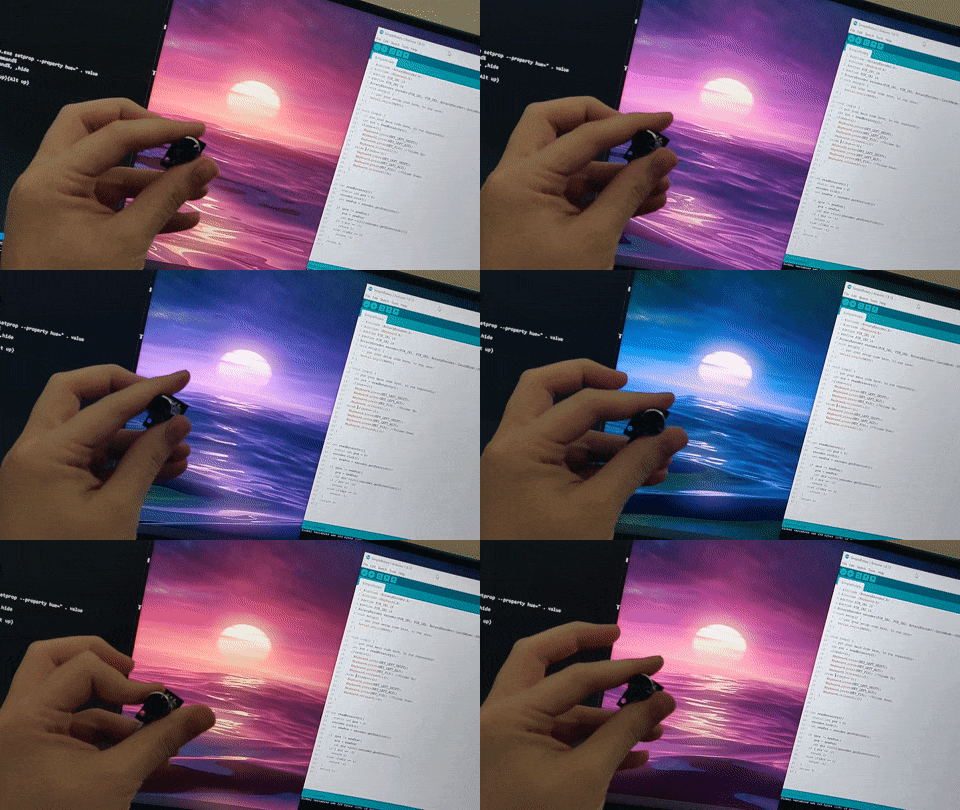
Rotary hue changer (video only)
In this example color of wallpaper is changed using rotary hardware.
Full project files can be downloaded from here.