Quick Commands | Vivaldi Browser Help (original) (raw)
This post is also available in:
Quick Commands is a powerful universal search wrapped in a minimal, command line interface. Use it to search the web, find an open tab, search your history, or even find and issue a command.
Open Quick Commands
To open the Quick Commands menu:
- Use the Keyboard Shortcuts F2 / ⌘ E.
- Go to the
 Vivaldi menu > Tools > Quick Commands.
 - Create a Mouse Gesture for the action.
Features available in Quick Commands
Quick Commands menu lets you:
- navigate to open Tabs and Synced Tabs,
- reopen Closed Tabs,
- switch Workspaces,
- open Bookmarks,
- create Notes,
- navigate to entered addresses,
- find suggested Search terms,
- search browsing History,
- filter a list of available commands in Vivaldi,
- execute Command Chains,
- apply Page Action filters,
- do simple calculations (after pressing Enter the result will be copied to your clipboard).
Search and navigate results
- Start typing your search/command term.
The search term will be highlighted for better discoverability. - Use ↓ ↑ arrow keys or scroll to navigate the list of results.
Press Shift or → key to auto-complete the highlighted result and narrow down the search results even further.
To skip sections, hold down the Alt key while pressing ↓ ↑ arrow keys. - Press Enter or click on the item to issue selected command, or
- Close Quick Commands menu by pressing Escape key.

Filter searches
To search only a specific category, you can use a the following keywords in front of the search term to filter out only relevant results:
- Bookmarks –
bookmark: - Notes –
note: - Open and Closed Tabs –
tab: - Browsing History –
history: - Commands –
command: - Page Actions –
action: - Workspaces –
workspace:
For example, the search filter history: Vivaldi will search the term “Vivaldi_” in your browsing history. The search filter note: cake will search your Notes for the word “_cake.”
It’s also possible to use shorter keywords like bkm: (bookmark), tb: (tab), cmd: (command) and other alternative search terms derived using regular expression.
In addition, when your browser’s user interface is not in English, you can use the keywords both in the user interface’s language and in English. Just make sure, you have enabled Include English Search Terms in Settings > Quick Commands > Quick Command Options.
Customize Quick Commands
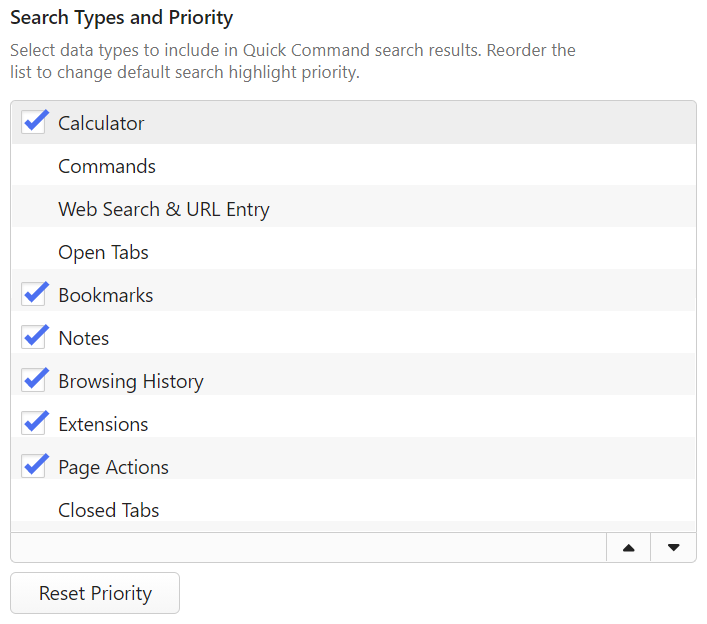
You can choose which data types to show in Quick Commands’ search results and in which order.
To toggle some types on or off:
- Go to Settings > Quick Commands > Search Types and Priority.
- (Un)tick the box for the data type.
To reorder the list:
- Click on the data type you want to move.
- Move the item to it’s new location on the list by:
To restore the default order, click on Reset Priority below the list.
Quick Command Options
In addition to toggling the visibility and reordering data types, you can enable the following options:
- Keep last typed value even after exiting Quick Commands.
- Limit the number of visible search results.
- Open links in a new tab.
- Open Bookmarks automatically on a nickname match.
- Open Notes in Notes Manager instead of Notes Panel.
- Allow search keywords in English.
Command Chains
In Vivaldi you can group commands together to execute them in a sequence. Learn more about the feature on our Help page about Command Chains.
Was this helpful?
Thanks for your feedback!