Sending Text Via OSC | TTS Voice Wizard (original) (raw)
How to get Text in VRChat
- Make sure to turn on OSC from the VRChat radial menu

- Both text output options are on by default in TTS Voice Wizard > Settings > Text Ouput
- So you don't have to mess with this
Option 1: VRChat Chatbox
- OSC messages will be sent to the VRChat Chatbox by default
- The VRChat Chatbox has a limit of 144 characters per request
- The VRChat Chatbox has 5 messages per 5 seconds limit, if you cross that you will incur a 30 second cooldown.

Option 2: KAT
Another method, that has text output on your avatar in VRChat is Killfrenzy96's Avatar Text Displayer
- Download KillFrenzy Avatar Text (KAT) latest release (supports 4, 8, or 16 sync parameters currently)
- Make sure to turn on "Send Text to VRChat with KAT" in TTSVoiceWizard Settings > Text Output
- If it isn't working after uploading your avatar, you may have to delete your %appdata%..\LocalLow\VRChat\OSC files when re-uploading an avatar with new parameters. If you are still having issues try the full list of OSC troubleshooting steps
- If you would like to add more functionality to Killfrenzy Avatar Text. Frosty's Billboard is a KillFrenzy Avatar Text addon, it adds more functionality to the KAT such as making KAT grabbable and poseable.
- Follow the setup steps for adding KAT to your avatar
- Settings in TTS Voice Wizard
- Make sure to turn on "Send Text to VRChat with KAT" in TTSVoiceWizard Settings
- Make sure that the "KAT Sync Parameter" matches the amount of sync parameters selected in unity or the KAT will have gaps in the text

You CAN NOT run TTS Voice Wizard with the KatOSCApp because the KatOSCApp constantly refreshes the KAT parameters.
Troubleshooting
- Make sure that OSC is enabled

- Check if the OSC Debug is empty
OSC Debug shows parameters (SOLUTION TO MOST CASES)
- Make sure OSC is enabled in the VRChat radial menu
- If you just added something OSC related to your avatar or are trying to use the VRChat chatbox for the first time you may run into this issues. Parameters may appear to be updating in the osc debug but not on your avatar / the chatbox.
- If OSC is not working try resetting the OSC folder by clicking the Reset Config button from the VRChat radial menu next to Enable OSC
- After turning on OSC for the first time you may need to restart VRChat for it to work properly so try that next!
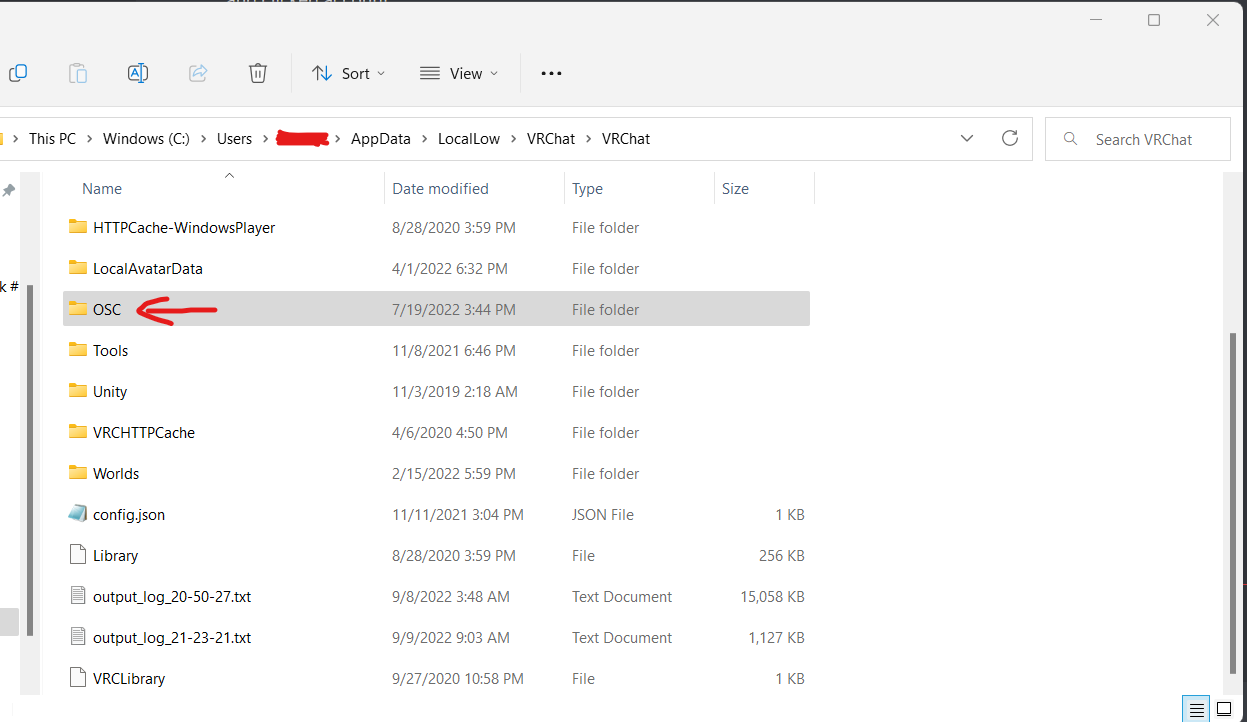
- If you did this and the text still does not appear then you must go to %appdata%..\LocalLow\VRChat and delete the OSC folder
- Closing VRChat, deleting the OSC folder, then restarting VRChat is the proper order of operations
- If you did all this and you are still having issues with your avatar parameters changing or chatbox appearing you may need to restart your computer
- If you have VRChat running on a partitioned hard drive then OSC may not function correctly. Try reininstalling VRChat and the OSC program on a hard drive without partitions. (This infomation comes from 2 cases of users being unable to use OSC with partitioned harddrives.)
- If you are still having trouble, make a help post in the TTS Voice Wizard Discord Server
Location of VRChat OSC Folder
OSC Debug Empty
- If the OSC Debug appears to be empty then it is possible another program other than VRChat is listening on port 9000
- There have also been several cases where a VPN has blocked OSC, try disabling your VPN and trying again.
- try restarting your computer before following stuff below
- Open console/terminal on your windows machine.
- Type
netstat -aon | findstr 9000into console - Scroll past TCP ports to find UDP ports

- Type this command
tasklist | findstr <PID>replacing the<PID>with the one you just found - If what is returned is not VRChat that means you incorrectly set another program to listen on port 9000! (VRChat receives/listens on port 9000 and sends on port 9001)
- If nothing is returned and you can not find the process using 9000 then VRChat is defaulting to a random port and you may need to change it to a fixed port, if you are having this issue join the discord for help. (Solution reference "[Solved] Unnamed Process using port 9000" in #help channel)
- If you are still having trouble, make a help post in the Discord Server
Specific To TTS Voice Wizard
- If you don't know what you are doing, do not change OSC Send Address or OSC Send Port

- If media Integration isn't working make sure that you did not enable the Advanced Text Settings by mistake (Media Integration Tab)

- If you don't know what you are doing then do not change Receive Port on the OSC Listener Tab, it is 4026 by default. (It should not be 9000 or 9001)

- Make sure that you didn't turn off Send Text to VRChat for the text method you are using in settings.

