ConstraintLayout in Android (original) (raw)
Last Updated : 23 Jul, 2025
ConstraintLayout is the most advanced layout in Android that lets you create complex and responsive UIs while minimizing nested views due to its flat view hierarchy. ConstraintLayout is similar to that of other View Groups which we have seen in Android such as RelativeLayout, LinearLayout, and many more. In this article, we will take a look at using ConstraintLayout in Android.
**Important Attributes of ConstraintLayout
| Attributes | Description |
|---|---|
| android:id | Assigns a unique ID to the layout. |
| app:layout_constraintBottom_toBottomOf | Constraints the view with respect to the bottom position. |
| app:layout_constraintLeft_toLeftOf | Constraints the view with respect to the left position. |
| app:layout_constraintRight_toRightOf | Constraints the view with respect to the right position. |
| app:layout_constraintTop_toTopOf | Constraints the view with respect to the top position. |
| app:layout_constraintHeight_max | Sets the max height of view according to the constraints. |
| app:layout_constraintHeight_min | Sets the height of the view according to the constraints. |
| app:layout_constraintHorizontal_weight | Sets the weight horizontally of a particular view same as linear layouts. |
| app:layout_constraintVertical_weight | Sets the weight vertically of a particular view same as linear layouts. |
**Step by Step Implementation for adding Constraint Layout in Android
**Step 1: Create a New Project
To create a new project in Android Studio please refer to How to Create/Start a New Project in Android Studio.
**Step 2: Adding dependency for using Constraint Layout in Android
Navigate to the **app > Gradle Scripts > build.gradle (Module level) file and add the below dependency to it in the dependencies section.
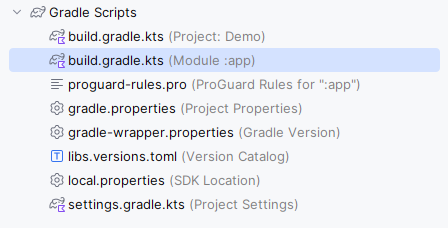
Add the dependency:
implementation "androidx.constraintlayout:constraintlayout:2.2.0"
Now sync your project and we will move towards working with **activity_main.xml.
**Step 3: Working with the activity_main.xml file
Navigate to the **app > res > layout > activity_main.xml and add the below code to that file.
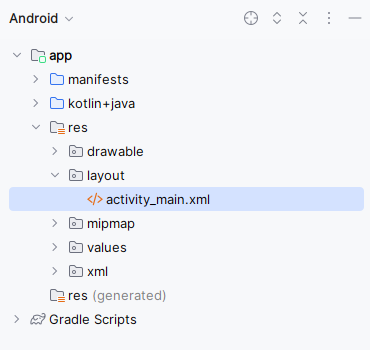
Use the activity mentioned below in your application:
activity_main.xml `
<androidx.constraintlayout.widget.ConstraintLayout xmlns:android="http://schemas.android.com/apk/res/android" xmlns:tools="http://schemas.android.com/tools" xmlns:app="http://schemas.android.com/apk/res-auto" android:layout_width="match_parent" android:layout_height="match_parent" android:id="@+id/main" android:background="@color/white" tools:context=".MainActivity">
<TextView
    android:id="@+id/textView"
    android:layout_width="wrap_content"
    android:layout_height="wrap_content"
    android:padding="20dp"
    android:text="Geeks for Geeks"
    android:textColor="@color/black"
    android:textSize="20sp"
    app:layout_constraintBottom_toBottomOf="parent"
    app:layout_constraintLeft_toLeftOf="parent"
    app:layout_constraintRight_toRightOf="parent"
    app:layout_constraintTop_toTopOf="parent" />
</androidx.constraintlayout.widget.ConstraintLayout>
`
In the above code, we use constraints to position the TextView at the centre of the screen. Constraints align child views relative to the parent or other child views within the parent layout. Below is the expected Design and Blueprint of the xml layout:
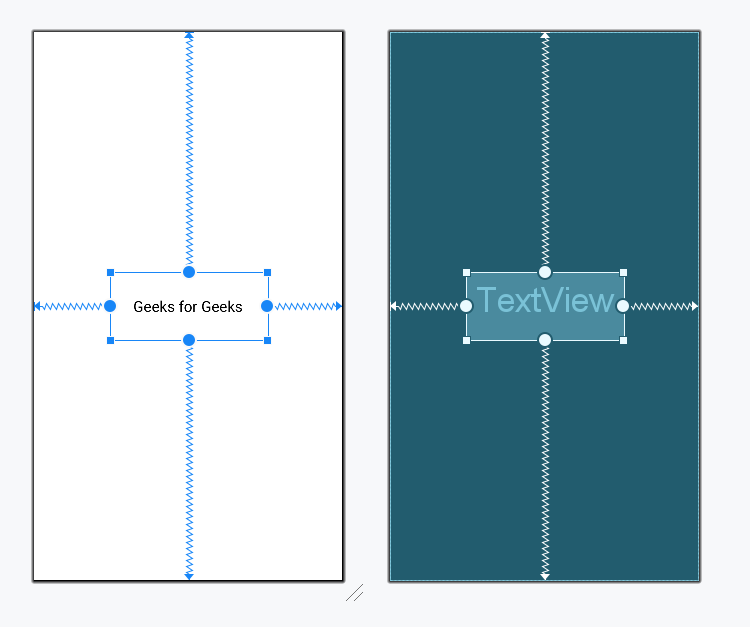
As we are working only with layouts, therefore it isn't necessary to modify the code in **MainActivity.kt. Now, we can build and run the app by pressing "Shift+F10" on the keyboard or clicking the "run" button on the top bar of the screen. Below is the expected output from the above code:
**Output:

**Advantages of using ConstraintLayout in Android
- ConstraintLayout provides you the ability to completely design your UI with the drag-and-drop feature provided by the Android Studio design editor.
- It helps to improve the UI performance over other layouts.
- With the help of ConstraintLayout, we can control the group of widgets through a single line of code.
- With the help of ConstraintLayout, we can easily add animations to the UI components which we use in our app.
- It helps to manage the position and size of views without using nested layouts which improves performance and makes it easier.
- ConstraintLayout is more efficient than Linear or Relative layouts, especially for complex layouts, because ConstraintLayout uses a more efficient algorithm to calculate the positions and sizes of widgets.
- ConstraintLayout supports chains and barriers which helps to build complex UI.
**Disadvantages of using ConstraintLayout in Android
- When we use the Constraint Layout in our app, the XML code generated becomes a bit difficult to understand.
- In most of the cases, the result obtain will not be the same as we got to see in the design editor.
- Sometimes we have to create a separate layout file for handling the UI for the landscape mode.
- All views need proper constraints to achieve correct design.
**How ConstraintLayout differs from Linear Layout?
| Constraint Layout | Linear Layout |
|---|---|
| Based on flat hierarchy to avoid multiple nesting. | Can be nested with complex layouts. |
| Better performance for complex layouts due flat hierarchy. | Slower performance in complex layouts due to nested hierarchy. |
| In ConstraintLayout, we can position our UI components in any sort of order whether it may be horizontal or vertical. | But in the case of Linear Layout, we can only arrange our UI components either in a horizontal or in a vertical manner. |
| In Constraint Layout we have to arrange this UI component manually. | In Linear Layout provides usability with which we can equally divide all the UI components in a horizontal or vertical manner using weight sum |
| In Constraint layout if the UI component is not Constrained then the UI will not look the same as that of in design editor. | In Linear Layout the UI which is actually seen in the Design editor of Android Studio will be the same as that we will get to see in the app |
**How ConstraintLayout differs from RelativeLayout?
| Constraint Layout | RelativeLayout |
|---|---|
| Based on flat hierarchy to avoid multiple nesting. | Can be deeply nested with complex layouts. |
| High flexibility due to the use of constraints, chains and guidelines. | Lower flexibility due to relative positioning. |
| In Constraint Layout, we have to add constraints to the view on all four sides | In Relative Layout we can simply align our UI component relative to its ID using the ids of UI components. |
| In Constraint layout if the UI component is not Constrained then the UI will not look same as that of in design editor. | In Relative Layout, the UI which is actually seen in the Design editor of Android Studio will be the same as that we will get to see in the app |
**How Constraint Layout differs from GridLayout?
| Constraint Layout | GridLayout |
|---|---|
| Creates complex, responsive and dynamic UIs | Creates simple, grid-based UIs (e.g. Image Gallery) |
| Constraint Layout we can align UI components according to the requirement. | In Grid Layout the UI components are only arranged in Grid Manner and we cannot arrange the UI components according to requirement |
| Constraint layout if the UI component is not Constrained then the UI will not look same as that of in design editor. | In Grid Layout, the UI which is actually seen in the Design editor of Android Studio will be the same as that we will get to see in the app |
Features of ConstraintLayout in Android
There are various features associated with ConstraintLayout in Android mentioned below:
- Constraints - Helps in positioning UI elements relative to the parent or other views inside the layout, enhancing flexibility.
- Aspect Ratio - Helps in maintaining fixed height to width ratio for views.
- Chains - Helps in distributing space between views inside the layout.
- Flat View Hierarchy - Helps in avoiding nested layouts to decrease complexity and increase performance.
- Guidelines - Helps in aligning views by consistently using invisible lines.
- Barriers - Dynamic constraints that allows a child view to align itself with multiple child views dynamically.
**Note : _To access the full android application using ConstraintLayout, check this repository: ConstraintLayout in Android Application