EditText widget in Android with Example (original) (raw)
Last Updated : 12 Jul, 2025
**Widget refers to the elements of the UI (User Interface) that helps user interacts with the Android App. **EditText is one of many such widgets which can be used to retrieve text data from user.
**EditText refers to the widget that displays an empty text field in which a user can enter the required text and this text is further used inside our application.
**Class Syntax:
public class EditText extends TextView
**Class Hierarchy:
java.lang.Object
↳android.view.View
↳ android.widget.TextView
↳ android.widget.EditText

Here the layout can be any layout like Relative, Linear, etc (Refer this article to learn more about layouts). And the attributes can be many among the table given below in this article.
**Example:
XML `
<EditText
    android:id="@+id/edit_text"
    android:layout_height="wrap_content"
    android:layout_width="match_parent"
    android:text="GeeksForGeeks" />
`
**How to include a EditText in an Android App?
- First of all, Create a new Android app, or take an existing app to edit it. In both the case, there must be an **XML layout activity file and a **Java class file linked to this activity.
- Open the Activity file and include a EditText field in the layout (activity_main.xml) file of the activity and also add a Button in activity_main.xml file too.
- Now in the Java file, link this layout file with the below code: MainActivity.java `
@Override protected void onCreate(Bundle savedInstanceState) { super.onCreate(savedInstanceState); setContentView(R.layout.activity_main); }
MainActivity.kt
override fun onCreate(savedInstanceState: Bundle?) { super.onCreate(savedInstanceState) setContentView(R.layout.activity_main) }
`
where activity_main.xml is the name of the layout file to be attached.
- Now we will add code in _MainActivity file to make our layout interactive or responsive. Our application will generate a toast on clicking the button with the text as entered by user.
- The complete code of the layout file and the Java/Kotlin file is given below.
Below is the implementation of the above approach:
activity_main.xml:
activity_main.xml `
<EditText
    android:id="@+id/text_view_id"
    android:layout_height="wrap_content"
    android:layout_width="match_parent"
    android:autofillHints="name"
    android:inputType="text"
    android:hint="Enter your name..." />

<com.google.android.material.button.MaterialButton
    android:id="@+id/button_id"
    android:layout_width="match_parent"
    android:layout_height="56dp"
    android:layout_marginTop="32dp"
    android:text="Submit"
    android:textColor="@color/white"
    android:backgroundTint="@color/green"/>
`
Here's the code for the MainActivity:
Java `
package org.geeksforgeeks.demo;
import android.os.Bundle; import android.view.View; import android.widget.Button; import android.widget.EditText; import android.widget.Toast; import androidx.appcompat.app.AppCompatActivity;
public class MainActivity extends AppCompatActivity {
// Declare UI elements: EditText for user input and Button for submission
private EditText editText;
private Button button;

@Override
protected void onCreate(Bundle savedInstanceState) {
    super.onCreate(savedInstanceState);
    setContentView(R.layout.activity_main);

    // Link EditText and Button to their UI elements
    editText = findViewById(R.id.text_view_id);
    button = findViewById(R.id.button_id);

    // Set OnClickListener for the button
    button.setOnClickListener(new View.OnClickListener() {
        @Override
        public void onClick(View v) {
            String name = editText.getText().toString();

            // Display a Toast message showing the input text
            Toast.makeText(MainActivity.this, name, Toast.LENGTH_SHORT).show();
        }
    });
}
}
Kotlin
package org.geeksforgeeks.demo
import android.os.Bundle import android.widget.Button import android.widget.EditText import android.widget.Toast import androidx.appcompat.app.AppCompatActivity
class MainActivity : AppCompatActivity() {
// Declare UI elements: EditText for user input and Button for submission
private lateinit var editText: EditText
private lateinit var button: Button

override fun onCreate(savedInstanceState: Bundle?) {
    super.onCreate(savedInstanceState)
    setContentView(R.layout.activity_main)

    // Link the EditText and Button variables to their UI elements in activity_main.xml
    editText = findViewById(R.id.text_view_id);
    button = findViewById(R.id.button_id);

    // Set up an onClickListener for the button to handle click events
    button.setOnClickListener {
        val name = editText.text.toString();

        // Display a short message (Toast) showing a welcome message with the user's input
        Toast.makeText(this, name, Toast.LENGTH_SHORT).show()
    }
}
}
`
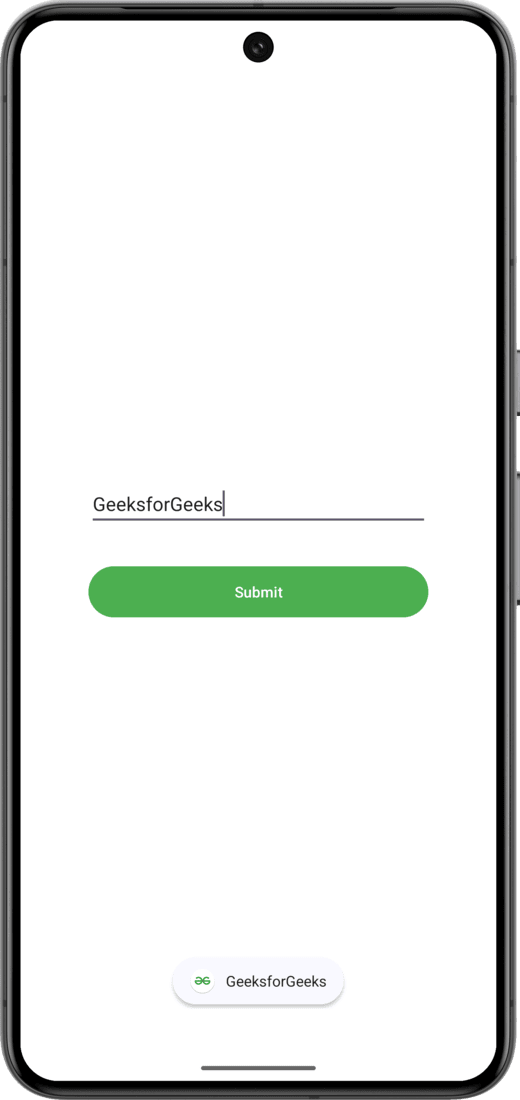
**Output:
Upon starting of the App, entering a name in EditText and pressing the "Submit" button, the name in the EditText is then displayed as a Toast:
For learning more about the topic refer to these articles:
Some Important XML Attributes of EditText in Android
| Attributes | Description |
|---|---|
| android:id | Used to uniquely identify the control |
| android:gravity | Used to specify how to align the text like left, right, center, top, etc. |
| android:hint | Used to display the hint text when text is empty |
| android:text | Used to set the text of the EditText |
| android:textSize | Used to set size of the text. |
| android:textColor | Used to set color of the text. |
| android:textStyle | Used to set style of the text. For example, bold, italic, bolditalic, etc. |
| android:textAllCaps | Used this attribute to show the text in capital letters. |
| android:width | It makes the TextView be exactly this many pixels wide. |
| android:height | It makes the TextView be exactly this many pixels tall. |
| android:maxWidth | Used to make the TextView be at most this many pixels wide. |
| android:minWidth | Used to make the TextView be at least this many pixels wide. |
| android:background | Used to set background to this View. |
| android:backgroundTint | Used to set tint to the background of this view. |
| android:clickable | Used to set true when you want to make this View clickable. Otherwise, set false. |
| android:drawableBottom | Used to set drawable to bottom of the text in this view. |
| android:drawableEnd | Used to set drawable to end of the text in this view. |
| android:drawableLeft | Used to set drawable to left of the text in this view. |
| android:drawablePadding | Used to set padding to drawable of the view. |
| android:drawableRight | Used to set drawable to right of the text in this view. |
| android:drawableStart | Used to set drawable to start of the text in this view. |
| android:drawableTop | Used to set drawable to top of the text in this view. |
| android:elevation | Used to set elevation to this view. |