How to add a Pie Chart into an Android Application (original) (raw)
Last Updated : 12 Jul, 2025
A P**ie Chart is a circular statistical graphic, which is divided into slices to illustrate numerical proportions. It depicts a special chart that uses “pie slices”, where each sector shows the relative sizes of data. A circular chart cuts in the form of radii into segments describing relative frequencies or magnitude also known as a circle graph. A pie chart represents numbers in percentages, and the total sum of all segments needs to equal 100%.
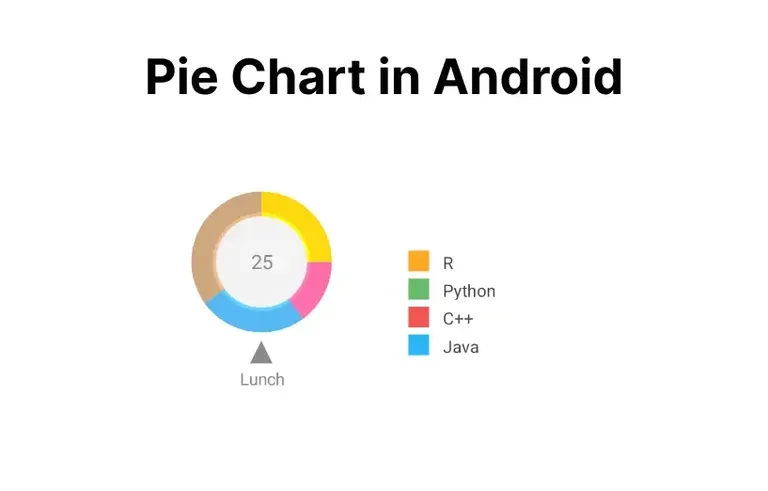
Here is the Final Application which will be created.
Step-by-Step Implementation of Pie Chart in Android Application
So let’s see the steps to add a **Pie Chart into an Android app.
**Step 1: Opening/Creating a New Project
To create a new project in Android Studio please refer to How to Create/Start a New Project in Android Studio.
**Note: Select **Java/Kotlin as the programming language.
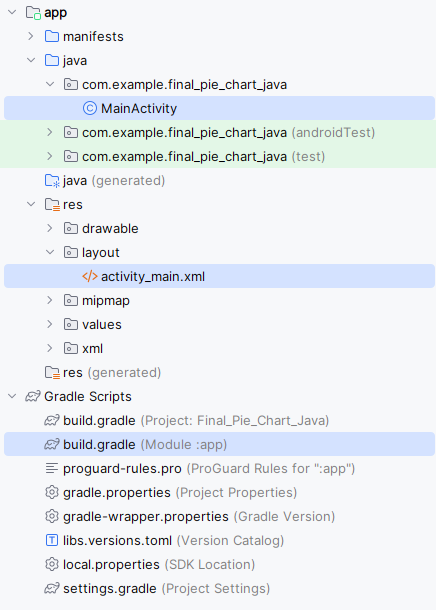
**Directory Structure for the Application will seem like this after creation:
**Step 2: Before going to the Coding Section first you have to do some Pre-Task.
i). **Navigate to Gradle Scripts
Add the dependencies required in the application to implement the Pie Chart.
**build.gradle (Module: app):
XML `
dependencies{ // For Card view implementation 'androidx.cardview:cardview:1.0.0'
 // Chart and graph library
 implementation 'com.github.blackfizz:eazegraph:1.2.2@aar'
 implementation 'com.nineoldandroids:library:2.4.0'
}
`
After Importing following dependencies and click the **“sync Now” on the above pop up.
ii). **Navigate to colors.xml and fill color
**colors.xml:
XML `
#024265 #024265 #05af9b<color name="color_one">#fb7268</color>
<color name="color_white">#ededf2</color>
<color name="color_two">#E3E0E0</color>
<color name="R">#FFA726</color>
<color name="Python">#66BB6A</color>
<color name="CPP">#EF5350</color>
<color name="Java">#29B6F6</color>`
Step 3: Designing the Layout of the Application
Layout is the component which is essential to define the UI of the application , So let us edit the activity main file.
**activity_main.xml:
XML `
<RelativeLayout
xmlns:android="http://schemas.android.com/apk/res/android"
xmlns:app="http://schemas.android.com/apk/res-auto"
xmlns:tools="http://schemas.android.com/tools"
android:layout_width="match_parent"
android:layout_height="match_parent"
android:background="@color/color_white"
tools:context=".MainActivity">

<!-- Card view for displaying the -->
<!-- Pie chart and details of pie chart -->
<androidx.cardview.widget.CardView
    android:id="@+id/cardViewGraph"
    android:layout_width="match_parent"
    android:layout_height="200dp"
    android:layout_marginLeft="20dp"
    android:layout_marginRight="20dp"
    android:layout_marginTop="15dp"
    android:elevation="10dp"
    app:cardCornerRadius="10dp">


    <!--Linear layout to display pie chart -->
    <!-- and details of pie chart-->

    <LinearLayout
        android:layout_width="match_parent"
        android:layout_height="match_parent"
        android:orientation="horizontal"
        android:weightSum="2">

        <!--Pie chart to display the data-->

        <org.eazegraph.lib.charts.PieChart
            xmlns:app="http://schemas.android.com/apk/res-auto"
            android:id="@+id/piechart"
            android:layout_width="0dp"
            android:layout_height="match_parent"
            android:padding="6dp"
            android:layout_weight="1"
            android:layout_marginTop="15dp"
            android:layout_marginLeft="15dp"
            android:layout_marginBottom="15dp"

            />

        <!--Creating another linear layout -->
        <!-- to display pie chart details -->
        <LinearLayout
            android:layout_width="0dp"
            android:layout_height="match_parent"
            android:layout_weight="1"
            android:layout_marginLeft="20dp"
            android:orientation="vertical"
            android:gravity="center_vertical"
            >

            <LinearLayout
                android:layout_width="match_parent"
                android:layout_height="15dp"
                android:layout_gravity="center_vertical">

                <!--View to display the yellow color icon-->
                <View
                    android:layout_width="15dp"
                    android:layout_height="match_parent"
                    android:background="@color/R"/>

                <!--Text view to display R -->
                <TextView
                    android:layout_width="wrap_content"
                    android:layout_height="wrap_content"
                    android:text="R"
                    android:paddingLeft="10dp"/>

            </LinearLayout>

            <!--Linear layout to display Python-->
            <LinearLayout
                android:layout_width="match_parent"
                android:layout_height="15dp"
                android:layout_gravity="center_vertical"
                android:layout_marginTop="5dp">

                <!--View to display the green color icon-->
                <View
                    android:layout_width="15dp"
                    android:layout_height="match_parent"
                    android:background="@color/Python"/>

                <!--Text view to display python text -->
                <TextView
                    android:layout_width="wrap_content"
                    android:layout_height="wrap_content"
                    android:text="Python"
                    android:paddingLeft="10dp"/>

            </LinearLayout>

            <!--Linear layout to display C++-->
            <LinearLayout
                android:layout_width="match_parent"
                android:layout_height="15dp"
                android:layout_gravity="center_vertical"
                android:layout_marginTop="5dp">

                <!--View to display the red color icon-->
                <View
                    android:layout_width="15dp"
                    android:layout_height="match_parent"
                    android:background="@color/CPP"/>

                <!--Text view to display C++ text -->
                <TextView
                    android:layout_width="wrap_content"
                    android:layout_height="wrap_content"
                    android:text="C++"
                    android:paddingLeft="10dp"/>

            </LinearLayout>

            <!--Linear layout to display Java-->
            <LinearLayout
                android:layout_width="match_parent"
                android:layout_height="15dp"
                android:layout_gravity="center_vertical"
                android:layout_marginTop="5dp">

                <!--View to display the blue color icon-->
                <View
                    android:layout_width="15dp"
                    android:layout_height="match_parent"
                    android:background="@color/Java"/>

                <!--Text view to display Java text -->
                <TextView
                    android:layout_width="wrap_content"
                    android:layout_height="wrap_content"
                    android:text="Java"
                    android:paddingLeft="10dp"/>

            </LinearLayout>

        </LinearLayout>

    </LinearLayout>

</androidx.cardview.widget.CardView>


<!-- Another Card view for displaying -->
<!-- Use of programming languages -->
<androidx.cardview.widget.CardView
    android:layout_width="match_parent"
    android:layout_height="260dp"
    android:layout_below="@+id/cardViewGraph"
    android:layout_marginLeft="20dp"
    android:layout_marginRight="20dp"
    android:layout_marginTop="20dp"
    android:layout_marginBottom="20dp"
    android:elevation="10dp"
    app:cardCornerRadius="10dp"
    android:id="@+id/details">

    <!--Relative layout to display -->
    <!-- use of programming languages -->
    <LinearLayout
        android:layout_width="match_parent"
        android:layout_height="wrap_content"
        android:orientation="vertical">

        <!--Text view to use of -->
        <!-- programming languages text-->
        <TextView
            android:layout_width="match_parent"
            android:layout_height="wrap_content"
            android:text="Use of Programming Languages(In Percentage):"
            android:textSize="23sp"
            android:textStyle="bold"
            android:layout_marginLeft="25dp"
            android:layout_marginTop="20dp"/>

        <!--View to display the line-->
        <View
            android:layout_width="match_parent"
            android:layout_height="1dp"
            android:background="@color/color_two"
            android:layout_marginLeft="20dp"
            android:layout_marginRight="20dp"
            android:layout_marginTop="5dp"/>

        <RelativeLayout
            android:layout_width="match_parent"
            android:layout_height="wrap_content"
            android:layout_marginRight="25dp"
            android:layout_marginLeft="25dp"
            android:layout_marginTop="10dp"
            android:layout_marginBottom="10dp">

            <!--Text view to display R -->
            <TextView
                android:layout_width="wrap_content"
                android:layout_height="wrap_content"
                android:fontFamily="sans-serif-light"
                android:text="R"
                android:textSize="18sp"/>

            <!--Text view to display the -->
            <!-- percentage of programming language -->
            <!-- used. For now default set to 0-->
            <TextView
                android:layout_width="fill_parent"
                android:layout_height="wrap_content"
                android:text="0"
                android:id="@+id/tvR"
                android:textAlignment="textEnd"
                android:textSize="18sp"
                android:textColor="@color/color_one"
                android:textStyle="bold"
                android:fontFamily="sans-serif-light"
                android:layout_alignParentRight="true"/>
        </RelativeLayout>

        <!--View to display the line-->
        <View
            android:layout_width="match_parent"
            android:layout_height="1dp"
            android:background="@color/color_two"
            android:layout_marginLeft="20dp"
            android:layout_marginRight="20dp" />

        <RelativeLayout
            android:layout_width="match_parent"
            android:layout_height="wrap_content"
            android:layout_marginRight="25dp"
            android:layout_marginLeft="25dp"
            android:layout_marginTop="10dp"
            android:layout_marginBottom="10dp">

            <TextView
                android:layout_width="wrap_content"
                android:layout_height="wrap_content"
                android:fontFamily="sans-serif-light"
                android:text="Python"
                android:textSize="18sp"/>

            <!--Text view to display the percentage -->
            <!-- of programming language used. -->
            <!-- For now default set to 0-->

            <TextView
                android:layout_width="fill_parent"
                android:layout_height="wrap_content"
                android:text="0"
                android:id="@+id/tvPython"
                android:textAlignment="textEnd"
                android:textSize="18sp"
                android:textColor="@color/color_one"
                android:textStyle="bold"
                android:fontFamily="sans-serif-light"
                android:layout_alignParentRight="true"/>

        </RelativeLayout>
        <View
            android:layout_width="match_parent"
            android:layout_height="1dp"
            android:background="@color/color_two"
            android:layout_marginLeft="20dp"
            android:layout_marginRight="20dp" />

        <RelativeLayout
            android:layout_width="match_parent"
            android:layout_height="wrap_content"
            android:layout_marginRight="25dp"
            android:layout_marginLeft="25dp"
            android:layout_marginTop="10dp"
            android:layout_marginBottom="10dp">

            <TextView
                android:layout_width="wrap_content"
                android:layout_height="wrap_content"
                android:fontFamily="sans-serif-light"
                android:text="C++"
                android:textSize="18sp"/>

            <!--Text view to display the percentage -->
            <!-- of programming language used. -->
            <!-- For now default set to 0-->
            <TextView
                android:layout_width="fill_parent"
                android:layout_height="wrap_content"
                android:text="0"
                android:id="@+id/tvCPP"
                android:textAlignment="textEnd"
                android:textSize="18sp"
                android:textColor="@color/color_one"
                android:textStyle="bold"
                android:fontFamily="sans-serif-light"
                android:layout_alignParentRight="true"/>

        </RelativeLayout>
        <View
            android:layout_width="match_parent"
            android:layout_height="1dp"
            android:background="@color/color_two"
            android:layout_marginLeft="20dp"
            android:layout_marginRight="20dp" />

        <RelativeLayout
            android:layout_width="match_parent"
            android:layout_height="wrap_content"
            android:layout_marginRight="25dp"
            android:layout_marginLeft="25dp"
            android:layout_marginTop="10dp"
            android:layout_marginBottom="10dp">

            <TextView
                android:layout_width="wrap_content"
                android:layout_height="wrap_content"
                android:fontFamily="sans-serif-light"
                android:text="Java"
                android:textSize="18sp"/>

            <!--Text view to display the percentage -->
            <!-- of programming language used. -->
            <!-- For now default set to 0-->
            <TextView
                android:layout_width="fill_parent"
                android:layout_height="wrap_content"
                android:text="0"
                android:id="@+id/tvJava"
                android:textAlignment="textEnd"
                android:textSize="18sp"
                android:textColor="@color/color_one"
                android:textStyle="bold"
                android:fontFamily="sans-serif-light"
                android:layout_alignParentRight="true"/>

        </RelativeLayout>
    </LinearLayout>
</androidx.cardview.widget.CardView>
`
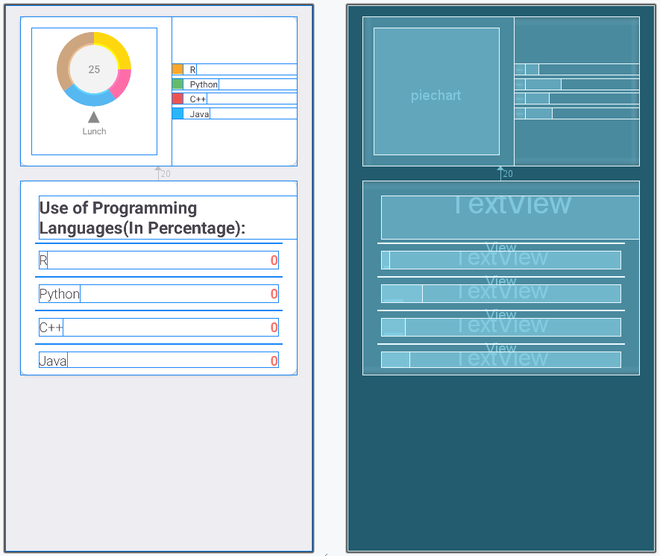
Design UI:
Step 4: Add the Functionality to the Application
Now We have created a fine layout implementing the Pie Chart. So, let us add the functionality to this layout and the application by working in MainActivity File.
**MainActivity File:
Java `
package com.example.final_pie_chart_java;
// Import the required libraries import androidx.appcompat.app.AppCompatActivity; import android.graphics.Color; import android.os.Bundle; import android.widget.TextView; import org.eazegraph.lib.charts.PieChart; import org.eazegraph.lib.models.PieModel;
public class MainActivity extends AppCompatActivity {
// Create the object of TextView
// and PieChart class
TextView tvR, tvPython, tvCPP, tvJava;
PieChart pieChart;

@Override
protected void onCreate(Bundle savedInstanceState)
{
    super.onCreate(savedInstanceState);
    setContentView(R.layout.activity_main);

    // Link those objects with their
    // respective id's that
    // we have given in .XML file
    tvR = findViewById(R.id.tvR);
    tvPython = findViewById(R.id.tvPython);
    tvCPP = findViewById(R.id.tvCPP);
    tvJava = findViewById(R.id.tvJava);
    pieChart = findViewById(R.id.piechart);

    // Creating a method setData()
    // to set the text in text view and pie chart
    setData();
}

private void setData()
{
    // Set the percentage of language used
    tvR.setText(Integer.toString(40));
    tvPython.setText(Integer.toString(30));
    tvCPP.setText(Integer.toString(5));
    tvJava.setText(Integer.toString(25));

    // PieModel Elements to be add created
    PieModel p1 = new PieModel("R",Integer.parseInt(tvR.getText().toString()),
                    Color.parseColor("#FFA726"));

    PieModel p2 = new PieModel("Python",Integer.parseInt(tvPython.getText().toString()),
                    Color.parseColor("#66BB6A")) ;

    PieModel p3 = new PieModel("C++",Integer.parseInt(tvCPP.getText().toString()),
                    Color.parseColor("#EF5350"));

    PieModel p4 = new PieModel("Java",Integer.parseInt(tvJava.getText().toString()),
                    Color.parseColor("#29B6F6"));


    // Set the data and color to the pie chart
    pieChart.addPieSlice(p1);
    pieChart.addPieSlice(p2);
    pieChart.addPieSlice(p3);
    pieChart.addPieSlice(p4);

    // To animate the pie chart
    pieChart.startAnimation();
}
}
Kotlin
package com.example.final_pie_chart
import android.graphics.Color import android.os.Bundle import android.widget.TextView import androidx.appcompat.app.AppCompatActivity import org.eazegraph.lib.charts.PieChart import org.eazegraph.lib.models.PieModel
class MainActivity
: AppCompatActivity() {
// Create the object of TextView
// and PieChart class
var tvR: TextView? = null
var tvPython: TextView? = null
var tvCPP: TextView? = null
var tvJava: TextView? = null
var pieChart: PieChart? = null

override fun onCreate(savedInstanceState: Bundle?) {
    super.onCreate(savedInstanceState)
    setContentView(R.layout.activity_main)

    // Link those objects with their
    // respective id's that
    // we have given in .XML file
    tvR = findViewById(R.id.tvR)
    tvPython = findViewById(R.id.tvPython)
    tvCPP = findViewById(R.id.tvCPP)
    tvJava = findViewById(R.id.tvJava)
    pieChart = findViewById(R.id.piechart)

    // Creating a method setData()
    // to set the text in text view and pie chart
    setData()
}

private fun setData() {
    // Set the percentage of language used

    tvR!!.text = 40.toString()
    tvPython!!.text = 30.toString()
    tvCPP!!.text = 5.toString()
    tvJava!!.text = 25.toString()

    // Set the data and color to the pie chart
    pieChart!!.addPieSlice(
        PieModel("R",tvR!!.text.toString().toInt().toFloat(),
            Color.parseColor("#FFA726")
        )
    )

    pieChart!!.addPieSlice(
        PieModel("Python", tvPython!!.text.toString().toInt().toFloat(),
            Color.parseColor("#66BB6A")
        )
    )

    pieChart!!.addPieSlice(
        PieModel("C++", tvCPP!!.text.toString().toInt().toFloat(),
            Color.parseColor("#EF5350")
        )
    )

    pieChart!!.addPieSlice(
        PieModel("Java",tvJava!!.text.toString().toInt().toFloat(),
            Color.parseColor("#29B6F6")
        )
    )

    // To animate the pie chart
    pieChart!!.startAnimation()
}
}
`
Explanation of the above Program
- Create instance of TextViews and PieChart.
- Link those objects with their respective id's that we have given in .XML file
- Create a
private void setData()method outsideonCreate()method and define it. - Inside
setData()method the most important task is going to happen that is how we set the data in the text file and as well as on the piechart. - First of all inside
setData()method set the percentage of language used in their respective text view. - And then set this data to the pie chart and also set their respective colors using
addPieSlice()method. - For better look animate the piechart using
startAnimation(). - At last invoke the
setData()method insideonCreate()method.
**Note : To access the full android application using Pie chat check this repository: Pie Chart Android Application