How To Avoid Snackbar Overlap Floating Action Button in Android? (original) (raw)
Last Updated : 15 Jul, 2025
If one has implemented the Floating Action Button (FAB) in his Android application and also there exists a Snackbar implementation in the same application, then the Snackbar is definitely going to overlap the Floating Action Button.
**Prerequisite:
Have a look at the following GIF which shows the Snackbar and Floating Action Button issue:
How to fix this issue?
So in this article let's fix this issue by taking a simple example in Android. Note that we going to implement this example using **Java language.
**Step 1: Create a New Project
To create a new project in Android Studio please refer to How to Create/Start a New Project in Android Studio. Note that select **Java as the programming language.
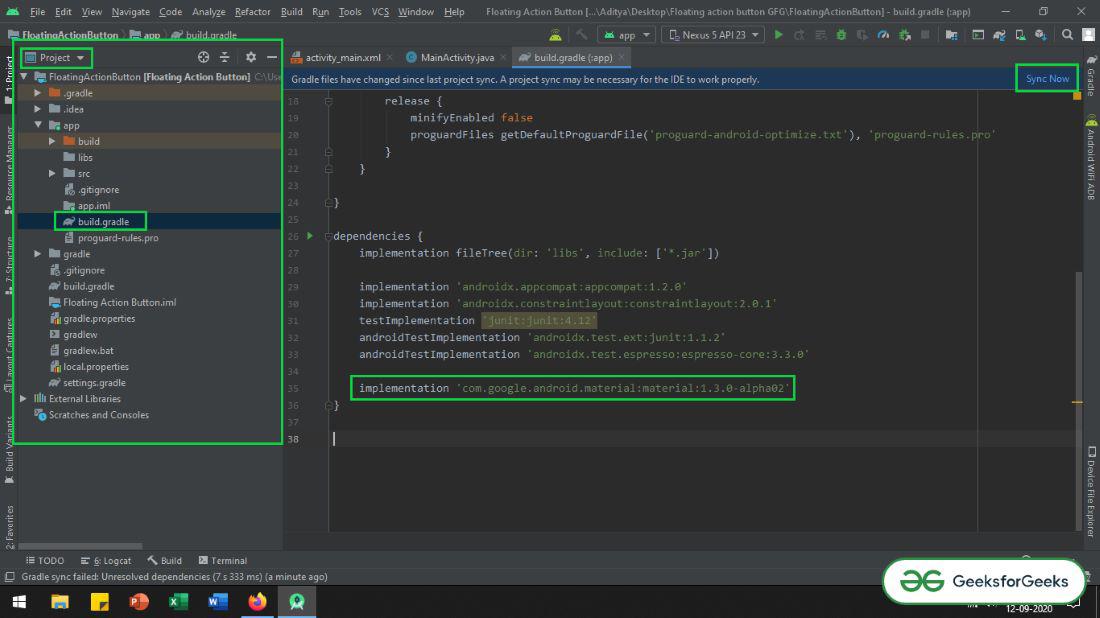
**Step 2: Add dependency on the app-level Gradle file.
- Here we are using the Floating action button which is designed and developed by Google Material Design Team.
- Add the dependency in the build.gradle(app) file as:
_implementation ‘com.google.android.material:material:1.3.0-alpha02’
- Make sure that add the dependency to the app-level Gradle file. After adding the dependency you need to click on the “**Sync Now” button which appears at the top right corner of the Android Studio IDE.
- When the user clicks on the Sync Now button make sure that you are connected to the network so that it can download the required files.
- Refer to the below image if you can’t get the steps mentioned above:
**Step 3: Add the FAB icons to the Drawable file
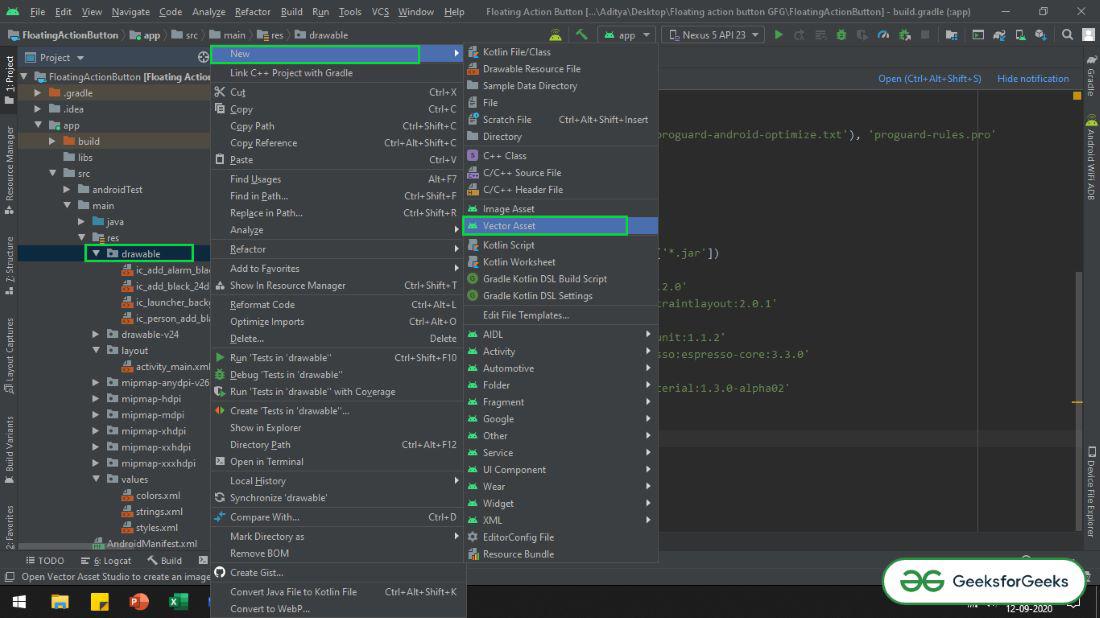
For demonstration purposes will import 3 icons in the Drawable folder, one can import the icons of his/her choice. One can do that by **right-clicking drawable folder -> New -> Vector Asset. Refer to the following image to import the vector Icon.
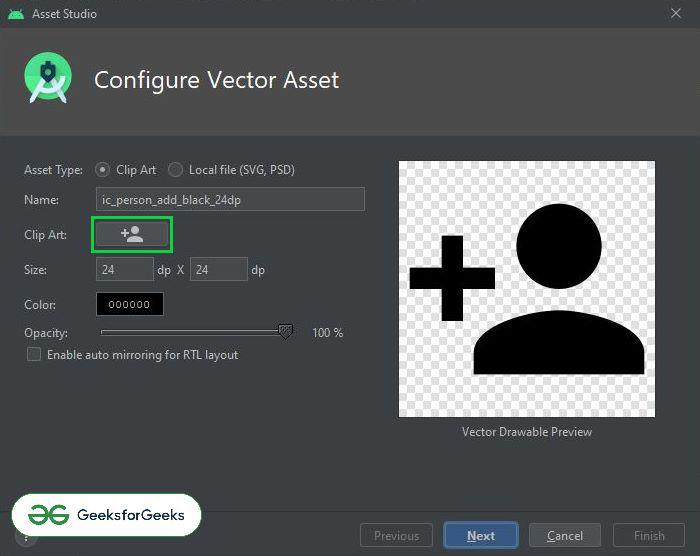
Now select your vector icon:
**Step 4: Working with the activity_main.xml file
- In the activity_main.xml file add a Floating Action Button (FAB) and a Button. So whenever the user clicks on the Button then a Snackbar will pop up.
- Invoke the following code inside the activity_main.xml file. For clear understanding refer the comments inside the code given below: XML `
<androidx.constraintlayout.widget.ConstraintLayout xmlns:android="http://schemas.android.com/apk/res/android" xmlns:app="http://schemas.android.com/apk/res-auto" xmlns:tools="http://schemas.android.com/tools" android:layout_width="match_parent" android:layout_height="match_parent" tools:context=".MainActivity">
<Button
    android:id="@+id/show_snackbar_button"
    android:layout_width="wrap_content"
    android:layout_height="wrap_content"
    android:gravity="center"
    android:text="SHOW SNACKBAR"
    app:layout_constraintBottom_toTopOf="@+id/add_fab"
    app:layout_constraintEnd_toEndOf="parent"
    app:layout_constraintStart_toStartOf="parent"
    app:layout_constraintTop_toTopOf="parent"
    tools:ignore="MissingConstraints" />

<!--Add simple Parent Floating Action Button-->
<com.google.android.material.floatingactionbutton.FloatingActionButton
    android:id="@+id/add_fab"
    android:layout_width="wrap_content"
    android:layout_height="wrap_content"
    android:layout_gravity="end"
    android:layout_marginEnd="16dp"
    android:layout_marginBottom="16dp"
    android:src="@drawable/ic_baseline_ac_unit_24"
    app:fabSize="normal"
    app:layout_constraintBottom_toBottomOf="parent"
    app:layout_constraintEnd_toEndOf="parent" />
</androidx.constraintlayout.widget.ConstraintLayout>
`
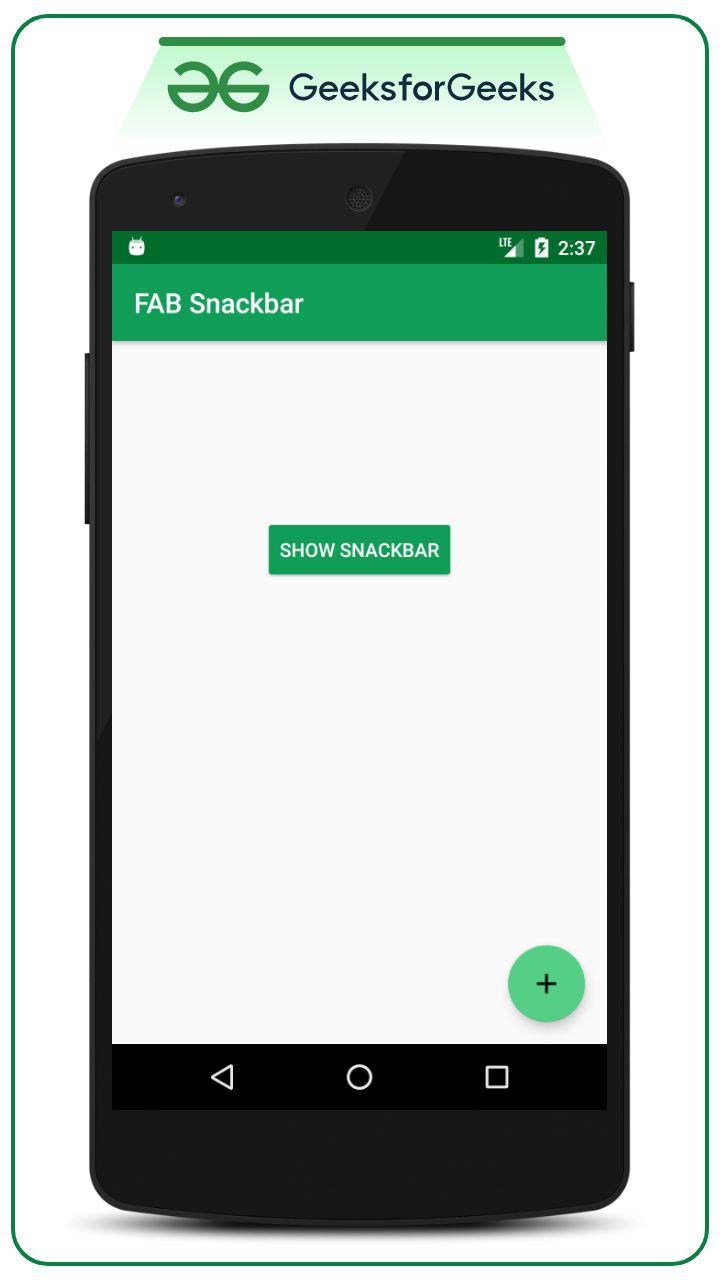
**The following output UI is produced:
**Step 5: Working with MainActivity.java file
- Now resolve the issue programmatically in MainActivity.java file.
- One can observe below code that **SHOW SNACKBAR button onclick listener we have set the AnchorView to the parent FAB. So that the parent FAB will be visible, even after the Snackbar pops up, and the Snackbar will be shown at the top of the FAB.
- Invoke the following code and comments are added inside the code to understand the code in more detail. Java `
import android.os.Bundle; import android.view.View; import android.widget.Button; import androidx.appcompat.app.AppCompatActivity; import com.google.android.material.floatingactionbutton.FloatingActionButton; import com.google.android.material.snackbar.Snackbar;
public class MainActivity extends AppCompatActivity {
Button mSnackBarButton;
FloatingActionButton mAddFab;

@Override
protected void onCreate(Bundle savedInstanceState) {
    super.onCreate(savedInstanceState);
    setContentView(R.layout.activity_main);

    // Register the show snackbar button with appropriate ID
    mSnackBarButton = findViewById(R.id.show_snackbar_button);

    // also register the floating action button with appropriate ID
    mAddFab = findViewById(R.id.add_fab);

    // Build and show the simple Snackbar with action button on it
    mSnackBarButton.setOnClickListener(new View.OnClickListener() {
        @Override
        public void onClick(View view) {
            Snackbar snackbar = Snackbar.make(view, "This is sample snackbar", Snackbar.LENGTH_SHORT);
            // Set the Anchor View to particular view to display the snackbar to top of it
            snackbar.setAnchorView(mAddFab);
            snackbar.setAction("OKAY", new View.OnClickListener() {
                @Override
                public void onClick(View view) {
                    // Do appropriate action on click of snackbar action button
                }
            });
            snackbar.show();
        }
    });
}
}
Kotlin
import android.os.Bundle; import android.view.View; import android.widget.Button; import androidx.appcompat.app.AppCompatActivity; import com.google.android.material.floatingactionbutton.FloatingActionButton; import com.google.android.material.snackbar.Snackbar;
class MainActivity : AppCompatActivity() { var mSnackBarButton: Button? = null var mAddFab: FloatingActionButton? = null override fun onCreate(savedInstanceState: Bundle?) { super.onCreate(savedInstanceState) setContentView(R.layout.activity_main)
    // Register the show snackbar button with appropriate ID
    mSnackBarButton = findViewById(R.id.show_snackbar_button)

    // also register the floating action button with appropriate ID
    mAddFab = findViewById(R.id.add_fab)

    // Build and show the simple Snackbar with action button on it
    mSnackBarButton.setOnClickListener(object : OnClickListener() {
        fun onClick(view: View?) {
            val snackbar = Snackbar.make(view, "This is sample snackbar", Snackbar.LENGTH_SHORT)
            // Set the Anchor View to particular view to display the snackbar to top of it
            snackbar.anchorView = mAddFab
            snackbar.setAction("OKAY", object : OnClickListener() {
                fun onClick(view: View?) {
                    // Do appropriate action on click of snackbar action button
                }
            })
            snackbar.show()
        }
    })
}
} // this code is added by Ujjwal Kumar Bhardwaj
`