How to Create a Quiz App In Android? (original) (raw)
Last Updated : 15 Jul, 2025
**Android is an **operating system which is basically made for Mobile phones. It is based on the Linux Kernel and other open-source software and is developed by **Google. Android is very popular nowadays among students and students are now choosing Android for their projects. It's very much important for a beginner to build basic Android apps to learn Android Development. In this article let's create a simple Quiz App in Android using **Java and **Kotlin. A simple **Quiz App that contains a set of curated questions and their answers and checks for the score at the end.
Step by Step Implementation
Step 1: Creating a new project
To create a new project in the Android Studio, please refer to How to Create/Start a New Project in Android Studio?
Step 2: Working with activity_main.xml
Add the below code in the **activity_main.xml file. Here the parent layout is a LinearLayout whose orientation is set to vertical. Inside it, there is one **ImageView, one **TextView, two **Buttons, and two**ImageButton. The Button and ImageButton are inside a child LinearLayout for horizontal orientation. ImageView is used for displaying image and TextView is used to display the question and Button is used to indicate true/false and ImageButton for navigating to next/previous question.
**activity_main.xml:
activity_main.xml `
<!--ImageView used for showing pictures along with questions-->
<ImageView
    android:id="@+id/myimage"
    android:layout_width="wrap_content"
    android:src="@drawable/f1"
    android:layout_height="wrap_content"/>

<!--TextView used for showing questions on screen-->
<TextView
    android:id="@+id/answer_text_view"
    android:text="@string/a"
    android:textColor="@android:color/black"
    android:textSize="30sp"
    android:padding="10dp"
    android:layout_width="wrap_content"
    android:layout_height="wrap_content"/>

<!--Using another LinearLayout for showing buttons
    in horizontal orientation-->
<LinearLayout
    android:layout_width="wrap_content"
    android:layout_height="wrap_content">

    <!--TrueButton-->
    <Button
        android:id="@+id/true_button"
        android:layout_marginRight="20dp"
        android:backgroundTint="#5BD91B"
        android:layout_width="wrap_content"
        android:layout_height="wrap_content"
        android:textSize="20sp"
        android:text="@string/true_text" />

    <!--FalseButton-->
    <Button
        android:id="@+id/false_button"
        android:layout_marginLeft="20dp"
        android:layout_width="wrap_content"
        android:backgroundTint="#E33328"
        android:layout_height="wrap_content"
        android:textSize="20sp"
        android:text="@string/false_text" />

</LinearLayout>

<LinearLayout
    android:layout_width="wrap_content"
    android:layout_height="wrap_content">

    <!--PreviousButton-->
    <ImageButton
        android:id="@+id/prev_button"
        android:layout_width="wrap_content"
        android:layout_height="wrap_content"
        android:src="@drawable/baseline_keyboard_arrow_left_black_18dp"
        android:backgroundTint="#DFD2D1"
        android:text="@string/prev_text" />

    <!--NextButton-->
    <ImageButton
        android:id="@+id/next_button"
        android:layout_width="wrap_content"
        android:layout_height="wrap_content"
        android:backgroundTint="#DFD2D1"
        android:src="@drawable/baseline_keyboard_arrow_right_black_18dp"
        android:text="@string/next_text" />

</LinearLayout>
`
**Design UI:
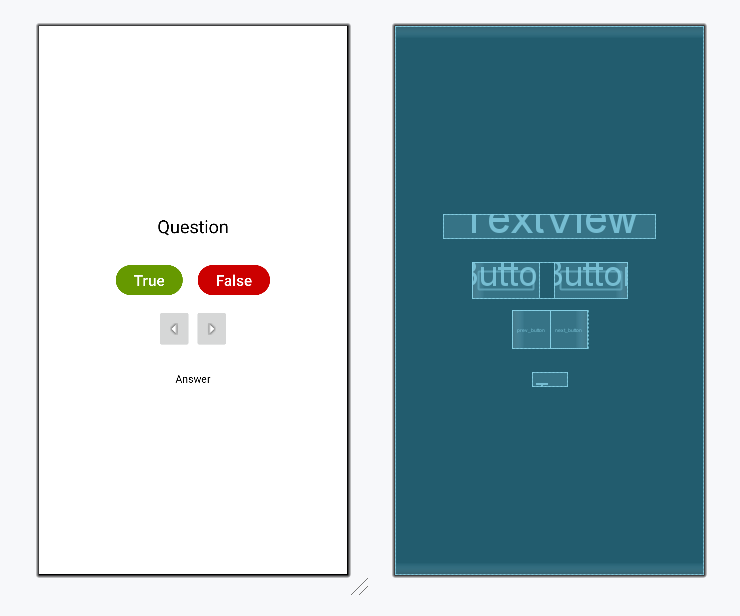
Step 3: Working with strings.xml
Navigate to **app > res > values > strings.xml and make the following changes. We will be adding 6 questions and fetch them later in MainActivity file.
**strings.xml:
XML `
Demo<string name="a">New Delhi is the capital of India</string>
<string name="b">West Bengal is located in the west of India</string>
<string name="c">Arunachal Pradesh is a state of India</string>
<string name="d">Brazil is located in North America</string>
<string name="e">HTML is a programming language</string>
<string name="f">React is a web development framework</string>`
Step 4: Create a data class for questions
To create a new **data class right-click a Java/Kotlin file or folder, and select **New > Java/Kotlin Class. Now add the following code in the file.
Question.java `
package org.geeksforgeeks.demo;
public class Question { // Resource ID for the question text (stored in strings.xml) private int answerResId; // Correct answer (true or false) private boolean isAnswerTrue;
public Question(int answerResId, boolean isAnswerTrue) {
    this.answerResId = answerResId;
    this.isAnswerTrue = isAnswerTrue;
}

// Getter for answerResId
public int getAnswerResId() {
    return answerResId;
}

// Setter for answerResId
public void setAnswerResId(int answerResId) {
    this.answerResId = answerResId;
}

// Getter for isAnswerTrue
public boolean isAnswerTrue() {
    return isAnswerTrue;
}

// Setter for isAnswerTrue
public void setAnswerTrue(boolean answerTrue) {
    isAnswerTrue = answerTrue;
}
}
Question.kt
package org.geeksforgeeks.demo
data class Question ( var answerResId: Int, var isAnswerTrue: Boolean )
`
**Step 5: Working with MainActivity file
**onCreate() method is invoked first when the app is launched. **Question[] array is instantiated with question Id and right answer to the question. **setOnClickListener() method is invoked whenever **Button/ImageButton is clicked, so when the user clicks a button it checks for its **Id by **getId() method and performs actions as per our logic. **updateQuestion() updates question by **settext() method of **TextView and changes images by keeping track of question number. **checkAnswer() method checks the original answer with the button clicked and uses Toast to display text accordingly.
MainActivity.java `
package org.geeksforgeeks.demo;
import android.os.Bundle; import android.view.View; import android.widget.Button; import android.widget.ImageButton; import android.widget.TextView; import androidx.appcompat.app.AppCompatActivity;
public class MainActivity extends AppCompatActivity { // UI components private Button falseButton; private Button trueButton; private ImageButton nextButton; private ImageButton prevButton; private TextView questionTextView; private TextView answerTextView;
// Variable to track correct answers
private int correct = 0;

// Index to track the current question
private int currentQuestionIndex = 0;

// Array holding the questions and their correct answers
private final Question[] questionBank = {
        new Question(R.string.a, true),
        new Question(R.string.b, false),
        new Question(R.string.c, true),
        new Question(R.string.d, false),
        new Question(R.string.e, false),
        new Question(R.string.f, true)
};

@Override
protected void onCreate(Bundle savedInstanceState) {
    super.onCreate(savedInstanceState);
    setContentView(R.layout.activity_main);

    // Initializing UI elements
    falseButton = findViewById(R.id.false_button);
    trueButton = findViewById(R.id.true_button);
    nextButton = findViewById(R.id.next_button);
    prevButton = findViewById(R.id.prev_button);
    questionTextView = findViewById(R.id.question);
    answerTextView = findViewById(R.id.answer);

    // Hide the answer text initially
    answerTextView.setVisibility(View.INVISIBLE);

    // Load the first question
    updateQuestion();

    // Button click listeners
    falseButton.setOnClickListener(v -> checkAnswer(false));
    trueButton.setOnClickListener(v -> checkAnswer(true));

    nextButton.setOnClickListener(v -> {
        answerTextView.setVisibility(View.INVISIBLE);

        // Check if there are more questions
        if (currentQuestionIndex < 7) {
            currentQuestionIndex++;

            // If all questions are completed, display the score
            if (currentQuestionIndex == 6) {
                nextButton.setVisibility(View.GONE);
                prevButton.setVisibility(View.GONE);
                trueButton.setVisibility(View.GONE);
                falseButton.setVisibility(View.GONE);

                questionTextView.setText("Your Score: " + correct + "/6");
            } else {
                updateQuestion();
            }
        }
    });

    prevButton.setOnClickListener(v -> {
        answerTextView.setVisibility(View.INVISIBLE);

        // Prevent going back before the first question
        if (currentQuestionIndex > 0) {
            currentQuestionIndex = (currentQuestionIndex - 1) % questionBank.length;
            updateQuestion();
        }
    });
}

// Updates the displayed question
private void updateQuestion() {
    questionTextView.setText(questionBank[currentQuestionIndex].getAnswerResId());
}

// Checks the user's answer and updates the UI
private void checkAnswer(boolean userChooseCorrect) {
    boolean answerIsTrue = questionBank[currentQuestionIndex].isAnswerTrue();
    String message;

    if (userChooseCorrect == answerIsTrue) {
        message = "That's correct";
        correct++;
    } else {
        message = "That's incorrect";
    }

    // Display feedback message
    answerTextView.setVisibility(View.VISIBLE);
    answerTextView.setText(message);
}
}
MainActivity.kt
package org.geeksforgeeks.demo
import android.os.Bundle import android.view.View import android.widget.Button import android.widget.ImageButton import android.widget.TextView import androidx.activity.enableEdgeToEdge import androidx.appcompat.app.AppCompatActivity import androidx.core.view.ViewCompat import androidx.core.view.WindowInsetsCompat
class MainActivity : AppCompatActivity() {
// UI components
private lateinit var falseButton: Button
private lateinit var trueButton: Button
private lateinit var nextButton: ImageButton
private lateinit var prevButton: ImageButton
private lateinit var questionTextView: TextView
private lateinit var answerTextView: TextView

// Variable to track the correct answers
private var correct = 0

// Index to track the current question
private var currentQuestionIndex = 0

// Array holding the questions and their correct answers
private val questionBank: Array<Question> =
    arrayOf(
        Question(R.string.a, true),
        Question(R.string.b, false),
        Question(R.string.c, true),
        Question(R.string.d, false),
        Question(R.string.e, false),
        Question(R.string.f, true),
    )

override fun onCreate(savedInstanceState: Bundle?) {
    super.onCreate(savedInstanceState)
    enableEdgeToEdge()
    setContentView(R.layout.activity_main)

    // Adjust layout to fit system UI elements
    ViewCompat.setOnApplyWindowInsetsListener(findViewById(R.id.main)) { v, insets ->
        val systemBars = insets.getInsets(WindowInsetsCompat.Type.systemBars())
        v.setPadding(systemBars.left, systemBars.top, systemBars.right, systemBars.bottom)
        insets
    }

    // Initializing UI elements
    falseButton = findViewById(R.id.false_button)
    trueButton = findViewById(R.id.true_button)
    nextButton = findViewById(R.id.next_button)
    prevButton = findViewById(R.id.prev_button)
    questionTextView = findViewById(R.id.question)
    answerTextView = findViewById(R.id.answer)

    // Hide the answer text initially
    answerTextView.visibility = View.INVISIBLE

    // Load the first question
    updateQuestion()

    // Button click listeners
    falseButton.setOnClickListener {
        checkAnswer(false)
    }
    trueButton.setOnClickListener {
        checkAnswer(true)
    }
    nextButton.setOnClickListener {
        answerTextView.visibility = View.INVISIBLE

        // Check if there are more questions
        if (currentQuestionIndex < 7) {
            currentQuestionIndex += 1

            // If all questions are completed, display the score
            if (currentQuestionIndex == 6) {
                nextButton.visibility = View.GONE
                prevButton.visibility = View.GONE
                trueButton.visibility = View.GONE
                falseButton.visibility = View.GONE

                questionTextView.text = "Your Score: $correct/6"
            } else {
                updateQuestion()
            }
        }
    }
    prevButton.setOnClickListener {
        answerTextView.visibility = View.INVISIBLE

        // Prevent going back before the first question
        if (currentQuestionIndex > 0) {
            currentQuestionIndex = ((currentQuestionIndex - 1) % questionBank.size)
            updateQuestion()
        }
    }
}

// Updates the displayed question
private fun updateQuestion() {
    questionTextView.setText(questionBank[currentQuestionIndex].answerResId)
}

// Checks the user's answer and updates the UI
private fun checkAnswer(userChooseCorrect: Boolean) {
    val answerIsTrue = questionBank[currentQuestionIndex].isAnswerTrue
    val message: String

    if (userChooseCorrect == answerIsTrue) {
        message = "That's correct"
        correct++
    } else {
        message = "That's incorrect"
    }

    // Display feedback message
    answerTextView.visibility = View.VISIBLE
    answerTextView.text = message
}
}
`
Output: