How to Create Buttons Inside a Widget in Android? (original) (raw)
Last Updated : 15 Jul, 2025
Prerequisites
- **How to Create a Basic Widget of an Android App?
- **How to Create a Dynamic Widget of an Android App?
A Widget is a mini version of an Application, that provides a ground for the user to navigate through it or use its features from the Home Screen or Lock Screen. Widgets contain elements according to the features it provide. Widgets, as previously termed a mini version of the Application, is capable of displaying similar elements that of an Application, through this article, let's demonstrate the implementation of Buttons and correspondingly how they can be used for certain functionalities. Here is a preview of the same:
Steps for Creating Buttons Inside a Widget
**Step 1: Create a New Project
To create a new project in Android Studio please refer to **How to Create/Start a New Project in Android Studio. **Note that select **Kotlin as the programming language.
**Step 2: Add the App Widget to the Project
- Right-click on the **app, move the cursor to **new, find the "**Widget" option at the end, and select it.
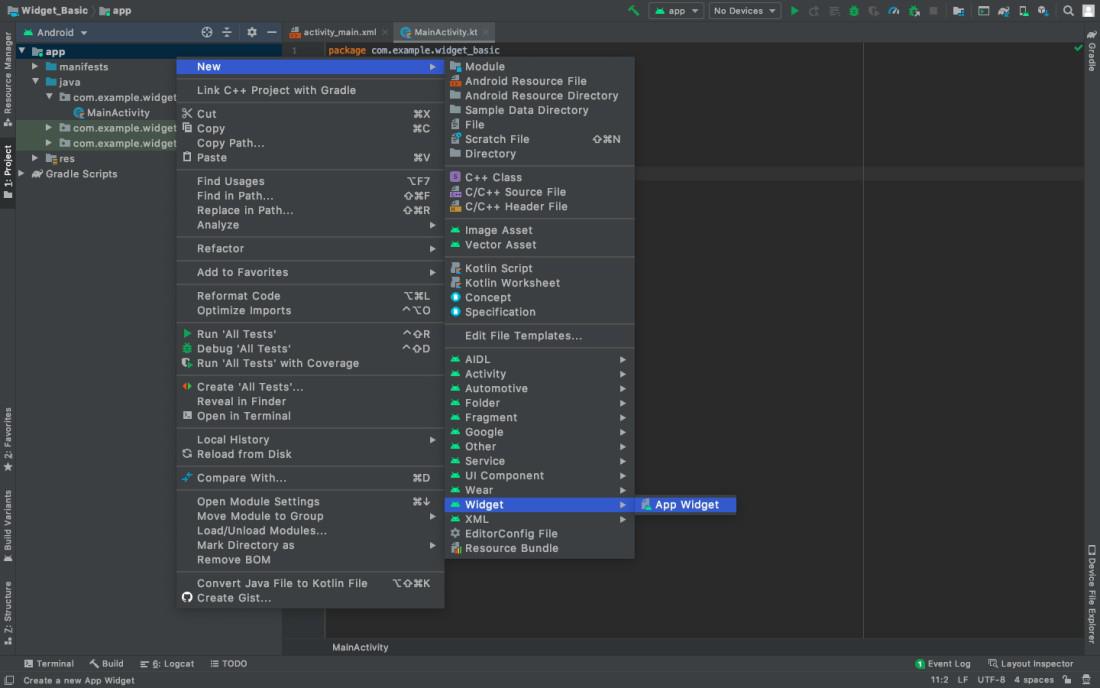
Add the App Widget to the Project
- Specify the required properties for the widget such as min.width and **height, config file and preferred language, etc, and proceed. Files are automatically generated.
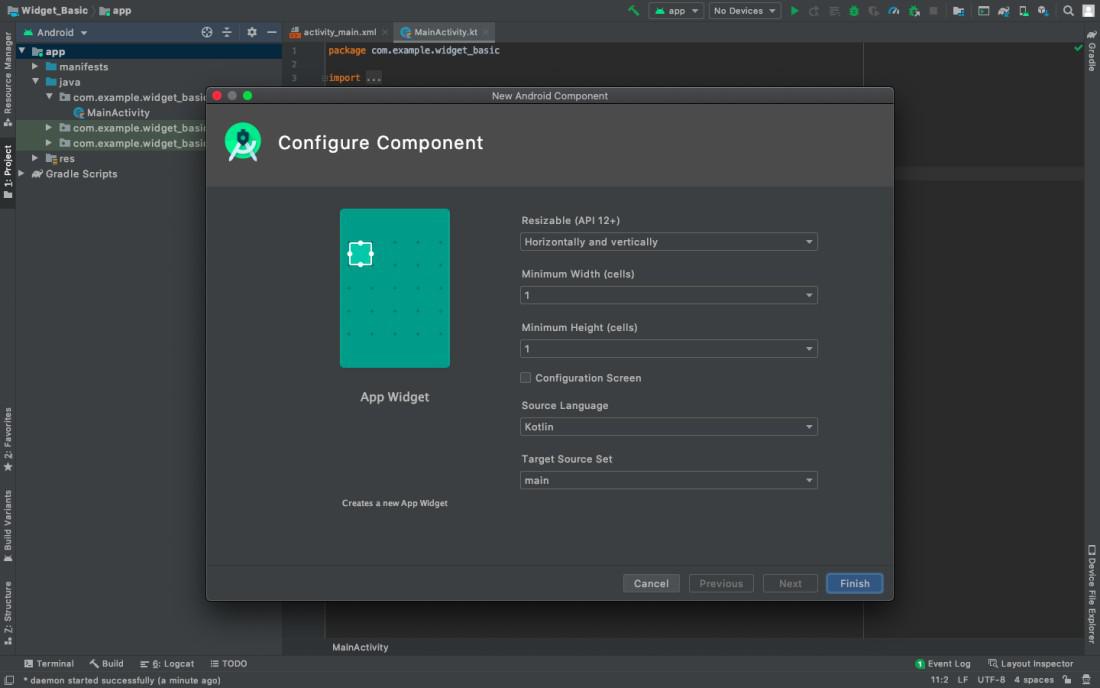
Specify the required properties
**Step 3: What to program? Where to program?
- In our application, since we wish to display two Buttons named "**Activity1" & "**Activity2", we need to declare them inside the **new_app_widget.xml file which is inside the Layouts in the Resources folder.
- The entire programming (back-end) is done in the newly created **NewAppWidget.kt, Kotlin Class File in the Main Source Folder. Here, we construct the **Buttons. Since these Buttons will redirect the users to different activities, we need to create two Empty Activities, we name them "**Activity1" and "**Activity2" respectively.
- These Activities serve as Pending Intents since they initialize only when the user clicks on one of the buttons.
- Changes are made to Activity 1 and Activity 2 front-end files to represent their names.
- Just refer to the below codes and the corresponding comments given below.
- **new_app_widget.xml and NewAppWidget.kt files XML `
<!-- Button 1 -->
<Button
    android:id="@+id/btn1"
    android:layout_width="wrap_content"
    android:layout_height="wrap_content"
    android:text="Activity1"
    android:layout_centerInParent="true"
    />

<!-- Button 2 -->
<Button
    android:id="@+id/btn2"
    android:layout_width="wrap_content"
    android:layout_height="wrap_content"
    android:text="Activity2"
    android:layout_centerHorizontal="true"
    android:layout_below="@id/btn1"
    />
Kotlin
package org.geeksforgeeks.widget_buttons
import android.app.PendingIntent import android.appwidget.AppWidgetManager import android.appwidget.AppWidgetProvider import android.content.Context import android.content.Intent import android.widget.RemoteViews
// Implementation of App Widget functionality class NewAppWidget : AppWidgetProvider() { override fun onUpdate( context: Context, appWidgetManager: AppWidgetManager, appWidgetIds: IntArray ) { // There may be multiple widgets active, so update all of them for (appWidgetId in appWidgetIds) { updateAppWidget(context, appWidgetManager, appWidgetId) } }
// Enter relevant functionality for when
  // the first widget is created
override fun onEnabled(context: Context) {

}

// Enter relevant functionality for when
  // the last widget is disabled
override fun onDisabled(context: Context) {

}
}
internal fun updateAppWidget( context: Context, appWidgetManager: AppWidgetManager, appWidgetId: Int )
/////////////////////////////Start Coding Here/////////////////////////////////////// {
// Create a pending Intent for Activity 1
val i1 : PendingIntent = Intent(context,Activity1::class.java).let { intent ->
    PendingIntent.getActivity(context, 0, intent, 0)  }

// Create a pending Intent for Activity 2
val i2 : PendingIntent = Intent(context,Activity2::class.java).let { intent ->
    PendingIntent.getActivity(context, 0, intent, 0)  }

// Construct the RemoteViews object
val views = RemoteViews(context.packageName, R.layout.new_app_widget)
    // Button 1 onClick Function
    .apply{setOnClickPendingIntent(R.id.btn1,i1)}
    // Button 2 onClick Function
    .apply { setOnClickPendingIntent(R.id.btn2,i2) }

// Instruct the widget manager to update the widget
appWidgetManager.updateAppWidget(appWidgetId, views)
} /////////////////////////////Code Ends Here///////////////////////////////////////
`
- **activity_1.xml, Activity1.kt, activity_2.xml, Activity2.kt files
In both, the XML files add only a TextView, and in the Kotlin files, we have added nothing. The users may write their own code as their requirements inside those files.
XML `
<TextView
    android:layout_width="wrap_content"
    android:layout_height="wrap_content"
    android:text="Activity 1"
    android:layout_centerInParent="true"
    />
Kotlin
package org.geeksforgeeks.widget_buttons
import androidx.appcompat.app.AppCompatActivity import android.os.Bundle
class Activity1 : AppCompatActivity() { override fun onCreate(savedInstanceState: Bundle?) { super.onCreate(savedInstanceState) setContentView(R.layout.activity_1) } }
XML
<TextView
    android:layout_width="wrap_content"
    android:layout_height="wrap_content"
    android:text="Activity 2"
    android:layout_centerInParent="true"
    />
Kotlin
package org.geeksforgeeks.widget_buttons
import androidx.appcompat.app.AppCompatActivity import android.os.Bundle
class Activity2 : AppCompatActivity() { override fun onCreate(savedInstanceState: Bundle?) { super.onCreate(savedInstanceState) setContentView(R.layout.activity_2) } }
`
- **activity_main.xml, MainActivity.kt files
There is nothing to do inside the activity_main.xml, MainActivity.kt files. The users may write their own code as their requirements inside those files.
XML `
<androidx.constraintlayout.widget.ConstraintLayout xmlns:android="http://schemas.android.com/apk/res/android" xmlns:app="http://schemas.android.com/apk/res-auto" xmlns:tools="http://schemas.android.com/tools" android:layout_width="match_parent" android:layout_height="match_parent" tools:context=".MainActivity">
<TextView
    android:layout_width="wrap_content"
    android:layout_height="wrap_content"
    android:text="Hello World!"
    app:layout_constraintBottom_toBottomOf="parent"
    app:layout_constraintLeft_toLeftOf="parent"
    app:layout_constraintRight_toRightOf="parent"
    app:layout_constraintTop_toTopOf="parent" />
</androidx.constraintlayout.widget.ConstraintLayout>
Kotlin
package org.geeksforgeeks.widget_buttons
import androidx.appcompat.app.AppCompatActivity import android.os.Bundle
class MainActivity : AppCompatActivity() { override fun onCreate(savedInstanceState: Bundle?) { super.onCreate(savedInstanceState) setContentView(R.layout.activity_main) } }
`