Creating User Interfaces for AI Models Using Gradio Python (original) (raw)
Last Updated : 8 Apr, 2026
Gradio is a Python library that allows us to quickly create interactive user interfaces (UIs) for your AI models without needing any front-end development skills. Whether you’ve built a model for image classification, text generation or speech recognition, Gradio lets you turn it into a web-based app in just a few lines of code.
In this article, we’ll walk you through how to use Gradio to build clean and functional UIs for your AI models using Python.
Installation
Gradio can be installed in multiple ways depending on your setup. Here’s how to install it using different methods:
Using pip
1. Open your Command Prompt or PowerShell (Windows) and Terminal (macOS/Linux).
2. Create Environment using below command:
python -m venv gradio_env
3. Activate virtual environment
gradio_env\Scripts\activate
4. Run the following command to install Gradio:
pip install gradio
Using conda
If you're using Anaconda, you can install Gradio from conda-forge channel.
1. Open Anaconda Prompt (Windows) or terminal (macOS/Linux)
2. Create environment
conda create -n gradio_env python=3.10
3. Activate environment
conda activate gradio_env
4. Run the command to install, then press **y to confirm:
conda install -c conda-forge gradio
Verifying Gradio Installation
After installing Gradio, you can check if it was installed correctly by running following code in python:
Python `
import gradio as gr print("Gradio version:", gr.version)
`
If Gradio is installed successfully, this will display the installed version number.
Core Concepts of Gradio
To effectively use Gradio, it's helpful to understand a few foundational building blocks:
1. Interface
The Interface class connects your Python function with input and output components to build an interactive UI. Once set up, Gradio automatically generates a clean and responsive interface based on your specifications.
2. Components
Gradio provides a wide range of built-in components (30+ and growing) that act as input and output elements. These include:
- **Textbox for typing text
- **Image for uploading or displaying pictures
- **Audio for recording or playing sound
- **Slider, **Dropdown, **Checkbox etc
Each component allows users to interact with your app in a structured and intuitive way.
3. Functions
Functions are the core logic behind your Gradio app. They take input from the user, process it and return the result. This can be something simple like a greeting or as complex as a machine learning prediction.
**Example:
def greet(name):
return f"Hello, {name}!"
4. Launch
Once interface is defined, calling ****.launch()** runs the app. By default, it opens a local web server. To make it available publicly (e.g., to share with teammates or clients), you can add **share=True, which creates a temporary public link via an SSH tunnel.
demo.launch(share=True)
Example: Simple Gradio App
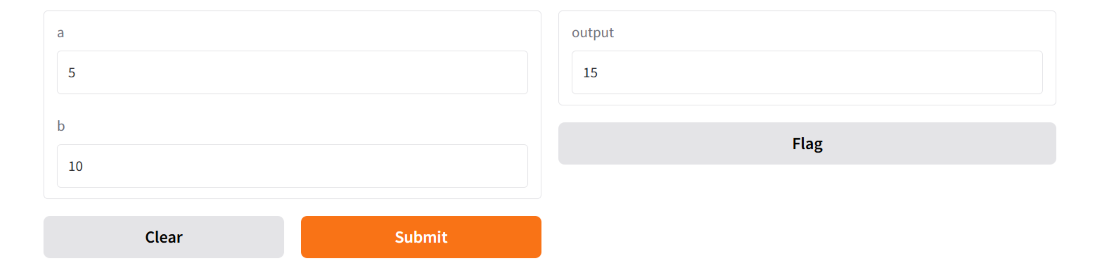
Let’s see all the above concepts in action with a basic example. This app takes two numbers as input and returns their sum using a Gradio interface. Here:
- **def add_numbers(a, b): Defines a function that takes two numbers and returns their sum.
- **gr.Interface(): Gradio's main class for creating UIs.
- **fn=add_numbers: Tells Gradio to use this function when user clicks "Submit".
- **inputs=["number", "number"]: Two number input fields appear in UI.
- **outputs="number": Result of function will be shown as a number.
- **demo.launch(): Starts interface in a browser or inline (in notebooks). Python `
import gradio as gr
def add_numbers(a, b): return a + b
demo = gr.Interface( fn=add_numbers, inputs=["number", "number"], outputs="number") demo.launch()
`
**Output
Simple Gradio App
Components of Gradio
When building apps with Gradio, we spend most of our time using components that define how users interact with our interface. Gradio components are building blocks of our interface. They’re divided into:
- **Input Components: let users provide data (text, image, audio, etc.)
- **Output Components: display results returned by your Python function
Input Components
These allow users to send data to your Python function. Some commonly used input components include:
- **Textbox: for entering text
- **Image: for uploading images
- **Audio: for uploading audio clips
- **Slider: for selecting a number within a range
- **Dropdown: for selecting one option from a list
Output Components
Output components show the results after processing input. Common ones include:
- **Label: for displaying text or classifications
- **Image: for showing generated or processed images
- **Audio: for playing generated audio
- **Plot: for displaying graphs or charts
**Note: Number of Gradio input components must match number of function arguments and number of output components must match number of values the function returns.
Example:
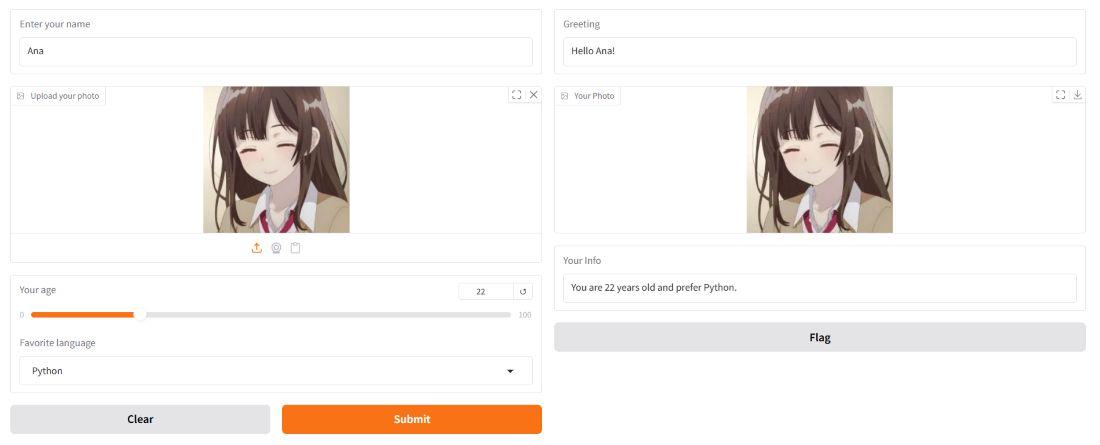
In this example, we have build a simple app that collects user details like name, photo, age and favorite language and then displays a personalized message along with uploaded photo.
- **simple_app function takes 4 inputs from the user: name, photo, age and language
- It returns 3 outputs: A greeting "Hello name!", uploaded photo and A message.
- **fn=simple_app: tells Gradio which Python function to run when user provides input. Python `
import gradio as gr
def simple_app(name, photo, age, language): greeting = f"Hello {name}!" info = f"You are {age} years old and prefer {language}." return greeting, photo, info
demo = gr.Interface( fn=simple_app, inputs=[ gr.Textbox(label="Enter your name"), gr.Image(label="Upload your photo"), gr.Slider(0, 100, label="Your age"), gr.Dropdown(["Python", "JavaScript", "C++"], label="Favorite language"), ], outputs=[ gr.Textbox(label="Greeting"), gr.Image(label="Your Photo"), gr.Textbox(label="Your Info") ], ) demo.launch()
`
**Output
Input and Output Components Example
Advanced Interfaces with Gradio
gr.Interface() is great for quick UIs, but for more control over layout, events and interactivity, **gr.Blocks are more reliable. It is a flexible layout system in Gradio that allows developers to:
- Arrange components in rows, columns or groups
- Manually connect events using .click(), .change() and more
- Build advanced interfaces like dashboards or multi-step workflows
It acts as a "do-it-yourself" mode, giving more control over UI structure and interactivity.
Example: Button Click with gr.Blocks
In this example, a structured layout is created where the user enters their name and receives a greeting only upon clicking a button.
- **gr.Blocks() wraps the entire interface.
- Components are manually created: **Textbox, **Button, **Textbox.
- ****.click()** connects the button to **greet() function. Python `
import gradio as gr
def greet(name): return f"Hello, {name}!"
with gr.Blocks() as demo: name = gr.Textbox(label="Enter your name") button = gr.Button("Greet") output = gr.Textbox(label="Greeting") button.click(fn=greet, inputs=name, outputs=output)
demo.launch()
`
**Output

Only greets when "Greet" button is clicked
When to Use gr.Blocks
- Adding buttons to trigger actions using .click()
- Designing custom layouts (e.g., placing components side by side)
- Building applications with multiple input/output sections
- Connecting different buttons to different functions for more control
Event Handling in Gradio
In Gradio, event handling allows to control how and when certain actions are triggered like clicking a button, changing a slider or submitting a form. Instead of automatically running a function when input changes, you can tie your logic to specific events, giving you more control over the flow of your app.
Common Events
Here are some common event types you can use:
- ****.click():** A Button is clicked
- ****.change():** A value in a component changes
- ****.submit():** A form or input is submitted
- ****.input():** A user is typing or dragging input
**Note: Event handling methods like .click(), .change(), .submit() and .input() only work when using gr.Blocks layout. These events are not supported in gr.Interface.
Examples of Event Usage
In this example, event handling is demonstrated by updating the output automatically when the user changes the slider value.
- **def age_alert(age): Function that returns a message with the selected age.
- **with gr.Blocks() as demo: Starts a custom Gradio layout.
- ****.change():** Triggers age_alert when slider is changed. Python `
import gradio as gr
def age_alert(age): return "You are", age,"years old!"
with gr.Blocks() as demo: age_input = gr.Slider(0, 100, label="Select your age") output = gr.Textbox(label="Age Info") age_input.change(fn=age_alert, inputs=age_input, outputs=output)
demo.launch()
`
**Output

Output
Connecting to External APIs
When building AI apps with Gradio, you might want to get data from external sources like weather, news or chatbot APIs. This is done using external APIs. In simple terms, **API (Application Programming Interface) is a set of rules that lets one software communicate with another to send or receive data or perform actions.
Why Use APIs in Gradio?
- To get live data like weather, currency rates, etc
- To connect with other ML models like OpenAI, Hugging Face APIs, etc
- To enrich the user experience with real-world data
Example: Get Current Joke from Joke API
This example shows how to connect to an external API in a Gradio app. When button is clicked, it fetches and displays a random joke from an online API.
- **requests.get(): Sends a GET request to a public joke API.
- **get_joke() extract and return the joke text if response is successful and **else handles errors by showing a fallback message.
- **with gr.Blocks() as demo: Creates a custom layout using gr.Blocks.
- **btn.click(fn=get_joke, inputs=None, outputs=output): On button click, runs get_joke() and shows result in output. Python `
import gradio as gr import requests
def get_joke(): response = requests.get("https://official-joke-api.appspot.com/random_joke") if response.status_code == 200: joke = response.json() return f"{joke['setup']} {joke['punchline']}" else: return "Oops! Could not fetch a joke right now."
with gr.Blocks() as demo: btn = gr.Button("Tell me a joke!") output = gr.Textbox(label="Here's your joke") btn.click(fn=get_joke, inputs=None, outputs=output)
demo.launch()
`
**Output

Output
Creating Interfaces with Language Models Using Gradio
Let’s now build user-friendly interfaces for two simple real-world tasks using LLMs. These examples show how you can connect your Python function powered by a large language model (LLM) to a web interface using Gradio.
Example 1: Text Summarizer App Using OpenAI GPT
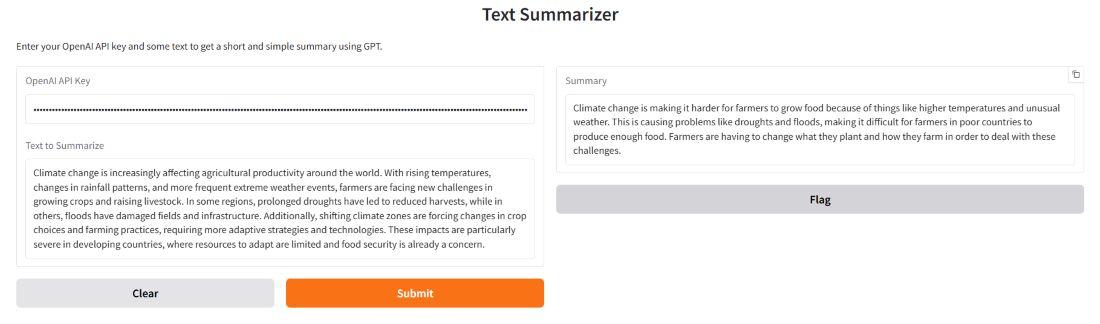
This example builds a simple Text Summarizer app using OpenAI’s GPT model. It takes a paragraph or article as input and returns a short, clear summary, making it useful for tasks like quick reading, note-taking or report preparation.
**Step 1: Define Summarizer Function
- **summarize_text(api_key, text): Function to summarize given text.
- **openai.api_key = api_key: Set API key for authentication.
- **prompt: Create summarization request with the text.
- **openai.chat.completions.create(): Send prompt to GPT-3.5 Turbo and get response.
- **return response.choices[0].message.content.strip(): Return clean summary. Python `
import openai
def summarize_text(api_key, text): openai.api_key = api_key
prompt = f"Summarize the following text in simple language:\n\n{text}\n\nSummary:"
try:
    response = client.chat.completions.create(
        model="gpt-3.5-turbo",
        messages=[
            {"role": "system", "content": "You are a helpful text summarizer."},
            {"role": "user", "content": prompt},
        ]
    )
    return response.choices[0].message.content.strip()
except Exception as e:
    return f"Error: {str(e)}"
`
**Step 2: Build the Interface
- **gr.Interface(): Creates a Gradio interface named iface.
- **fn=summarize_text: Connects UI to the summarize_text() function this is what runs when user clicks the button.
- **Two input boxes: one for the hidden API key, and one multi-line box for the text to summarize.
- **show_copy_button=True: Adds a copy-to-clipboard button. Python `
import gradio as gr
iface = gr.Interface( fn=summarize_text, inputs=[ gr.Textbox( placeholder="Enter your OpenAI API key", type="password", label="OpenAI API Key", ), gr.Textbox( lines=6, placeholder="Paste the text to summarize...", label="Text to Summarize", ) ], outputs=gr.Textbox(label="Summary", show_copy_button=True), title="Text Summarizer", description="Enter your OpenAI API key and some text to get a short and simple summary using GPT.", ) iface.launch(share=True)
`
**Output
Output of Text Summarizer
Note: This approach is acceptable for demo purposes. For production, API keys should be stored using environment variables instead of exposing them in the UI****.**
Example 2: Sentiment Analyzer UI
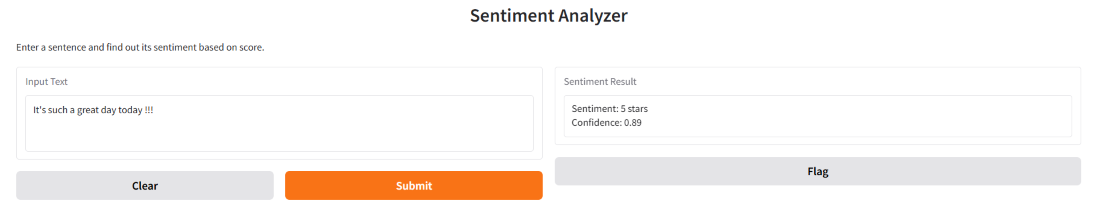
This example demonstrates how to build a user interface for an LLM-based model using Gradio. It uses a Hugging Face sentiment analysis pipeline to analyze text input and display the sentiment with confidence score. Here:
- **pipeline("sentiment-analysis", model="nlptown/bert-base-multilingual-uncased-sentiment"): Loads a pre-trained sentiment analysis model from Hugging Face.
- **analyze_sentiment(text): Defines a function that takes user input text.
- **sentiment_pipeline(text)[0]: Uses model to predict sentiment, takes first result from output list.
- **result['label'] extracts sentiment label and **result['score'] extracts model's confidence score for prediction.
- **return f"Sentiment: {label}\nConfidence: {score:.2f}": Returns sentiment and confidence in a formatted string. Python `
import gradio as gr from transformers import pipeline
sentiment_pipeline = pipeline("sentiment-analysis", model="nlptown/bert-base-multilingual-uncased-sentiment")
def analyze_sentiment(text): result = sentiment_pipeline(text)[0] label = result['label'] score = result['score'] return f"Sentiment: {label}\nConfidence: {score:.2f}"
gr.Interface( fn=analyze_sentiment, inputs=gr.Textbox(lines=3, placeholder="Type your sentence here..", label="Input Text"), outputs=gr.Textbox(label="Sentiment Result"), title="Sentiment Analyzer", description="Enter a sentence and find out its sentiment based on score." ).launch()
`
**Output
Output of Sentiment Analyzer
Creating Interfaces For Classic ML Models
Let’s now create a user interface for a classic regression problem predicting house prices based on basic features. This is a simple example to understand how ML + UI works together. We’ll use famous California Housing dataset available from Scikit-learn.
Step 1: Setup the Project
Create a new folder (e.g., house_price_ui) and inside that, create a Python file called app.py. Make sure you install following dependencies (use virtual env if needed):
pip install scikit-learn gradio pandas
Step 2: Train a Simple Model
- The code loads the California housing dataset
- Splits it into features (X) and target (y) and divides it into training and test sets.
- It builds a pipeline with StandardScaler and random forest regressor then trains the model using training data. Python `
Load dataset
from sklearn.datasets import fetch_california_housing import pandas as pd from sklearn.model_selection import train_test_split from sklearn.pipeline import make_pipeline from sklearn.preprocessing import StandardScaler from sklearn.ensemble import RandomForestRegressor
data = fetch_california_housing(as_frame=True) df = data.frame
X = df.drop(columns=["MedHouseVal"]) y = df["MedHouseVal"] X_train, X_test, y_train, y_test = train_test_split(X, y, test_size=0.2, random_state=42)
model = make_pipeline(StandardScaler(), RandomForestRegressor()) model.fit(X_train, y_train)
`
Step 3: Create Prediction Function
This function:
- Takes user inputs for housing features.
- Wraps them into a DataFrame.
- Predicts price using the model.
- Returns a formatted string with estimated price. Python `
def predict_house_price(med_inc, house_age, ave_rooms, ave_bedrooms, population, ave_occup, latitude, longitude): input_data = pd.DataFrame([[ med_inc, house_age, ave_rooms, ave_bedrooms, population, ave_occup, latitude, longitude]], columns=X.columns) prediction = model.predict(input_data)[0] return f"Predicted Price: ${prediction * 100000:.2f}"
`
Step 4: Build the Gradio Interface
It builds interface for predict_house_price function with eight sliders for housing features. The predicted price is shown as text output. The interface includes a title, description and is launched with a public shareable link.
Python `
import gradio as gr
interface = gr.Interface( fn=predict_house_price, inputs=[ gr.Slider(0.0, 20.0, label="Median Income (10k$ units)"), gr.Slider(1, 50, label="House Age"), gr.Slider(1, 10, label="Average Rooms"), gr.Slider(1, 5, label="Average Bedrooms"), gr.Slider(100, 50000, label="Population"), gr.Slider(1, 10, label="Average Occupancy"), gr.Slider(32, 42, label="Latitude"), gr.Slider(-125, -114, label="Longitude"), ], outputs="text", title="California House Price Predictor", description="Enter basic housing info to estimate price", )
interface.launch(share=True)
`
**Output:
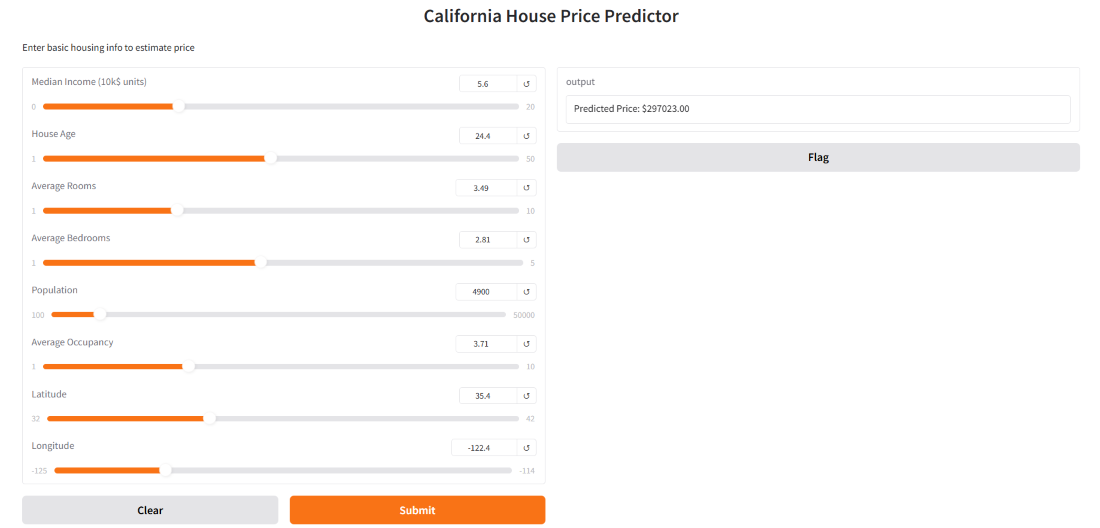
California House Prediction
Deploying Gradio Apps
Step 1: Prepare Your Files
You’ll need 3 files in your project folder:
**1. app.py
Save your code in a file called app.py. This is the main app file. Hugging Face Spaces will run this file to launch your Gradio UI.
**2. requirements.txt
This file tells Hugging Face what Python libraries are needed to run your app. Create a requirements.txt file with this content:
gradio
pandas
scikit-learn
Hugging Face installs these packages in the background. If you miss one, your app might crash!
**3. README.md (Optional)
It is a project description for Hugging Face viewers. Add a README.md with a short intro to your app. Example:
**California House Price Predictor
This Gradio app predicts the median house price in California based on features like income, age, rooms, etc.
Built using: - Scikit-learn
- Gradio
- California Housing Dataset
Step 2: Create a Hugging Face Space
Go to Hugging Face Space and click on “Create new Space”.
Fill the details:
- **Space name: e.g., california-house-predictor
- **Space SDK: Choose Gradio
- **Visibility: Public or Private
- Click “Create Space”
Step 3: Upload Your Files
You’ll be taken to the Space repo view. Now:
- Click “Files”
- Click “Add file” --> Upload files
- Upload: app.py, requirements.txt and README.md (optional)
Step 4: Wait for Build
Once files are uploaded:
- Hugging Face will automatically install dependencies from requirements.txt
- Then it will run app.py, which launches the Gradio interface
After a few seconds to minutes, your app will be live in the browser!
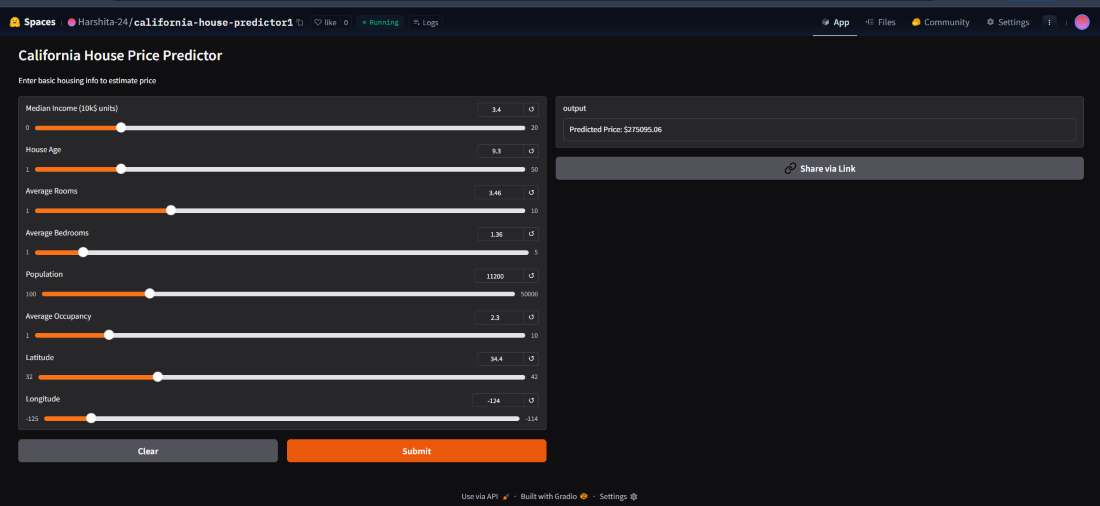
Deploying Gradio Apps
Gradio Tips for Building Better UIs
When building apps with Gradio, following best practices helps create faster, cleaner and more user-friendly interfaces. Here are 6 key tips:
- **Use Scripts for Better Organization: Keep your Gradio code in Python scripts for easier collaboration, version control and deployment.
- **Design a Clean Layout: Use gr.Row() and gr.Column() to make your app layout intuitive, responsive and visually balanced.
- **Add Labels and Instructions: Use label, info and placeholder text to guide users clearly on what each input/output does.
- **Validate Inputs and Handle Errors: Add input validation and try-except blocks to manage unexpected inputs and avoid app crashes.
- **Improve Performance for Heavy Tasks: Use caching and loading indicators (gr.Loading()) for slow models or large data processing.
- **Use Hugging Face for Models and Datasets: Host large models or datasets on Hugging Face Hub to reduce load time and local memory usage.