What is Google Cloud Console? (original) (raw)
Last Updated : 23 Jul, 2025
Google Cloud Console is the central hub for managing Google Cloud Platform (GCP) services. It provides a user-friendly interface for deploying virtual machines, managing databases, configuring security settings, and monitoring cloud resources. Whether you're a developer, business, or startup, GCP offers scalable infrastructure for computing, storage, and AI services.
To get started, you'll need a Google Cloud Console account and billing setup. While many services have free-tier usage, adding billing details ensures uninterrupted access.
This guide will walk you through setting up a Google Cloud Console account, enabling services, and managing cloud projects efficiently.
What is Google Cloud Console?
Google Cloud Console is a web-based dashboard that provides an easy way to manage cloud resources, configure security settings, monitor usage, and access powerful computing tools within GCP. It serves as the central hub for controlling services like Compute Engine, Cloud Storage, Kubernetes, and BigQuery.
**Why Use Google Cloud Console?
There are so many reasons of using Google Cloud Console some of them are the following:
**1. User-Friendly Interface
Google Cloud Console are very easy to navigate and manage cloud resources that's why now a days most of the IT Companies are shifting to Google Cloud Console.
2. Real-Time Monitoring
You can easily perform real-time monitoring in GCP Console. You can easily get insights on usage, performance, and costs.
3. Billing & Cost Control
You can easily track GCP cloud expenses and set spending limits according to our usage.
4. Security & IAM Controls
GCP Console provide security and IAM Controls facilities also. You can manage access permissions and data protection to your instance and particular user.
5. Integrated Cloud Shell
You can easily execute commands directly from the console. It is easy to use and understand also.
Key Features of Google Cloud Console
The following are the most important key features of Google Cloud Console:
**1. Dashboard Overview
The Google Cloud Console Dashboard provides a centralized view of all projects, including active resources, performance metrics, and alerts.
**2. Compute Services
- **Compute Engine: Deploy and manage virtual machines (VMs).
- **Google Kubernetes Engine (GKE): Run and scale containerized applications.
- **Cloud Functions & Cloud Run: Develop serverless applications.
**3. Storage & Database Services
- **Google Cloud Storage: Store and retrieve large datasets securely.
- **Cloud SQL & Firestore: Manage relational and NoSQL databases.
- **BigQuery: Perform high-speed data analysis and reporting.
**4. Security & IAM Controls
- **Identity and Access Management (IAM): Assign roles and manage access.
- **Encryption & Data Protection: Secure sensitive data with encryption.
- **Cloud Security Tools: Detect threats and enhance compliance.
**5. Billing & Cost Optimization
- Set budget alerts and track spending trends to prevent overages.
- Leverage cost analysis tools for better resource management.
Google Cloud Console Components
Access the Google Cloud Console through the GCP Console homepage. New to Google Cloud? Start by signing up for a free trial account to explore its features. Once you log in with your Google credentials, you'll be directed to the Console homepage. The below are the images of Home, Dashboard and Activity Recommendations in GCP.
**Toolbar
The Google Cloud Platform includes a top toolbar with quick-access buttons for notifications, settings and other essential utilities
- **Search:To Begin here is the search bar that showed in the image
- **Cloud Shell:In the right corner you can easily found cloud shell icon as showed below
- **Help:At same corner next to cloud shell you can find help button as showed below
- **Notifications:To get notification on time you need to enable notification from top most right corner as showed in image.
- **Settings:This button enables users to customize preferences and modify project settings.
**Navigation Menu
The navigation menu gives you easy access to all the main services Google Cloud Platform has to offer. Besides the HOME section we talked about earlier, you'll find shortcuts to things like MarketPlace, Billing, Support, Security, and more. If you're new to Google Cloud, the 'Getting Started' feature is a great place to find everything you need to get up and running smoothly. Here's how to access it
**1. Compute Products
Google Compute Engine is a flexible and secure compute service that allows you to create, run, and manage virtual machines on Google Cloud. You can also create templates to save your preferences for future use, making it easier to deploy resources consistently. In addition to Compute Engine, the Compute Products tab offers other options like Kubernetes Engine, Google App Engine, Cloud Run, and Google Cloud Functions, providing a range of tools to meet different computing needs
**2. Storage and Database Products
Google Cloud Storage is one of the most popular storage services available today, serving as Google's equivalent to Amazon S3. Among the top three cloud providers, Google Cloud Storage is also recognized for being the most cost-effective option (in terms of $ per GB). Beyond storage, GCP offers a range of database services, including Cloud SQL, Cloud Firestore, and Cloud Spanner. Each service is tailored to meet different user needs, particularly in terms of scalability and customization
This takes you to the Getting Started page, where you'll find several options readily available for quick access. You can also pin specific services for easier navigation by clicking the pin icon next to their name
**3. Other Services
How to Set Up Google Cloud Console Account
To create a Google Cloud Console account on GCP follow the below steps:
**Step 1: Sign Up for Google Cloud
- Visit Google Cloud Console and sign in with your Google account.
- Activate the **free trial to access $300 in credits for testing services.
**Step 2: Welcome Page
- If it is the first time, then the “Welcome” note appears, agree with all the terms and conditions, and finish.
**Step 3: Configure Billing Information
- Enter your **credit or debit card details for verification.
- Google will not charge you unless you exceed free-tier limits.
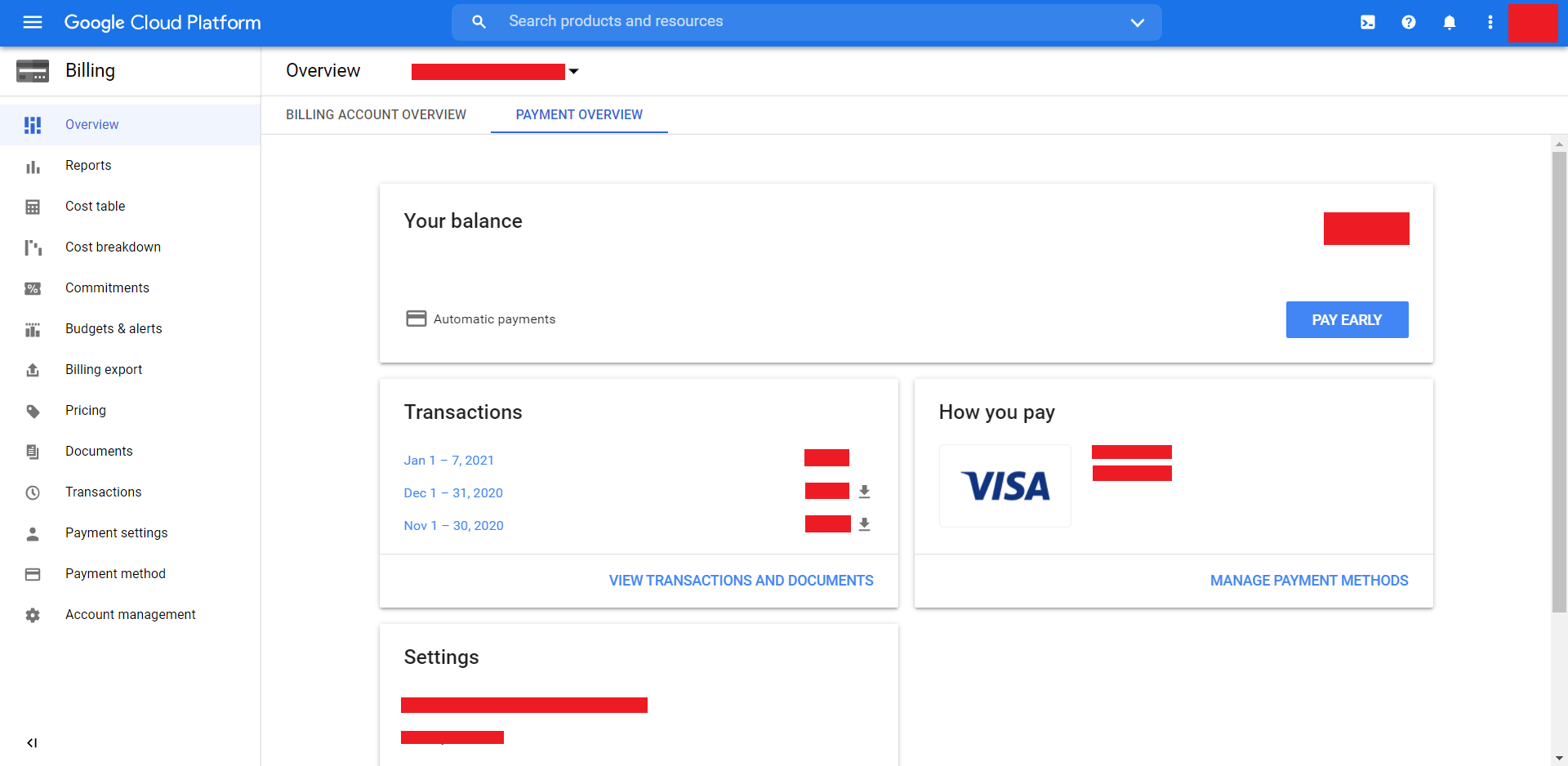
- After completing, the Billing page looks like this. _(Sensitive information is censored)
Creating Google Cloud Console Project
To create a project on the Google Cloud Platform follow the below steps:
**Step 1: The screen that you see is the **Dashboard of your console.
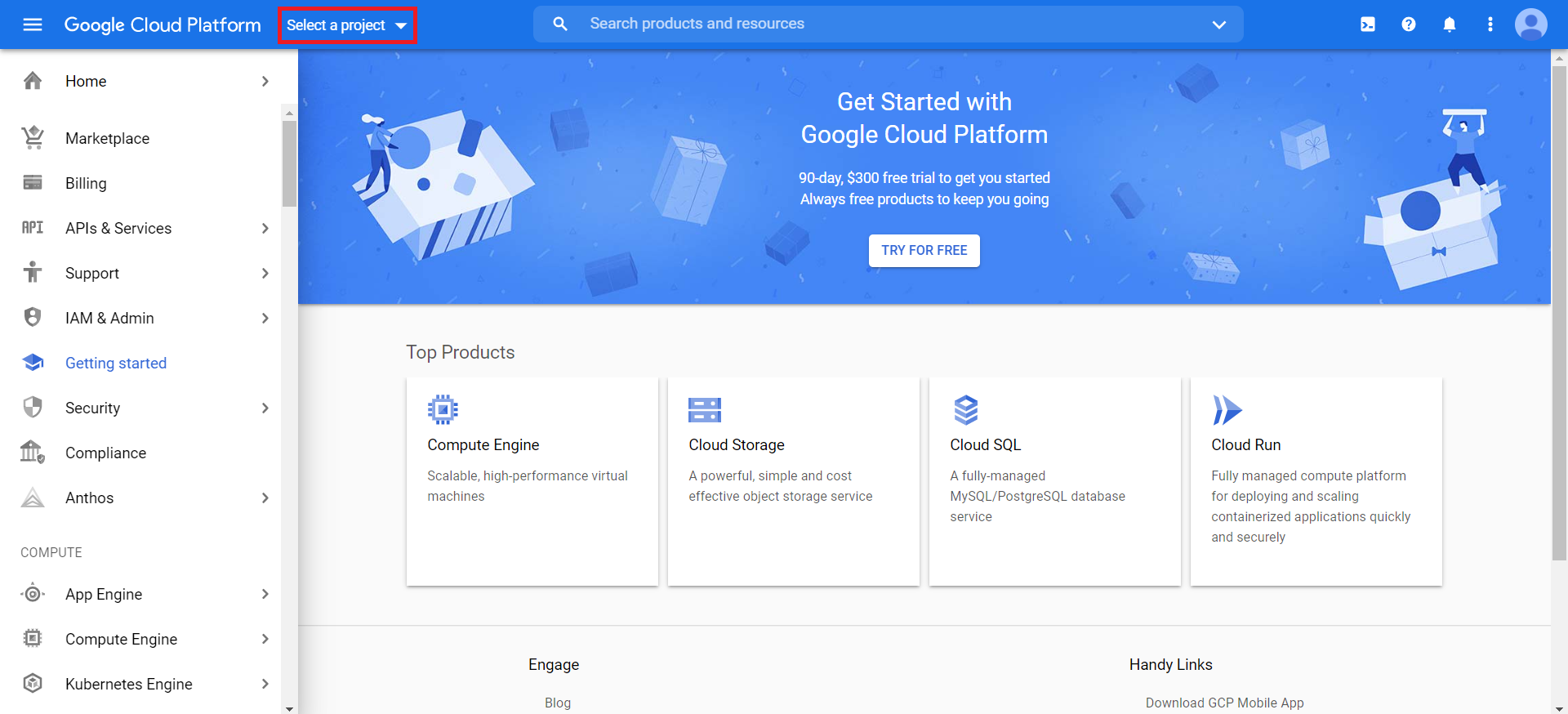
**Step 2: To create a new project, or open an existing one, click on the **“Select a project” option.
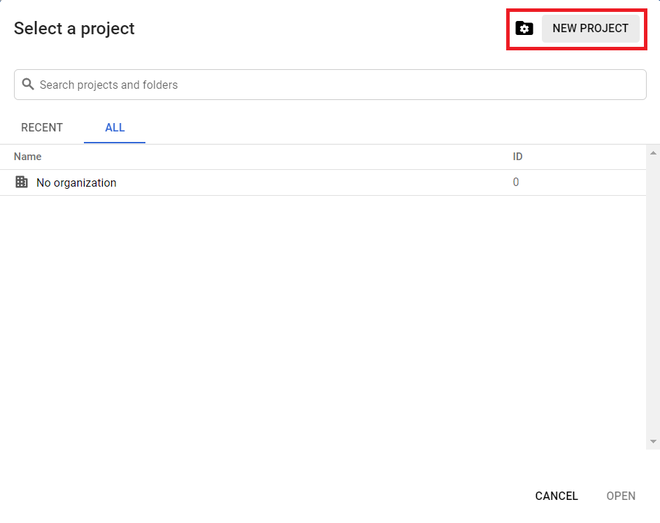
**Step 3: A list of previously created projects appears under **RECENT or **ALL. Click on **NEW PROJECT to create a new one.
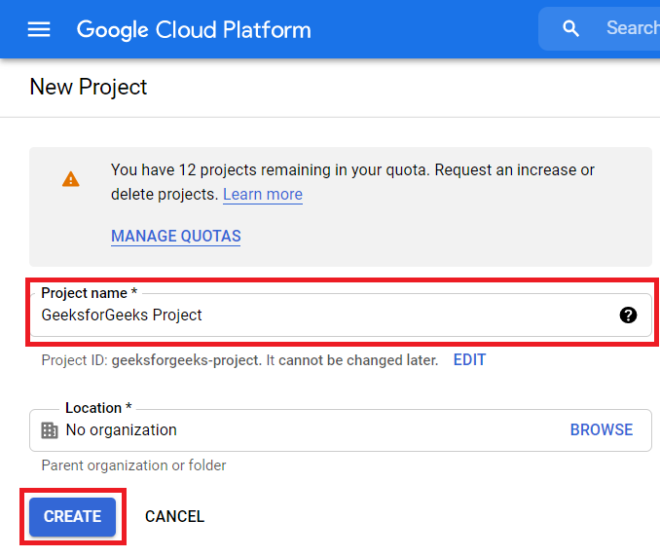
**Step 4: Type in a Project name and click **CREATE.
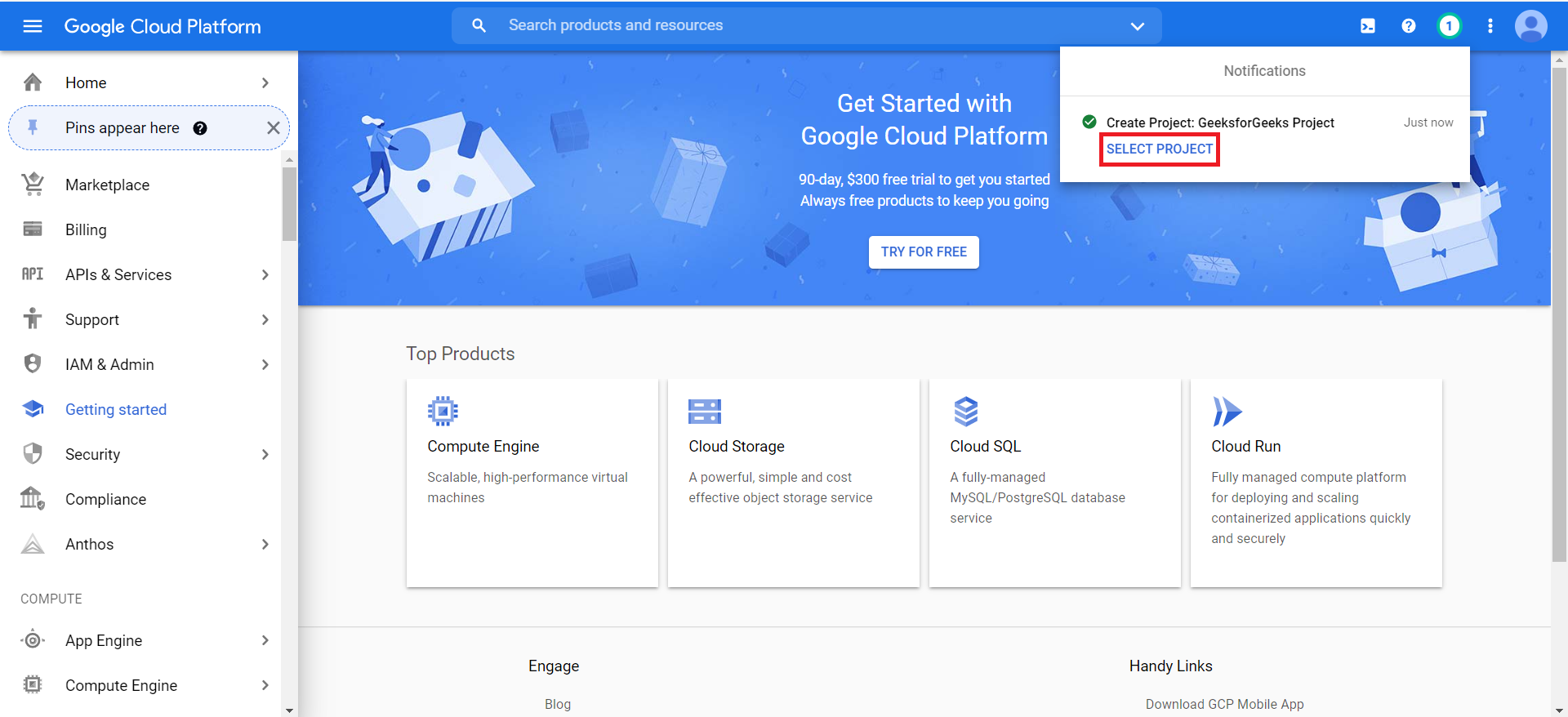
**Step 5: The page is directed to the Dashboard and notifies about project creation. Once created, click on the **SELECT PROJECT option in the Notifications.
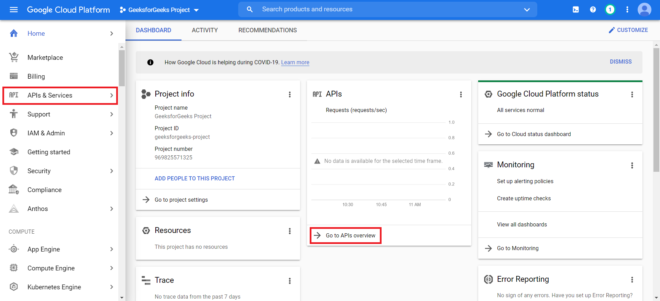
**Step 6: The page is redirected to the project page displaying information about the project. To add APIs or Services, click either APIs & Services options from the menu or click on **Go to APIs overview on the **DASHBOARD.
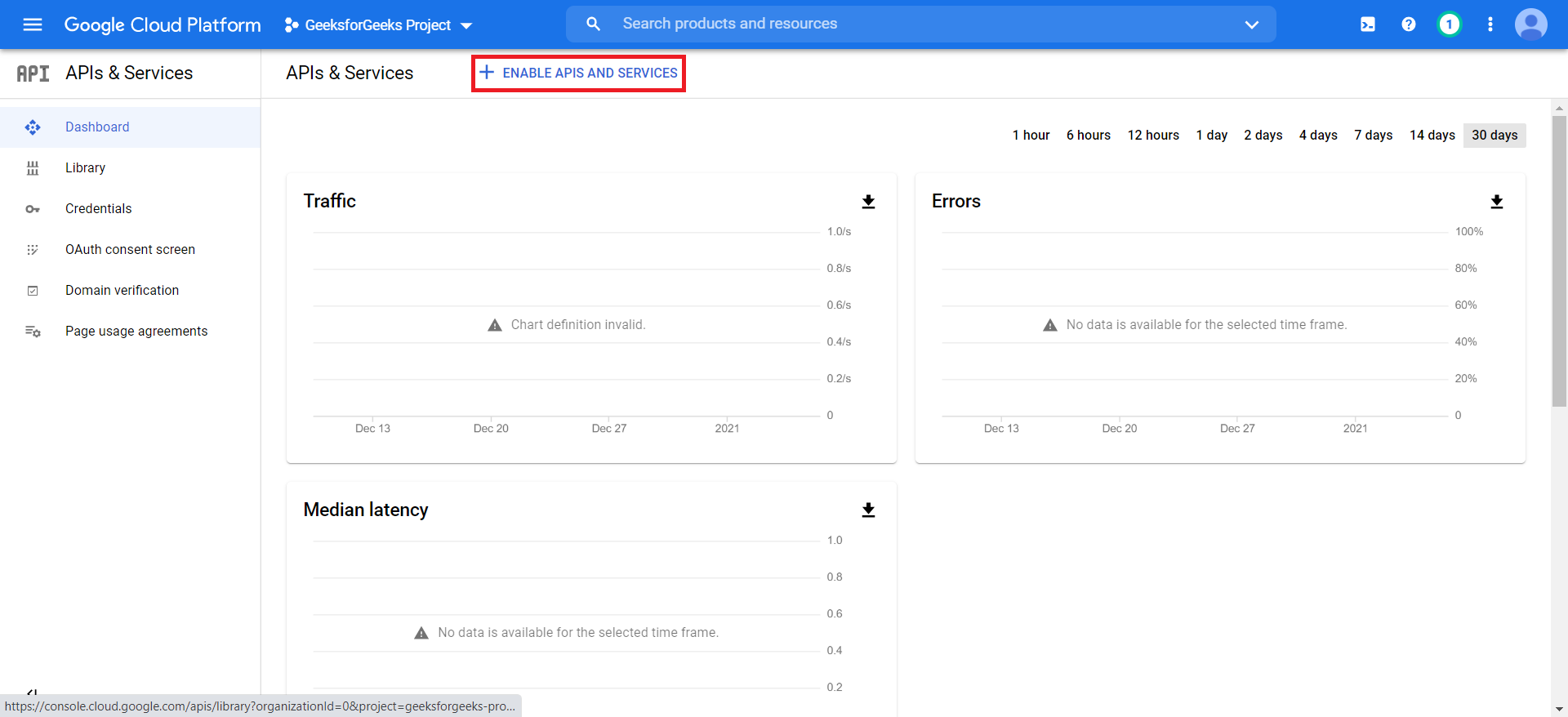
**Step 7: Click on **ENABLE APIS AND SERVICES OPTION below the search bar.
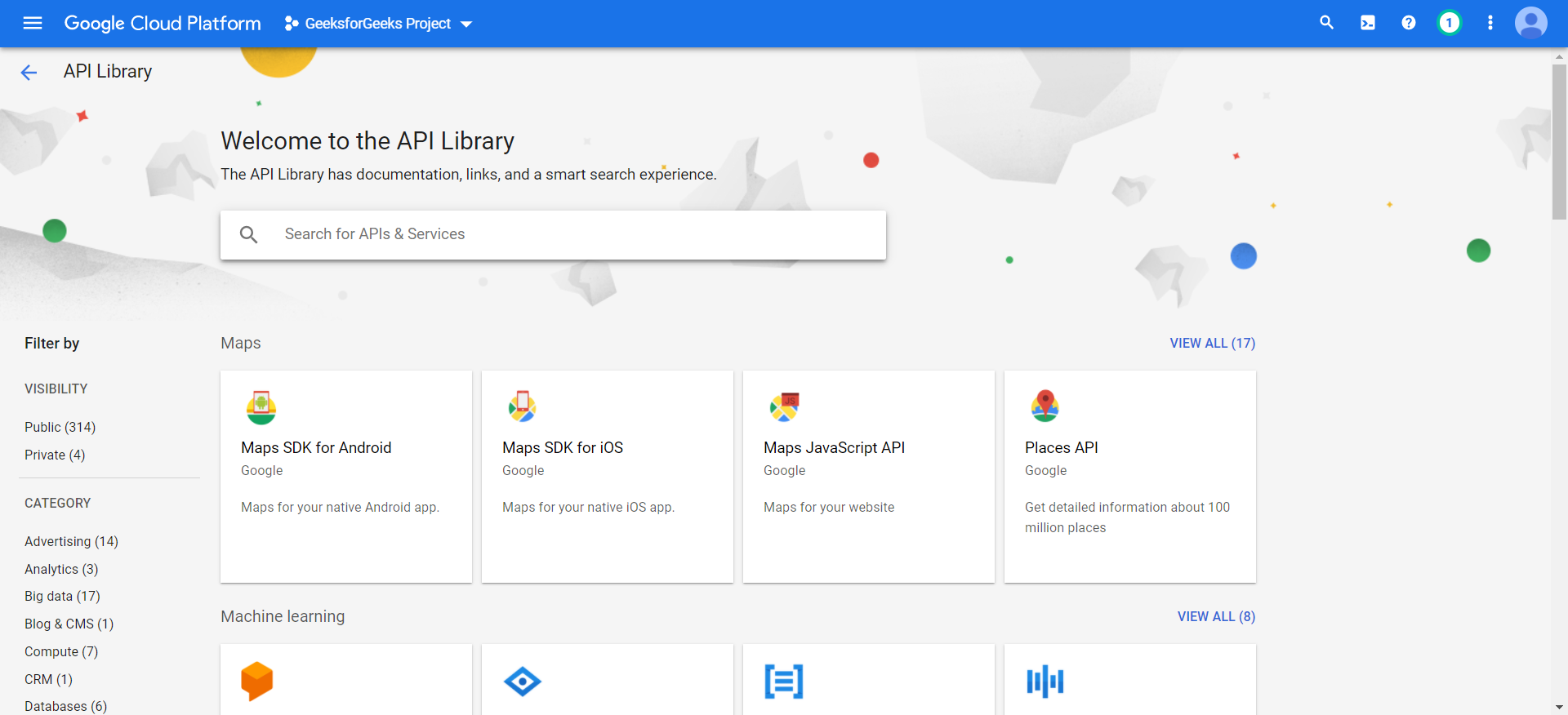
**Step 8: Select the required API from the API Library displayed for implementing it into the application and follow the instructions for implementing specific API and Services for any device.
At this stage, you have a Google cloud console account and a new API or server enabled project on GCP to start up.
Google Cloud Console vs. Google Cloud CLI
The following table shows the major differences between Google Cloud Console and Google Cloud CLI:
| Feature | Google Cloud Console | Google Cloud CLI |
|---|---|---|
| **Interface | Web-based GUI | Command-line tool |
| **Best For | Beginners, admins | Developers, automation |
| **Automation | Limited | Extensive scripting capabilities |
| **Security | IAM-based UI | Role-based CLI controls |
Google Cloud Console is ideal for **visual management, while Cloud CLI is better for **automation and DevOps workflows.
Best Practices for Managing Google Cloud Console
The following are some best practices you can follow for managing Google Cloud Console:
- Enable Multi-Factor Authentication (MFA) to enhance account security.
- **Use IAM roles wisely: Grant only necessary permissions to users.
- Monitor billing and usage regularly to prevent unexpected charges.
- Use Cloud Logging & Monitoring to track activity and optimize resources.
Common Issues & Troubleshooting in Google Cloud Console
There are some common issues which every faces while using Google Cloud Console let's discuss that issues and learn how to troubleshoot those issues :
**1. Login & Authentication Issues
- **Solution: Reset your password or check IAM permissions.
**2. Billing Errors & Payment Issues
- **Solution: Verify your payment details and enable auto-renewal.
**3. Compute Engine Not Starting
- **Solution: Check if you’ve exceeded your quota or usage limits.
**4. API Permission Errors
- **Solution: Review IAM roles and ensure the correct APIs are enabled.
Conclusion
Setting up a Google Cloud Console account and creating a project is the first step in unlocking the power of Google Cloud's vast array of services. With the steps outlined in this guide, you can easily create a project, enable APIs, and integrate Google Cloud services into your custom applications. The Google Cloud Console offers a comprehensive set of tools that help you manage, monitor, and optimize your cloud resources, making it an essential platform for developers, businesses, and enterprises alike. Now that you’ve set up your account, you’re ready to explore Google Cloud’s computing, storage, and database solutions to build scalable, secure, and high-performance applications.