Amazon VPC Introduction to Amazon Virtual Private Cloud (original) (raw)
Last Updated : 27 May, 2026
Amazon Virtual Private Cloud (VPC) is the fundamental networking layer for your cloud infrastructure. It allows you to provision a logically isolated section of the AWS Cloud where you can launch AWS resources in a virtual network that you define. A VPC works like a private network in the cloud, where you can control IP address range, subnets, routing, and network access for your AWS resources.
VPC vs. Traditional Private Cloud
AWS VPC and Traditional Private Cloud are both used to create private and secure networks for hosting resources and applications. However, AWS VPC provides better flexibility, pricing, and easier cloud connectivity compared to traditional private cloud environments.
| **Feature | AWS VPC | **Traditional Private Cloud |
|---|---|---|
| Flexibility | Can grow easily when needed | Limited by hardware |
| **Security | Uses Security Groups, NACLs, and IAM | Uses firewalls and VPNs |
| Cost | Pay-as-you-go | Expensive to set up and maintain |
| **Connection | Easy connection with AWS services and internet | Limited external access |
Analogy Of VPC
Let's try to understand it by taking an example of the GeeksforGeeks office setup. Just like GeeksforGeeks carefully organizes its departments and controls access, a VPC organizes and secures resources in the AWS cloud.
- **The entire GeeksforGeeks office building = VPC (a private space where everything is managed securely)
- Different departments like Editorial, Development, HR = Subnets (some open for external interaction, some private for internal work)
- **Security guards at every gate = Security Groups and Firewalls (deciding who can enter or leave)
- **The internet connection for employees and visitors = Internet Gateway (allowing public access where needed)
- **Private tunnels connecting to partner companies = VPN or Direct Connect (secure, private connections to other trusted networks)
Amazon VPC Architecture
The basic architecture of a properly functioning VPC consists of many distinct services such as Gateway, Load Balancer, Subnets, etc. Altogether, these resources are clubbed under a VPC to create an isolated virtual environment. Along with these services, there are also security checks on multiple levels.
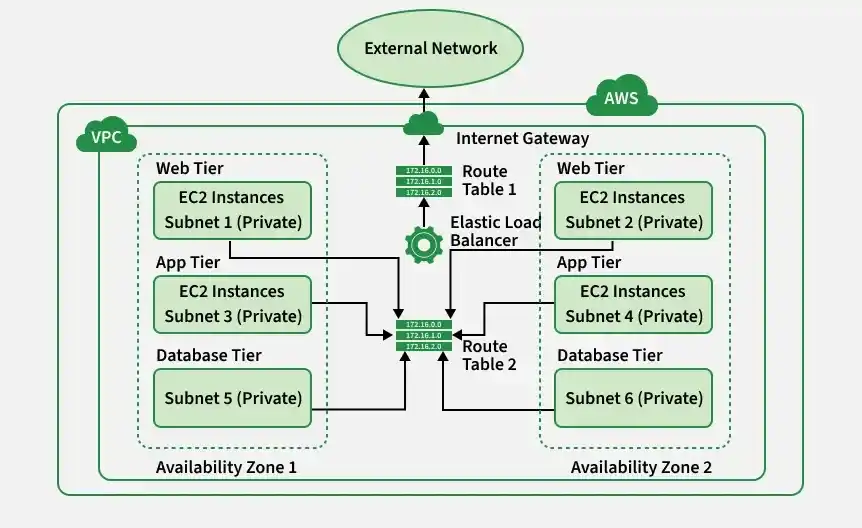
The following are the components of Amazon VPC Architecture:
**1. VPC
- A Virtual Private Cloud is a logically isolated network in AWS used to launch, secure, and connect resources.
- Each VPC is defined by an IPv4 CIDR block that specifies the private IP address range available to resources.
- It works like a private data center in the cloud while providing the scalability, flexibility, and reliability of AWS.
**2. Subnets
A Subnet is a segment of a VPC’s IP address range that resides entirely within a single Availability Zone (AZ).
Subnets serve two primary purposes:
- **Segmentation: They divide large networks into smaller, isolated zones for better organization and control.
- **High Availability: Distributing subnets across multiple AZs ensures fault tolerance and operational continuity.
Subnets are typically categorized as:
- **Public Subnets, which route internet-bound traffic through an Internet Gateway (IGW).
- **Private Subnets, which are isolated from direct internet access and communicate externally through a NAT Gateway.
This distinction forms the foundation of secure, multi-tier cloud architectures.
**3. Route Tables
Each VPC contains an implicit virtual router that relies on Route Tables to direct traffic. Every subnet must be associated with exactly one route table, and each route defines:
- A destination CIDR block (where the traffic is headed).
- A target (where the traffic should be sent, such as an Internet Gateway, NAT Gateway, or another instance).
Route tables determine whether traffic remains internal to the VPC or is sent to external networks. They are the digital roadmap of the cloud network.
**4. Network Access Control Lists
- NACLs are stateless firewalls that control inbound and outbound traffic at the subnet level.
- They check each packet separately without remembering previous traffic information.
- Every VPC has a default NACL that can be modified but not deleted.
- Rules must be explicitly defined for both inbound and outbound traffic.
- NACLs are used to apply security rules at the subnet level, such as blocking specific IP addresses or controlling access across multiple resources.
**5. Internet Gateway(IGW)
- An Internet Gateway enables bidirectional communication between a VPC’s public subnets and the internet and is horizontally scaled and redundant.
- Attaching an IGW to a VPC and adding a 0.0.0.0/0 route to it in a public subnet’s route table allows instances in that subnet to access the internet.
- A VPC can have only one Internet Gateway, and without it, instances cannot directly communicate with the public internet.
**6. Network Address Translation (NAT)
- NAT Gateways allow instances in private subnets to initiate outbound internet connections while blocking unsolicited inbound traffic.
- They enable secure communication with external services without exposing private resources to the internet.
- NAT Gateways are typically placed in public subnets and act as controlled egress points for private subnets.
7. Security Groups
- Security Groups are stateful firewalls that operate at the instance level, while NACLs operate at the subnet level.
- They define granular inbound rules based on IP ranges, ports, and protocols, and automatically allow return traffic for initiated connections.
- Security Groups provide the primary layer of network protection for EC2, RDS, and other VPC resources.
8. Classless Inter-Domain Routing (CIDR):
**CIDR notation defines the IP range of a VPC or subnet, using syntax such as 10.0.0.0/16.
It provides flexibility in assigning and subdividing private address ranges as specified in **RFC 1918, which includes:
- 10.0.0.0 - 10.255.255.255 (10/8)
- 172.16.0.0 - 172.31.255.255 (172.16/12)
- 192.168.0.0 - 192.168.255.255 (192.168/16)
These address blocks ensure isolation within private networks and avoid conflicts with public IP space.
Security Groups vs. Network ACLs (NACLs)
AWS provides two layers of firewalls. Understanding the difference is critical for security exams and real-world ops.
| **Feature | **Security Group (SG) | **Network ACL (NACL) |
|---|---|---|
| **Level | **Instance Level (Virtual Firewall for EC2). | **Subnet Level (Firewall for the whole subnet). |
| **State | **Stateful: If you allow inbound request, the outbound response is automatically allowed. | **Stateless: You must explicitly allow both inbound and outbound traffic. |
| **Rules | **Allow Only. You cannot explicitly "Deny" an IP. | **Allow and Deny. You can block specific IPs (e.g., a known attacker). |
| **Use Case | Primary defense. Used for every resource. | Secondary defense. Used for blocking specific threats or creating DMZs. |
Creation of Amazon VPC (Virtual Private Cloud)
Follow the steps mentioned below to configure Virtual Private Cloud(VPC)
**Step 1: Login into AWS Console and navigate to the VPC as shown below.
.webp)
**Step 2: After navigating to the AWS VPC now click on create VPC.
-(2).png)
**Step 3: Configure all the details required to create as shown in the image below. Some of the most required settings to configure VPC are as follows
- Name of the Network.
- IPv4 CIDR.
- And tags of VPC after that click on create VPC.

**Step 4: Virtual Private Cloud created successfully with the required settings.
.webp)
**Step 5: Check the VPC dashboard whether the VPC created is available to use as shown in the image below GFG-VPC.
.png)
AWS VPC Console
To create and manage a Virtual Private Cloud (VPC) in AWS, follow these steps:
- Log in to your AWS account.
- Once inside the AWS Management Console, click on the “Services” menu at the top.
- From the list of categories, navigate to “Networking & Content Delivery”.
- Select “VPC” from the options provided.
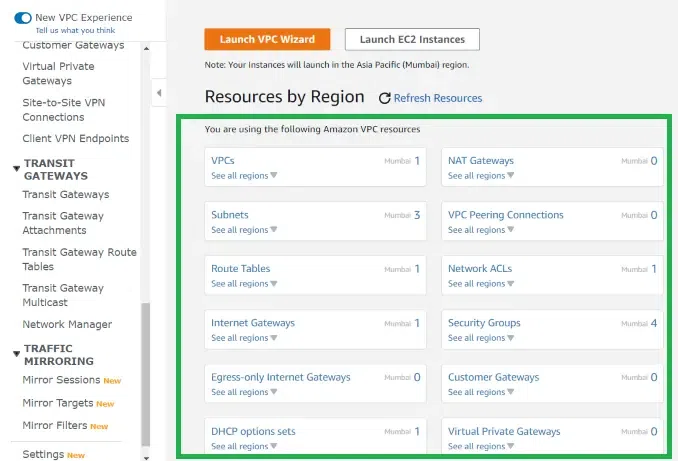
After selecting VPC, you will be redirected to the VPC dashboard. On the left-hand side, the navigation pane displays various options and services related to VPC management.
Refer to the image attached below for a better understanding.
VPC Endpoints for accessing AWS Services Privately
If your private EC2 instance needs to talk to S3 or DynamoDB, it shouldn't go over the public internet. VPC Endpoints allow private communication.
1. Gateway Endpoints
- **Supported Services: S3 and DynamoDB ONLY.
- **How it works: You create a Gateway Endpoint and add a route in your VPC route table that directs traffic for the service’s **prefix list (e.g., S3 or DynamoDB) to the endpoint. This ensures traffic stays within the AWS network and does not traverse the internet.
- **Cost: **Free.
2. Interface Endpoints (PrivateLink)
- **Supported Services: Almost everything else (EC2 API, SNS, Kinesis, etc.).
- **How it works: Creates an Elastic Network Interface (ENI) in your VPC subnet with a private IP. Traffic to the service is routed through this ENI over the AWS network.
- **Cost: Paid (hourly fee per endpoint + data processing).
Use cases
- Hosting public-facing applications (e.g., web servers, load balancers) within public subnets.
- Deploying multi-tier architectures, where application and database layers reside in private subnets.
- Establishing secure interconnections between VPCs through peering or AWS Transit Gateway.
- Enforcing network security and compliance through traffic isolation, monitoring (VPC Flow Logs), and access control.
Best Practices
- **Avoid Overlapping CIDRs: Never use the same IP range (e.g., 10.0.0.0/16) for two VPCs you might want to peer later.
- **Use Private Subnets for Apps: Only Load Balancers and Bastion Hosts should be in public subnets. App servers and databases belong in private subnets.
- **Flow Logs: Always enable **VPC Flow Logs. They capture information about the IP traffic going to and from network interfaces in your VPC, which is essential for troubleshooting and security auditing.