How to Install Docker on MacOS? (original) (raw)
Last Updated : 23 Jul, 2025
Pre-requisites: Docker-Desktop
Docker Desktop is a native desktop application for Windows and Mac's users created by Docker. It is the most convenient way to launch, build, debug, and test containerized apps. Docker Desktop includes significant and helpful features such as quick edit-test cycles, file change notifications, built-in enterprise network compatibility, and the ability to work with proxies and VPNs of our own choice. Developer tools, Docker App, Kubernetes, and version synchronization are all part of the Docker desktop.
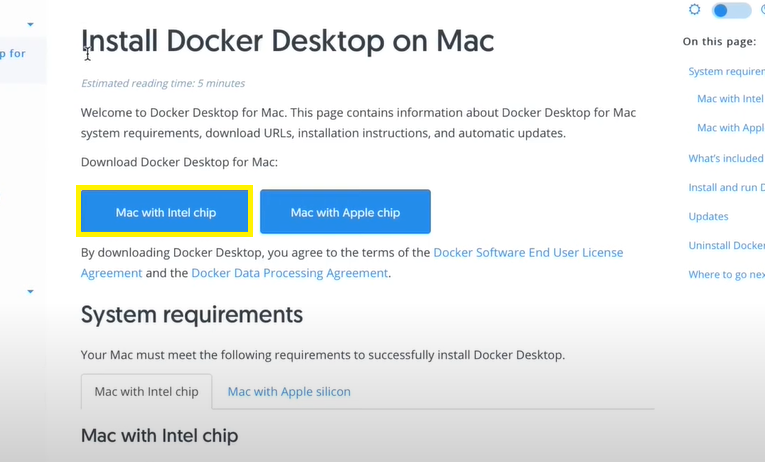
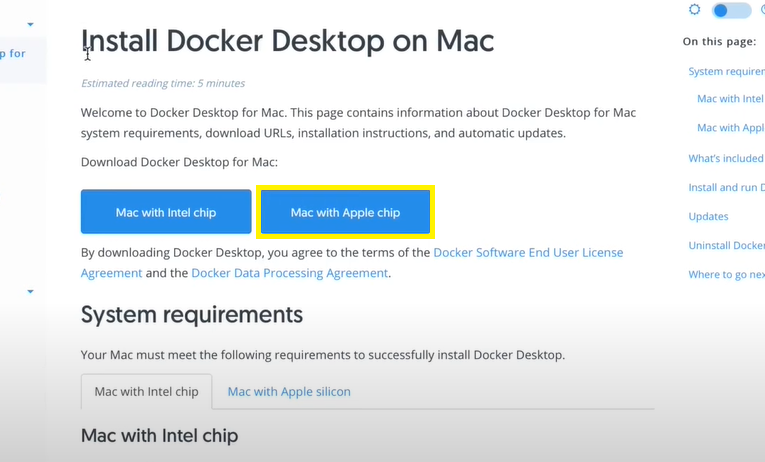
Note: Mac has two types of chips, so download the Docker According to your Mac chip.
System Requirements to Install Docker on a Mac
Mac With Intel chip
- Mac version 10.15 or higher is required. Catalina, Big Sur, and Monterey are examples. We recommend that you upgrade to the most recent version of macOS.
- RAM must be at least 4 GB.
Mac with Apple silicon
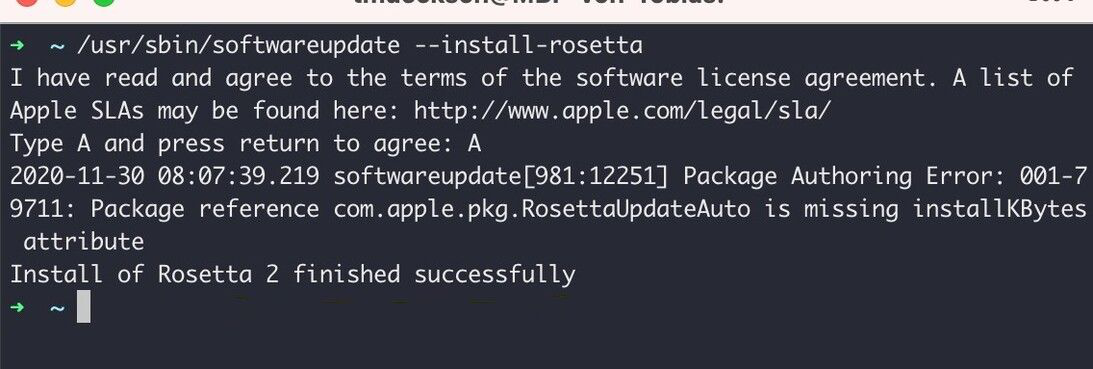
- Docker eliminated the hard requirement to install Rosetta 2, starting with Docker Desktop 4.3.0. However, for a greater experience, we recommend using Rosetta 2.
Run the following command to install Rosetta 2 from the command line:
$ softwareupdate --install-rosetta
How to Install Docker on a MacOS
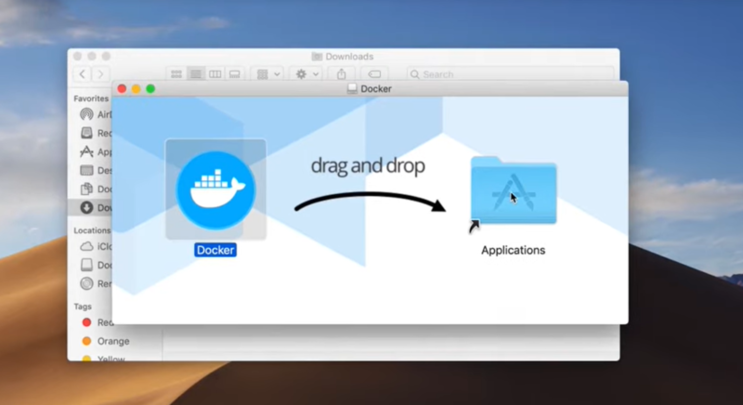
Step 1: Open the installer by double-clicking Docker.dmg, then drag the Docker icon to the Applications folder.
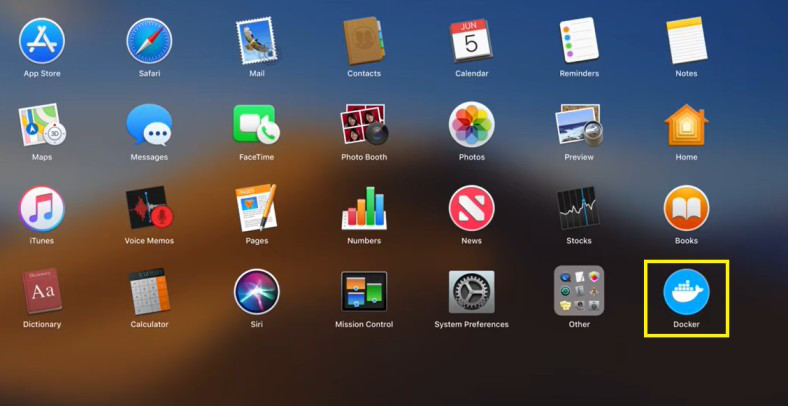
Step 2: To launch Docker, double-click Docker.app in the Applications folder.
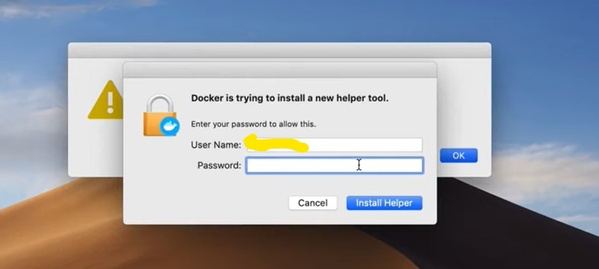
Step 3: It will Ask for your Mac password to install it. Enter your password and click on Install Helper.
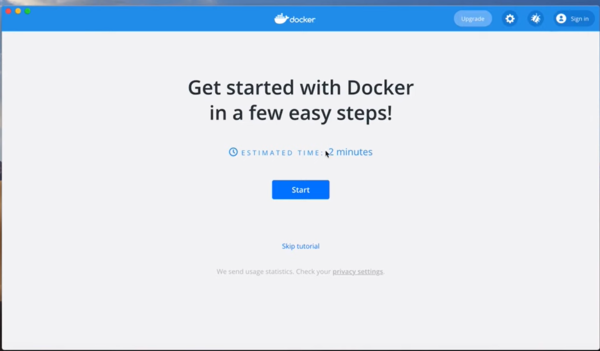
You are now successfully running Docker Desktop!
Verifying the Docker Installation on Your Mac
You need to make sure Docker Desktop is operating properly after installation. Open the Terminal application on your Mac and enter the following command to get started.
sudo docker --version
To verify the docker installation.
sudo docker run hello-gfg
Uninstall Docker Desktop
To uninstall Docker Desktop from your Mac,
- From the Docker menu, >> select Troubleshoot >> select Uninstall.
- Click Uninstall to confirm your selection.