Docker Toolbox (original) (raw)
Last Updated : 23 Jul, 2025
Docker is a container platform that allows you to build, test and deploy applications quickly. A developer defines all the dependencies in a "docker file" which is used to build a Docker image that defines a docker container. Doing this ensures that your application will run in any environment. The Docker toolbox is a kind of older version of the Docker desktop.
Table of Content
- Why Docker?
- What Is Docker Toolbox?
- Docker Desktop vs Docker Toolbox
- Pre-Requsites To Install Docker Toolbox In Windows
- How To Install Docker Toolbox On Windows: A Step-By-Step Guide
- Setting Up Bitnami WordPress Using Docker Toolbox on Windows: A Step-By-Step Guide
- Trouble Shooting Of Docker Tool Box
- Docker Pull Nginx Image using Docker Tool Box: A Step-By-Step Guide
- Installation requirements for macOS
- Docker Tool Box - FAQs
Why Docker?
Docker is open source containerization platform tool that allows devlopers to package an application with all its dependencies including libraries, softwares, application code, configuration as single entity. It manages the life cycle of the containers such as container creation, container execution, container termination etc..
Docker toolbox is a software tool that is used in older windows and macOS computer which doesn't support directly using docker. Docker toolbox bundles Docker and all the related tools into one package making it easier to setup Docker on these systems. It uses a small virtual machine to run docker containers letting users to work with containers even if their operating system doesn't support it directly. While Docker desktop can be used in the newer systems, still toolbox is handy for older computers that need Docker features.
The following are major features comparisons between Docker Desktop and Docker Toolbox.
| Features | Docker Desktop | Docker Toolbox |
|---|---|---|
| Operating Systems | It is supported in Windows 10 Pro and In Enterprise Edtions | It is supported in older Windows(7,8,10) |
| Requirements | It requires Hyper-V for Windows or Apple's Hypervisor | No Hypervisor-V required for windows |
| Integration | It provides seamless integraiton with host OS | Its integration depends on Virtual Machine for operations |
| Resource Usuage | It utilizes more system resources due to tighter integration with the host OS | It uses a light weight virtual machine, due to this it consumes lesser resources. |
| Features | It offers additional features like Kubernetes | It provides limited features on compared to Docker Desktop. |
Before installing Docker Toolbox on your Windows system, Make sure that your system meets the following minimum requirements:
- 64-bit Windows 7 (or higher)
- Virtualization enabled
**Check System Configuration
The initial step involves checking whether your system configuration aligns with the necessary prerequisites for the successful installation of Docker Toolbox.
1. Check Windows Version
- Check your windows version by folowing below steps:
- Click on Windows start and enter the "**Settings" text on it.
- On entering the **settings you will see the navigation options, on click enter you will direct to that settings page.
- In that settings window page, go through Systems page by clicking on it and then go through About section that is visible on left-hand side.
- Under "Windows specifications," you'll find the version and edition of Windows installed on your system as shown in below screenshot.
- If your system has 64bit version and OS edition above windows 7 then your system supports the installation of docker toolbox.

2. Hardware-Assisted Virtualization in Windows
Enable Hardware assited virtualization for installing Docker toolbox. We can enable this hardware assited virtualization in 2 ways, one is GUI mode and other one is CLI mode using commands.
i) Using Windows Task Manager
- Enter Task Manager in Windows search box and navigate to that page.
- After that go through performance section. Under CPU graph, we can see out whether the virutalization is enabled or not as shown in the below screenshot.

ii) Using Windows Commnad Prompt
- Open Command prompt in your system.
- Navigate to C: drive and run the following command to known the status of virualization:
systeminfo
- The following screenshot illustrate it clearly, on running you will get detailed information regarding in the system, In that check whether hypervisor is enabled or not. If it is not enable make sure to enable it.

**Step 1: Downlod Docker ToolBox
- Go to the site **https://www.docker.com/products/docker-desktop/ in your browser and download the Docker toolbox software

Step 2: Launch The Docker Toolbox Setup Wizard
- After you have downloaded the installer, let's start the installer and go through it, So the first page that's going to show up is a welcome screen and you have the option of helping docker to improve the toolbox this is entirely your wish to check you uncheck the box, click on the next button,

- Then here you're going to want to pick based on your preference, and create a desktop shortcut it's up to you, to add docker binaries to the path, that's a good idea to have an upgrade boot 2 docker VM.

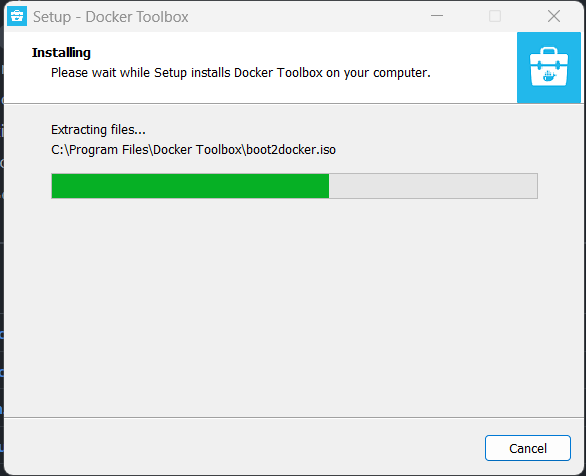
- Click on the Install button, then the docker toolbox is keep on installing, the following screenshot illustrates clearly.
**Step 3: Verify Docker Toolbox Software Installation
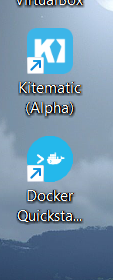
- Now you have installed the docker, let's verify the installation, to docker the QuickStart terminal application we'll open that application.
Step 4: Initializing Docker Toolbox
- And it is going to run through the initialization process that it needs to get docker up and running on your machine for the first time, you might have to verify a few interfaces depending on your Windows security settings, once docker is initially set you are going to be given a docker shell.

**Step 5: Verifying Docker Installation
- This is one of the options that you to interact with docker can now go and type **`docker --version` and it's going to verify that you have docker installed in your system, you can use this command in your CMD and PowerShell as well.
- In my opinion, PowerShell and command prompt make it a little bit harder to interact with the docker commands but that's all based on preference.

- Try on the following command to check whether the docker is successfully installed through docker toolbox or not.
docker --version

For setting up bitami wordpress application using docker toolbox on windows, follow the below specified steps:
Step 1: Git Clone The Container Repository
- Firstly, try on git cloning following repository. Here we are taking docker compose yaml file.
git clone https://github.com/bitnami/containers
Step 2: Navigate to Wordpress Repostory
- After once the git cloning is completed, navigate to wordpress directory with the following command:
cd containers/bitnami/wordpress
Step 3: Run the Docker Compose file
- On using following command run the docker compose file with default name, The running of docker compose has shown in the following screenshot for effective understanding:
docker-compose up

- Once the the services started running, try on accessing the application from your browser using IP with port number 80 or 443. Then you get blogging site as shown below:

The following are some of the trouble shooting Issues of Docker Tool Box:
Network Configuration Verification
- Start troubleshooting by double-checking network configurations to address any connectivity issues.
- Adjust firewall settings if necessary to ensure Docker Toolbox can establish proper connections.
Virutalization Check
- If you are facing any issues with Docker Toolbox. Firstly double-check the network configurations for ensuring any connectivity problems. Try on adjusting firewall settings if needed.
- Secondly, ensure virtualization is enabled in BIOS or UEFI settings and that conflicting virtualization software like Hyper-V is disabled.
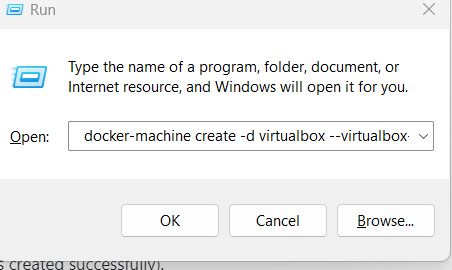
**NOTE: There is a chance that you might face this issue that I showed in the image below.

Specific Issue Resolution
- In case you encounter a specific issue, such as the one depicted in the provided image with follow these steps:
- Open CMD using Win + R shortcut and Execute the following commands:
docker-machine create -d virtualbox --virtualbox-memory=4096
docker-machine create -d virtualbox --virtualbox-no-vtx-check default
- By following these steps, you can effectively troubleshoot and resolve any issues you may encounter with Docker Toolbox on your Windows system.
The following steps guide you, on how to docker pull nginx image using docker toolbox in steps:
Step 1: Open Docker Toolbox Terminal
- Open the terminal check docker software installation with following command:
docker --version

Step 2: Check Current Images
- Listing the current images to known all the available images locally and see whether the nginx image is available in locally or not. The following screenshot shows that it is not available locally.

Step 3: Pull The Ngnix Image
- Now, pull the ngnix image from dockerhub public repository using following command:
docker pull nginx:latest
- The following screenshot illustates pulling of nginx image successfully.

Step 4: Verify Pulled Image
- Now, confirm that nignx image is successful pulled into the docker from docker tool box using following command:
docker images
- The following screenshot verifies that the nginx is successfully pulled into the local system.

Running Containers Using Docker ToolBox
- The following step helps you in Running the containers using Docker Toolbox:
Step 5: Run The Nginx Container
- Now, run the nginx container with the following command with exposing port number 8080.
docker run -dit --name mycontainer1 -p 8080:8080 nginx:latest

Step 6: Check The Container Process
- Now, check the container process using following command:
docker ps

Installation requirements for macOS
To install Docker Toolbox on macOS, Make sure your system to meet the following prerequisites:
- **macOS Version Compatibility: Docker Toolbox is compatible with **macOS 10.10.3 Yosemite and newer versions. Check your macOS version to ensure compatibility.
- **Hardware Specifications: Verify that your Mac has a 64-bit processor and adequate resources. Docker Toolbox typically requires at least 2 GB of RAM and 20 GB of free disk space.
By confirming these requirements are met, you can proceed with the installation of Docker Toolbox on your macOS system, enabling you to utilize Docker containers for development and deployment purposes.
Running Docker Commands In Powershell
With Docker Toolbox installed on Windows 10, you can seamlessly execute Docker commands directly from PowerShell. By opening PowerShell and typing the command "docker version," you can instantly retrieve essential details about the installed Docker version. This integration streamlines the process of managing Docker containers and provides users with convenient access to Docker functionality directly from the PowerShell command-line interface.
