How To Restart Jenkins Manually ? (original) (raw)
Last Updated : 23 Jul, 2025
Jenkins, an open-source automation server, plays an important role by providing continuous integration and continuous delivery (CI/CD) pipelines. Occasionally, you could come across situations in which manually restarting Jenkins becomes important to resolve issues or make some adjustments. In this article, you will learn how to restart Jenkin manually and its requirement
Before you start, it is very important to know that restarting Jenkins will briefly interrupt its services, so it is recommended to plan the restart only during the low-activity period to limit any impact on ongoing jobs and pipelines.
Prerequisites for Manually Restarting Jenkins
- **Access to Jenkins Dashboard: Ensure you have access to the Jenkins dashboard with administrative rights. Only users with suitable permissions can restart Jenkins.
- **Web Browser: Have a compatible web browser to access the Jenkins web interface. There are some popular choices among users, like Chrome, Firefox, Safari, or Edge.
- **Jenkins Installation: Jenkins must be established on the server or machine in which you plan to restart it. If you haven't installed Jenkins, follow up on this article (Windows, CentOS) and use the given setup commands on your operating system for installation.
- **Jenkins Credentials: You need valid Jenkins credentials (username and password) to log in to the Jenkins dashboard. Ensure you've got the permission to perform administrative tasks.
How do I restart Jenkins manually?
There are several ways to restart Jenkin manually. We are going to discuss the most commonly used ways to restart Jenkin manually:
- Restart using URL
- Restart using system-level services
Restart using URL
**Step 1: This is one of the easiest ways to restart Jenkin. You can restart it by pasting these commands in the URL:
**For the restart: In this restart process, the machine will not wait for the ongoing jobs to be completed.
localhost 8080:/restart

Using Restart in the URL
A dialogue box will appear in that you have to click on the **Yes button.

Click on Yes Button
**For the Saferestart: In this restart process the machine will wait for the ongoing jobs to get completed first, then it will restart the Jenkin.
localhost 8080:/safeRestart
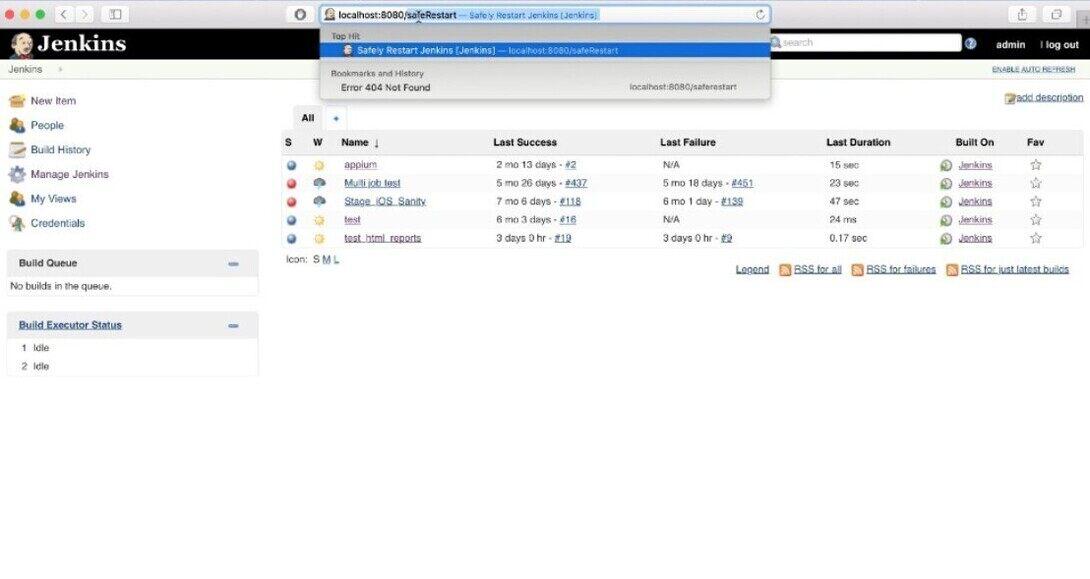
Using SafeRestart in the URL
A dialogue box will appear in that you have to click on the **Yes button.
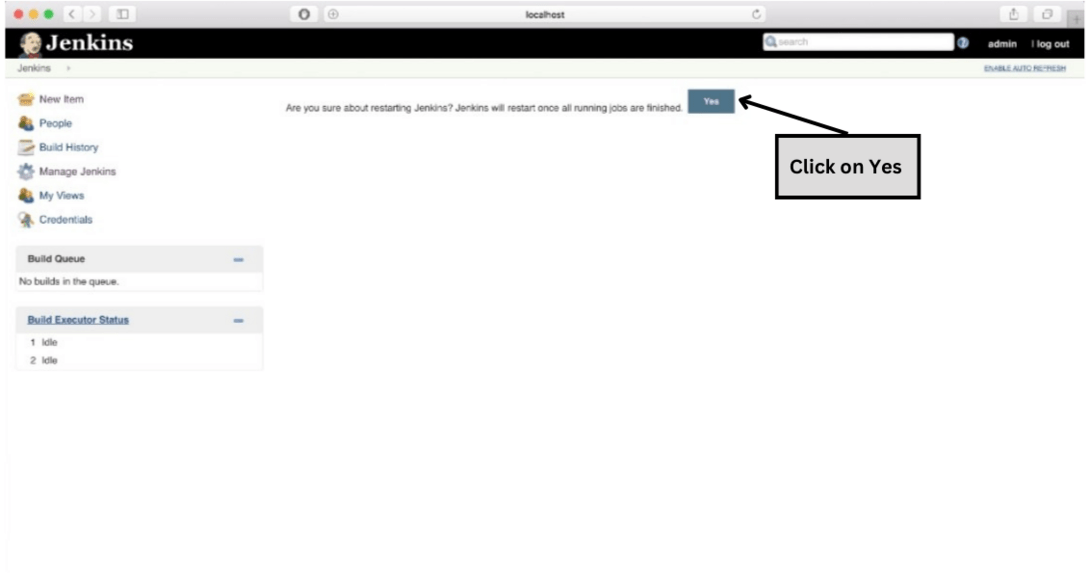
Click on Yes Button
Restart using System level Services
This is another method to restart the Jenkin, the given set of steps are given below to illustrate the restart process using system level services:
**Step 1: If your running jenkins on lnux you can restart by using "sudo systemctl" command, just open the linux terminal and write this command:
sudo systemctl restart jenkins
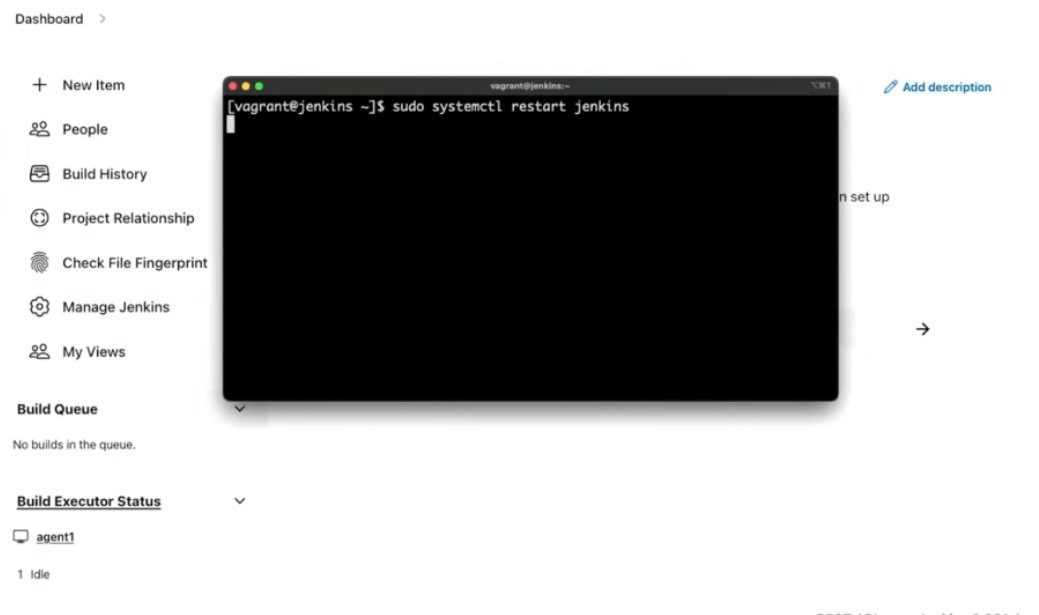
Restart using System level Services
**Step 2: After running the command, go back to browser and refresh the page and then login again.
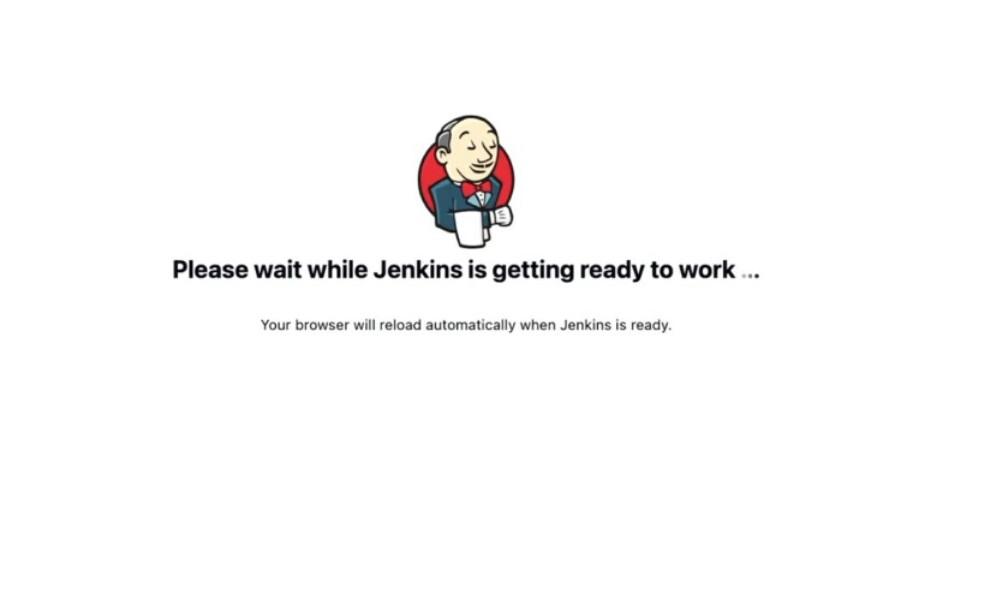
Reload the page
Login again in the Jenkins

Login
**Step 3: You will be redirected to Homepage after successful login and Now, you have successfully restarted the Jenkins manually.
Conclusion
Manually restarting Jenkins is a simple process, and it is important to make some changes or resolve issues. By following these mentioned steps in this article, you will be able to successfully restart Jenkins, that ensures smooth functioning of your CI/CD pipelines. You must remember this point before restarting Jenkin manually that you should always plan to restart only during the low-activity period to minimize the impact on ongoing jobs and pipelines.