Installation and Starting of Tomcat Server (original) (raw)
Last Updated : 5 Aug, 2025
Before you start installing Apache Tomcat, it’s important to ensure that your system meets the requirements for a smooth installation and setup process.
**1. Hardware Requirements
- Minimum 2GB RAM for development purposes
- 4GB or more RAM for production environments
- At least 1GB of free disk space
- Single CPU core minimum, though a dual-core processor is recommended for better performance
2. Operating System Compatibility
Apache Tomcat is cross-platform and runs on any system that supports Java. Recommended OS options include:
- **Linux: Preferred for production servers due to stability and performance
- **Windows Server: Suitable for enterprise environments
- **macOS: Ideal for local development and testing
**3. Java Environment
A Java installation is required to run Tomcat. Use the Java Development Kit (JDK) for full functionality:
**1. Java Version: JDK 8 or newer (JDK preferred over JRE)
**2. Environment Variables:
- Set
JAVA_HOMEto point to the JDK installation - Add Java binaries to your system’s
PATH
export JAVA_HOME=/path/to/jdk
export PATH=$JAVA_HOME/bin:$PATH
**Verify Java:
java -version
4. Network Requirements
Ensure the following ports are open and accessible for Tomcat to function properly:
- **8080: Default HTTP port
- **8443: HTTPS port for secure connections (optional)
- **8005: Shutdown port (used for remote shutdown commands)
- **8009: AJP (Apache JServ Protocol) port for integrations with other web servers like Apache HTTP Server
5. Software Prerequisites
In addition to Java, Tomcat may depend on:
**1. JDBC Drivers: Required for database connectivity if your applications interact with a database
- **Example: MySQL Connector/J, PostgreSQL JDBC Driver, etc.
- Place driver
.jarfiles inTOMCAT_HOME/lib for global useor your app’sWEB-INF/libfor app-specific use
6. Additional Tools
To enhance your Tomcat setup and maintenance, consider installing:
- **Text Editor: VSCode, Notepad++, Vim for editing
server.xml,web.xml, etc. - **Archive Utilities: Tools like
ZIP,TAR, orWinRARto handle.warfiles - **Monitoring Tools: JConsole, VisualVM, or third-party APM tools for resource and performance tracking
Tomcat Installation on Windows
The following are the steps that help in guiding how to install Apache Tomcat in Windows and set up its environment:
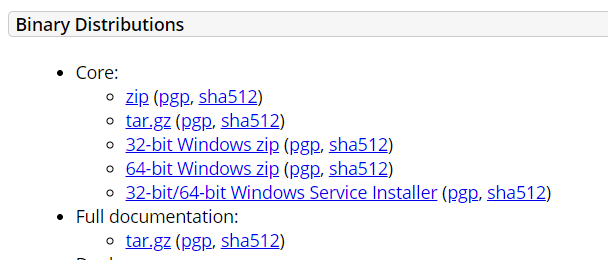
**Step 1: Download Tomcat
First, you have to download the Windows Service Installer from their official website using the Windows Tomcat Binary Distribution.
**Step 2: Run the Installer
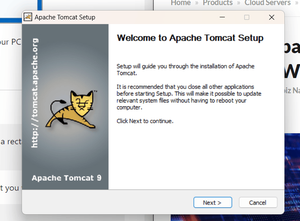
Launch the installer. A setup wizard will open, guiding you through the installation process.
**Step 3: Accept License and click next
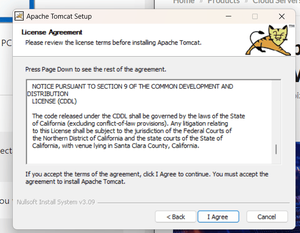
You can accept the license and click on next button.
**Step 4: Configure Installation Options
You will be asked to provide:
- HTTP/1.1 Connector Port (default:
8080) - Admin login credentials (optional)
- Java installation path (auto-detected if
JAVA_HOMEis set)
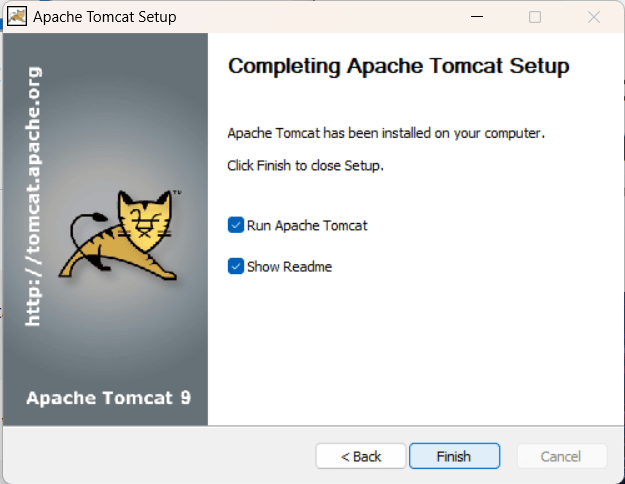
Step 5: Click "Next" → "Install" → "Finish"
Then click the next, then install, and finally Finish.
**Step 6: Verify Tomcat Installation
Open your browser and go to "**http://localhost/8080".
.png)
Managing Tomcat Server on Windows
To manually **start, **stop, or **restart the Apache Tomcat server on a Windows system, follow these steps:
**Default Installation Path
If you installed Tomcat using the default installer, the directory path is usually:
C:\Program Files\Apache Software Foundation\Tomcat 9.0\bin
Steps to Start/Stop/Restart the Server
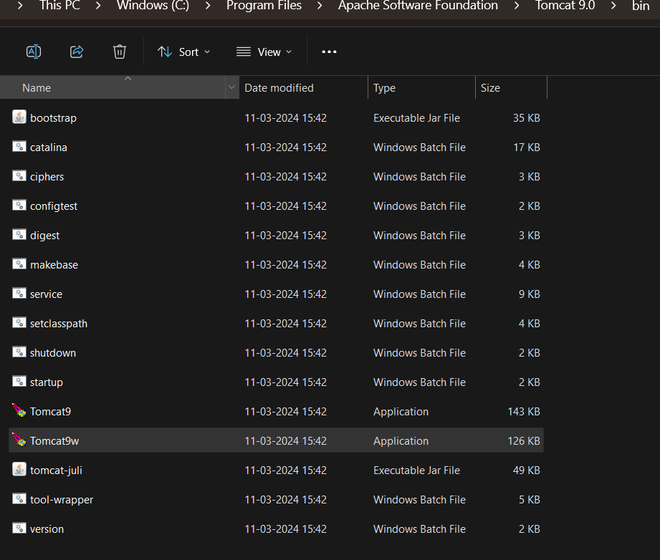
**Step 1: Navigate to the bin Directory
Open File Explorer and go to:
C:\Program Files\Apache Software Foundation\Tomcat 9.0\bin
**Step 2: Locate the Tomcat Executable
Look for the file named:
Tomcat9.exe
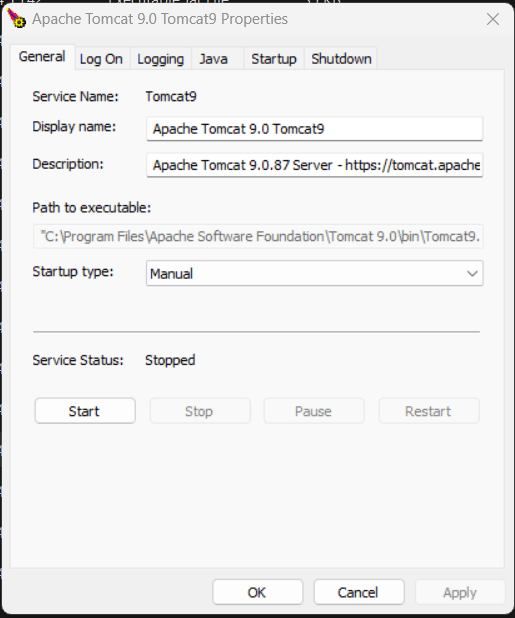
**Step 3: Stop the Server
- Right-click on
Tomcat9.exe - Select Stop from the context menu
**Step 4: Start or Restart the Server Again
- To restart, right-click
Tomcat9.exeagain - Choose Start to run the server
Tomcat Installation on Linux
The following steps guide you through installing Apache Tomcat on a Linux system:
**Step 1: Install Java
Install Java (if not already installed) using the following command in the terminal.
sudo apt update
**Step 2: Install the default JDK
Install the default JDK (Java Development Kit) with the following command execution.
sudo apt install default-jdk
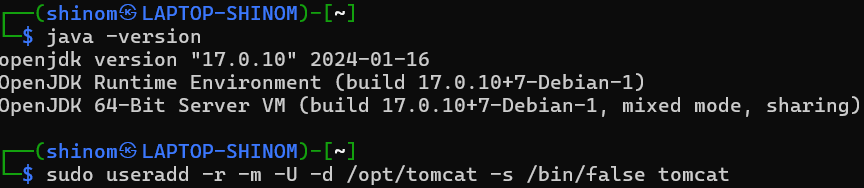
**Step 3: Verify the Installation
Verify whether the Java is installed or not by using the below command.
java -version
Setting up a Tomcat User
The following steps guide you on how to setup the tomcat user:
**Step 1: Create a Tomcat User
Create a new user with the new user name with useradd command as follows:
sudo useradd -r -m -U -d /opt/tomcat -s /bin/false tomcat
**Step 2: Download the Tomcat Package
Downloading the Tomcat package with the below command:
wget -c https://downloads.apache.org/tomcat/tomcat-9/v9.0.87/bin/apache-tomcat-9.0.87.tar.gz
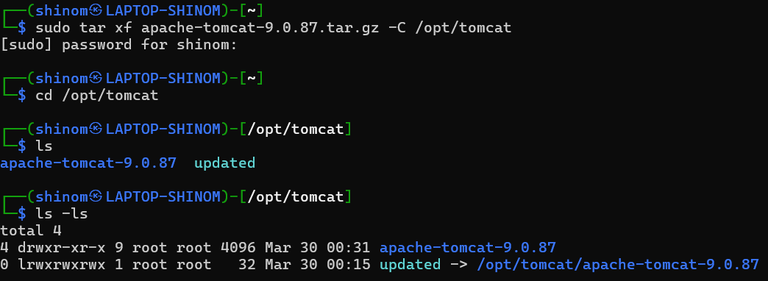
After downloading extract the file with tar command as follows:
sudo tar xf apache-tomcat-9.0.87.tar.gz -C /opt/tomcat
**Step 4: Navigate and Inspect
You can change the directory and list the content
cd /opt/tomcat
ls -ls
Starting and Managing Tomcat from the bin Directory
The following steps help in changing the bin directory of tomcat:
**Step 1: Switch to root
Change to root user
sudo su
**Step 2: Navigate to the bin directory
Change directory
cd /opt/tomcat/apache-tomcat-9.0.87/bin/

**Step 3: Start the server
Start Tomcat using either of the following commands
sh startup.sh
OR
./startup.sh
**Step 4: Test in browser
Open your browser and go to:
**Step 5: Stop Tomcat
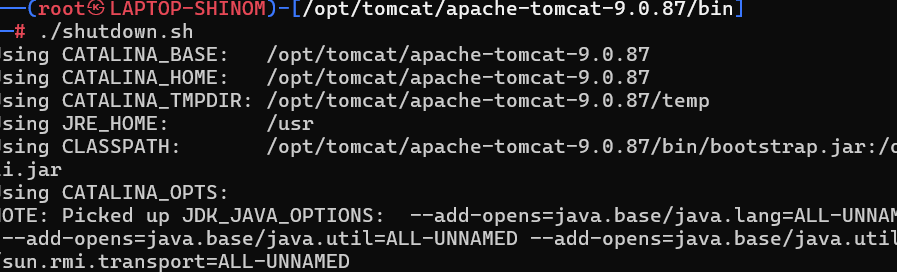
To stop the server, run:
./shutdown.sh
Applications of Apache Tomcat Server
The following are the some of the common applications of the tomcat server:
**1. Web Hosting for Java Applications
- Tomcat is widely used for hosting Java-based applications on the web.
- It implements the Java Servlet and JavaServer Pages (JSP) specifications.
**2. Embedded Servers
- Tomcat can be embedded within other applications or services.
- Developers often use it as an embedded servlet container for lightweight deployments.
**3. Commonly used for enterprise applications involving
- Java Expression Language
- Java Servlet
- Java WebSockets
- Java Server Pages2
**4. Web Applications Deployment
- Each web application comprises resources such as HTML with Java code, Server Pages, Java Servlets, libraries, and other items required to execute the program.
- These web applications are stored in Tomcat’s “webapps” directory as folders or WAR (Web Application Archive) files
Troubleshooting Common Issues with Tomcat Server
The following are the some common Tomcat server troubleshooting techniques:
**1. Checking Log Files
- **Action: Review the 'catalina.out', 'localhost.log', and 'manager.log' log files located in the 'logs' directory.
- **Purpose: Logs provide detailed error messages and stack traces that can help identify the root cause of issues, such as configuration errors, deployment problems, or runtime exceptions.
**2. Validating Configuration Files
- **Action: Ensure that the 'server.xml', 'web.xml' , and 'context.xml' configuration files are correctly formatted and properly configured.
- **Purpose: Misconfigurations in these files can lead to startup failures, incorrect application behaviour, or security vulnerabilities. Validate XML syntax and configuration settings to resolve such issues.
**3. Monitoring Resource Usage
- **Action: Use monitoring tools to check CPU, memory, and disk usage on the server running Tomcat.
- **Purpose: High resource usage can cause performance degradation and slow response times. Identifying resource bottlenecks allows for appropriate scaling or optimization measures, such as adjusting JVM settings or load balancing.
**4. Diagnosing Network Issues
- **Action: Test network connectivity and port accessibility using tools like 'telnet' or 'netstat'.
- **Purpose: Network problems can prevent clients from connecting to the Tomcat server. Ensure that the server is listening on the correct ports and that there are no firewall or security group rules blocking access.