Introduction to AWS Elastic Beanstalk (original) (raw)
Last Updated : 11 Jun, 2026
AWS Elastic Beanstalk is a fully managed Platform as a Service (PaaS) designed to simplify the deployment, provisioning, scaling, and monitoring of web applications. By automating infrastructure management, it allows developers to upload their raw code files and immediately run applications without having to configure underlying servers.
- Supports advanced release policies including All at Once, Rolling, Immutable, and Blue/Green strategies.
- Provides pre-configured runtime environments for major programming languages, web servers, and Docker containers.
- Eliminates time spent on OS patches, hardware upgrades, database integrations, and load balancer setups.
- Elastic Beanstalk allows developers to customize or take complete manual control of individual underlying resources (like tweaking EC2 sizes or adjusting security rules).
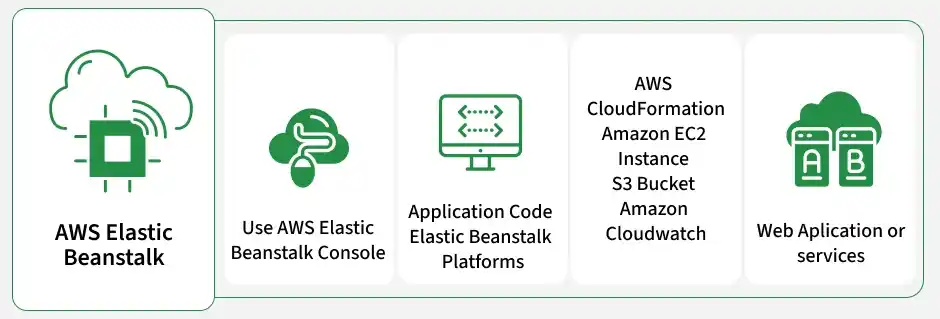
Core Architecture and Operational Workflow
Elastic Beanstalk organizes application deployments using three distinct logical abstractions:
- **Application: A logical container organizing your entire cloud project, including its environments and deployable code versions.
- **Application Version: A specific, labeled iteration of your deployable code, typically uploaded as a .zip or .war file stored in Amazon S3.
- **Environment: A collection of active AWS resources provisioned by Elastic Beanstalk to execute a specific version of your application.
Environment Types
Elastic Beanstalk supports two environment types:
- **Web Server Environment: Processes HTTP requests from users and is commonly used for web applications.
- **Worker Environment: Processes background tasks asynchronously using Amazon SQS queues.
When launching an environment, Elastic Beanstalk automatically provisions the following core resources:
- **Amazon EC2 Instances: The virtual servers hosting and executing your web application.
- **Auto Scaling Group: Automatically adjusts EC2 instance counts to handle traffic changes and maintain performance.
- **Elastic Load Balancer: Distributes incoming network requests across available instances to secure high availability.
- **Security Groups: Virtual firewalls managing ingress and egress port traffic to protect the compute instances.
- **Amazon S3 Bucket: A secure repository hosting your deployed application source bundles and execution logs.
- **Amazon CloudWatch: Monitors system metrics and triggers alerts matching your environment’s health thresholds.
Supported Programming Environments
Elastic Beanstalk provides pre-configured platforms to host application runtimes, program dependencies, and containers:
**1. Programming Language Runtimes
**2. Application and Container Servers
- Apache Tomcat
- Docker (Single and Multi-Container)
Application Deployment Steps Using AWS Elastic Beanstalk
The process below outlines how to create, configure, and launch a sample Java application using the AWS console:
**1. Locate Elastic Beanstalk in Console: Type "Elastic Beanstalk" into the AWS search bar and select the service to access the PaaS landing dashboard.
.webp)
Finding Elastic Beanstalk in the AWS Console
**2. Initialize Application Creation: Click on the Create Application button to begin configuring your new web environment.
.webp)
Initiating New Application Setup
**3. Configure Platform and Code Settings: Define your application name, choose your target programming platform (such as Java), and select the desired platform branch and version. To run a test, select Sample Application, or choose Upload your code to upload a local ZIP or WAR archive.
.webp)
Configuring Application Metadata and Platform Runtime
.webp)
Specifying Platform Branch and Version Settings
**4. Automatic Resource Provisioning: Once you click Create, Elastic Beanstalk starts compiling and configuring the background architecture. The console will display a real-time event log tracking the creation of EC2 nodes, Auto Scaling structures, and networking bridges.
**5. Verify Environment Health and Endpoint URL: When configuration completes, the status screen displays a Green OK health indicator and provides a public domain URL to access your live environment.
.webp)
Deployed Application Environment Overview Panel
**6. Test the Live Web Application: Click on the provided public URL to test your running application inside the browser.
.webp)
Deployed Sample Java Application Running in Browser
Ways to Interact with Elastic Beanstalk
AWS provides three primary interfaces to control and manage your application deployments:
**1. AWS Management Console: A browser-based graphical console, ideal for initial setup, deployments, and visual health monitoring.
**2. EB CLI (Command Line Interface): A specialized developer tool to initialize projects, spin up environments, and push code modifications directly from the terminal. Common commands include:
- **eb init****:** Configures your local project directory and associates it with a platform runtime.
- **eb create****:** Provisions and starts a brand-new environment in the cloud.
- **eb deploy****:** Bundles, uploads, and deploys local code changes as a new application version.
**3. AWS SDKs: Software development kits designed to programmatically modify environments from your custom backend application code.