Kubernetes Pods: How to Create and Manage Them (original) (raw)
Last Updated : 28 Apr, 2026
A Pod represents a single instance of a running process in your cluster and can contain one or more containers. Think of a Pod as a lightweight, application-specific "logical host". All containers within a single Pod are guaranteed to be co-located on the same worker node, and they share the same environment. This shared context is the magic of the Pod abstraction and includes:
- **Shared Networking: Every Pod is assigned a unique IP address. All containers within that Pod share this IP address and port space, meaning they can communicate with each other using localhost.
- **Shared Storage: Containers within a Pod can share storage volumes, allowing them to have a common filesystem and exchange data seamlessly.
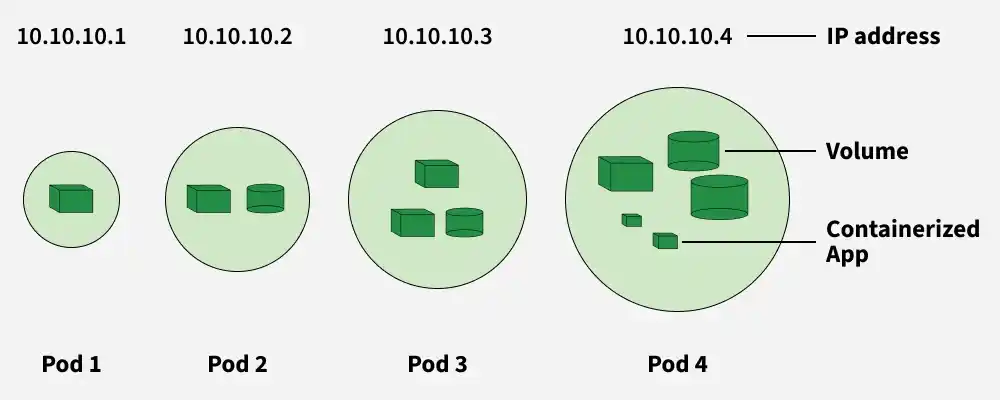
Kubernetes Pods
In the following diagram, you can see cube-like structures; they are called containers Each of the containers will have one container. The cylinder-like structure is called volume, where the data of the containers will be stored and the circles are called pods.
A Pod can contain one or more containers, and all containers inside a Pod share:
- The same IP address
- Storage volumes
- Network resources
- Other required configurations
Pods allow easy movement of containers within a cluster. They are created and managed by controllers, which handle:
- Rollouts (new versions of Pods)
- Replication (keeping the right number of Pods running)
- Health monitoring (restarting or replacing failed Pods)
If a node fails in the cluster, the controller detects the unresponsive Pod and replicates it on another node to continue the same function.
The three commonly used controllers are:
- **Jobs → For batch tasks that run once and complete (ephemeral).
- **Deployments → For stateless and persistent applications, such as web services.
- **StatefulSets → For stateful and persistent applications, like databases
The Pod Lifecycle
A Pod follows a defined lifecycle and exists in one of several high-level phases.
- **Pending: The Pod has been accepted by the Kubernetes system, but one or more of the container images has not been created. This could be due to image download time or waiting for the scheduler to find a suitable node.
- **Running: The Pod has been bound to a node, and all of the containers have been created. At least one container is still running, or is in the process of starting or restarting.
- **Succeeded: All containers in the Pod have terminated in success (exited with status 0), and will not be restarted. This is a terminal phase for Pods that run finite tasks, like those managed by a Job.
- **Failed: All containers in the Pod have terminated, and at least one container has terminated in failure (exited with a non-zero status).
- **Unknown: For some reason the state of the Pod could not be obtained, typically due to a network communication problem with the node where the Pod is supposed to be running
Working with Kubernetes Pods
Pod Operating System
The operating system (OS) running inside pods is typically determined by the container image used to create the pod's containers. Pods in Kubernetes can run containers based on various Linux distributions, such as Ubuntu, Alpine Linux, or CentOS, among others.
Pods and controllers on Kubernetes
The pod will not be rescheduled to a different node when it expires because it is ephemeral (lasting only a very brief time). , we shouldn't directly construct or use pods; instead, we should deploy pod-like deployment, replica sets, and daemon sets to maintain the pod with the aid of Kubernetes services. We have to deploy the pods with the help of objects. The main objects are
Getting Started with Kubernetes Pod
**1. Create a Pod Imperatively
For a quick test, you can create a simple Nginx Pod with a single command. This is a great way to verify that your cluster is working.
kubectl run nginx --image=nginx
This command instructs Kubernetes to create a Pod named nginx using the official nginx container image.
**2. Generate a Declarative Manifest
Writing YAML from scratch can be tedious. A powerful technique is to use an imperative command to generate the YAML for you. The --dry-run=client -o yaml flags tell kubectl to output the YAML representation of the object without actually creating it in the cluster.
kubectl run nginx --image=nginx --dry-run=client -o yaml > pod.yaml
Now, open the pod.yaml file. It will look something like this:
apiVersion: v1
kind: Pod
metadata:
creationTimestamp: null
labels:
run: nginx
name: nginx
spec:
containers:
- image: nginx
name: nginx
resources: {}
dnsPolicy: ClusterFirst
restartPolicy: Always
status: {}
Let's break down the key fields:
- apiVersion: The version of the Kubernetes API you're using to create this object.
v1is the core API group. - kind: The type of object you want to create. In this case, a
Pod. - metadata: Data that helps uniquely identify the object, including its
nameandlabels. - spec: The most important section, which defines the _desired state for the object. For a Pod, this includes the list of
containersto run, their images, ports, and more.
**3. Create a Pod Declaratively
First, let's clean up the Pod we created imperatively.
kubectl delete pod nginx
Now, apply the configuration from the manifest file you just created. The kubectl apply command is the cornerstone of the declarative approach. It tells Kubernetes to make the cluster's live state match the state defined in the file.
kubectl apply -f pod.yaml
Kubernetes will read the file and create the Pod. If you were to change the file and run kubectl apply again, Kubernetes would intelligently update the existing Pod to match your new desired state.
Inspecting and Interacting with Your Pod
Once a Pod is running, you'll need a set of commands to check its status, view its logs, and debug any issues.
- **Get Pod Status: To see a list of your Pods and their current status, use kubectl get pods.
kubectl get pods
NAME READY STATUS RESTARTS AGE
nginx 1/1 Running 0 60s
- **Describe the Pod: For a detailed, human-readable view of the Pod's state, kubectl describe is your most powerful tool. It shows labels, resource requirements, events (like image pulling and scheduling), IP address, and more. It is often the first command you run when a Pod isn't behaving as expected.
kubectl describe pod nginx
- **View Container Logs: To see the standard output from a container inside the Pod, use kubectl logs.
kubectl logs nginx
- **Execute a Command Inside a Container: To debug interactively, you can get a shell inside a running container with kubectl exec. The
-itflags connect your terminal to the container's standard input and output. Once inside, you have a shell where you can run commands like ls, cat, or ps to inspect the container's environment from within.
kubectl exec -it nginx -- bash
Advanced Patterns: Multi-Container Pods
Containers in a Pod are so tightly coupled, you can use them to create powerful, cohesive application units. Two common patterns are Init Containers and Sidecar Containers.
Init Containers
An Init Container is a specialized container that runs and completes _before the main application containers are started. They are defined in a separate initContainers block in the Pod manifest. You can have multiple Init Containers, and they will run sequentially. Each one must exit successfully before the next one is started.
**Use cases for Init Containers:
- Waiting for a backend service like a database to become available.
- Running a setup script to prepare a database schema or pre-load data.
- Cloning a Git repository into a shared volume for the main application to use.
- Registering the Pod with a central directory before the main application starts.
Sidecar Containers
A Sidecar container runs alongside your main application container within the same Pod. Unlike an Init Container, it starts with and continues to run for the full life of the application container. This pattern allows you to extend or enhance the functionality of the main container without adding complexity to the application's own codebase.
**Use cases for Sidecar Containers:
- **Logging: A sidecar can tail log files from a shared volume and forward them to a centralized logging system.
- **Monitoring: A sidecar can collect metrics from the main application and expose them to a monitoring system like Prometheus.
- **Service Mesh Proxy: In a service mesh like Istio, a sidecar proxy handles all inbound and outbound network traffic for the main container, enabling features like traffic management, security, and observability.
- **Data Synchronization: A sidecar can sync files from a central source (like an S3 bucket or a Git repository) into a shared volume for the main application to consume.
Communication between Kubernetes pods
- **Intra-Pod (Same Pod): Containers within the same Pod share a network namespace and a single IP address. They communicate with each other via **localhost using different port numbers.
- **Inter-Pod (Same Node): Pods on the same worker node communicate through a **virtual bridge (like
cbr0). Each Pod has a unique private IP, allowing them to send packets directly to one another without NAT. - **Inter-Pod (Different Nodes): Communication across nodes is managed by a **CNI plugin (like Calico or Flannel). It creates an "overlay network" that routes traffic from one node to the IP of a Pod on another node.
- **Service-Level Discovery: Since Pod IPs are temporary, a **Service provides a stable "Virtual IP." Other Pods talk to the Service, which then load-balances the traffic to the correct backend Pods.
- **External Access: To reach Pods from outside the cluster, you use an **Ingress or a **LoadBalancer service, which maps external traffic to the internal Pod network.
Kubernetes Pod update and replacement
In Kubernetes, updating and swapping out pods is like applying an additional application of create to your application.
- **Updating Pods: It's like making changes to your application while it's still running. You can tweak settings or replace the code without interrupting service. Think of it as a smooth, rolling upgrade that keeps everything running smoothly.
- **Pod Replacement: This happens when a pod needs to be swapped out entirely, maybe because it's crashed or needs an update. Kubernetes automatically replaces it with a new one to keep your application running without missing a beat. It's like changing a flat tire while your car is still moving, ensuring you keep going without any down
Kubernetes Static Pods
**Static Pods in Kubernetes
Static pods are managed directly by the kubelet on a specific node rather than through the API server. You define them using a pod manifest file placed in a folder like /etc/kubernetes/manifests, and the kubelet automatically starts the pod. They are node-specific, cannot be managed by Deployments or ReplicaSets, and are often used for critical system components like kube-apiserver or monitoring agents.
Basic Kubectl Commands for Kubernetes Pods
**Create Pod: A pod can be created by using the create command format.
kubectl create -f [FILENAME]
In the [FILENAME], you need to insert the required filename with which you want to create your file, and then a new pod with the name GeeksforGeeks will be created.

**To Delete Kubernetes Pod: Delete the pod using the below command.,
kubectl delete -f FILENAME
Here the pod named GeeksforGeeks will be deleted

**To Get Kubernetes Pod: To see the number of pods available in the particular namespace can be seen using the below command.
Kubectl get pod --namespace
Troubleshooting with kubectl
- kubectl get pods****:** Lists all pods in the current namespace.
- kubectl describe pod : Provides detailed information about a specific pod.
- kubectl logs ****:** Retrieves the logs from a specific pod.