Using CLI to Manage Docker Volumes (original) (raw)
Last Updated : 23 Jul, 2025
If you want to share files and directories among multiple Docker Containers, you can easily mount Docker Volumes to different Containers. However, managing such a large number of Docker Volumes becomes very difficult at times. In this article, we are going to discuss how to manage Docker Volumes by executing commands through the Docker Command Line Interface (CLI).
Table of Content
- What are Docker Volumes?
- Why use Docker Volumes?
- Commands of Docker Volumes
- How Does Volume Work in Docker?
- Examples to Implement Docker Volume Commands
- How to Removing specific Docker Volume?
- How to Removing all the Docker Volumes?
- Advantages of Docker Volumes
- How do you clean up docker volumes?
- Why to clean Docker Volumes?
What are Docker Volumes?
Docker volumes are the ones meant to provide a persistent storage mechanism. It is used for managing data and storing them outside the container's system ensuring it data persistence even when the container is removed or recreated. These are essential for maintaining data consistency and sharing the data between multiple containers. Docker volumes add features to docker for managing stateful applications in docker.
Why use Docker Volumes?
The following are the reasons to use docker volumes:
- **Persistent Storage: Volumes helps in making the data persists after completing the lifecycle of a container. It allows us to retain important data even if the container is deleted or updated.
- **Data Sharing: Volumes facilitates with easy sharing of data between multiple containers, facilitating communication and coordination among different services within an application.
- **Performance: On Using volumes we can improve I/O operational performance compared to storing data in the container’s writable layer, as volumes are optimized for storage operations.
- **Backup and Recovery: Volumes can be easily backed up and restored, making it simpler to manage and protect your data.
Commands of Docker Volumes
The following are some of the commands of docker volumes:
| Purpose | Docker Command |
|---|---|
| To create a docker volume | docker volume create |
| To list all the docker volumes present in the docker | docker volume ls |
| To inspect the docker volume | docker volume inspect |
| To remove the docker volume | docker volume rm |
| To remove all the unused volumes | docker volume prune |
| To attach the volumes to the running in the docker container. | docker run -v : |
| To copy the data between the containers | docker cp : |
How Does Volume Work in Docker?
Docker volumes are used to store the data which is produced by the application which is containerized in the docker All the data will be stored in the docker of the dedicated directory on the host system.
/var/lib/docker/volumes
Volumes in the docker will be mounted to the particular host path of the application where the data of the application is going to the stored. This implies that since the volume is kept independently on the host and may be directly accessed with manual tools or remounted to another container, the written data will remain accessible even if the container terminates. To know more about docker commands refer to the Docker cheat sheet.
Examples to Implement Docker Volume Commands
The following are the examples to implement docker volume commands:
1. Creating Docker Volume
- To create a Docker Volume, you can use the Volume Create command as shown below.
sudo docker volume create vol-demo

2. Mounting Volume with a Container
- After you have created a Volume, you can mount it with a Docker Container **-v flag along with the Docker run command.
sudo docker run -it -v :

- To verify if the volume has been successfully mounted or not, you can move to the destination directory inside the Container.

3. Listing all the Docker Volumes
- You can list all your Docker Volumes using the Docker Volume **ls command.
sudo docker volume ls

4. Inspecting Docker Volumes
- You can get the details of your Docker Volumes using the Volume Inspect Command.
sudo docker volume inspect

How to Removing specific Docker Volume?
For removing a specific volume in docker, execute the following docker volume rm command with specifying the volume name.
sudo docker volume rm

How to Removing all the Docker Volumes?
The following steps guides you on how to remove all the docker volumes:
**Step 1: Remove all the Docker Volumes
- To remove all the Docker volumes together, you can use the following command. Note that before removing a Docker Volume, you need to make sure that it is not mounted to any Container.
sudo docker volume rm $(sudo docker volume ls -q)

**Step 2: Verify Deleted Volumes
- To verify whether all the volumes have been deleted or not, you can use the Volume list command.
sudo docker volume ls

Advantages of Docker Volumes
The following are the advantages of Docker volumes:
- **Persistence: The volumes which are attached to the container will be there even if the containers in the docker recreated so the data of the application will not be lost and also with the help of docker volumes you can deploy and maintain the state-full applications such as databases, configuration files, and logs.
- **Isolation: If the two state-full application are deployed in the docker then to that two application containers we need to attach the docker volumes in that cases docker can ensure you that there will be no conflict between two volumes it will isolate from each other.
- **Portability: The volume which are attached to the docker volumes are portable from one host to the another host or from one environment to another environments. Which make it easy for the data migration between development, staging, and production environments without modifying the container images.
- ****Dynamic Data Management:**Throughout a container's lifecycle, dynamic data management is made possible by Docker volumes. Data handling is made more flexible and dynamic by the ability to add, edit, and remove data without changing the container itself.
How do you clean up docker volumes?
The following steps guides you on how to clean up the docker volumes:
**Step 1: Firstly list all the docker volumes with the following command
docker volume ls
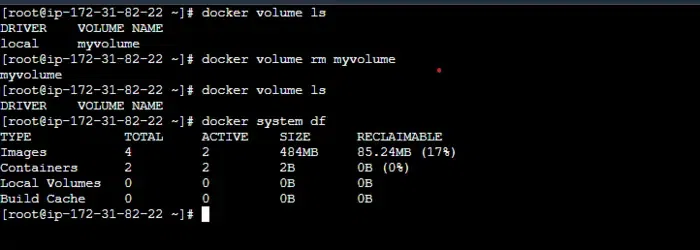
**Step 2: To remove all the unused volumes with docker volume prune with the following command
docker volume prune
.png)
**Step 3: For removing specific volumes in the docker specify the volume name with docker volume rm command as follows
docker volume rm
**Step 4: To associated volumes with the stopped containers using following command
docker rm -v
Why to clean Docker Volumes?
The following are the reasons and advantages to clean up docker volumes:
- **Free Up Space: Unused volumes can consume significant disk space, so cleaning them helps to free up valuable storage resources.
- **System Performance: Removing unnecessary volumes can improve system performance by reducing clutter and ensuring that Docker operates efficiently.
- **Resource Management: Regularly cleaning up volumes helps in better resource management, preventing the accumulation of outdated or irrelevant data.
- **Security: Old volumes might contain sensitive data that could pose security risks if not properly managed or deleted. Cleaning volumes helps mitigate such risks.