Docker Run Command Complete Tutorial For Beginners (original) (raw)
Last Updated : 23 Jul, 2025
Docker launches the containers in seconds, and the heart of running containerized applications lies in the powerful command known as '**docker run'. The ****'docker run**' is used to create a running container from using a docker image. It is used with options, docker images, commands, and arguments. It is used for developing, shipping, and running applications in containers. With 'docker run', users can specify various options and parameters to customize the container's behavior, such as port mappings, volume mounts, environment variables, and more.
Docker Container Run
If you come to deal with the core part of the docker i.e., 'docker run' is the command that is used for starting the containers with the help of assigning docker images. The minimum parameter needed with the docker run command is the docker image but the **docker run command offers more options for customizing container behavior compared to other commands.
Use Docker Container Run Command
Docker launches the containers by docker run command. While launching a container you can provide the extra functionalities to the container on using docker run options. The basic syntax of the docker run command is as follows:
docker container run [OPTIONS] IMAGE [COMMAND] [ARG...]
The execution of **docker run command makes a api call to backend that pull the specified container image if needed for the container and then starts creating a container.
_docker run [OPTIONS] IMAGE [COMMAND] [ARG...]
| Command | Usage |
|---|---|
| **OPTIONS | Optional flags are used for configuring the settings in container |
| **IMAGE | A bundle of software, packages, libraries used to create docker container |
| **COMMAND | To run/perform operations inside the container we use commands. |
| **ARG | It is known as arguments .These are used for passing to commands for performing operations inside the container. |
- As shown in the figure below you can use the help option to know other command with the **docker run.

**The docker run command provides a wide range of options that enhance its functionality. Below, you'll find these options organized by category, making it easier to see how each one can help you manage your containers.
1. General Options for Docker Run Command
These general options are crucial for basic management of images and containers. The following are the key options for docker run command:
| Option | Description |
|---|---|
| --name | Assign a custom name to your container for easy identification. |
| -d, --detach | Run the container in the background, allowing your terminal to be free for other commands. |
| --entrypoint | Specify a custom entry point for your image to control what runs first when the container starts. |
| --help | Display help information for the command. |
| -i, --interactive | Keep the standard input open for interaction, ideal for running commands inside the container. |
| --pull | Automatically pull the specified image before creating the container. |
| --platform | Define the platform when working with multi-platform servers. |
| --restart | Set a restart policy for the container, allowing it to restart automatically under certain conditions. |
| --rm | Remove the container automatically once it exits, keeping your environment clean. |
| --runtime | Specify which runtime to use for the container. |
| -t, --tty | Allocate a pseudo-terminal, which can be useful for interactive sessions. |
| --workdir | Set the working directory inside the container, making it easier to run commands in the right context. |
2. Networking Options for Docker Run Command
Networking options help you manage how your containers connect to networks. Here’s what you can do:
| Option | Description |
|---|---|
| --add-host | Create custom mappings from hostnames to IP addresses, which can be helpful for name resolution. |
| --hostname | Set a specific hostname for your container, making it easier to identify in a network. |
| --dns | Specify a custom DNS server for the container, allowing for tailored DNS resolution. |
| --dns-search | Define a custom DNS search domain for your container. |
| --dns-option | Set specific DNS options as needed. |
| --ip | Assign a specific IPv4 address to your container for easier management. |
| --ip6 | Assign a specific IPv6 address to your container. |
| --link | Link the container to another container, enabling communication between them. |
| --link-local-ip | Link a local IPv4/IPv6 address to the container. |
| --mac-address | Specify a custom MAC address for the container. |
| --network | Connect the container to a specific Docker network, allowing for more controlled communication. |
| -p, --publish | Map a port from the container to a port on the host, enabling access to services running inside the container. |
| -P, --publish-all | Publish all exposed ports to random ports on the host, which can be useful for testing. |
3. Storage Options for Docker Run Command
These options are useful for managing storage needs in containers:
| Option | Description |
|---|---|
| --mount | Attach a filesystem mount, allowing the container to use data from the host. |
| --read-only | Mount the container's filesystem as read-only, enhancing security. |
| -v, --volume | Bind mount a volume from the host into the container, providing persistent storage. |
| --tmpfs | Mount a directory formatted as tmpfs, which is a temporary filesystem stored in memory. |
4. Resource Management Options for Docker Run Command
Control the resources your container can use with these options:
| Option | Description |
|---|---|
| --cpus | Sets the number of CPUs the container can use, helping to control performance. |
| --cpuset-cpus | Specifies particular CPUs that the container can run on. |
| --cpuset-mems | Limits the memory nodes the container can access, which is helpful for performance, especially in multi-node systems. |
| --cpu-period | Sets a limit on the CPU scheduling period using the CFS (Completely Fair Scheduler). |
| --cpu-quota | Controls the CFS quota, setting a cap on the CPU time a container can use. |
| --cpu-shares | Assigns a relative weight for CPU usage among containers. |
| --kernel-memory | Caps the amount of kernel memory the container can utilize. |
| -m, --memory | Restricts the amount of memory available to the container. |
| --memory-swap | Manages the swap space for the container, with -1 allowing unlimited swap. |
| --memory-swappiness | Adjusts the swappiness setting for better memory management. |
| --oom-kill-disable | Prevent the OOM (Out of Memory) Killer from terminating the container. |
| --oom-score-adj | Set preferences for the OOM Killer based on scores. |
| --pids-limit | Limit the number of PIDs (process IDs) the container can use; -1 means unlimited. |
5. Security Options for Docker Run Command
These options help you manage security features and user permissions in your containers:
| Option | Description |
|---|---|
| --cap-add | Enable specific Linux capabilities for enhanced functionality. |
| --cap-drop | Disable certain Linux capabilities to tighten security. |
| --group-add | Add additional user groups for access control. |
| --no-new-privileges | Prevent processes in the container from gaining new privileges. |
| --privileged | Run the container with extended privileges, though it carries security risks. |
| --security-opt | Set additional security options for the container. |
| --user | Specify which user the container should run as. |
| --userns | Define the user namespace for the container, enhancing security. |
**Note: While the --privileged option offers flexibility, it comes with inherent security risks, so use it judiciously. Refer to our guide on privileged containers for more insights.
6. Environment Options for Docker Run Command
Set up environment variables and metadata for your containers with these options:
| Option | Description |
|---|---|
| -e, --env | Define environment variables for the container's runtime. |
| --env-file | Provide a file that contains environment variables. |
| --label | Add metadata labels to the container. |
| --label-file | Supply a line-delimited file with labels |
7. Container Health Options for Docker Run Command
These options allow for health check configurations and monitoring within Docker containers:
| Option | Description |
|---|---|
| --health-cmd | Specify a command for health checks. |
| --health-interval | Set the interval between health checks. |
| --health-retries | Define the number of retries before reporting unhealthy status. |
| --health-start-period | Specify a period for the container to initialize before health checks begin. |
| --health-timeout | Set the maximum time allowed for a health check. |
8. Additional Options for Docker Run Command
Beyond the previously mentioned categories, the docker run command includes options for logging, GPU configuration, and device management:
| Option | Description |
|---|---|
| --detach-keys | Specify a custom key sequence for detaching a container. |
| --device | Add a device from the host to the container. |
| --gpus | Assign a GPU to the container; use all to add all available GPUs. |
| --init | Run an init process inside the container. |
| --isolation | Define the isolation technology for the container. |
| --log-driver | Choose a logging driver for the container. |
| --log-opt | Configure options for the chosen logging driver. |
**The docker run command can be used with many options making the container customizable with robust features. On continuing this article, we will dive on discussing the creation of container with docker run command effectively with cover all the possible options.
Docker Run to Run Docker Containers
Docker run command launches the containers with light weighted software and packages containing component known as Docker Image. On providing the optional parameters you add on the functionalities. Firstly lets see running a container in docker without using any options. The command looks as follows with using hello-world as sample image.
docker run hello-world

1. Run a Container under a Specific Name
When you create a container with Docker, it automatically assigns a unique name to the container. You can also specify a custom name for the container using the --name option.
docker run --name [ container_name ] [docker _image]
For example considering the container_name and docker images as mycontainer, ubuntu the command will look like this:
docker run --name mycontainer centos:latest

2. Running a Container in Detached Mode (-d)
The '-d' option is particularly useful for running the containers in the background. This is essentials for the long-running process or services that should be continued running independently of the terminal.
The command for running a container With Detached Mode in the background is:
docker container run -d [docker_image]
Example:
docker container run -d --name myserver httpd:latest
The following screenshot clearly make you understand successful running of container in background without any interaction display created container.

3. Run a Container Interactively (-it)
When you are looking to perform operations, tasks after creating a container then you enable interactive mode while running a container. The docker provides this with options (-i) for interactive mode and (-t) for accessing the terminal. The command looks as follows:
docker container run -it [docker_image]

4. Run a Container and Publish Container Ports (-p)
Docker provides an isolated network environments to the containers because of this accessing the containers from outside is not possible by default. They can only accessible from inside the containers. To provide the access from the external environment docker provides port mapping concept with option (-p). On using this option you can map the docker port with the host port. The following command shows the mapping of ports while running a container.
docker container run -p [host_port]:[container_port] [docker_image]
Specifying with example the command looks as follows:
docker container run -p 8080:80 [docker_image]

5. Run a Container and Mount Host Volumes (-V)
In Docker, The containers containing is temporary the data will available till the container is alive (not terminated). Once the container get terminated the data inside the container will be lost and can't be retrievable. To prevent this docker facilitates volume mounting with option (-v).
It mounts the container directory with host directory and maintenance the data over. It helps in preventing data loss and making the data permanent. The command looks as follows:
docker run -v [host_directory]:[container_directory] [docker_image]
**Example for Docker Run volume mount: After specify the directories as an example the command looks as follows:
docker run -dit -v /mydata:/tmp ubuntu:latest

6. Run a Docker Container and Remove it Once the Process is Complete
When a container executes its tasks, after completion of those it stops but the file system of the container remains on the host system. If you want to remove the container after once the container process is completed, you can use the option '--rm' provided by docker. The command looks as follows:
docker run --rm [docker_image]
After specify this command as an example, it looks as follows:
docker run --rm ubuntu:latest
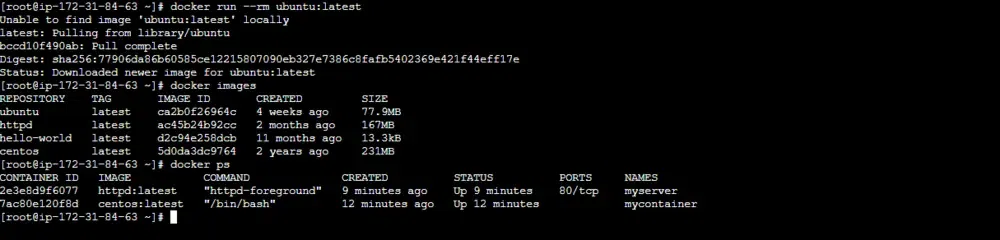
Example for docker run command with parameters:
On specifying the values as an example to the Above docker run command with parameters the command looks as follows:
docker run -it -v /mydata:/tmp -p 8080:80 -e myuser=rajini ubuntu:latest
.webp)
After running the containers with docker run command, you view the launched containers with **docker ps command. It list out all the running containers. If you want to see all the containers either it is running or terminated you can use (-a) option. The command looks as follows:
docker ps -a
Docker Run Parameters
Till here we have understand and learn how to launch containers and to run containers with more functionality with docker run options/parameters. Now lets look on a few docker run parameters in detail. Running the containers with usage of options, facilitates better functionalities to the containers.
**1. Foreground/Interactive (-it)
The option will be help to provide an interactive mode to the container after launching the docker container. This combinational options provides an interactive terminal for the launched container with docker run. The example looks as follows:
docker run -it alpine:latest
**2. Clean up (–rm)
The clean up functionality helps in removing the container after once its process is done, It helps in removing the unnecessary containers and making resources available to other containers. The example of this looks as follows:
docker run --rm alpine echo "hello World"
**3. EXPOSE (Incoming Ports)
Docker Network makes the containers as isolated environments it restrict the incoming traffic from outside. But it is able to excess the outside network. For having access to incoming traffic you have to docker providing Expose option (-p) to expose particular service on that port number. The example looks as follows:
docker run -p 8080:80 ubuntu:latest
**4. Volume Shared Filesystems (-v)
The '**-v' option is used for managing the data through enabling the volume mounting. It allows the container to access the specific directories on the host system. It ensures the container data being persistent beyond the container's lifecycle. Through mounting even if the container restarted the data will be available to access. The option looks as follows:
docker run -v [Host_directory]:[Container_directory] [docker_image]
5. ENV Environment Variables (-e)
Using the '**--env' or '-e' option, you can pass environment variables to the container, influencing its behaviour and configuration. For a container database images such as MySQL , mariadb etc.. you need to provide this environmental variables to make the containers to running state. The command looks as follows:
docker run -e MYSQL_PASSWORD=geeksforgeeks -e MYSQL_DATABASE=mydb mysql:latest
6. Assigning Name( --name) , Port Number (-p) and Volume Mount (-v) Options
In this Example, I created a container with docker run with options such as detach mode (-d ) , Interactive mode ( -i ) , Terminal mode ( -t ) , ( -v ) **Volume binding with host path ****/mydata** and ****/var/www/html** path , ( -p ) **port binding with 80 port of container with 80 port of the host system and launched with image httpd on latest version. you can see the status of the container from the command **`docker ps` . i.e., on looking the created, status, port columns in the result of **`docker ps` command . Now you can know the age of the container , its current status duration and port that where apache is running.
docker run -dit -p 80:80 -v /mydata:/var/www/html --name myapache:latest

7. Mount Volume Read Only (--read-only)
On using volumes in combination with the --read-only flag helps in controlling the writing permissions of a file. The following command illustrates it clearly as the read-only flag mounted to container's root filesystem allowing only to read and prohibiting the write permissions to location other other than the specified volumes for the container.
docker run -t -i -v /var/run/docker.sock:/var/run/docker.sock -v /path/to/static-docker-binary:/usr/bin/docker busybox sh
8. Publish all exposed ports (-P, --publish-all)
It lets to publish all the exposed ports of a container to the host. Docker binds each exposed port to a random port number available in the host system.
docker run -P nginx:alpine
9. Docker Run --attach option
The --attach option in the docker run command lets you connect your terminal directly to a container’s input or output, allowing you to monitor or interact with it while it's running.
docker run --attach [STDIN|STDOUT|STDERR] [OPTIONS] IMAGE [COMMAND]
Let’s say you want to run a container that outputs “Hello, Docker!” and see this output immediately in your terminal. You can use the --attach option with stdout to link to the standard output stream and view the message as it’s displayed:
docker run --attach stdout ubuntu echo "Hello, Docker!"

**In this example:
docker runstarts the container.--attach stdoutconnects to the container’s standard output, so you can view “Hello, Docker!” right in your terminal.
**Additional Notes:
- You can attach to multiple streams by repeating
--attach, like--attach stdout --attach stderr. - Using
--attachis useful for getting instant feedback from your container, making it easier to monitor logs or troubleshoot directly from the terminal.
Implementation of Docker Run
In this implementation we will guide you how to create images and create containers in simple and effectively. You can simple think that Docker run execution is a combination of docker container create and container start. Lets discuss the implementation about the execution of this example and how it's workflow will be.
**Example:
docker run -it --name mycontainer1 ubuntu:latest bash
Step 1: Check if the image exists locally
Firstly it checks the images that are available in the local docker system using the following command in behind:
docker images
If the required ubuntu:latest looking is exists then it go for creating the container as next step or else, the docker images has to be pulled into local system from the public registry or have to provide own custom Image.
Step 2: Create a new container from the image
Once the docker image availability verified it will starts to create the container with that image, for this it uses docker create command in behind for creating the container and names with mycontainer by taking through option --name.
Through this creation phase of container some resources such as hostname, CPU, memory and storage. The container is created with some namespace. It provides the isolated network environment to the container.
Step 3: Start the container and run the container
Once the docker container is started, then as a next phase docker start the container, for this It uses **docker start command to start the container. After the docker container is started it uses the entrypoint or command to run a specified program inside it.
Step 4: Attach to the container and print out the output to the console
Now, As final phase of the docker run command it will run the bash program that is specified in the command using the entrypoint, Here you will be landed to the terminal with interactive mode, and can see the bash program in running state.
You can check all these stages will executing the initial specified example command
docker run -it --name mycontainer1 ubuntu:latest bash

Running Interactive vs Detached Containers
The following are the difference between running interactive vs Detached Containers:
| Aspect | Interactive Mode (-it flag) | Detached Mode (-d flag) |
|---|---|---|
| **Interaction | Real-time interaction with the container | Runs in the background, terminal remains free |
| **Ideal For | Development, debugging, short-term tasks | Production services, background applications |
| **Control | Direct control via terminal | Managed via Docker commands (e.g., docker logs) |
| **Use Cases | Debugging, command execution | Long-term services, daemons |
Best Practices of Docker Run Command
- **Resource Management: Limit CPU and memory usage with
--cpusand--memoryflags to prevent resource contention. - **Networking: Use the
--networkflag to specify custom networks for better container communication and security. - **Volumes: Utilize the
-vflag to mount volumes, ensuring data persistence and isolation from the container lifecycle. - **Security: Run containers with the least privileges necessary by using the
--userflag and avoiding the root user.
Use Cases of Docker Run
- **Running Applications: It facilitates with quickly start the applications in isolated environments using specific images.
- **Development and Testing: It helps in creating consistent development environments and run tests in containers.
- **Microservices Deployment: It is useful in deploying and managing the microservices architecture efficiently.
- Continuous Integration/Continuous Deployment (**CI/CD**):** It helps streamlining the application automation of build, test, and deployment processes.
Docker Run Command vs CMD vs ENTRYPOINT Instructions
| Feature | docker run Command | CMD Instruction | ENTRYPOINT Instruction |
|---|---|---|---|
| Purpose | Runs a new container from an image with optional overrides | Sets default command and arguments | Specifies the main executable for the container |
| Execution Syntax | docker run [command] [args] | CMD ["executable", "param1", "param2"] | ENTRYPOINT ["executable", "param1"] |
| Usage Context | Overrides default commands and options at runtime | Sets a default command if no specific command is provided | Sets a fixed command that the container always runs |
| Overridable | Can override both CMD and ENTRYPOINT using [command] [args] | Overridden by specifying a command in docker run | Can only be overridden with --entrypoint option |
| Combining with Each Other | N/A | Provides default arguments for ENTRYPOINT if both are set | Accepts arguments from CMD if both are specified |
| Typical Use Case | For flexible and customizable container commands | Setting a default command or arguments | Defining a specific, unchangeable function for the container |
| Example | docker run my-image nginx -g 'daemon off;' | CMD ["-g", "daemon off;"] | ENTRYPOINT ["nginx"] |
| Behavior When Used Together | Command in docker run will override CMD but supplement ENTRYPOINT | CMD provides default arguments if ENTRYPOINT is set | ENTRYPOINT serves as the main executable, CMD provides arguments |
Must Read:
- How to Install Linux Packages Inside a Docker Container?
- How to Install Docker on MacOS?
- How to Install Docker on MacOS?
Conclusion
In conclusion, mastering the '**docker run' command is crucial for effective deployment and managing Docker containers. Whether you are launching applications, services, or development environments, understanding the multitude of options available with 'docker run'. It will develops you to support to your containers to specific requirements. Experimentation with the various flags and options will make better understanding on the container workflow in launching the applications or deployments . To know more about other docker commands try on referring Docker Cheat Sheet.