Use of Concatenate in Excel (original) (raw)
Last Updated : 9 Jun, 2026
The CONCAT function combines multiple text strings or cell values into one string, supporting dynamic data merging.
**Syntax:
=CONCAT(text1, [text2], ...)
**Parameters:
- **text1, text2, ...: The text strings, numbers, or cell references to combine (up to 255 arguments).
**Note: In older Excel versions, the CONCATENATE function is used to combine text values. CONCAT is the newer function and also supports combining ranges.
Steps to Combine Data Using the CONCAT Function
**Step 1: Choose a cell where you want the combined data.
**Step 2: Now type the Formula
=CONCAT(A1,"Text")
**Step 3: Press Enter
.webp)
Use Concatenate Formula >> Press Enter
Steps to Combine Two Cells in Excel Using the CONCAT Function
There are two ways to combine two cells in Excel using the CONCAT function:
1. Combine two Cell without a Space in Excel
To CONCATENATE values of two different Cells use the simple formulae " =CONCAT(Cell 1,Cell 2) " . This will combine two cells in one without adding a space. Please refer the below image for more clear understanding.
.webp)
Use CONCAT
- Cells Combined
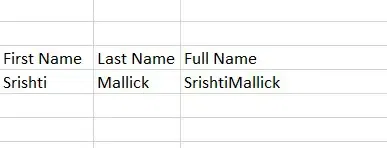
Cells Combined
2. Combine two Cell with a Space in Excel
The CONCATENATE formulae to add a space in between two cells is " =CONCAT(Cell 1, “ “, Cell 2) ". Please refer the below image for more clear understanding.
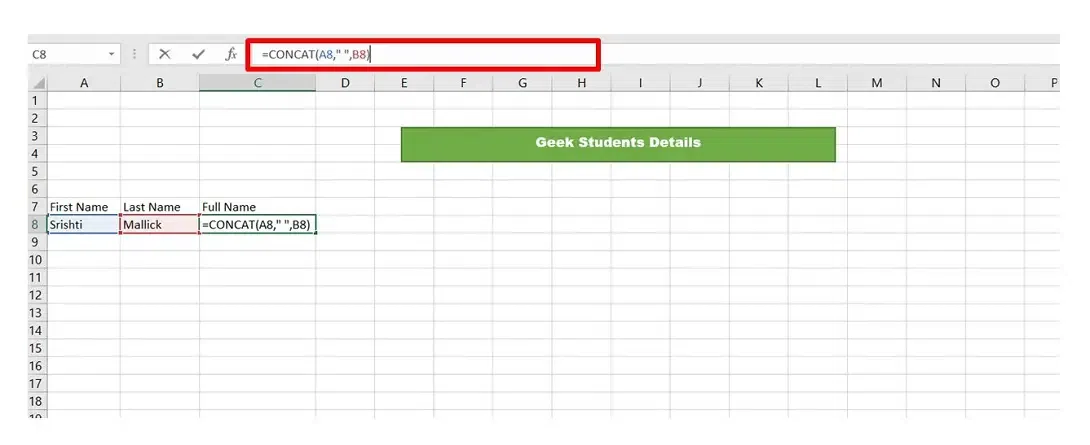
Use the Formula
- Cells Combined
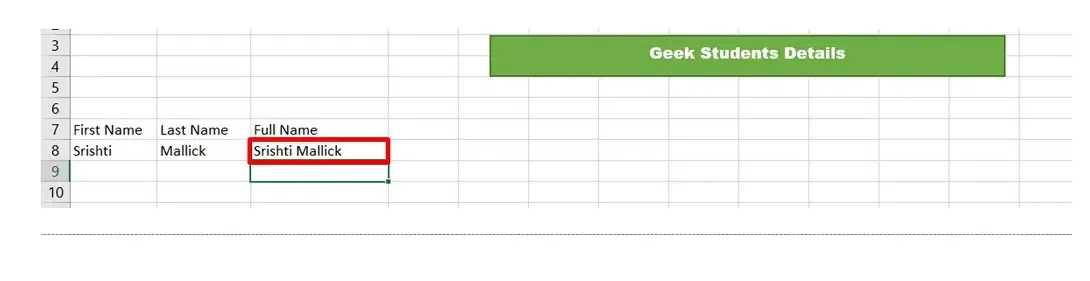
Cells Combined
Steps to Autofill CONCATENATE Column in Excel
You can use CONCATENATE() to combine "FirstName" and "LastName" into a "Full Name" column. After entering the formula for the first student, drag the fill handle down to automatically populate full names for all 1000 students, saving the effort of manual entry.
.webp)
Select the Cell and drag to Auto Fill
Steps to CONCATENATE Text String and Cell Value
To combine Text String and Cell Value to make the result more meaningful use formulae " =CONCATENATE(Cell 1, " ", Cell 2, " Text") "
.webp)
Use Formula " =CONCATENATE(Cell 1, " ", Cell 2, " Text") "
- Text String Concatenated
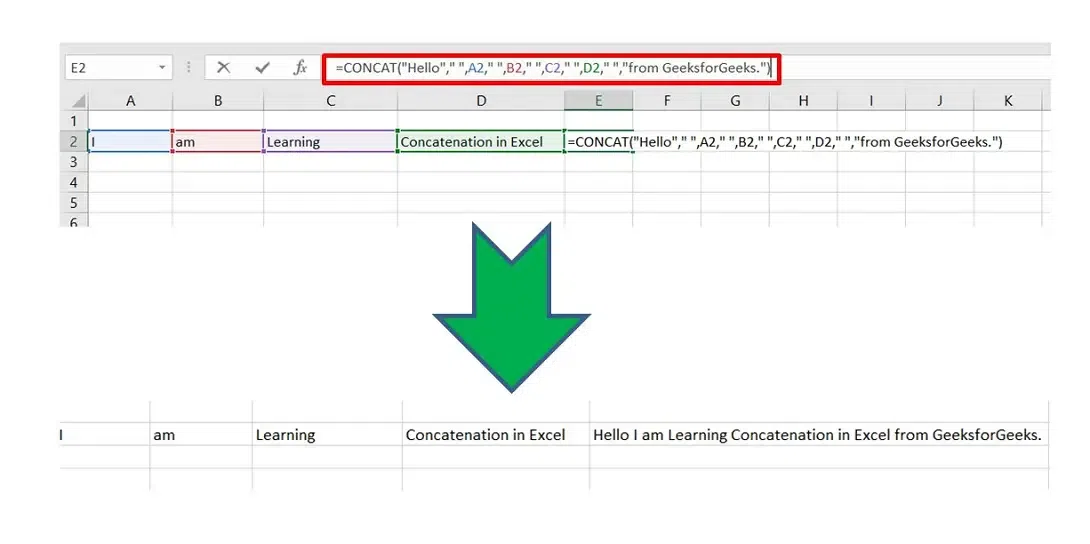
String Concatenated
Steps to CONCATENATE Cells With Comma and Other Characters
We can include any symbol, space, or no space between two cell values as per requirements while concatenating.
1. Combine two cells with a Comma
To combine two Cells with a Comma use CONCATENATE formulae " =CONCAT(Cell1,",",Cell2) ".
2. Combine two cells with a Dash
To combine two Cells with a Dash use CONCATENATE formulae " =CONCAT(Cell1,"-",Cell2) ".
.webp)
Combined Text Using Comma and Dash
Steps to Combine Text and Function in Excel
You can concatenate the result of a formula with a text string that describes the value, in order to help your users better comprehend the result it returns.
For Example: In the below Image we want to add Text with the TODAY() functions, the concatenate formulae would be " =CONCATENATE("Today's Date is ",TEXT(TODAY(), "mmmm d, yyyy"))

Joining Text and Today Date Function
Steps to Concatenate Text String with Line Breaks
To merge text with line breaks (useful for addresses), use CONCATENATE() with CHAR(10) to insert the corresponding ASCII code for a line break.
- Use CHAR(10) to insert a line break in Excel.
- Enable Wrap Text to display each line on a separate row within the same cell.
For example, you have address components in columns A through C and you want to combine them in Column D, with each part on a new line. The formula using the Ampersand operator would look like this:
**Syntax: text1 & CHAR(10) & text2 & CHAR(10) & text3....
.webp)
Using Char Function
Steps to Combine Data with the Ampersand Symbol (&)
The ampersand symbol "&" is an alternate way to concatenate two or more texts in Excel. It is easier and less time-consuming as compared to the above method, as there is no need to type the entire keyword for concatenation.
- Choose the cell where you want to place the combined data
- Type an equal sign(=) in that cell
- Select the first cell that you want to combine
- Type the ampersand symbol (&)
- Add a space within the quotation mark(" ")
- Select Another Cell to be Combined
- Press theEnter Key
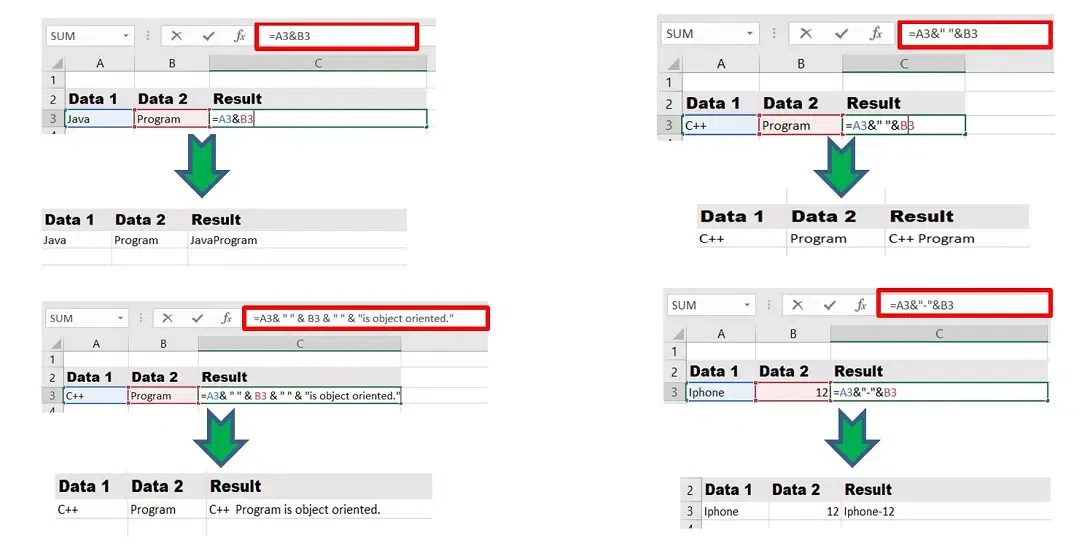
Concatenate using & operator
Using these methods, Excel can perform concatenation. The & operator has no 255-string limit, unlike CONCATENATE(). Both work at the same speed, display text similarly, and show the same errors choosing between them depends on user preference.