4 Easy Ways to Convert a PDF to Excel (original) (raw)
Last Updated : 23 Jul, 2025
Do you need to extract data from a PDF and transfer it into Excel for better analysis or organization? Learning how to **convert a PDF to Excel can save time and effort while ensuring data accuracy. This guide explores **four easy methods to convert PDF to Excel, whether using built-in tools in Microsoft Excel, premium software like Adobe Acrobat, or free online resources. Additionally, discover the best tools for handling even complex PDFs, including those requiring OCR, and learn practical tips for achieving better conversion results.
**Disclaimer: Always verify the reliability of tools to ensure data security and avoid potential risks.
PDF to Excel
**Why Convert PDF to Excel
PDF files are widely used for sharing information but are often not editable. Converting a PDF to Excel can help you:
- Analyze data in spreadsheets.
- Perform calculations and create visualizations.
- Edit and format data for presentations or reports.
Method 1: Convert Using Microsoft Excel (Built-in Feature)
Modern versions of Excel allow you to directly import data from a PDF file, making this one of the easiest and most effective methods. Follow the below steps to learn how to convert a PDF File to Excel without software:
**Note: The PDF data import feature is available only in Excel 365, Excel 2019, and later versions. If you're using an older version of Excel, this option won't be available.
**Step 1: Open Excel
- Launch Microsoft Excel on your computer and open a blank workbook.
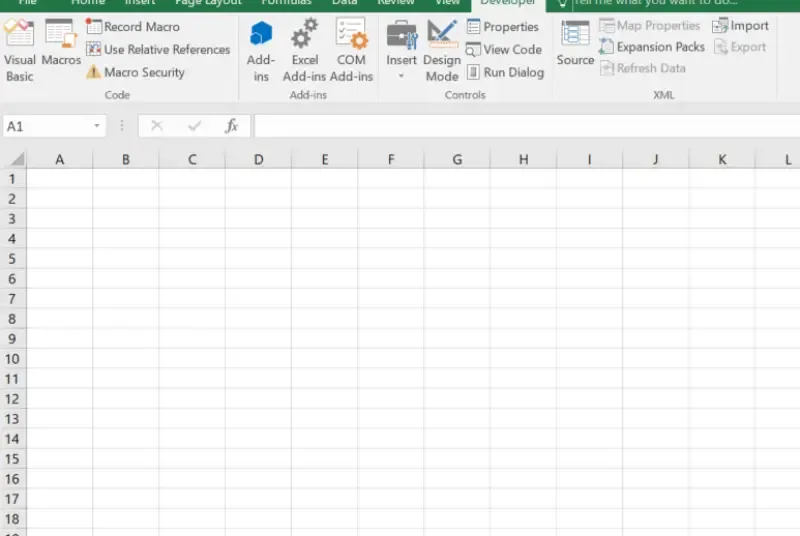
Open Excel
**Step 2: Navigate to Get Data
- Click on the **Data tab in the ribbon.
- Under the **Get & Transform Data section, select **Get Data > From File > From PDF.

Go to Data Tab>> Select " Get Data" >> From File >> From PDF
**Step 3: Select the PDF File
- A file browser will appear. Locate and select the PDF file you want to convert.
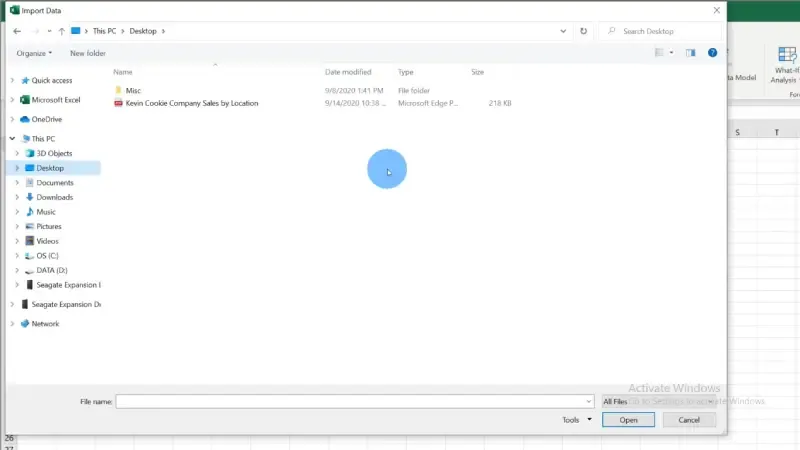
Select the PDF File
- Excel will analyze the PDF and display a list of detected tables and pages.
- Choose the table(s) or page(s) you want to import. You can preview the data to ensure it’s correct.
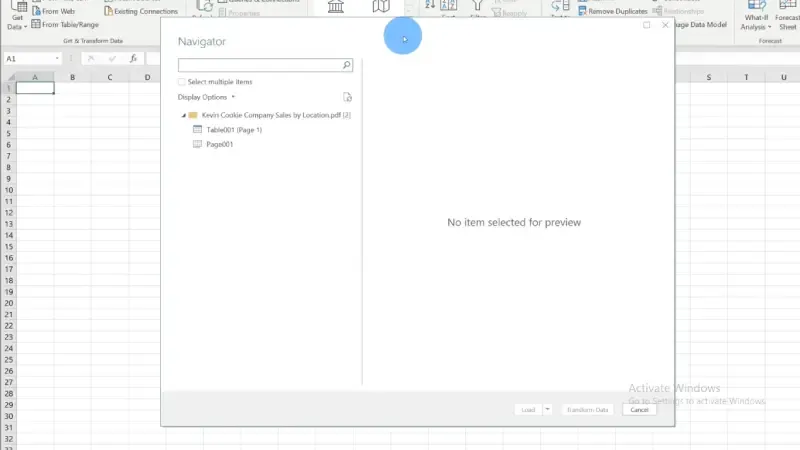
Extract Data
**Step 5: Load or Transform Data
- Click **Load to import the data directly into Excel, or click **Transform Data to open Power Query Editor.
- In Power Query, you can clean, filter, and reorganize the data before loading it into Excel.
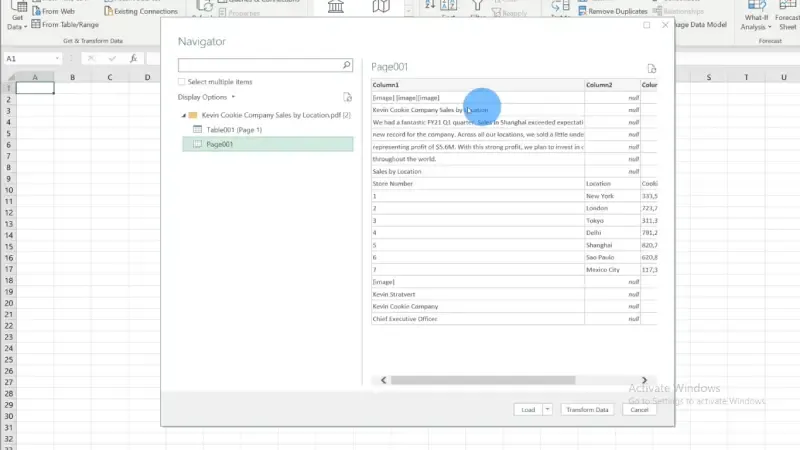
Open the File >> Click on Load or Transform Data
**Step 6: Save Your Workbook
- Once the data is imported, save your workbook in Excel format for future use.
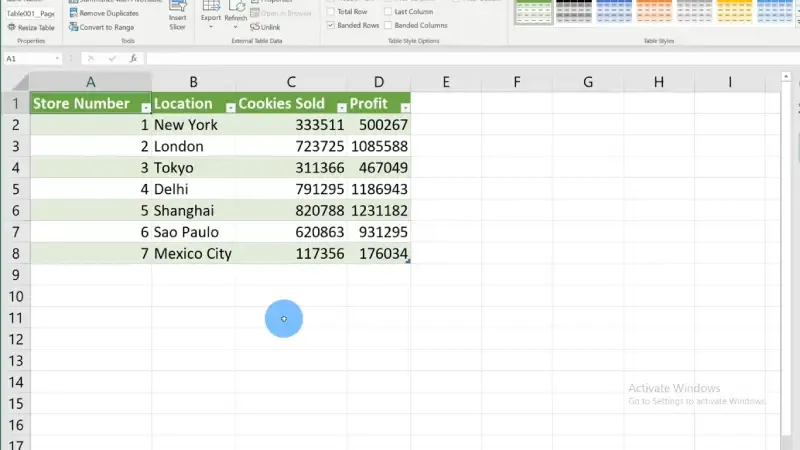
Save Your Workbook
**Method 2: Using Adobe Acrobat (Premium Tool)
Adobe Acrobat provides precise conversion of PDFs into Excel, making it ideal for complex files or professional use.
**Step 1: Open Your PDF in Adobe Acrobat
Open Adobe Acrobat and load the PDF file you want to convert.
**Step 2: Access the Export Feature
Click on **File > Export To > Spreadsheet > Microsoft Excel Workbook.
**Step 3: Customize Export Settings
Adobe Acrobat allows you to adjust the export settings:
- **Retain Table Layout: Ensures that tables maintain their structure.
- **OCR (if necessary): For scanned PDFs, ensure OCR is enabled to extract text.
**Step 4: Start the Conversion
Click **Export and wait for the process to complete.
**Step 5: Save the Excel File
Choose the destination folder and save the file as an Excel workbook.
**Step 6: Open and Review
Open the converted file in Excel and check for any formatting issues or errors.
Online converters are convenient and often free. They work well for simple PDFs or one-time conversions. Some popular tools include Smallpdf, ILovePDF, and PDF2Excel.
**Step 1: Visit an Online Converter
Open your browser and navigate to a trusted converter website (e.g., ilovepdf.com).
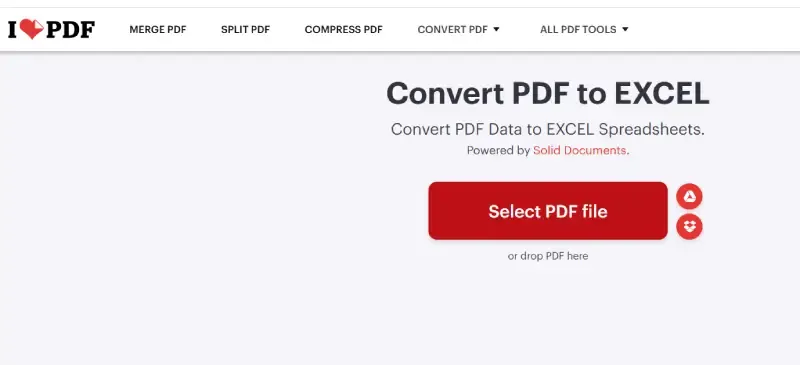
Open ilovepdf.com
**Step 2: Upload the PDF
Click the **Choose File button and upload your PDF. Alternatively, drag and drop the file into the upload area.
**Step 3: Choose Conversion Options
Depending on the tool, you may be asked to select conversion settings such as:
- Table extraction options.
- OCR (if the PDF is scanned).
**Step 4: Convert the File
Click the **Convert or **Start Conversion button. The tool will process the file.
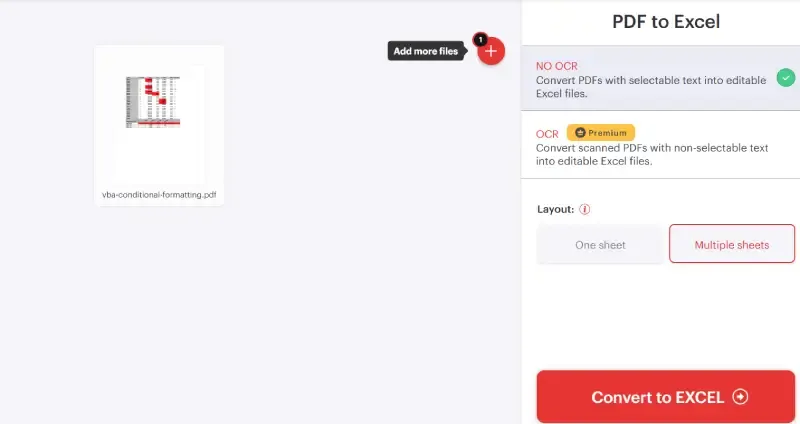
Click on "Convert to Excel"
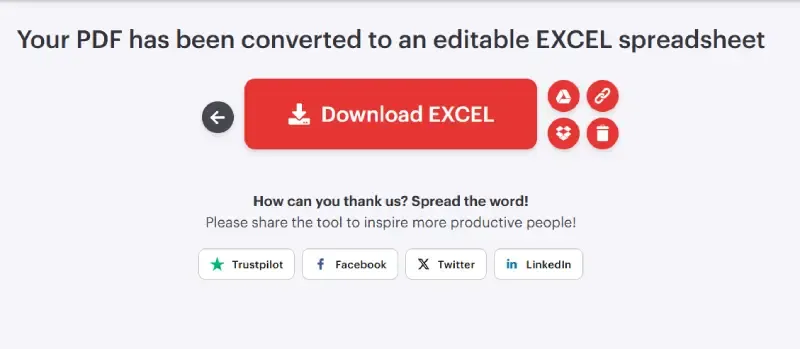
**Step 5: Download the Excel File
Once the conversion is complete, download the Excel file to your computer.
Download the Excel File
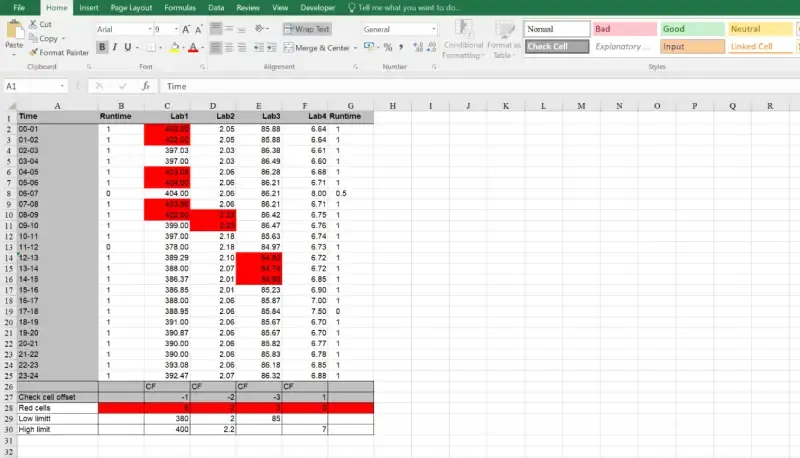
**Step 6: Check for Accuracy
Open the file in Excel and review the data for alignment, formatting, and completeness.
Check your Excel File
**Method 4: Using Specialized Software
Dedicated PDF-to-Excel software offers advanced features like batch processing, OCR, and customization. Examples include Able2Extract, Nitro PDF, and Wondershare PDFelement.
**Step 1: Install the Software
- Download and install your chosen PDF-to-Excel converter.
**Step 2: Open the PDF
- Launch the software and open the PDF file you want to convert.
**Step 3: Choose the Output Format
Select **Excel or **Spreadsheet as the output format. Advanced tools often let you:
- Select specific pages or tables.
- Define column and row separation.
**Step 4: Configure Settings
- For scanned **PDFs, enable **OCR to extract text and tables accurately.
- Adjust settings for formatting and layout preservation.
**Step 5: Convert the PDF
Start the conversion process and wait for the software to process the file.
**Step 6: Save the Converted File
Save the resulting Excel file to your computer.
**Step 7: Verify and Edit
Open the **Excel file and check for formatting issues or missing data.
Converting PDF files to Excel is essential for efficiently handling data from reports, invoices, or forms. The right tool can ensure accurate formatting and save time. Here are the top 5 tools for PDF-to-Excel conversion, covering a range of features for different needs.
**1. Adobe Acrobat DC
Adobe Acrobat DC is a trusted tool for handling PDF conversions with precision.
**Key Features:
- Converts PDFs to editable Excel files.
- Retains formatting and structure.
- Batch conversion capability for multiple files.
**Best For: Professionals requiring high accuracy and reliable performance.
**Platforms: Windows, Mac.
**2. SmallPDF
SmallPDF offers a simple, web-based solution for quick PDF-to-Excel conversions.
**Key Features:
- Drag-and-drop interface for ease of use.
- Cloud-based, no software installation required.
- Converts PDFs to multiple formats.
**Best For: Casual users needing quick and easy conversions.
**Platforms: Web, Windows, Mac.
**3. PDFelement
PDFelement is a versatile tool with advanced customization options for precise conversions.
**Key Features:
- Converts PDFs to Excel while maintaining data structure.
- Offers OCR for scanned documents.
- Batch processing for efficiency.
**Best For: Users handling scanned PDFs or requiring customized outputs.
**Platforms: Windows, Mac.
**4. ILovePDF
A free, user-friendly online tool for basic PDF-to-Excel needs.
**Key Features:
- Simple interface for quick file processing.
- Supports batch uploads.
- Allows basic editing of PDFs before conversion.
**Best For: Users seeking a free and straightforward tool.
**Platforms: Web, Windows, Mac.
Designed for advanced users, this tool offers precision and flexibility for complex data.
**Key Features:
- Selective data extraction for targeted conversions.
- Advanced OCR support for scanned PDFs.
- High customization for specific data formats.
**Best For: Professionals working with complex data sets.
**Platforms: Windows, Mac, Linux.
**Tips for Better Conversion Results
- **Use High-Quality PDFs: Clear and well-structured PDFs lead to better results during conversion.
- **Enable OCR for Scanned Files: If the PDF contains images of text, make sure the tool supports Optical Character Recognition (OCR).
- **Clean Data After Conversion: Use Excel tools like **Remove Duplicates, **Sort, and **Filter to refine the converted data.
- **Test Different Methods: For complex PDFs, compare results from various tools to find the most accurate one.
**Common Challenges and Solutions
- **Misaligned Columns or Rows: Use Excel’s **Power Query or **Text to Columns to reorganize data.
- **Missing Data or Errors: Verify the source file and try re-converting using a premium tool.
- **Data in Images: Use OCR-enabled software to extract text and tables from images within the PDF.
Also Read:
Conclusion
Converting a **PDF to Excel doesn't have to be a daunting task. By leveraging the right tools and methods, whether it's Microsoft Excel's built-in features, Adobe Acrobat, or free online services, you can seamlessly transfer your data for enhanced usability. Tools like Adobe Acrobat DC, SmallPDF, and PDFelement provide robust options for handling even challenging conversions, including **PDF to Excel with OCR. Start exploring these methods and tools to streamline your workflow and overcome common challenges with ease.