How to Convert an Excel to a Google Sheet : 4 Easy Ways (original) (raw)
Last Updated : 23 Jul, 2025
Everyone has their preferred spreadsheet tool. For some, it’s Microsoft Excel, while others swear by Google Sheets. Even though they might look similar to the untrained eye, personal preferences and specific use cases often dictate the choice. But in a collaborative world, working with people who use a different platform is inevitable, and that’s where the need to **convert Excel spreadsheets to Google Sheets comes into play.
This guide walks you through **easy ways to convert Excel to Google Sheets without losing formatting. Whether you’re managing data for collaboration or leveraging the **real-time features of Google Sheets, you’ll learn the best methods for a smooth transition.

How to Convert an Excel Document to a Google Sheet
Table of Content
- Why Convert Excel to Google Sheets
- Method 1: Manual Upload and Conversion (Fast and Quick Way)
- Method 2: Automatic Conversion on Upload
- Method 3: Importing Excel Data Directly into Google Sheets
- Method 4: Using Third-Party Tools for Bulk Conversion
- How to Convert a Google Sheet into an Excel Document
Why Convert Excel to Google Sheets
Converting Excel to Google Sheets facilitates seamless real-time collaboration, allowing multiple users to work on the **document simultaneously from **different locations. It enhances data accessibility, enabling users to access and edit files from any device with an internet connection.
Additionally, Google Sheets integrates effortlessly with other Google Workspace tools, offering a unified platform for managing various types of data and projects. The cloud-based nature of Google Sheets also ensures automatic updates and backups, reducing the risk of data loss.
**Convert Excel to Google Sheets - 4 Different Methods
Converting an Excel document into Google Sheets can be done in multiple ways, depending on your needs. This guide covers 4 easy ways for **Excel to Google Sheets conversion: Follow along to find the best method for your needs!
**Method 1: Manual Upload and Conversion (Fast and Quick Way)
This method involves uploading an Excel file to Google Drive and manually converting it into Google Sheets.
**Step 1: Upload to Google Drive
- Open Google Drive.
- Click **on + New > **File Upload.
- **Select the Excel file from your computer.
**Alternative way
- Another option is to simply drag and drop the document directly.
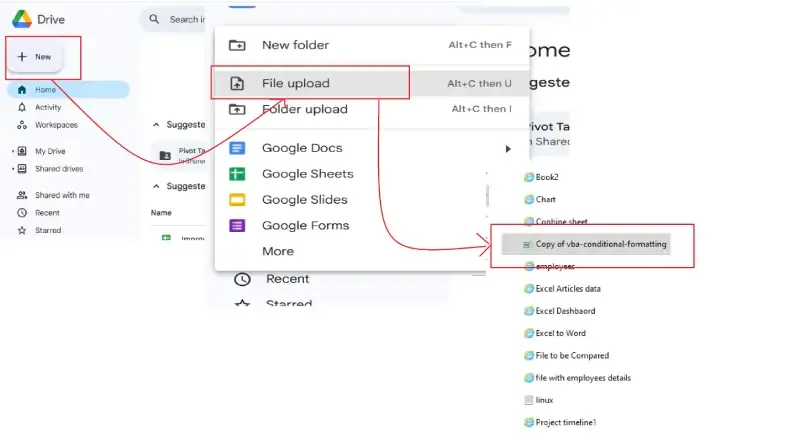
Open Google Drive >> Click on File Upload>> Select the File
**Step 2: Open with Google Sheets
- Locate the uploaded file in Google Drive.
- Right-click the file and select **Open with > Google Sheets.
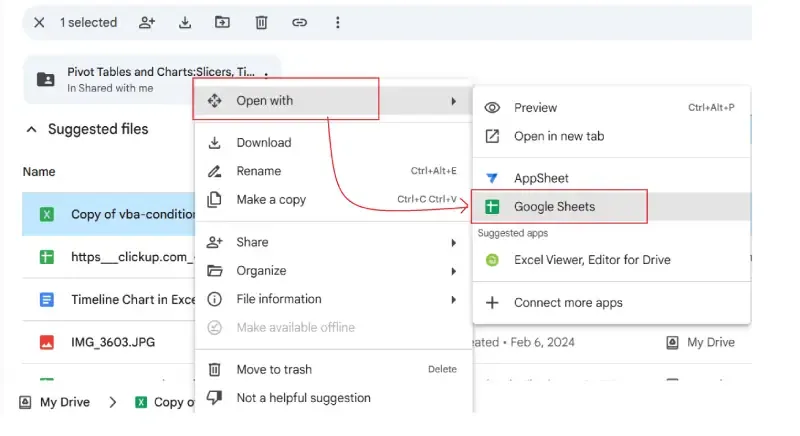
Right -Click >> Select " Open with">> Select Google Sheets"
**Step 3: Save as a Google Sheet
- Once the file opens in Google Sheets, click **File > Save as Google Sheets.
- The converted file will be saved in Google Sheets format, while the original Excel file remains unchanged.
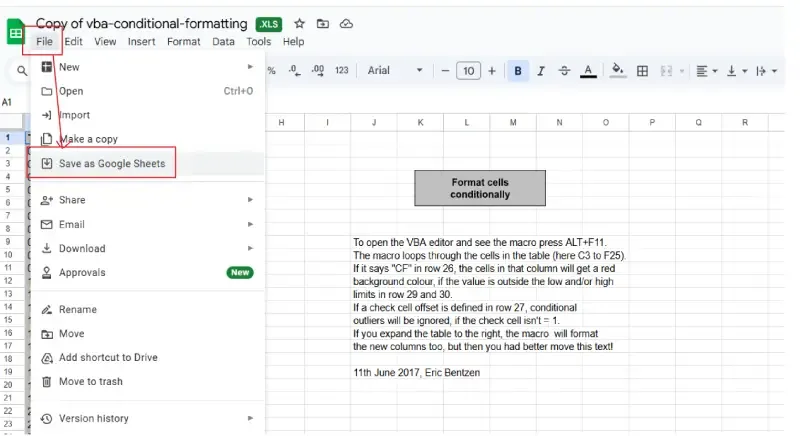
Click on File >> Select " Save as Google Sheets"
**Method 2: Automatic Conversion on Upload
If you frequently convert Excel files to Google Sheets, enabling automatic conversion can save time.
**How to to Enable Automatic Conversion
- Open Google Drive and click on the **gear icon (Settings) in the top-right corner.
- Select **Settings.
- In the **General tab, check the box for **Convert uploaded files to Google Docs editor format.
- Click **Done.
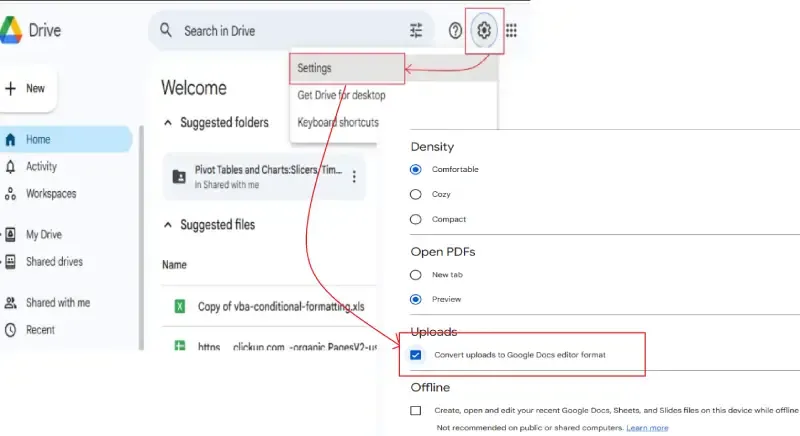
Click on Settings Icon >> Select the " Settings Tab">> Select the "Convert Uploads to Google Docs Editor Format"
**How It Works:
- When you upload an Excel file, it will automatically convert into a Google Sheet.
- No need to manually open and save the file as a Google Sheet.
Method 3: Importing Excel Data Directly into Google Sheets
For Converting an Excel Document to a Google Sheet, you need to have an existing data in your Excel Document. Here's the sample data given below for the procedure.
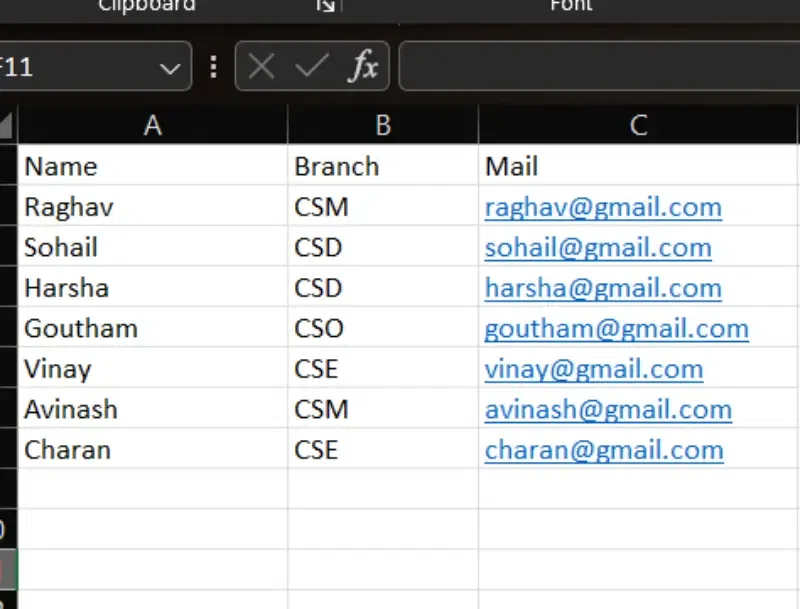
Sample Data
Step 1: Open a new or existing Google Sheet
Open the Google Sheets
Step 2: Click on **File > Import
On the top left we have an option "**File". Click on the "**File" **option.

Open Google Sheet >> Go to file >> Select Import Option
Step 3: Select the Excel File
After selecting the "**Import" option we will have access to the computer files. Select the Excel File which you have saved.

Select the Excel File
Step 4: Select the Import Data Option
Once you select the file it will ask for permission to import or not.
.webp)
Select the Import Data Option
Step 5: Check the Imported data in your Google Sheet
Once you select the option "**Import data" the data in your Excel sheet will be imported to the Google Sheets. Now you can make changes accordingly.

Check the Imported data in your Google Sheet
For bulk conversions or additional features, you can use third-party tools or add-ons like:
- **CloudConvert
- **Zoho Sheet
- **Sheetgo
These tools allow you to convert multiple Excel files into Google Sheets simultaneously or integrate Excel files with Google Sheets in real-time.
How To Convert Google Sheets to Excel
Converting a Google Sheet into an Excel Document is an easy process. Follow the below steps to convert the google sheet into an Excel Document,
**Step 1: Open the Google Sheet
**Access the Google Sheet you want to **convert by logging into your Google account.
Step 2: **Go to the File Menu
**Click on the File option located in the toolbar.
**Step 3: Choose Download
Hover over the **Download option in the dropdown menu.
**Step 4: Select Microsoft Excel (.xlsx)
- From the list of download formats, select **Microsoft Excel (.xlsx).
- The file will be downloaded as an Excel document to your computer.
.webp)
Go to File >> Choose Download, and Select Microsoft Excel
To Learn more about How to Convert Google Sheet to Different File Formats Click Here
Benefits of Converting Excel Document to a Google Sheet
Here are some key benefits given below for your reference:
- **Real-Time Collaboration: Google Sheets allows **multiple users to edit and **view the document simultaneously, making teamwork seamless.
- **Cloud-Based Access: Access your files from anywhere on any device with an internet connection, eliminating the need for local storage.
- **Auto-Save Feature: Changes are automatically saved in real-time, reducing the risk of data loss.
- **Integration with Google Tools: Easily link your data with **Google Drive, **Docs, **Slides, and other **Google Workspace tools.
- **Version History: Track changes and restore previous versions without hassle.
- **Cross-Platform Compatibility: Work on **Windows, **macOS, or **mobile devices without worrying about compatibility issues.
- **Free to Use: Google Sheets is a cost-effective alternative to Excel for personal and professional use.
Conclusion
Switching from Excel to Google Sheets offers improved collaboration, accessibility, and the benefits of a cloud-based platform. By following the methods outlined in this guide, you can **convert Excel to Google Sheets without losing formatting or compromising data integrity. Whether you’re managing team projects or working independently, Google Sheets provides an excellent solution for efficient data management.