How to Use Firebase ML Kit Smart Replies in Android? (original) (raw)
Last Updated : 23 Jul, 2025
We have seen using chatbots in Android for replying to the most common questions from the users. In this article, we will take a look at the implementation of **Firebase ML Kit smart replies in Android. Firebase ML Kit smart replies are used to provide smart replies to the questions asked by the users using the Firebase ML Kit.
**What we are going to build in this article?
We will be building a simple application in which we will be making a chatting-like interface in which the user will post his query in the chat box and according to the user's query we will get to see the message from Firebase ML Kit.
Step by Step Implementation
Step 1: Create a New Project
To create a new project in Android Studio please refer to How to Create/Start a New Project in Android Studio.
Step 2: Connect your app to Firebase and add
Navigate to Tools on the top bar. After that click on Firebase. A new window will open on the right side. Inside that window click on Firebase ML and then click on Use Firebase ML kit in Android. You can see the option below screenshot.
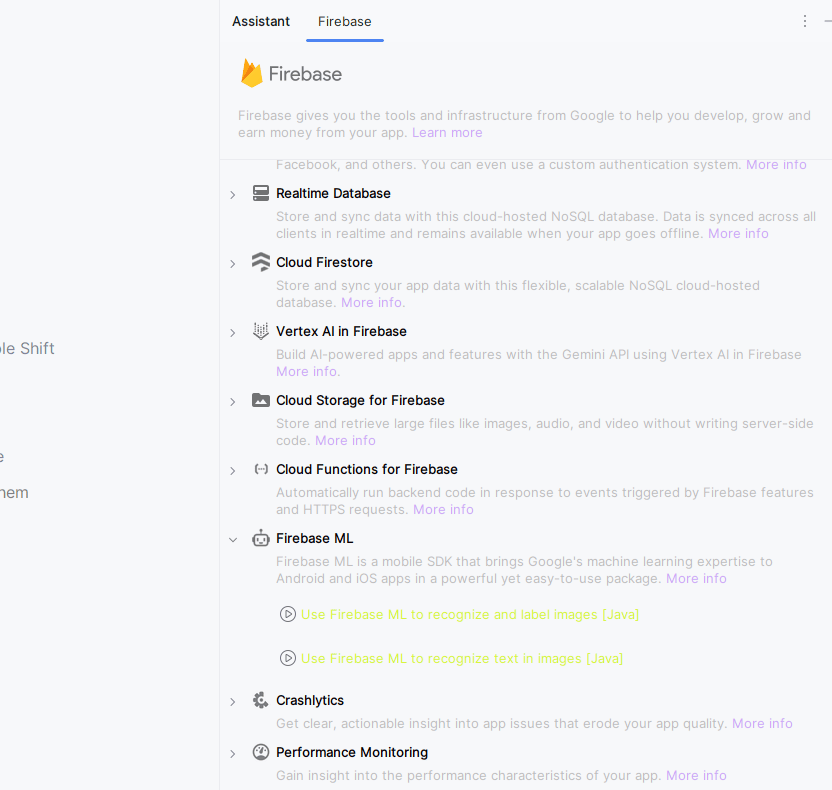
After clicking on this option on the next screen click on **Connect to Firebase option to connect your app to Firebase. After the setup is completed, click on **Add Firebase ML to you app and add all the dependencies.
Step 3: Adding dependency for language translation and add View Binding support
Navigate to the **Gradle Scripts > build.gradle.kts(Module:app) and add the below dependency in the dependencies section.
dependencies {
...
implementation ("com.google.firebase:firebase-ml-natural-language-smart-reply-model:20.0.8")
}
And in the same add the following code anywhere under android tag
buildFeatures {
viewBinding = true
}
Now sync your project and let's move towards the implementation of Firebase ML Kit smart replies.
Step 4: Working with the MainActivity and it's layout file
Navigate to the **MainActivity and **activity_main.xml and make the following changes.
MainActivity.java `
package org.geeksforgeeks.demo;
import android.os.Bundle; import android.view.View; import android.widget.Toast; import androidx.appcompat.app.AppCompatActivity; import androidx.recyclerview.widget.LinearLayoutManager; import com.google.firebase.ml.naturallanguage.FirebaseNaturalLanguage; import com.google.firebase.ml.naturallanguage.smartreply.FirebaseTextMessage; import com.google.firebase.ml.naturallanguage.smartreply.SmartReply; import com.google.firebase.ml.naturallanguage.smartreply.SmartReplySuggestionResult; import org.geeksforgeeks.demo.databinding.ActivityMainBinding; import java.util.ArrayList; import java.util.List;
public class MainActivity extends AppCompatActivity {
private List<FirebaseTextMessage> messageList;
private ArrayList<MessageModel> messageModelArrayList;
private Adapter adapter;

private ActivityMainBinding binding;

@Override
protected void onCreate(Bundle savedInstanceState) {
    super.onCreate(savedInstanceState);
    binding = ActivityMainBinding.inflate(getLayoutInflater());
    setContentView(binding.getRoot());

    messageList = new ArrayList<>();
    messageModelArrayList = new ArrayList<>();
    adapter = new Adapter(this, messageModelArrayList);

    LinearLayoutManager manager = new LinearLayoutManager(this);
    binding.recyclerView.setLayoutManager(manager);
    binding.recyclerView.setAdapter(adapter);

    binding.sendButton.setOnClickListener(new View.OnClickListener() {
        @Override
        public void onClick(View v) {
            String message = binding.messageEditText.getText().toString();
            if (message.isEmpty()) {
                Toast.makeText(MainActivity.this, "Please enter your message..", Toast.LENGTH_SHORT).show();
                return;
            }
            sendMessage(message);
            binding.messageEditText.setText("");
        }
    });
}

private void sendMessage(String userMessage) {

    // Create a FirebaseTextMessage
    FirebaseTextMessage message = FirebaseTextMessage.createForRemoteUser(
            userMessage, System.currentTimeMillis(), "uid");

    messageList.add(message);

    // 0 -> user message
    messageModelArrayList.add(new MessageModel(userMessage, 0));

    adapter.notifyDataSetChanged();

    // Firebase Smart Reply
    SmartReply smartReply = FirebaseNaturalLanguage.getInstance().getSmartReply();

    smartReply.suggestReplies(messageList)
            .addOnSuccessListener(smartReplySuggestionResult -> {
                if (smartReplySuggestionResult.getStatus() == SmartReplySuggestionResult.STATUS_NOT_SUPPORTED_LANGUAGE) {
                    Toast.makeText(MainActivity.this, "Language not supported..", Toast.LENGTH_SHORT).show();
                } else if (smartReplySuggestionResult.getStatus() == SmartReplySuggestionResult.STATUS_SUCCESS) {
                    if (!smartReplySuggestionResult.getSuggestions().isEmpty()) {
                        messageModelArrayList.add(new MessageModel(smartReplySuggestionResult.getSuggestions().get(0).getText(), 1));
                        adapter.notifyDataSetChanged();
                    }
                }
            })
            .addOnFailureListener(e ->
                Toast.makeText(MainActivity.this, "Fail to get data: " + e.getMessage(), Toast.LENGTH_SHORT).show());
}
}
MainActivity.kt
package org.geeksforgeeks.demo
import android.os.Bundle import android.view.View import android.widget.Toast import androidx.appcompat.app.AppCompatActivity import androidx.recyclerview.widget.LinearLayoutManager import com.google.firebase.ml.naturallanguage.FirebaseNaturalLanguage import com.google.firebase.ml.naturallanguage.smartreply.FirebaseTextMessage import com.google.firebase.ml.naturallanguage.smartreply.SmartReplySuggestionResult import org.geeksforgeeks.demo.databinding.ActivityMainBinding
class MainActivity : AppCompatActivity() { private var messageList: MutableList? = null private var messageModelArrayList: ArrayList? = null private var adapter: Adapter? = null
private val binding: ActivityMainBinding by lazy {
    ActivityMainBinding.inflate(layoutInflater)
}

override fun onCreate(savedInstanceState: Bundle?) {
    super.onCreate(savedInstanceState)
    setContentView(binding.root)

    messageList = ArrayList()
    messageModelArrayList = ArrayList()
    adapter = Adapter(this, messageModelArrayList!!)
    val manager = LinearLayoutManager(this)
    binding.recyclerView.setLayoutManager(manager)
    binding.recyclerView.setAdapter(adapter)

    binding.sendButton.setOnClickListener(View.OnClickListener {
        val message = binding.messageEditText.text.toString()
        if (message.isEmpty()) {
            Toast.makeText(this, "Please enter your message..", Toast.LENGTH_SHORT)
                .show()
            return@OnClickListener
        }

        sendMessage(message)
        binding.messageEditText.setText("")
    })
}

private fun sendMessage(userMessage: String) {

    // pass user input to firebase as message
    val message = FirebaseTextMessage.createForRemoteUser(
        binding.messageEditText.text.toString(),
        System.currentTimeMillis(),
        "uid"
    )
    messageList!!.add(message)

    // 0-> user message
    // 1-> Firebase message
    messageModelArrayList!!.add(MessageModel(userMessage, 0))

    adapter!!.notifyDataSetChanged()

    // Firebase smart reply instance
    val smartReply = FirebaseNaturalLanguage.getInstance().smartReply

    // suggest reply for user message
    smartReply.suggestReplies(messageList!!)
        .addOnSuccessListener { smartReplySuggestionResult ->

            // checking if the language is not supported
            if (smartReplySuggestionResult.status == SmartReplySuggestionResult.STATUS_NOT_SUPPORTED_LANGUAGE) {
                Toast.makeText(this, "Language not supported..", Toast.LENGTH_SHORT).show()
            } else if (smartReplySuggestionResult.status == SmartReplySuggestionResult.STATUS_SUCCESS) {
                messageModelArrayList!!.add(
                    MessageModel(smartReplySuggestionResult.suggestions[0].text, 1)
                )
                adapter!!.notifyDataSetChanged()
            }
        }
        .addOnFailureListener { e -> // inside on failure method we are displaying a toast message
            Toast.makeText(this, "Fail to get data.." + e.message, Toast.LENGTH_SHORT).show()
        }
}
}
activity\_main.xml
<androidx.constraintlayout.widget.ConstraintLayout xmlns:android="http://schemas.android.com/apk/res/android" xmlns:app="http://schemas.android.com/apk/res-auto" xmlns:tools="http://schemas.android.com/tools" android:layout_width="match_parent" android:layout_height="match_parent" tools:context=".MainActivity">
<!--recycler view for displaying our chat messages-->
<androidx.recyclerview.widget.RecyclerView
    android:id="@+id/recyclerView"
    android:layout_width="match_parent"
    android:layout_height="0dp"
    tools:listitem="@layout/msg_rv_item"
    app:layout_constraintBottom_toTopOf="@+id/messageLayout"
    app:layout_constraintEnd_toEndOf="parent"
    app:layout_constraintStart_toStartOf="parent"
    app:layout_constraintTop_toTopOf="parent" />

<LinearLayout
    android:id="@+id/messageLayout"
    android:layout_width="match_parent"
    android:layout_height="80dp"
    android:orientation="horizontal"
    android:gravity="center"
    android:weightSum="5"
    app:layout_constraintBottom_toBottomOf="parent"
    app:layout_constraintEnd_toEndOf="parent"
    app:layout_constraintStart_toStartOf="parent">

    <!--edit text for entering user message-->
    <EditText
        android:id="@+id/messageEditText"
        android:layout_width="0dp"
        android:layout_height="wrap_content"
        style="@style/Widget.Material3.TextInputEditText.OutlinedBox"
        android:hint="Write your message here..."
        android:layout_weight="4"
        android:importantForAutofill="no"
        android:inputType="textShortMessage" />

    <!--fab for sending message-->
    <com.google.android.material.floatingactionbutton.FloatingActionButton
        android:id="@+id/sendButton"
        android:layout_width="0dp"
        android:layout_height="wrap_content"
        android:layout_weight="1"
        android:importantForAccessibility="no"
        android:src="@android:drawable/sym_action_chat"
        app:tint="@color/white"
        app:backgroundTint="@color/colorPrimary" />
</LinearLayout>
</androidx.constraintlayout.widget.ConstraintLayout>
`
Step 5: Creating a modal class for storing our data
As we are displaying all our data in our RecyclerView. So we have to store this data in a modal class. For creating a modal class, Navigate to the **app > java > your app's package name > Right-click on it > New > Java/Kotlin class and name it as **ChatMsgModal and add the below code to it. Comments are added inside the code to understand the code in more detail.
MessageModel.java `
package org.geeksforgeeks.demo;
public class MessageModel { private String message; private int type;
public MessageModel(String message, int type) {
    this.message = message;
    this.type = type;
}

public String getMessage() {
    return message;
}

public void setMessage(String message) {
    this.message = message;
}

public int getType() {
    return type;
}

public void setType(int type) {
    this.type = type;
}
}
MessageModel.kt
package org.geeksforgeeks.demo
class MessageModel( var message: String, var type: Int )
`
Step 6: Creating a layout file and Adapter for each item of the message
Navigate to the app > res > layout, Right-click on it****, New > layout resource file** and name it as **msg_rv_item. Then, navigate to the **app > kotlin+java > {package-name}, Right-click on it, New > Java/Kotlin class and name it as **Adapter.
Adapter.java `
package org.geeksforgeeks.demo;
import android.content.Context; import android.view.LayoutInflater; import android.view.View; import android.view.ViewGroup; import android.widget.TextView; import androidx.annotation.NonNull; import androidx.cardview.widget.CardView; import androidx.core.content.ContextCompat; import androidx.recyclerview.widget.RecyclerView; import java.util.ArrayList;
public class Adapter extends RecyclerView.Adapter<Adapter.ViewHolder> { private final Context context; private final ArrayList messageModelArrayList;
public Adapter(Context context, ArrayList<MessageModel> messageModelArrayList) {
    this.context = context;
    this.messageModelArrayList = messageModelArrayList;
}

public static class ViewHolder extends RecyclerView.ViewHolder {
    TextView msgTV;
    CardView msgCV;

    public ViewHolder(@NonNull View itemView) {
        super(itemView);
        msgTV = itemView.findViewById(R.id.idTVMessage);
        msgCV = itemView.findViewById(R.id.idCVMessage);
    }
}

@NonNull
@Override
public ViewHolder onCreateViewHolder(@NonNull ViewGroup parent, int viewType) {
    View view = LayoutInflater.from(parent.getContext()).inflate(R.layout.msg_rv_item, parent, false);
    return new ViewHolder(view);
}

@Override
public void onBindViewHolder(@NonNull ViewHolder holder, int position) {
    MessageModel modal = messageModelArrayList.get(position);

    holder.msgTV.setText(modal.getMessage());

    if (modal.getType() == 1) {
        holder.msgCV.setCardBackgroundColor(ContextCompat.getColor(context, R.color.colorPrimaryDark));
        holder.msgTV.setTextColor(ContextCompat.getColor(context, R.color.white));
    }
}

@Override
public int getItemCount() {
    return messageModelArrayList.size();
}
}
Adapter.kt
package org.geeksforgeeks.demo
import android.content.Context import android.view.LayoutInflater import android.view.View import android.view.ViewGroup import android.widget.TextView import androidx.cardview.widget.CardView import androidx.recyclerview.widget.RecyclerView
class Adapter ( private val context: Context, private val messageModelArrayList: ArrayList ) : RecyclerView.Adapter<Adapter.ViewHolder>() {
inner class ViewHolder(itemView: View) : RecyclerView.ViewHolder(itemView) {
    val msgTV: TextView = itemView.findViewById(R.id.idTVMessage)
    val msgCV: CardView = itemView.findViewById(R.id.idCVMessage)
}

override fun onCreateViewHolder(parent: ViewGroup, viewType: Int): ViewHolder {
    val view = LayoutInflater.from(parent.context).inflate(R.layout.msg_rv_item, parent, false)
    return ViewHolder(view)
}

override fun getItemCount(): Int = messageModelArrayList.size

override fun onBindViewHolder(holder: ViewHolder, position: Int) {
    val modal = messageModelArrayList[position]
    if (modal.type == 0) {
        holder.msgTV.text = modal.message
    } else {
        holder.msgTV.text = modal.message
        holder.msgCV.setCardBackgroundColor(context.resources.getColor(R.color.colorPrimaryDark))
        holder.msgTV.setTextColor(context.resources.getColor(R.color.white))
    }
}
}
msg\_rv\_item.xml
<androidx.cardview.widget.CardView xmlns:android="http://schemas.android.com/apk/res/android" xmlns:app="http://schemas.android.com/apk/res-auto" android:id="@+id/idCVMessage" android:layout_width="match_parent" android:layout_height="wrap_content" android:layout_margin="5dp" app:cardCornerRadius="8dp" app:cardElevation="5dp">
<!--text view for displaying our message-->
<TextView
    android:id="@+id/idTVMessage"
    android:layout_width="match_parent"
    android:layout_height="wrap_content"
    android:layout_margin="4dp"
    android:padding="5dp"
    android:text="Message"
    android:textColor="@color/black" />
</androidx.cardview.widget.CardView>
`
**Output:
**Note: You will get a certain delay in reply from Firebase for the first time. Also, the response from Firebase will not be accurate as this response are send from the Firebase ML kit model.