Git Introduction (original) (raw)
Last Updated : 11 Jun, 2026
Git is a distributed version control system (VCS) used to track changes in source code during software development. It helps developers collaborate, manage different versions of code, and roll back to previous states if needed.
- Multiple developers can work together and merge changes easily.
- Revert to previous versions whenever needed.
- Develop features separately and merge them safely.
- Each developer has a full copy of the repo.
- Stores snapshots of the entire tree and optimizes storage internally using compression and delta encoding.
Core Concepts of Git
Before using Git, it is important to understand some of its core concepts. These concepts will help you get started and make it easier to work with Git in real-world scenarios.
1. Repositories
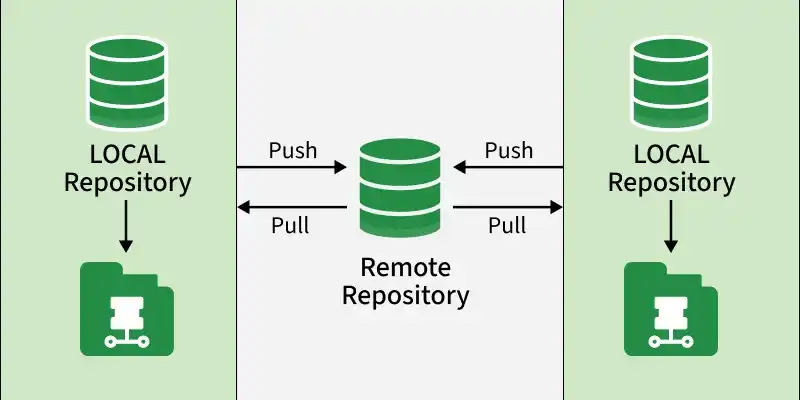
A repository (or repo) is a storage space where your project files and their history are kept. There are two types of repositories in Git:
- **Local Repository: A copy of the project on your local machine.
- **Remote Repository: A version of the project hosted on a server, often on platforms like GitHub, GitLab, or Bitbucket.
2. Commits
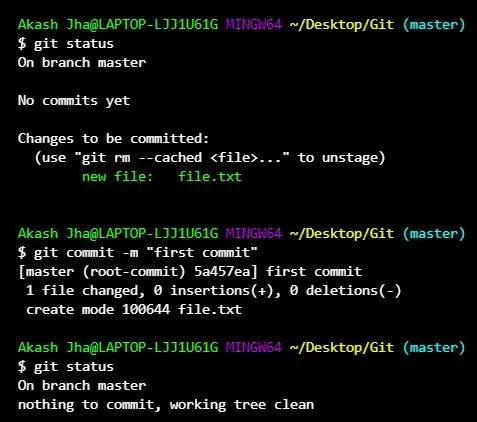
A commit is a snapshot of your project at a specific point in time. Each commit has a unique identifier (hash) and includes a message describing the changes made. Commits allow you to track and review the history of your project.
Commits
3. Branches
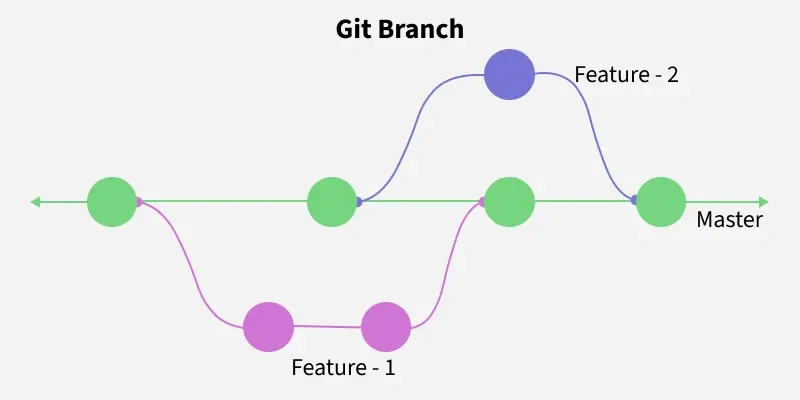
Branches allow developers to work on separate tasks without affecting the main codebase. Common branch types include:
- **Main (or Master) Branch: The stable version of the project, usually production-ready.
- **Feature Branch: Used for developing new features or bug fixes.
Branches
4. Merging
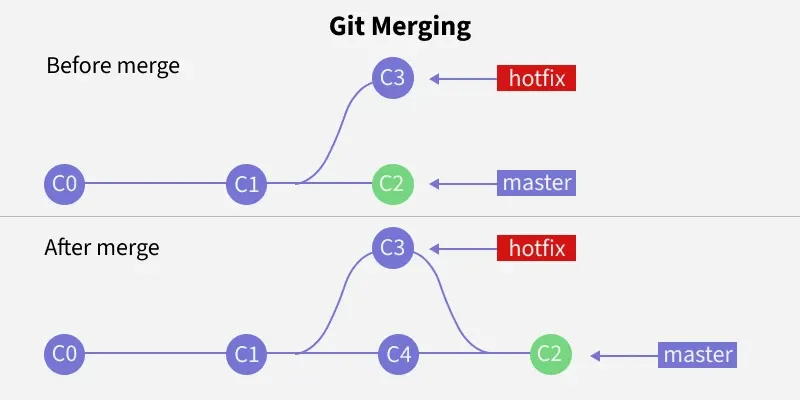
Merging is the process of integrating changes from one branch into another. It allows you to combine the work done in different branches and resolve any conflicts that arise.
Merging
5. Cloning
Cloning a repository means creating a local copy of a remote repository. This copy includes all files, branches, and commit history.

Cloning
6. Pull and Push
- **Pull: Fetches updates from the remote repository and integrates them into your local repository.
- **Push: Sends your local changes to the remote repository, making them available to others.
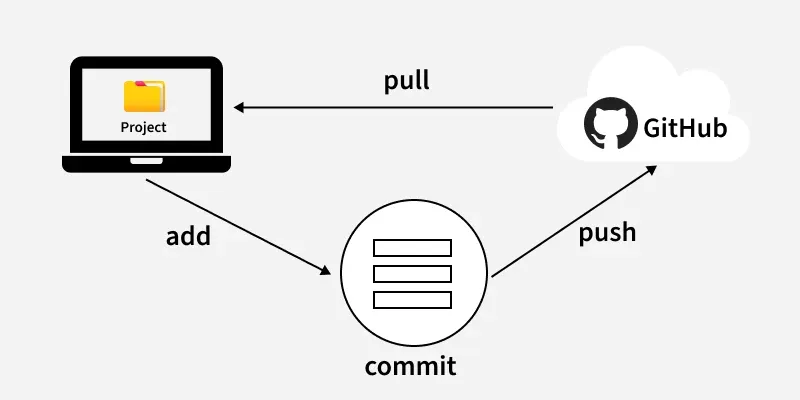
Pull and Push
**The Three States (The Staging Area)
In Git, your files can be in one of three main states. Understanding this is key to understanding how Git works:
- **Working Directory: This is your project folder with all the files you are currently working on. Any changes you make here are not yet tracked by Git.
- **Staging Area (or Index): This is an intermediate area where you list the specific changes you want to include in your next "snapshot" or commit. You use the git add command to move changes from your working directory to the staging area.
- **Repository (.git directory): This is where Git permanently stores the snapshots (commits) of your project. You use the git commit command to save the staged changes into the repository.
This three-step process (modify -> add -> commit) gives you precise control over what gets saved in your project's history.
Basic Git Commands
Git commands are important for navigating and controlling your project repository. These commands help you manage files, track changes, and collaborate with others.
| **Command | **Description |
|---|---|
| git status | Shows the current status of the repository — staged, unstaged, and untracked files. |
| git add | Stages a specific file for commit. Use git add . to stage all changes. |
| git commit -m "message" | Commits the staged changes with a descriptive commit message. |
| git branch | Creates a new branch with the given name. |
| git checkout | Switches to the specified branch. |
| git merge | Merges changes from the given branch into the current branch. |
| git push origin | Pushes the local branch changes to the remote repository. |
| git pull origin | Fetches and merges changes from the remote repository into the local branch. |
| git log | Displays the commit history for the current branch. |
Git Workflow
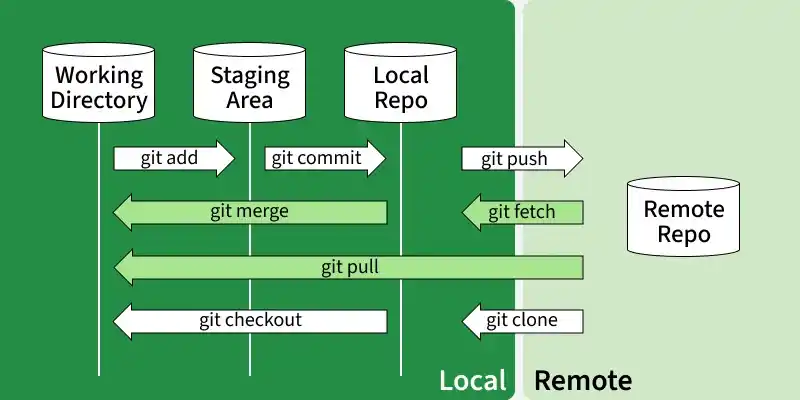
Git workflows define how developers should use Git in a structured and efficient manner.
**1. Clone the Repository
git clone git@github.com:username/repository.git
**2. Create and Switch to a New Branch
git checkout -b feature-branch
**3. Make Changes and Stage Them
git add
**4. Commit the Changes
git commit -m "Add new feature"
**5. Push the Changes
git push origin feature-branch
**6. **Create a Pull Request
After pushing your changes, create a pull request on GitHub to merge the feature branch into the main branch.
**7. Update your Local Repository
git checkout main
git pull origin main
**8. Delete Feature Branch
git branch -d feature-branch
git push origin --delete feature-branch
Git is a crucial tool for modern software development and DevOps. Mastering Git setting up repos, using branches, and managing code enables efficient collaboration and a streamlined, scalable workflow.
Git Hosting
Git Hosting stores your Git repositories on a remote server, enabling collaboration, backup, pull requests, CI/CD, and even website hosting, while Git manages changes locally.
**GitHub
GitHub is a cloud-based Git hosting platform owned by Microsoft, popular for open-source projects and beginner developers. It provides a complete environment for version control, collaboration, and deployment.
- Unlimited public and private repositories
- Pull requests and code reviews for team collaboration
- GitHub Pages for hosting static websites
- Automation and CI/CD with GitHub Actions
**GitLab
GitLab is a complete DevOps platform offering Git repository hosting along with built-in CI/CD, issue tracking, and project management tools. It is ideal for teams and enterprises looking to automate workflows and manage code efficiently.
- Public and private repositories
- Built-in CI/CD pipelines for automation
- Issue tracking and project management
- Option for self-hosting for full control and privacy.
**Bitbucket
Bitbucket is a Git hosting platform by Atlassian, designed for private repositories and team collaboration. It is ideal for small teams or companies seeking a secure environment with tight integration to project management tools.
- Private and public repositories
- Bitbucket Pipelines for CI/CD automation
- Integration with Jira and Trello
- Secure and collaborative environment for teams.