Useful Git Commands and Basic Concepts (original) (raw)
Last Updated : 23 Apr, 2026
Useful Git commands and basic concepts help in managing repositories, tracking changes, and handling version control efficiently in development workflows.
- Provides essential commands to track, commit, and manage changes in projects.
- Helps understand core concepts like staging, commits, and repositories.
- Enables efficient collaboration and version control management.
Setting up Git Repository
Create a Git repository and understand the basic steps involved in working with Git.
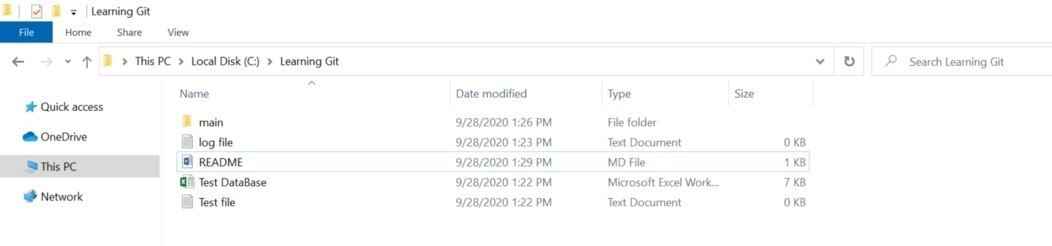
1. Create a Project Folder
Start by creating a folder that contains different types of files such as text files, Excel files, Markdown files, or source code folders. For simplicity, these files can initially be empty.
2. Choose a Tool
You can use:
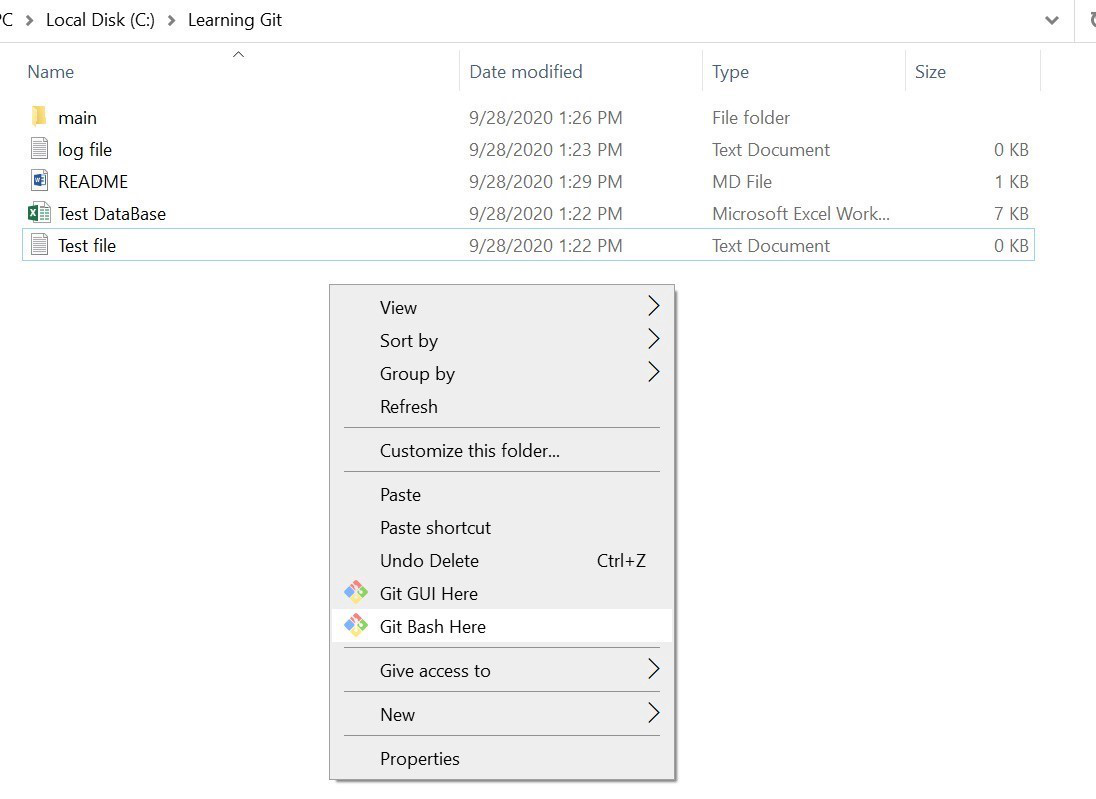
- Git Bash to run Git commands
- VS Code with built-in Git support
Open Git Bash by right-clicking inside the folder and selecting “Git Bash Here”
3. Initialize the Repository
Initialize the folder as a Git repository.
**Command:
git init
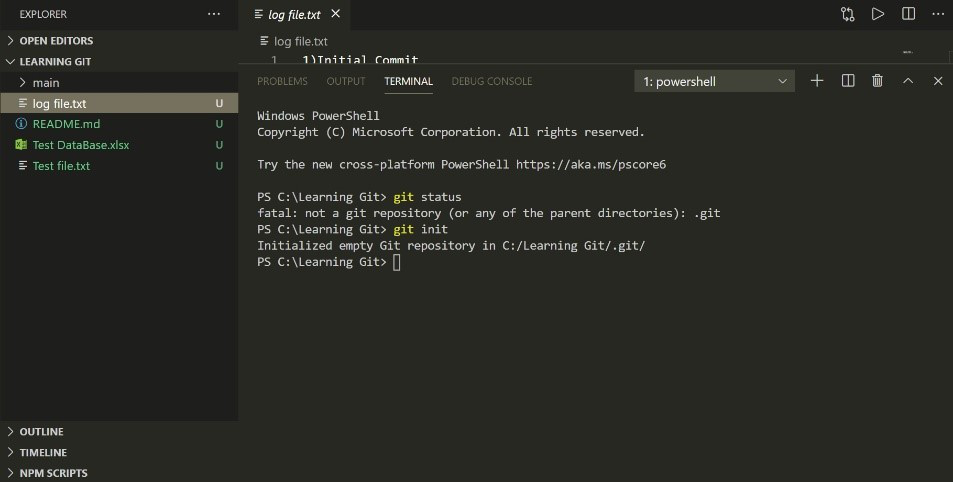
**Note: Do not run this command again on an existing repository, as it may reinitialize it.
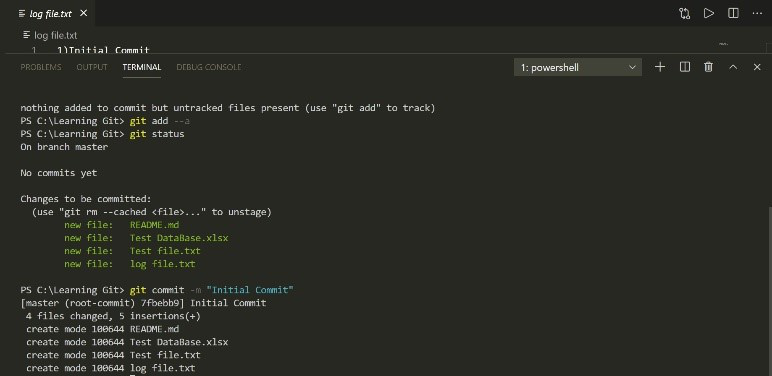
4. Stage Files
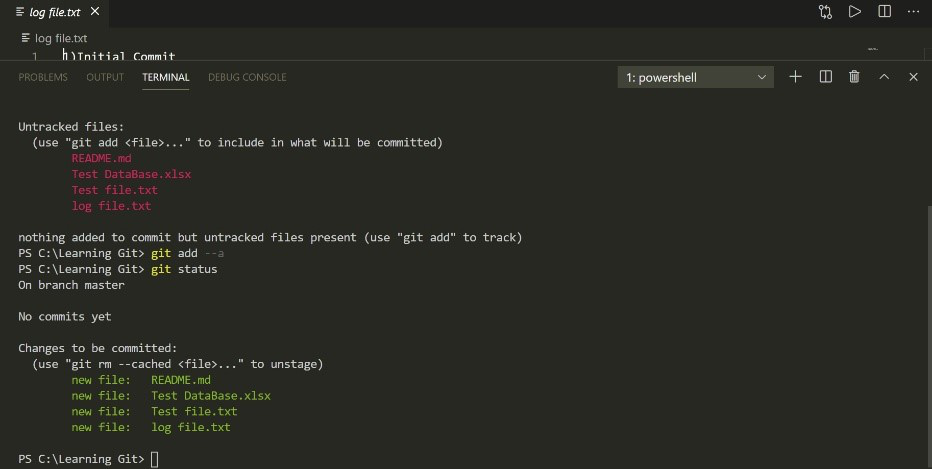
Add files to the staging area so that Git can start tracking them.
**Command:
git add .
5. Create Initial Commit
Make the first commit to save the current state of your project.
**Command:
git commit -m "Initial commit"
Useful Git Commands
These commands help manage repositories, track changes, and perform version control operations efficiently.
1. git init
Initializes a new Git repository in the current directory.
git init
2. git clone
Creates a copy of an existing remote repository.
git clone
3. git status
Displays the state of the working directory and the staging area. It shows which changes have been staged, which haven't, and which files are not being tracked by Git.
git status
4. git add
Adds changes from the working directory to the staging area.
git add
To add all changes:
git add .
5. git commit
Records the changes in the staging area in the repository with a descriptive message.
git commit -m "Your commit message"
6. git log
Shows the commit history for the current branch.
git log
7. git branch
Lists all branches in the repository. The * indicates the current branch.
git branch
Creates a new branch:
git branch
8. git checkout
Switches to a different branch or restores files in the working directory.
git checkout
9. git merge
Merges changes from one branch into the current branch.
git merge
10. git pull
Fetches changes from a remote repository and merges them into the current branch.
git pull origin
11. git push
Uploads local commits to a remote repository.
git push origin
12. git remote
Manages the set of tracked repositories.
To add a new remote:
git remote add
13. git fetch
Downloads objects and refs from another repository.
git fetch
14. git reset
Resets the current HEAD to a specified state. It can be used to unstage changes or move the branch pointer.
To unstage changes:
git reset
15. git diff
Shows changes between commits, commit and working tree, etc.
To see changes in the working directory:
git diff
To see changes between the working directory and the index:
git diff --cached
16. git stash
Temporarily shelves changes in the working directory that are not ready to be committed.
git stash
To apply stashed changes:
git stash apply
17. git tag
Creates a tag to mark a specific point in the repository's history, typically used for releases.
git tag
18. git blame
Shows who made changes to each line in a file.
git blame
19. git reflog
Records updates to the tip of branches. It’s useful for recovering lost commits.
git reflog
20. git rm
Removes files from the working directory and the index.
git rm