Group Management in Linux (original) (raw)
Last Updated : 18 May, 2026
Group management in Linux is used to organize users and control access to files, directories, and system resources. Each user belongs to at least one group, and permissions are often assigned to groups instead of individual users. Linux mainly supports Primary and Secondary groups for managing user access efficiently.
- Organize users based on roles and responsibilities
- Controls access to files and directories through group ownership
- Simplify access management for multiple users
- Improves system security and access control
- Helps administrators manage shared resources efficiently and support collaborative work environments
Types of Groups in Linux
In Linux , groups are classified into Primary and Secondary groups based on their purpose and usage. Proper understanding of these groups helps in managing permissions accurately.
1. Primary Group
A Primary Group is the default group assigned to a user when the account is created.
- Automatically created during user creation
- Usually has the same Group ID (GID) as the User ID (UID) but may vary as both are different identifiers
- Each user can have only one primary group
- All files created by the user belong to this group by default
- Cannot be removed while the user account exists but can be reassigned to other
2. Secondary Group
A secondary group is created separately and used to grant additional permissions. Users can belong to multiple secondary groups at the same time.
- Created manually by administrators
- Used to provide extra access rights
- Allows shared access to resources
- A user can belong to multiple secondary groups
Creating a Secondary Group (groupadd)
The groupadd command is used to create new groups in Linux. When a group is created, the system automatically assigns it a unique Group ID (GID). All group information is stored in the /etc/group file.
- Creates a new group entry in /etc/group
- Automatically assigns a unique GID
- Requires administrative privileges
- Used before adding users to the group
**Syntax:
groupadd group_name
**Example: Create a New Group
To create a new secondary group for organizing users.
**Command:
groupadd Group1

**Note: Verifying group creation using tail -3 /etc/group
Setting the Password for a Group (gpasswd)
The gpasswd command is used to manage group passwords and membership. It allows administrators to assign a password to a group for controlled access.
- Sets or updates the password of a group
- Stores password information in /etc/gshadow
- Requires administrative privileges
**Syntax:
gpasswd group_name
**Example: Assign a Group Password
To set a password for a group.
**Command:
gpasswd Group1

Viewing Group Password Information (/etc/gshadow)
Group security information, including encrypted passwords and administrators, is stored in the /etc/gshadow file. This file is used by the system for secure group management.
- Stores encrypted group passwords
- Contains group administrators and members details
- Accessible only by root users
- Used for security auditing and administration
**Syntax:
cat /etc/gshadow
- **cat: Displays file contents
- ****/etc/gshadow:** Secure group information file

Adding a User to an Existing Group
The usermod command is used to modify user account settings in Linux. It allows administrators to add users to secondary groups for permission management. The -G option assigns a user to specified secondary groups.
- Modifies existing user accounts
- Assigns user to one or more secondary groups
- Replaces all previous secondary groups
- Requires administrative privileges
**Syntax:
usermod -G group_name username
**Example: Add User to a Group (Replace Existing Groups)
To add a user to a new group while replacing all previous secondary groups.
**Command:
usermod -G Group1 John_Wick

**Note: If we add a user to a group then it automatically gets removed from the previous groups, we can prevent this by the command given below.
Adding User Without Removing Existing Groups (usermod -aG)
The -aG options with usermod are used to append a user to additional groups. This method preserves existing group memberships.
- Appends new groups without removing old ones
- Maintains existing secondary groups
- Recommended for routine administration
- Requires administrative privileges
**Syntax:
usermod -aG group_name username
**Example: Add User Without Removing Existing Groups
To add a user to a group while keeping current group memberships.
**Command:
usermod -aG group2 John_Wick
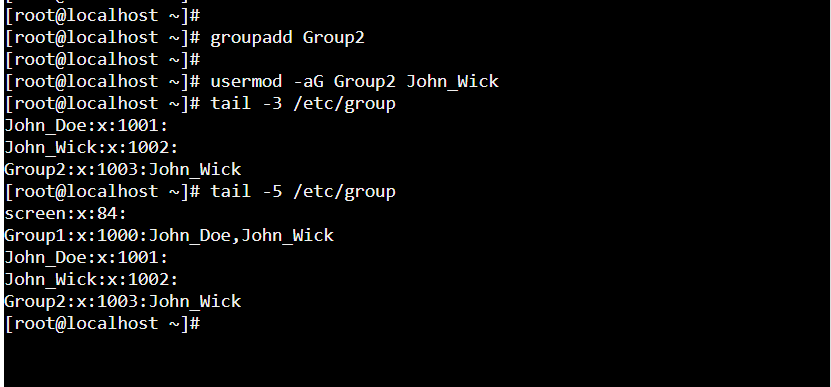
**Note:
- Always use -a with -G,
- Missing -a replaces group list
- Changes apply after re-login
Adding Multiple Users to a Group (gpasswd -M)
The gpasswd command with the -M option is used to assign multiple users to a group at once. It replaces the existing member list of a group with a new list. This method is useful for bulk user management.
- Assigns multiple users in a single command
- Replaces current group members
- Accepts comma-separated and space separated usernames
- Requires administrative privileges
**Syntax:
gpasswd -M user_name1,user_name2,user_name3... group_name
**Example: Add Multiple Users
To assign several users to a group simultaneously.
**Command:
gpasswd -M user1, user2,user3 Group2

**Notes: No spaces allowed between usernames
Removing a User from a Group (gpasswd -d)
The gpasswd command with the -d option is used to remove a user from a specific group. This operation does not delete the user account from the system. It only revokes the user’s membership from the selected group.
- Removes user from a specific group
- Keeps the user account active
- Preserves other group memberships
- Requires administrative privileges
**Syntax:
gpasswd -d username group_name
**Example: Remove a User from a Group
To delete a user from a specific group.
**Command:
gpasswd -d user1 Group2

**Note: Primary group is not affected, user remains in other groups
Deleting a Group (groupdel)
The groupdel command is used to permanently remove a group from the Linux system. When a group is deleted, users are not removed, but they lose membership in that group. If the deleted group was their only secondary group, they continue with their primary group.
- Removes group from /etc/group and /etc/gshadow
- Keeps user accounts active
- Reverts users to their primary groups if required
- Requires administrative privileges
**Syntax:
groupdel group_name
**Example: Delete a Group
To permanently remove a group from the system.
**Command:
groupdel Group1
